Travel connectivity guide
Apple iPhone 17 Plus 128GB 5G eSIM
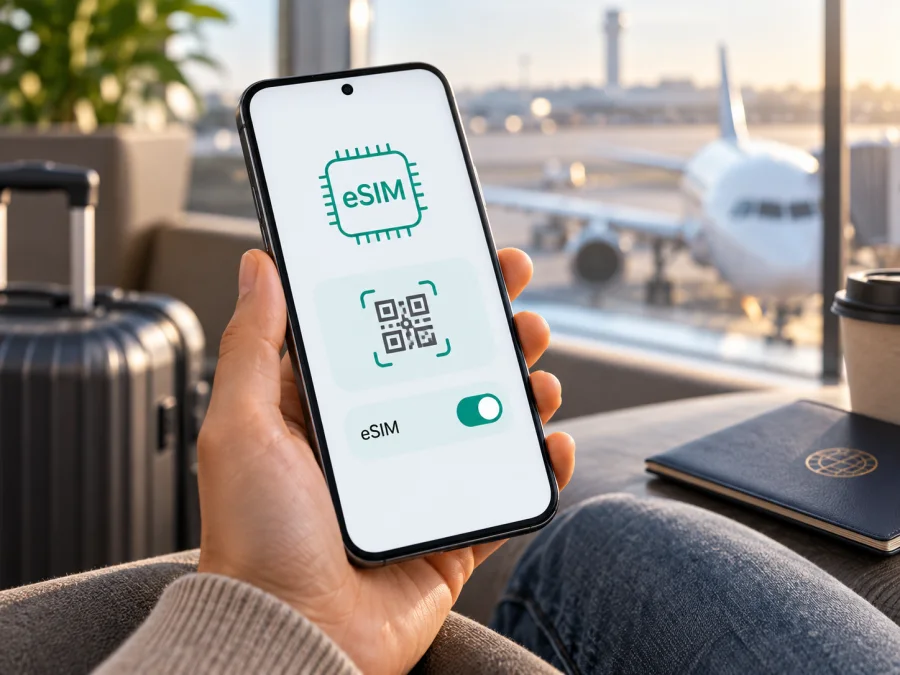
Apple iPhone 17 Plus 128GB 5G eSIM compatibility and installation
If you are considering an Apple iPhone 17 Plus 128GB 5G, the answer needs one important qualification. Apple’s current official iPhone 17 specifications confirm eSIM support for the iPhone 17 family, but they do not list an official model called “iPhone 17 Plus” with 128GB storage. The name may be a retailer’s catalogue label, a regional description or an error. Do not rely on the title alone when buying a travel eSIM. Confirm the actual model, market version and EID in the phone first.
For a genuine iPhone 17 family device, Apple documents dual eSIM support. Some market versions are eSIM-only, while other regional versions combine a physical nano-SIM with eSIM. On eSIM-only versions, Apple describes two active eSIMs and storage for eight or more profiles. The exact arrangement depends on the country of sale, model identifier and carrier configuration. The 128GB and 5G words in a seller’s title do not prove that a particular device has an eSIM radio, and 5G support by itself is not an eSIM feature.
Quick answer for Apple iPhone 17 Plus 128GB 5G
The exact variant in the request cannot be confirmed from Apple’s current official catalogue because the official iPhone 17 page lists different capacities and does not show an iPhone 17 Plus. If the seller’s Apple iPhone 17 Plus 128GB 5G is actually a correctly working iPhone 17-family device, eSIM is expected to be available according to Apple’s official specifications. Treat the specific listing as unverified until the phone itself shows an EID or an option to add eSIM.
This is not proof that every phone sold under this name is incompatible. It means the exact commercial variant has not been established by the manufacturer’s current public specifications. The reliable decision comes from settings and model information, not from memory capacity.
What the listing details mean
Keep the complete name when comparing a listing with your order. Removing “128GB” or “5G” can merge different catalogue entries, but neither modifier identifies the eSIM implementation with certainty.
| Listing detail | What it means for eSIM |
|---|---|
| Apple iPhone 17 Plus | “Plus” is not shown on the current official iPhone 17 specification page, so the hardware needs confirmation. |
| 128GB | Storage capacity; it neither confirms nor rules out eSIM. |
| 5G | A cellular-network capability in the listing, not proof of an eSIM profile slot. |
| Regional version | The same family may be eSIM-only in one market and nano-SIM plus eSIM in another. |
| Carrier status | A phone can support eSIM but reject a new profile while locked to an operator. |
| EID in Settings | A strong device-level sign that an embedded SIM component is present. |
| Add eSIM in Settings | A practical sign that the operating system can set up a digital SIM. |
How regional and carrier versions differ
Apple publishes specifications by market, and SIM arrangements can vary. Some official regional pages describe an eSIM-only design; others describe Dual SIM with nano-SIM and eSIM, together with support for two eSIMs. Two phones that look alike may therefore have different trays and setup screens. An imported phone may support eSIM but have a different arrangement than expected, while a carrier lock can prevent a new profile from working.
[kesim-device-compatibility]
Check eSIM compatibility before you buy
Use this process while you still have access to the phone or a clear return option, especially when the product page uses the exact name Apple iPhone 17 Plus 128GB 5G without a model identifier.
iPhone settings check
- Open Settings.
- Tap General, then About.
- Look for EID, the long identifier associated with the embedded SIM component. Do not publish the complete number in a public chat or screenshot.
- Return to Settings and open Cellular or Mobile Data. Look for Add eSIM, Set Up Cellular or an equivalent option. Wording can vary with iOS language and version.
- In the cellular-plan area, check whether another eSIM can be added if a line is already present.
- In Settings > General > About, check carrier-lock status if shown. The desired result is an indication such as No SIM restrictions. If the field is unavailable, ask the seller or original carrier for confirmation.
The EID and add-eSIM option are more useful than a 5G icon. The icon only shows a current network connection, not whether a new digital profile can be installed.
Compatibility checklist
Before purchasing a travel plan for Apple iPhone 17 Plus 128GB 5G, confirm all of the following:
- [ ] The actual phone displays an EID.
- [ ] Settings includes an option to add or set up an eSIM.
- [ ] The model and region match the seller’s description.
- [ ] The device is not carrier-locked.
- [ ] The iPhone can connect to Wi‑Fi during setup.
- [ ] The iOS version supports the supplied installation flow.
- [ ] The plan covers every country or region on your route.
- [ ] You understand data allowance, validity and activation conditions.
- [ ] You know whether data roaming must be enabled for the travel eSIM.
- [ ] You have kept your primary number available if needed.
If any box is uncertain, pause the order. Resolve a model or carrier question at home rather than at the airport after the QR code has been issued.
Check your device before choosing a plan.
Prepare for installation
You need the compatible, unlocked iPhone; stable Wi‑Fi; the QR code, activation details or in-app flow; account access; enough battery; and a plan suited to the destination and dates. Do not delete an existing plan or scan the QR code repeatedly on several devices until you understand the profile limits and terms.
How to install and activate an eSIM on iPhone
Screen names can change with iOS updates. The dedicated iOS guide is available here: https://kasperskyesimstore.com/instructions/ios/. The Android guide is available here: https://kasperskyesimstore.com/instructions/android/; it can help when a second phone displays the QR code or when you configure another device.
1. Confirm the plan and device
Check destination, data allowance, validity and activation rules. Confirm that Apple iPhone 17 Plus 128GB 5G is only a verified match if the phone shows an EID and eSIM option. Make sure it is unlocked and on Wi‑Fi.
2. Open mobile-data settings
Open Settings, select Cellular or Mobile Data, and choose Add eSIM. If the option is absent, stop and repeat the EID and region checks. Do not force an installation through a menu that does not exist.
3. Scan the activation code
Choose the QR-code option and scan the code shown on another screen. If the flow supplies an in-app or manual method, use that instead. Keep the QR code private.
4. Label the profile
Use a clear label such as Travel data or the destination name so you do not select the wrong line later.
5. Choose the lines
Keep your primary line for needed calls or messages and select the travel eSIM for data. Read each prompt rather than accepting every default.
6. Set the travel line for data
In Cellular/Mobile Data, select the travel profile as the data line. If required, enable data roaming for that eSIM only; keep it off for the primary line unless you intend to use home-operator roaming.
7. Activate at the right time
Some plans begin validity on first connection; others use different rules. You can often install before departure and enable the line on arrival if the plan allows. Installation and activation are separate events.
8. Test the connection
After arrival, turn off Wi‑Fi briefly and open a webpage or messaging app. Confirm the data indicator belongs to the travel line. If not, wait, restart and review line, roaming and network settings before deleting anything.
Using the eSIM for mobile internet while travelling
A practical setup is a dual-line arrangement: retain the primary line for the number you need and assign the travel eSIM to data. Active-line and data options depend on the regional model and carrier.
Before departure:
- Install the profile while reliable Wi‑Fi is available.
- Name the line clearly.
- Set it as the data line only when you are ready to use it.
- Decide whether Allow Mobile Data Switching should stay off, so data does not silently move to the primary line.
- Check whether the travel plan requires data roaming.
- Save plan and support details where they are available offline.
On arrival, enable the travel line, select it for data, enable only its required roaming setting and allow time for registration. Coverage and speed depend on destination networks and plan conditions. Kaspersky eSIM Store is an app and website where you can choose, arrange and activate an eSIM with a travel data plan; it is not a mobile operator, network owner or mobile-internet provider.
Short city break
For a few days in one country, install before departure and activate under the plan’s rules. Use it for maps, tickets, translation, transport and messaging, while monitoring photo backup and video streaming.
Multi-country route
Choose a plan that explicitly covers every destination. A plan for one country does not automatically follow you across a border. Review coverage and validity before installation.
Keeping the home number
Leave the primary line for needed services and make the travel eSIM the data line. Check home-operator roaming charges. A travel data eSIM is not automatically a phone number, voice or SMS service.
Work and hotspot use
Check that tethering is allowed. Video calls, cloud sync and updates can consume data quickly, so monitor usage and turn hotspot sharing off when not needed.
Troubleshooting common problems
No EID or Add eSIM option
The phone may be a different model, a region-specific version or affected by software. Update iOS, restart and check Settings > General > About again. If the EID is absent, do not buy or install the plan; ask the seller for confirmation.
QR code will not scan
Increase the other screen’s brightness, clean the camera area and hold the phones steady. Make sure the code is complete. If it is on the same iPhone, use the provider’s alternative method. Do not share it.
Profile will not download
Check Wi‑Fi, date and time, storage and whether the profile was already installed. Confirm the phone is unlocked and the profile is intended for it. If the order says the code was used, contact support instead of retrying.
Installed but no signal
In Settings > Cellular/Mobile Data, confirm the travel line is on and selected for data. Check roaming, restart and wait. Leave network selection automatic unless instructed otherwise, and confirm coverage and validity.
The phone uses the primary line for data
Check mobile-data selection and turn off automatic data switching for strict separation. With Wi‑Fi off, confirm the active line and turn off primary-line roaming unless intended.
Data disappears quickly
Review cellular usage, Personal Hotspot, video quality, photo backup and updates. Restrict heavy background activity and use Wi‑Fi for large downloads.
The phone is carrier-locked
An operator lock can block a travel eSIM even when the hardware supports it. Contact the original carrier or seller; resetting the phone or scanning another QR code will not remove a lock.
Frequently asked questions
Does Apple iPhone 17 Plus 128GB 5G support eSIM?
The exact listing cannot be confirmed as an official Apple configuration because the current iPhone 17 specifications do not list an iPhone 17 Plus with 128GB. Genuine iPhone 17-family hardware is documented with eSIM support, but verify the individual phone’s EID, Add eSIM option, region and carrier-lock status before purchase.
Does 5G mean that eSIM will work?
No. 5G describes cellular-network capability. eSIM requires the correct embedded-SIM hardware, software support, a compatible plan and an unlocked device.
Can I use a physical SIM and a travel eSIM together?
It depends on the regional version and carrier. Some combine nano-SIM and eSIM; eSIM-only versions do not accept a physical SIM. Check the phone.
Does the travel eSIM include calls and SMS?
Not necessarily. Many plans are for mobile internet only. Check the terms. Internet calling and messaging apps can work over data, but they do not create a normal number.
Should I install before flying?
Installing before departure is convenient because Wi‑Fi is available and you have time to check settings. Whether to activate immediately depends on when validity begins. Read the plan conditions and enable the line at the appropriate time.
Final device check before choosing a travel eSIM
For the exact Apple iPhone 17 Plus 128GB 5G name, the safest conclusion is conditional: Apple confirms eSIM support across the iPhone 17 family, yet the specific “Plus 128GB” configuration is not shown in the current official specifications. Before choosing a travel plan, verify the model and region, find the EID, confirm Add eSIM in Settings and check that the phone is unlocked. Then select a destination plan by coverage, data allowance, validity period and activation rules.
Once those checks pass, Kaspersky eSIM Store can help you choose, arrange and activate an eSIM with a suitable mobile-data plan for your overseas trip through its app or website. Keep the primary and travel lines clearly labelled, select the travel eSIM for mobile data, enable only the roaming setting it requires and test the connection after arrival. If any check fails, resolve compatibility first and postpone the purchase rather than risking an unusable profile.


