Travel connectivity guide
Apple iPhone 17 Plus 128GB eSIM Compatibility
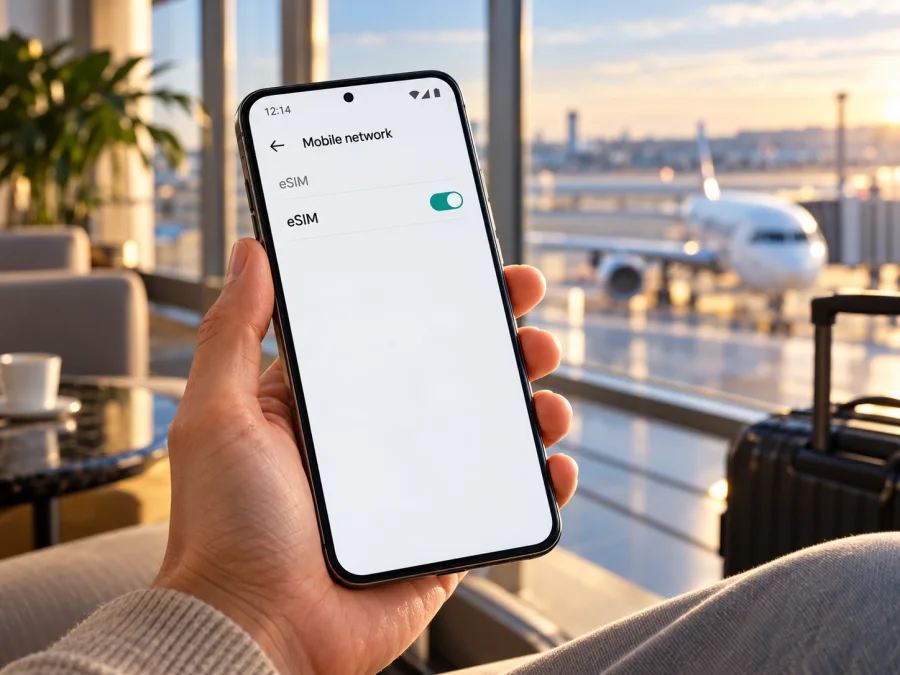
Apple iPhone 17 Plus 128GB eSIM: compatibility and setup
If you are checking whether Apple iPhone 17 Plus 128GB can use an eSIM, there is an important first step: confirm the exact model before buying a plan. Apple’s current iPhone lineup and comparison pages do not list an iPhone 17 Plus, and they do not confirm a 128GB configuration under that name. The requested product identity therefore cannot be verified from Apple’s current official information. It would be misleading to give a definite yes or no for that exact name, or to assume that its eSIM behavior matches another iPhone.
Apple does confirm eSIM support for the distinct iPhone 17. That is useful context, but it does not establish that a device labelled Apple iPhone 17 Plus 128GB is the same product or has the same capabilities. Before relying on eSIM, identify the physical phone by its model number and check its settings. If the seller cannot provide a verifiable model number, ask them to clarify the listing before purchase.
| Check | What is currently verifiable |
|---|---|
| Exact name in this guide | Apple iPhone 17 Plus 128GB, preserved as provided |
| Official product identity | Not confirmed in Apple’s current iPhone lineup and comparison pages |
| 128GB variant under this name | Not confirmed by the current official information reviewed |
| eSIM support for this exact name | Unverified; check the phone itself and verify the model number with Apple or the seller |
| Related but distinct device | Apple lists iPhone 17 separately and confirms eSIM on that model; this does not prove support for the named configuration |
| Regional behavior | iPhone SIM options can vary by the market where a device was sold; verify the individual unit |
| Before purchase | Confirm eSIM settings or EID, unlocked status, and the seller’s exact model details |
Does Apple iPhone 17 Plus 128GB support eSIM?
There is no reliable basis to confirm eSIM support for Apple iPhone 17 Plus 128GB as named. Apple’s current model comparison lists iPhone 17, iPhone 17 Pro, iPhone 17 Pro Max, and other models, but not iPhone 17 Plus. It lists iPhone 16 Plus among the previous-generation models. The absence of the requested name does not prove that a seller’s device is counterfeit or that it cannot use eSIM; it means the listing name is not enough to identify the hardware and its regional variant.
For the distinct iPhone 17, Apple’s specifications say it uses eSIM and does not support a physical SIM in the configuration described on Apple’s US page. Apple’s support information also groups iPhone models by SIM arrangement and explains that available arrangements depend on purchase market. For example, certain iPhone generations have eSIM-only models in selected markets and eSIM plus nano-SIM models elsewhere. These rules are specific to recognized model families and markets. Do not transfer the iPhone 17’s eSIM-only description to a device advertised as an “iPhone 17 Plus 128GB.”
The most useful answer for an owner is therefore practical: treat compatibility as not yet verified until the device’s model number and settings confirm it. If you have the phone, follow the checks below. If you are shopping, request a photo of Settings > General > About and a written confirmation of the exact model and eSIM support. A product title, storage label, packaging image, or seller’s generic “global version” description is not sufficient on its own.
Why region and carrier status matter
SIM arrangements vary by iPhone model and sales market. Apple’s support page currently identifies iPhone 17, iPhone 17 Pro, and iPhone 17 Pro Max units purchased in the United States, US Virgin Islands, Canada, Mexico, Japan, Guam, United Arab Emirates, Saudi Arabia, Bahrain, Kuwait, Qatar, and Oman as eSIM-only. It describes those models purchased outside those markets as using eSIM with nano-SIM. Apple’s mainland China eSIM support list does not include iPhone 17. These geographic rules describe recognized iPhone 17 models, not the unverified “iPhone 17 Plus 128GB”; do not use them to infer the latter’s configuration. This status was checked against Apple Support on 1 November 2026.
A device’s sales market and the country where you use it are different facts: an imported phone retains its hardware variant. Even an eSIM-capable regional model needs a provider that supports eSIM for that device and service in the destination. A local mobile operator’s eSIM availability does not automatically mean it supports a particular travel plan or profile.
Carrier lock is a separate issue. An eSIM-capable phone may still reject another provider’s profile if it is locked. On iPhone, check Settings > General > About > Carrier Lock. “No SIM restrictions” means it is unlocked. Otherwise, ask the original carrier about unlocking before purchasing a travel eSIM.
Check three things separately: whether the hardware supports eSIM, whether the provider and destination support the profile, and whether the phone is unlocked. A plan must also cover your destination and meet its own validity and installation conditions.
Check your iPhone before you buy a plan
Use the phone’s own settings as the first practical check. Menu wording can differ slightly by iOS version or language, so update the device if its software is old and look for the equivalent mobile-service options if a label differs.
1. Look for an EID
- Connect to Wi-Fi and open Settings > General > About.
- Look for EID and record the model name and model number. Tap the part number if needed to reveal the model number.
An EID is associated with eSIM capability and is a strong sign the phone can store an eSIM. Still verify the model and unlock status. If there is no EID, do not assume eSIM will work; check the model number with Apple or the seller.
2. Check for an option to add eSIM
- Open Settings > Cellular (called Mobile Data in some regions).
- Look for Add eSIM, Set Up Cellular, or a similar option. You can check the menu without scanning a code or installing a profile.
- If the option is missing, restart the phone, connect to Wi-Fi, install available iOS updates, and check again.
Menu availability is not a complete guarantee: carrier policy, device management, software, and regional variants can affect it. If the model remains unclear, ask Apple Support or the seller using the model number. Do not share your full EID publicly.
3. Confirm that the phone is not locked
Go to Settings > General > About > Carrier Lock. No SIM restrictions means the iPhone is unlocked. Otherwise, ask the original carrier about unlocking. A travel eSIM cannot remove an operator lock.
Compatibility checklist
Before selecting an eSIM plan, make sure you can answer yes to the items that apply:
- [ ] I can identify the actual iPhone model from its model number, not just the sales title.
- [ ] The phone shows an EID or offers an Add eSIM option.
- [ ] The phone is unlocked or the original carrier has confirmed that another eSIM can be used.
- [ ] The eSIM provider supports the device and installation method.
- [ ] The plan’s destination, data allowance, validity period, activation rules, and restrictions fit my trip.
- [ ] I have Wi-Fi or another internet connection available during installation.
- [ ] I know which line will be used for mobile data and whether data roaming must be enabled for that eSIM.
Check your device compatibility before choosing a plan. For this particular product name, do not mark the first checks complete until you have verified the underlying model.
Set up an eSIM on an iPhone
The exact device named here is unverified, so these steps describe the standard iPhone setup path only. They are relevant if the actual phone is a supported, unlocked iPhone running compatible software and the eSIM provider supports its model. Follow the instructions shown by the provider and on the phone; setup options can vary by carrier, country, iOS version, and the way the eSIM is delivered.
Before you start, keep the QR code or installation details accessible on another screen or in the provider’s app. Connect to a stable Wi-Fi network, check that the iPhone has enough battery, and confirm that the plan is intended for your destination. Do not delete an existing profile just to troubleshoot unless the provider tells you to: some eSIM profiles cannot be reinstalled after deletion.
Install with a QR code
- Connect to Wi-Fi and keep the QR code or installation details available on another screen.
- Open Settings > Cellular (or Mobile Data) and tap Add eSIM or Set Up Cellular.
- Choose the QR-code option and scan the code supplied with your plan. If it is displayed on this iPhone, use the provider’s app or manual-entry option instead.
- Confirm and add the plan by following the prompts. Treat the QR code as private; it may be single-use.
- Label the line “Travel” or another clear name, then select which line should handle calls and mobile data.
- Wait for installation to finish and confirm that the new line is switched on under Settings > Cellular.
Some providers use direct app installation or a manual activation code. Use the method in your order details. Profile installation and plan activation may happen at different times: validity might begin on installation, first connection, or a scheduled date. Check the plan terms before installing if timing matters.
For device guidance, see the iOS eSIM installation instructions. Android users can use the Android eSIM installation instructions.
Turn on the eSIM for travel data
Once the profile is installed, select the line deliberately:
- Open Settings > Cellular.
- Tap Cellular Data and select the travel eSIM.
- If you want your home number to remain available, review the Default Voice Line and line toggles rather than turning off a number you still need.
- Open the travel eSIM’s settings and enable Data Roaming only if the plan’s instructions require it. Some travel eSIMs need roaming enabled to connect to a partner network. The setting itself does not determine the price; the conditions of the selected plan and the active line do.
- If you do not want your home plan to use data abroad, disable Allow Cellular Data Switching and make sure the home line is not selected for mobile data. Confirm any roaming charges with your home operator.
- Turn Wi-Fi off briefly when you are ready to verify that the eSIM can connect, then check the signal and open a simple webpage.
A travel eSIM may provide data only, without a regular number, calls, or SMS; check the plan terms. Internet messaging and calling apps may work over data. Keep your usual number available if needed for bank verification, and check your home operator’s roaming conditions.
Using an eSIM on a trip
For a single-country trip, choose a plan that explicitly includes that destination. For a multi-country route, check every stop and any exclusions; “regional” or “global” does not automatically mean every country is covered. Compare the data allowance, validity, and activation rules with your itinerary.
Estimate usage based on your habits. Maps, messaging, and browsing usually consume less data than video, photo uploads, hotspot use, or remote work. Download maps and travel documents over Wi-Fi beforehand. If tethering matters, confirm that both the iPhone and the plan allow it.
You may be able to install before departure, but follow the provider’s instructions for when to switch the eSIM on. Validity may start at installation, first network connection, or a scheduled time. Keep the profile installed and save setup details where you can access them offline.
At your destination, allow time for network registration. Service depends on the plan’s supported local networks, device bands, location, and current conditions; an eSIM does not guarantee reception everywhere. When crossing a border, the phone may need to connect to a supported network again.
Kaspersky eSIM Store is an app and website where travellers can choose, arrange, and activate an eSIM with a suitable mobile-data plan for a trip abroad. It does not make a handset compatible or replace checking the device, plan terms, and destination. Review the data allowance, validity, destination list, and activation timing; availability and prices can change.
Common problems and what to check
“Add eSIM” is missing
Confirm the model number and look for an EID in Settings > General > About. Restart, connect to Wi-Fi, and update iOS. If both the EID and menu option are absent, ask Apple Support or the seller to identify the device. The “iPhone 17 Plus 128GB” title alone cannot establish compatibility.
The QR code will not scan
Increase the display brightness, clean the camera lens, and check that the code has not expired or been used. A phone cannot scan a code displayed on its own screen; use the provider app or manual entry if offered. Never post the code publicly.
The eSIM installs but has no service or data
Make sure the eSIM line is on and selected for mobile data. Confirm the destination is included and the plan is active. Follow provider instructions for data roaming, network selection, or APN settings. Toggle Airplane Mode, restart, and test with Wi-Fi off. If still at home, the profile may only connect in the covered destination.
The home SIM uses data abroad
Select the travel eSIM under Settings > Cellular > Cellular Data and turn off Allow Cellular Data Switching if you do not want automatic switching. Check roaming settings on each line and ask your home operator about charges for calls or messages.
Installation is pending or failed
Use stable internet, check the eSIM list before retrying, and follow the order’s activation timing. QR codes may be single-use; deleting a profile can prevent reinstallation. Contact the provider with the order reference, but do not send passwords or full payment details.
There is no EID or the phone is locked
Pause the purchase and verify the model if no EID or add-eSIM option appears. If Carrier Lock does not say No SIM restrictions, ask the original carrier about unlocking. An update or new QR code cannot add eSIM hardware or remove a carrier restriction.
FAQ
Is Apple iPhone 17 Plus 128GB an official Apple model?
Apple’s current public lineup and comparison information do not list that exact name. The 128GB configuration is also unconfirmed under this product identity. Ask the seller or Apple to verify the model number.
Can I say that Apple iPhone 17 Plus 128GB supports eSIM?
Not from the product name alone. Apple confirms eSIM for the distinct iPhone 17, but that does not establish support for an unverified “Plus 128GB” listing. Check the model number, EID, Add eSIM setting, and unlock status.
Do regional versions have the same SIM setup?
No. Depending on the recognized model and sales market, an iPhone may be eSIM-only or support eSIM with a physical SIM. Verify the individual phone and local provider support.
Does 128GB storage affect eSIM compatibility?
Storage capacity does not establish eSIM support. The hardware model, regional configuration, and carrier conditions matter; keep the storage detail when asking the seller to identify it.
Can I keep my regular number, and does the travel plan include calls?
A compatible iPhone may allow you to keep your usual line and use the eSIM for data, but SIM options depend on the device. Travel eSIMs may be data-only, without a regular number, calls, or SMS. Check the exact plan terms and your home operator’s roaming charges.
What should I do if I cannot confirm the model?
Ask for the model number, a screenshot of Settings > General > About, and confirmation of EID and carrier-unlock status. If the seller cannot provide verifiable details, choose a device whose identity and eSIM support can be confirmed before purchase.
Check the device, then choose a travel eSIM
For Apple iPhone 17 Plus 128GB, the exact model identity and eSIM support remain unverified in Apple’s current public information. Preserve the name when checking with the seller, but use the phone’s model number, EID, Add eSIM setting, and Carrier Lock status to make the practical decision. A confirmed EID and eSIM menu are useful checks; a verified, unlocked model is the safer basis for purchase.
Once compatibility is established, check that the plan covers your destination and route, that its data allowance and validity suit your trip, and that you understand when activation begins. Kaspersky eSIM Store helps travellers choose, arrange, and activate a travel eSIM data plan through its app and website. You can browse the Kaspersky eSIM Store website for current travel plans; this is the general store homepage, not a page for a particular country or a guarantee that a specific plan is available.


