Travel connectivity guide
Apple iPhone 17 Pro 128GB 5G eSIM: compatibility guide
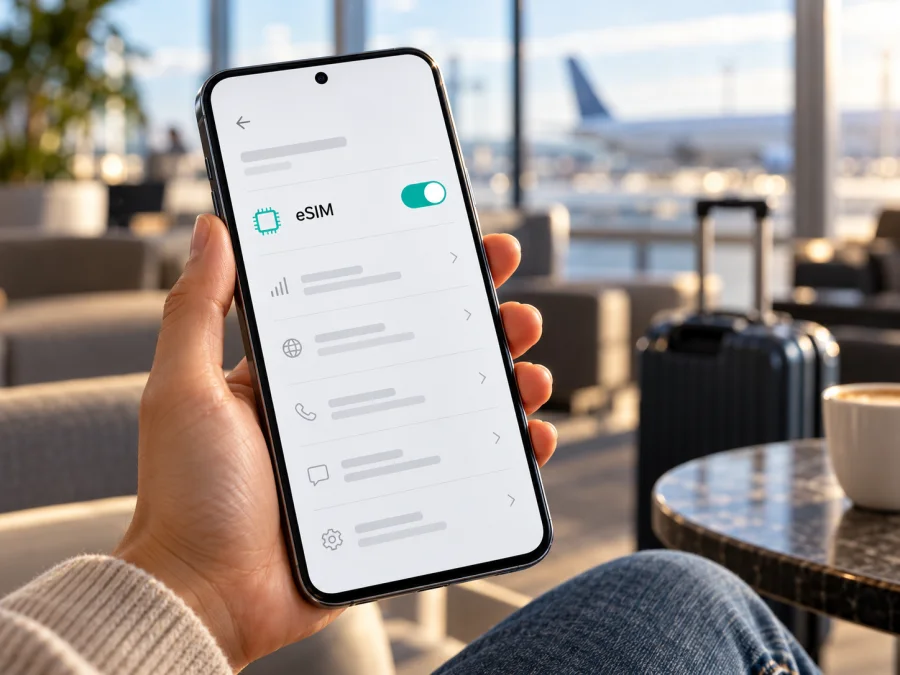
Apple iPhone 17 Pro 128GB 5G and eSIM: compatibility and travel setup
Short answer: eSIM is supported by many regional versions of the iPhone 17 Pro, including U.S. models that activate exclusively with eSIM. But the exact listing Apple iPhone 17 Pro 128GB 5G needs an extra check: Apple’s current iPhone 17 Pro technical specifications list 256GB, 512GB and 1TB capacities, not 128GB. The 128GB description therefore does not match the official capacity options I could verify. It may be a seller listing error, a bundled storage description, or a different device; do not infer the phone’s identity from the headline alone. Verify the model and part number on the device and packaging before buying a plan.
The 5G label describes cellular network capability; it does not by itself prove that a particular regional version has eSIM. Check the model’s settings, country of sale, carrier lock status and the eSIM requirements of the plan you intend to use. Apple’s iPhone 17 Pro technical specifications and support information, checked in October 2026, confirm eSIM availability for the product family but also document regional differences.
Does Apple iPhone 17 Pro 128GB 5G support eSIM?
The answer depends on what device the 128GB listing actually identifies and where that phone was made for sale. For an authentic, eSIM-capable iPhone 17 Pro in a supported market, the answer is yes. Apple lists the iPhone 17 Pro with eSIM support, and some versions have no physical SIM tray and activate only with eSIM. The advertised 128GB capacity is not one of the capacities in Apple’s official specification, so the exact named configuration cannot be confirmed as a standard Apple variant from that source. Treat eSIM support for the exact listing as unverified until the device itself passes the checks below.
| Check | What is confirmed | What you should verify |
|---|---|---|
| Device name | Apple identifies an iPhone 17 Pro generation introduced in 2025. | Confirm that the phone is genuinely an iPhone 17 Pro, rather than relying only on a retailer title. |
| Storage | Apple lists 256GB, 512GB and 1TB for iPhone 17 Pro. | The 128GB claim does not match Apple’s published capacity options. Ask the seller for the part number, receipt and an explanation before purchase. |
| 5G | iPhone 17 Pro supports cellular service in markets and networks that support the relevant model. | 5G does not establish eSIM support or guarantee bands and service in every destination. |
| eSIM | Apple documents eSIM and dual-eSIM capability for the iPhone 17 Pro family. | The SIM configuration varies by sales region; carrier support and any lock also matter. |
| SIM tray | Certain market versions are eSIM-only; other regional models can include a nano-SIM tray. | Inspect Settings and the actual device. A tray’s presence does not prove eSIM is available, and its absence is not a defect on an eSIM-only version. |
Apple’s current support page for SIM types identifies iPhone 17 Pro versions sold in the United States, Canada, Mexico, Japan, Guam, the United Arab Emirates, Saudi Arabia, Bahrain, Kuwait, Qatar and Oman as eSIM-only. A U.S.-sold model has no physical SIM tray. Apple also lists other markets where the iPhone 17 Pro uses a physical nano-SIM together with eSIM, and its U.K. technical specification states “Dual SIM (nano-SIM and eSIM)” and “Dual eSIM support.” These descriptions concern the same product family, not an assurance that every regional phone has the same hardware configuration.
There is a particularly important geographic distinction. Apple’s current China mainland eSIM page lists the iPhone models that can install an eSIM profile from a mainland China carrier; it does not include the iPhone 17 Pro. Apple states that other iPhone models cannot install eSIM profiles from China mainland network providers. That is a statement about eSIM service from operators in mainland China, not a claim that an iPhone bought elsewhere cannot use a travel eSIM in every other country. Apple’s support guidance says eSIM-capable phones can use eligible travel eSIMs outside mainland China, subject to the phone’s regional configuration and service conditions. In Hong Kong and Macao, some iPhone 17 Pro models support two physical nano-SIM cards; Apple’s guidance separately directs owners of those models to its eSIM Dual SIM instructions. Check the exact device and intended operator market instead of treating Greater China as one uniform configuration.
A second distinction is between the device’s capability and a carrier’s authorization. Even if the phone has an EID and an Add eSIM menu, an operator lock or plan restriction can prevent a different provider’s profile from activating. Conversely, a phone can support eSIM even when the current carrier has not enabled an eSIM plan for that account. For an overseas data plan, check both the phone and the destination plan before payment.
Check the device before you buy a plan
Use the phone itself as the main source of evidence. If you are buying the device, ask the seller to show these checks in person or provide clear, unedited photos of the relevant Settings screens. A product page or invoice can repeat an incorrect capacity or variant, so compare several identifiers.
Compatibility checklist
- Open Settings → General → About. Look for EID. An EID is the identifier associated with an eSIM-capable device. Do not post or send a photo of the full EID publicly; share identifiers only with a carrier or support channel when needed.
- On the same About page, tap Model Number once if necessary to switch between the part number and the hardware model number. Record both, along with the device’s capacity shown in Settings. Compare the part number with Apple’s information for the country where the phone was sold.
- Open Settings → Cellular (called Mobile Service in some regional versions of iOS). Look for Add eSIM, Set Up Cellular, or an existing eSIM line. Menu wording can change with iOS version and region.
- If the iPhone has a physical SIM tray, check whether the eSIM menu is also present. A SIM tray means this version can accept a physical SIM; it does not tell you whether eSIM has been disabled or restricted.
- Ask the seller or original carrier whether the phone is unlocked. In Settings → General → About, the Carrier Lock or Network Provider Lock field may say No SIM restrictions on an unlocked phone. If it shows a restriction, confirm with the carrier that it can be removed before relying on another provider’s eSIM.
- Confirm with the eSIM provider that the plan supports iPhone, the intended destination and your model’s regional configuration. Also check that your account, iOS version and activation method meet the provider’s requirements.
- Make sure you can connect to Wi-Fi or another reliable internet source during installation. Many eSIM activations need an internet connection to download the profile.
A quick rule: an EID plus an Add eSIM option is strong evidence that the phone can install eSIM profiles, but it is not a promise that every operator or travel plan will work. If either item is missing, do not buy on assumption. Ask Apple, the original carrier or the eSIM provider to verify the regional part number.
Check your device before selecting a plan. This compatibility check matters especially for an imported phone, an eSIM-only version, a device advertised with 128GB, or a model previously sold through a carrier.
What the 128GB wording means for this listing
Storage and SIM technology are separate. A 128GB label does not establish eSIM capability, and 5G does not resolve the discrepancy. Apple’s current iPhone 17 Pro specification lists 256GB, 512GB and 1TB; I could not verify an official 128GB iPhone 17 Pro configuration. Ask the seller for the full part number and an explanation of the capacity claim. If you have the phone, compare the capacity in Settings → General → About with the packaging and receipt, and resolve any mismatch before buying a plan.
Regional versions can also differ in SIM hardware and radio support. Confirm that this exact phone supports eSIM, is unlocked, and is accepted by the plan provider for your destination. A phone’s ability to use eSIM generally does not mean every operator’s profile will install in every country.
Install an eSIM on iPhone
Keep a stable internet connection available and follow the activation method supplied by the carrier or plan provider. The profile may download before the plan’s data validity begins; the activation trigger varies by plan. Read the plan’s own instructions so that installing early does not start a validity period unexpectedly. Do not delete an installed eSIM just to troubleshoot unless the provider confirms it can be installed again.
QR code or in-app installation
- Update iOS if an update is available, back up important data, and connect the iPhone to Wi-Fi.
- Open Settings → Cellular or Settings → Mobile Service, then select Add eSIM or Set Up Cellular. On some versions, the wording may differ slightly.
- Choose the option to use a QR code if the provider supplied one. Scan the code from another screen or printed page. If the code is displayed on the iPhone itself, use the provider’s manual entry or in-app installation instructions where available.
- Follow the on-screen prompts to add the cellular plan. If asked for a confirmation code, use only the code supplied through the provider’s secure channel.
- Give the line a clear label, such as Travel Data, so it is easy to distinguish from your usual number. Keep your primary line enabled if you still need it for calls, messages or verification codes.
- When asked which line should use cellular data, select the new travel eSIM for the trip. If you are setting it up at home, you can leave it off until you reach the destination, depending on the plan’s activation instructions.
- At the destination, turn on the travel line and select it for mobile data. Enable data roaming for that line only if the plan provider’s instructions require it. Check that data roaming remains off for your home line if you want to avoid unexpected roaming charges.
- Wait for the network to register, then open a webpage or app. If the plan is active but data does not work, check the troubleshooting steps below before deleting the profile.
Apple may offer other installation methods, including carrier activation, transfer from a nearby iPhone, in-app installation or manual details. These options depend on the carrier and plan. A transfer of an existing phone number is not the same as adding a separate travel data profile; choose the action that matches the plan you obtained.
For general setup steps, see the iOS eSIM installation instructions. If the exact phone turns out not to be an iPhone, use the Android eSIM installation instructions for an Android device instead.
Use a travel eSIM for mobile data
A travel eSIM can provide data for maps, ride-hailing, messaging and browsing abroad. It may not include a conventional phone number, voice calls or SMS; check the plan details. Coverage and 5G availability depend on the local network, radio bands, signal and plan. Confirm the destinations, data allowance, validity, activation timing and hotspot terms before departure.
The iPhone can use one cellular data network at a time. You can keep your home number available while selecting the travel eSIM for data, but your home carrier may charge for roaming calls, messages or data. Review those rules and the travel plan’s activation timing before installing it.
On arrival, open Settings → Cellular, turn on the travel line, and select it under Cellular Data. Enable Data Roaming for that line only if the plan instructions require it. Turn off automatic data switching if you want to prevent data from moving to your home line. Allow a few minutes for network registration, then test a webpage. On return, select your primary line for data and follow the provider’s advice about keeping or removing the travel profile.
Kaspersky eSIM Store is an app and website where travellers can choose, arrange and activate an eSIM with a suitable mobile-data plan for a trip abroad. Browse current destinations and plan details at the Kaspersky eSIM Store. Check compatibility, destination, data amount, validity and activation conditions before selecting a plan.
Troubleshooting common eSIM problems
There is no Add eSIM option. Check Settings → Cellular or Mobile Service and look for an EID in General → About. Restart the phone and update iOS. If both are missing, the regional model may not support eSIM or may be restricted; verify its part number with Apple or the original carrier.
The QR code will not scan. Make sure the full code is visible and bright, clean the camera lens, and use manual entry or the provider’s app if the code is displayed on the same phone. Check whether the code was already used or expired. Many codes are single-use, so ask the provider for help instead of repeatedly scanning or deleting profiles.
The profile installs but there is no service. Check that the plan is active in the current country, the travel line is on, and the phone is unlocked. Confirm whether data roaming is required, then toggle Airplane Mode or restart. Registration can take a few minutes.
There is service but no internet. Select the travel eSIM under Cellular Data, confirm that the plan has started and has data remaining, and check that the destination is included. Enter APN settings only if the provider supplied them. Check Cellular Data switching and the home line’s roaming setting.
A travel eSIM cannot be installed in mainland China. Apple says profiles from providers outside mainland China cannot be installed while the iPhone is physically there. Check current Apple and provider guidance and prepare the profile only where allowed. This restriction does not establish local mainland operator support for this iPhone model.
The profile disappeared or cannot be reinstalled. Do not delete or scan it again without guidance. Contact the provider with the error, iOS version, model/part number, destination and installation time. Keep EID and IMEI private except when using a trusted support channel; never share account passwords or one-time codes.
Frequently asked questions
Can I rely on the “Apple iPhone 17 Pro 128GB 5G” title to confirm eSIM?
No. Apple’s current published capacities do not include 128GB. Confirm the actual model and part number, capacity in Settings, EID, Add eSIM option and carrier-lock status. A retailer title alone cannot establish the device configuration or plan compatibility.
Does every iPhone 17 Pro have a physical SIM slot?
No. Apple identifies eSIM-only versions in several markets, including the U.S., Canada, Mexico, Japan, Guam and a number of Gulf countries. Other versions may include a nano-SIM tray and eSIM. Check the country of sale and exact model.
Can a mainland China iPhone 17 Pro use a local carrier eSIM?
Apple’s current mainland China support page does not list iPhone 17 Pro among models that can install a mainland China carrier eSIM. Check Apple’s current supported-model list and the intended operator before relying on local service.
Can I keep my usual number active with a travel eSIM?
Often, if the exact phone supports eSIM, is unlocked and the plan is compatible. Choose the travel line for data and check roaming charges on your home line. A data-only plan may not include a phone number, voice or SMS.
Does installing the profile always start the plan?
No. Activation may begin at installation, first network connection, a specified date or another event. Follow the plan’s conditions before scanning the code.
Final check before your trip
Before choosing a travel eSIM for Apple iPhone 17 Pro 128GB 5G, verify the capacity and part number with the seller: Apple’s published options do not include 128GB. Then confirm the EID and Add eSIM setting, regional configuration, carrier unlock status, destination support and activation rules. When verified, use Kaspersky eSIM Store’s app or website to browse destinations and choose a mobile-data eSIM plan for your trip. Select it as the data line when appropriate, monitor home-line roaming and follow the provider’s support steps if activation fails.
Final check before your trip
Before choosing a travel eSIM for Apple iPhone 17 Pro 128GB 5G, verify the listing itself: Apple’s documented iPhone 17 Pro storage choices do not include 128GB, so confirm the device’s part number and capacity with the seller. Then check for an EID and Add eSIM in Settings, confirm the regional SIM configuration and carrier unlock status, and make sure the provider supports your device and destination. Read the plan’s data, validity and activation conditions before installation.
Once those checks are complete, choose a plan that matches your route and expected data use. Kaspersky eSIM Store’s app and website let you browse available destinations, choose and arrange an eSIM plan for mobile data abroad, and follow its activation steps. Set the travel profile as the data line when appropriate, keep an eye on home-line roaming, and use the provider’s support instructions if activation does not complete. A few checks before departure can prevent a last-minute mismatch between the phone you have, the country you visit and the eSIM profile you intend to use.


