Travel connectivity guide
Apple iPhone 17 Pro 1TB eSIM: Setup & Support
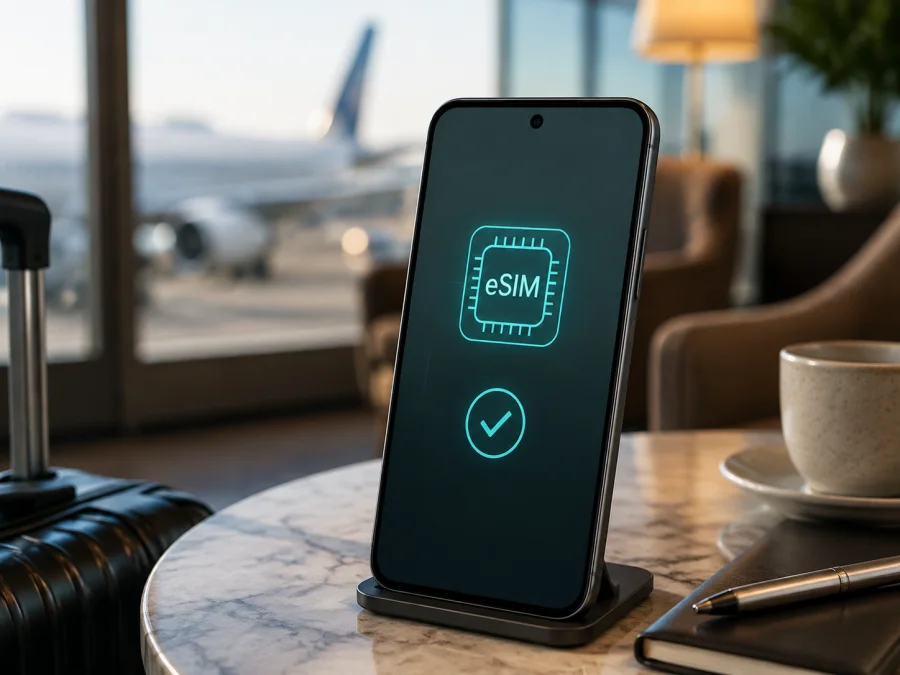
Apple iPhone 17 Pro 1TB eSIM: compatibility and setup
Published: September 7, 2026
If you are checking whether Apple iPhone 17 Pro 1TB can use an eSIM for mobile data while travelling, the short answer is yes for supported regional variants. Apple’s current specifications list Dual eSIM: two eSIMs can be active and eight or more profiles can be stored. The important qualification is the market version: SIM hardware and carrier support can differ by region.
Apple describes eSIM as a digital SIM that activates a cellular plan without a removable card. You can keep your familiar line available with a separate travel profile for mobile data, provided the phone is unlocked and the plan supports the destination. Kaspersky eSIM Store is an app and website that helps you choose and activate an eSIM with a suitable mobile-data plan for an overseas trip; it is not a mobile operator or network owner.
Quick answer: does Apple iPhone 17 Pro 1TB support eSIM?
Yes, when the regional model, software and carrier conditions allow it. Apple’s current specifications list Dual eSIM for iPhone 17 Pro: two eSIM lines can be active and eight or more profiles can be stored. The 1TB capacity is storage, not the deciding factor. Check the model and part number, sales region, iOS, carrier provisioning and operator lock on the individual phone.
Apple lists eSIM-only iPhone 17 Pro models in Bahrain, Canada, Guam, Japan, Kuwait, Mexico, Oman, Qatar, Saudi Arabia, the United Arab Emirates, the United States and the U.S. Virgin Islands. Other sales regions can have a different SIM arrangement, so do not rely on the family name alone.
Key characteristics
| Item | What it means for your eSIM plan |
|---|---|
| Exact device variant | Apple iPhone 17 Pro 1TB |
| eSIM capability | Apple lists Dual eSIM for supported iPhone 17 Pro variants |
| Active profiles | Up to two eSIM lines can be active according to Apple’s specifications |
| Stored profiles | Eight or more eSIM profiles can be stored |
| Physical SIM | eSIM-only in some markets; other regional versions can differ |
| 5G and LTE | Network access depends on the local carrier, bands, plan and coverage; eSIM alone does not guarantee 5G |
| Storage | 1TB; storage does not by itself prove or remove eSIM support |
| Main checks | EID, Add eSIM in Settings, model/part number and Carrier Lock status |
Regional and carrier differences you should know
“iPhone 17 Pro” is a family name, not a guarantee that every sales region has identical SIM hardware. Apple’s specifications and support pages distinguish between markets. The safest conclusion for Apple iPhone 17 Pro 1TB is therefore conditional: a supported international or eSIM-only version should work with a compatible travel eSIM, while a region-specific version must be checked on the device and with the carrier before a plan is purchased.
The mainland-China case deserves special attention. Apple’s current support information says that, in mainland China, the iPhone models that support eSIM from mainland Chinese carriers are iPhone 17e and iPhone Air, with model-specific conditions. It says other iPhone models cannot install an eSIM profile from a mainland-China carrier. Do not infer mainland-China carrier eSIM support for an iPhone 17 Pro simply because another iPhone 17 family member supports eSIM there. If the phone was bought in mainland China, check the exact model number and the intended carrier’s current activation process first.
Apple also documents different Dual SIM arrangements for devices purchased in mainland China, Hong Kong and Macao. The physical SIM tray, two-nano-SIM capability and travel eSIM behaviour can vary by sales region, even when the retail name and 1TB capacity are identical.
Carrier rules are a separate condition. The carrier or plan must support eSIM provisioning and the destination. A phone can show an EID and still reject a profile because of carrier rules, an incorrect destination, an operator lock, or network and APN requirements. Menus can change with iOS or language settings, so use the labels on your phone. If Add eSIM or an EID is missing, confirm the variant with the seller or carrier before paying.
Compatibility checklist before buying a plan
Use this checklist for the exact Apple iPhone 17 Pro 1TB. Each item matters.
- [ ] Confirm the model and part number. Open Settings > General > About and review the identifiers. Tap the part number if you need the regional model number.
- [ ] Find the EID. In Settings > General > About, scroll through the identifiers. The EID identifies the eSIM hardware; keep it private and share it only through an official activation process.
- [ ] Look for eSIM controls. Open Settings > Cellular and look for Add eSIM or Set Up Cellular. Wording varies by iOS and region.
- [ ] Check Carrier Lock. In Settings > General > About, “No SIM restrictions” means the iPhone is unlocked. Ask the current carrier about any other status before trying a travel profile.
- [ ] Update iOS when practical. Use Wi-Fi and keep the phone charged.
- [ ] Confirm the plan’s destination and terms. Match coverage, validity, data allowance, activation trigger and top-up rules to the trip.
- [ ] Prepare internet and activation details. Installation usually needs Wi-Fi; keep the QR code, manual details or supported in-app flow available.
<a id="kesim-device-compatibility"></a>
For a final pre-purchase check, Check your device using the EID and the Add eSIM menu. If either check is missing, contact the phone seller or carrier with the model and part number. It is better to resolve a regional or lock issue before payment than to troubleshoot an unusable profile during a journey.
How to install an eSIM on Apple iPhone 17 Pro 1TB
This flow is for a QR code or activation details supplied for a compatible travel plan. Menu names can differ slightly by iOS release. Keep your existing line active until you have tested the new data line.
1. Prepare the phone and plan
Connect the iPhone to reliable Wi-Fi and power. Confirm the destination, activation details and the plan’s start rule: some plans begin validity on installation, while others begin when the eSIM reaches an eligible network.
2. Open the cellular settings
Open Settings, tap Cellular, then choose Add eSIM or Set Up Cellular. If it is missing, review the region, model number, EID, iOS version and Carrier Lock status.
3. Scan the QR code
Choose the QR-code option and display the code on another screen. Fit the full code in the frame and enter any confirmation details exactly as supplied. Treat the code as sensitive activation information. If it is on the same iPhone, use the provider’s in-app flow or manual entry. A single-use code may need to be reissued rather than scanned repeatedly.
4. Label the line
When iOS asks for a label, use Travel data so you can select the line later.
5. Select the mobile-data line
Choose the travel eSIM for Cellular Data. Decide whether to allow Cellular Data Switching: leaving it off gives clearer control over data use.
6. Configure data roaming if the plan requires it
Open the travel line’s settings and review Data Roaming. Some travel plans require it because they use a partner network; others do not. Follow the plan’s instruction and avoid enabling roaming on your home line by accident.
7. Wait for activation and test it
Turn on the travel line and allow several minutes to register. Check for a signal, then test a small webpage with Wi-Fi off. Before departure, a line may remain inactive until it reaches an eligible network, so recheck it after arrival.
For platform-specific walkthroughs, see the Android installation instructions and the iOS installation instructions. The iOS guide is the relevant one for Apple iPhone 17 Pro 1TB. Kaspersky eSIM Store helps you choose and activate a plan through its app or website; registration remains subject to that plan and its network partners.
Using the eSIM for mobile internet while travelling
Before take-off, decide which line should remain available for calls and SMS. Disable home-line data roaming if you do not intend to use it. On arrival, set the travel eSIM as Cellular Data and check the destination and validity period.
Scenario: installing before departure
Use Wi-Fi to add and label the profile before leaving, then leave it off if the plan allows. On arrival, turn it on, select it for data and set Data Roaming as instructed. Check whether validity begins at installation.
Scenario: installing after arrival
If you delay installation, keep the QR code or activation flow accessible offline or on another device. Use trusted Wi-Fi, install the profile, select it for data and test a webpage with Wi-Fi off.
Scenario: two lines on one phone
Supported variants can keep two eSIMs active. Retain a primary line for calls and messages and use the travel line for data; only one mobile-data line is used at a time. Check the selected line before calls or SMS.
Scenario: a multi-country itinerary
For several countries, confirm whether one regional plan covers the whole route. Check countries, network access, start date, allowance and expiry. After a border crossing, allow registration time and verify the selected line; a compatible phone still has no service outside the plan’s coverage.
A travel eSIM is primarily for mobile data; voice and SMS are not included unless the plan says so. Internet messengers can use the active connection.
Common problems and practical fixes
| Problem | What to check |
|---|---|
| Add eSIM is missing | Confirm model/part number, EID, iOS and sales region. Mainland-China purchases need special care; ask Apple, the seller or carrier before buying. |
| QR code will not scan | Brighten the other screen, remove glare, fit the whole code in frame and use manual entry if supplied. A used or expired single-use code may need to be reissued. |
| Profile will not download | Check Wi-Fi, storage and activation status. Restart, try Settings > Cellular > Add eSIM, and contact the plan provider with the error and order details if it persists. |
| No Service after arrival | Turn on the travel line, select it for Cellular Data, set Data Roaming as instructed, toggle Airplane Mode once and check destination coverage, expiry and remaining data. |
| Data uses the wrong line | Inspect Settings > Cellular > Cellular Data, select the travel line, review Data Switching and test with Wi-Fi off. Disable home-line roaming if it is not needed. |
| Carrier lock message | Settings > General > About > Carrier Lock should show “No SIM restrictions” for an unlocked phone. Only the current carrier can explain or remove a restriction. |
| Connection is slow | Check signal, network selection, allowance and plan speed rules. LTE instead of 5G can be normal: bands, congestion, partner networks and the plan decide the connection. |
| You want to remove the profile | Turn the line off instead of deleting it. A single-use QR code may not reinstall, and replacement or refund rules depend on the plan. |
FAQ
Is Apple iPhone 17 Pro 1TB eSIM-compatible?
Yes, for supported regional variants. Apple lists Dual eSIM, two active eSIMs and storage for eight or more profiles; the individual phone and carrier still need checking.
Can I use a travel eSIM with my normal line?
Yes, on a supported unlocked phone. Select travel eSIM for Cellular Data and remember that only one data line is used at a time. Home-carrier roaming charges may still apply.
Will every phone bought abroad work?
No guarantee is appropriate. Apple documents different market SIM arrangements and a mainland-China eSIM limitation. Check EID, Add eSIM, model number and Carrier Lock before purchase.
Does the plan include calls or SMS?
Not necessarily. Travel eSIMs in this context are for mobile internet unless the plan expressly includes a number, voice or SMS. Internet messengers can use the data connection.
Do I need Wi-Fi?
Usually. Keep the iPhone online while the profile is added and activated, following the plan’s own instructions.
Is Kaspersky eSIM Store a mobile operator?
No. It is an app and website that helps users choose, arrange and activate an eSIM with a suitable mobile-data plan for an overseas trip. Network access depends on the selected plan, its partners, the destination and the device.
Final device check before your trip
Before you pay for a travel plan, run one last check on the exact Apple iPhone 17 Pro 1TB you will carry:
- Open Settings > General > About and confirm the Model Name, Model Number, EID and Carrier Lock status.
- Open Settings > Cellular and confirm that Add eSIM or Set Up Cellular is available.
- Confirm that the phone is unlocked, showing “No SIM restrictions” where that status is provided.
- Match the plan’s country or regional coverage to every stop on your route.
- Review the data allowance, validity period, activation trigger, roaming requirement and support process.
- Install over a reliable connection, label the profile and test the line without Wi-Fi when the plan’s conditions allow.
- At arrival, select the travel line for mobile data and keep the home line’s roaming settings under control.
When those checks are complete, use Kaspersky eSIM Store’s app or website to choose a suitable eSIM plan, review its conditions and activate it on the compatible phone. If anything conflicts, ask the phone seller, carrier or plan support team before purchasing.
Plan details and activation conditions can change. Check current information from Apple, the carrier and the selected plan before purchase and departure.


