Travel connectivity guide
Apple iPhone 17 Pro 256GB 5G eSIM Compatibility
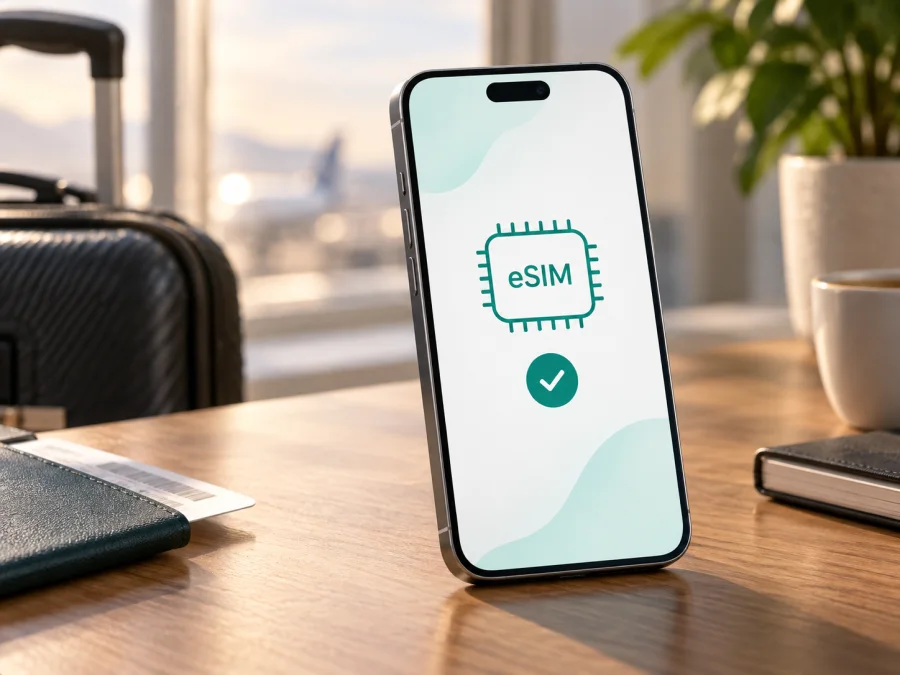
Apple iPhone 17 Pro 256GB 5G eSIM compatibility and setup
The Apple iPhone 17 Pro 256GB 5G supports eSIM in many countries and can use two eSIMs at the same time. The important detail is the exact regional model: Apple sells versions with different SIM hardware, and the model for mainland China does not support eSIM. The 256GB storage capacity and 5G label do not determine eSIM compatibility by themselves. Before choosing a travel plan, check the model number and the options shown in Settings on the phone you will take.
This guide explains what to check, how to install and activate an eSIM, and how to use it for mobile data abroad while keeping your usual number available where the phone and carrier allow it.
Quick answer
| Item | What it means for this device |
|---|---|
| Exact variant covered | Apple iPhone 17 Pro 256GB 5G |
| eSIM | Supported on compatible regional versions; not supported by the mainland China model |
| Active lines | The iPhone 17 Pro supports two active eSIMs; a version with a SIM tray can also support a physical SIM alongside an eSIM |
| Storage | 256GB is the storage configuration and does not change the eSIM feature |
| 5G | The 5G label describes cellular network capability; service depends on the carrier, plan, bands, coverage and local rules |
| Best check before purchase | Find the model number, look for an EID and confirm that Settings offers Add eSIM |
Apple lists Dual SIM (nano-SIM and eSIM) and Dual eSIM for compatible iPhone 17 Pro versions. Regional model numbers matter: A3256 is for the United States and Puerto Rico; A3522 for Bahrain, Canada, Guam, Japan, Kuwait, Mexico, Oman, Qatar, Saudi Arabia, the United Arab Emirates and the US Virgin Islands; A3524 for mainland China; and A3523 for other countries and regions. A3256 and A3522 have no SIM tray; many A3523 versions have a nano-SIM tray. Apple’s current mainland China guidance does not list iPhone 17 Pro as eSIM-compatible. Check the A-number rather than relying on a seller’s generic title.
The 256GB capacity and 5G capability do not determine eSIM support. Imported phones may have different SIM hardware, and an otherwise compatible phone can still be restricted by carrier lock, plan eligibility or local requirements.
What regional differences mean in practice
In eSIM-enabled markets, the iPhone 17 Pro can use two active lines. Depending on the regional hardware, you may combine a physical SIM and an eSIM or use two eSIMs. This can keep a home number available while travel data uses another line. Versions without a SIM tray rely on eSIM for cellular service, so confirm that your carrier can activate it.
A3524, the mainland China model, is the important exception: Apple’s current regional guidance excludes iPhone 17 Pro from eSIM-compatible models there. Do not assume that an imported phone gains support because it has the same storage or iOS version.
Phone compatibility also does not guarantee plan compatibility. The provider must support the device and destination, and the phone must be unlocked. Installation may require Wi-Fi and may use a QR code, link or manual activation details; follow the instructions for the specific plan.
Check your own iPhone before buying
Use the following checklist before paying for a travel plan:
- Confirm the model number. Open Settings → General → About. Find Model Number and tap the displayed part number if needed to reveal the A-number. Compare it with Apple’s regional identification for iPhone 17 Pro. If the phone is model A3524 for mainland China, assume eSIM is unavailable for this model.
- Look for an EID. On the same About screen, scroll through the device identifiers. An EID is an identifier associated with the eSIM hardware. Its presence is a useful sign that the phone has eSIM capability; it does not guarantee that a carrier will accept it or that the phone is unlocked.
- Look for the eSIM controls. Open Settings → Cellular (called Mobile Service in some regions). Look for Add eSIM, Add Cellular Plan, or an equivalent option. Labels can vary with iOS language and version. If the option is absent, check the model number, iOS update and device restrictions before purchasing.
- Check the carrier lock. In Settings → General → About, review Carrier Lock. “No SIM restrictions” indicates that the iPhone is not locked to a carrier. If a lock is shown, ask the carrier that locked it whether another provider’s eSIM can be used.
- Confirm the plan’s conditions. Check destination coverage, data allowance, validity period, supported networks, installation deadline, activation trigger and whether tethering is allowed. Do not infer these from the word “5G” or from the phone’s storage size.
If you do not have the phone, ask the seller for its exact A-number or an image of About. A SIM tray alone does not prove eSIM support; compare the model number, EID and available Settings options.
Check whether your device is compatible
A short compatibility checklist
- The regional model supports eSIM.
- An EID is visible in About, and Add eSIM appears in Cellular or Mobile Service.
- The iPhone is unlocked for the provider you plan to use.
- The travel plan covers every country or region on your route.
- You can connect to Wi-Fi during installation and have the provider’s activation instructions available.
- You know which line will handle mobile data and whether data roaming must be enabled for the travel line.
If any one of these checks is uncertain, pause before checkout and confirm it with Apple, the carrier, or the plan provider. eSIM compatibility is a combination of hardware, regional configuration, carrier support and plan terms.
Install and activate an eSIM
You can often install a travel eSIM before departure, but activation rules vary. Some plans start validity at installation; others start when the profile first connects to a covered network. Check the plan terms and keep Wi-Fi available during setup.
- Prepare. Update iOS if needed, connect to Wi-Fi and confirm the iPhone is unlocked.
- Open settings. Go to Settings → Cellular or Mobile Service → Add eSIM. Names vary by region and iOS version.
- Install the profile. Scan the provider’s QR code from another screen, or use its supplied link or manual details. Follow the prompts and wait for download to finish. Some QR codes are single-use.
- Label the lines. Use labels such as “Personal” and “Travel” to avoid selecting the wrong line later.
- Choose data and voice lines. Set Cellular Data to the travel eSIM when you want to use it. Keep your usual line available if needed. Consider turning off Cellular Data Switching to avoid data moving to your home line.
- Activate and test. Follow the plan’s timing. At the destination, enable Data Roaming for the travel line only if instructed. Turn Wi-Fi off briefly and test a webpage once the plan should be active.
For the full device-specific walkthroughs, see iOS installation instructions and Android installation instructions. The Android guide is useful if you are helping someone else install a profile on an Android phone; the steps above apply to the Apple iPhone 17 Pro 256GB 5G.
Kaspersky eSIM Store is an app and website for choosing, arranging and activating an eSIM plan for mobile data on an overseas trip. Check its destination, data allowance, validity and activation terms. Connectivity depends on the networks and terms for the selected plan.
Using the travel eSIM on a trip
Keep your usual number if needed. Where both carriers permit it, leave your home line on for calls or messages and assign mobile data to the travel eSIM. Check home-carrier charges for roaming, calls, voicemail and texts. You can turn off the home line if you do not need it, but it will then receive no service.
Match the plan to the route. Check every destination and any transit stop where you need data. A country plan may stop working at a border, while a regional plan may cover several places. 5G availability depends on the local network and plan.
Prepare for arrival. Install over Wi-Fi when the plan permits, but avoid starting validity too early. Save setup instructions offline. At your destination, enable the correct line and required roaming, then test data before relying on maps or ride-hailing.
Check hotspot and voice needs. Confirm tethering is permitted and that the allowance suits work, calls and downloads. A data-only eSIM usually does not provide a regular number, voice service or SMS; keep your home line available if you need verification messages.
Troubleshooting: when the eSIM will not connect
There is no Add eSIM option. Recheck the A-number in About, especially if the phone came from another region. Confirm that the exact model supports eSIM, install any available iOS update, and check whether a device management profile or carrier restriction is limiting cellular settings. If it is the mainland China model A3524, Apple’s current guidance does not list iPhone 17 Pro as eSIM-compatible there. If you believe the model should support eSIM, ask Apple or the seller to confirm the regional configuration.
QR scan fails or setup stops. Use stable Wi-Fi and a clear code displayed on another screen. Check whether the code expired, was already used or is tied to another device. Do not delete an installed profile unless the provider confirms it can be reissued.
The profile is installed but shows No Service. Open Cellular settings and verify that the travel line is turned on. Confirm that you are in a covered destination and have selected the correct line under Cellular Data. Turn Airplane Mode on for a few seconds and off again, then restart the iPhone if needed. Review the provider’s instructions for Data Roaming, network selection and any APN details. Use automatic network selection first unless the provider directs you to choose a listed network manually.
Signal appears but data does not work. Confirm Cellular Data is on and assigned to the travel line. Check remaining data, validity and activation conditions, then test a webpage with Wi-Fi off. If only one app fails, check that app’s cellular setting.
The home line is receiving unexpected charges. Check which line is selected for cellular data and whether Cellular Data Switching is enabled. Review the home line’s Data Roaming setting and contact the home carrier for its charging rules. Turning off the home line may stop it from using a network, but can also prevent calls, SMS and verification messages from arriving on that number.
5G is unavailable or slow. A 5G-capable phone does not guarantee 5G service; the plan, partner network, coverage and settings matter. Check the plan and Voice & Data settings. LTE/4G may be steadier with a weak signal.
If the issue persists, note the exact error, the iOS version, the iPhone model number and whether the EID appears. Share only the information requested through the provider’s secure support channel; identifiers such as EID and IMEI should not be posted publicly. The plan provider can check profile status and supported networks, while Apple or the carrier can help with device eligibility, account restrictions and carrier-lock questions.
Frequently asked questions
Does the 256GB version support eSIM?
The storage option does not decide eSIM support. Apple iPhone 17 Pro 256GB 5G supports eSIM on compatible regional hardware, but the mainland China A3524 model is excluded by Apple’s current mainland China guidance. Check the model number and Settings on the actual device.
Can I keep two phone numbers active?
The iPhone 17 Pro supports two active eSIMs; compatible versions can also use a physical SIM with an eSIM. Carrier and regional limits apply, and you select voice and data lines separately.
Does every iPhone 17 Pro have a SIM tray?
No. Some regional models have no tray, others have nano-SIM, and mainland China A3524 is not listed for eSIM support. Check the A-number.
Does 5G mean the travel eSIM will connect to 5G?
No. The 5G label means the phone can use compatible 5G networks, but the selected plan, partner network, destination coverage and settings determine the available connection. A plan can work on LTE/4G where 5G is unavailable.
Can I install it before travelling?
Often, but validity may begin at installation or first connection. Check the plan terms and use Wi-Fi for setup.
Can I move an eSIM to another phone?
Not always. Some profiles are device-bound or require replacement. Check with the provider before deleting one or changing phones.
Will a travel eSIM receive calls and SMS?
A mobile-data travel plan generally does not include a standard phone number, voice calling or SMS unless its terms explicitly include them. Keep your regular line available if you need calls or verification codes, and ask your home carrier about roaming charges.
Before you go: device check and trip eSIM
For the Apple iPhone 17 Pro 256GB 5G you will carry, confirm its A-number and region, EID and Add eSIM setting, unlocked status, and plan coverage for each destination. Choose the data line, check roaming requirements and home-line charges, and save setup steps before departure.
Once compatibility is clear, use the Kaspersky eSIM Store app or website to choose and arrange an eSIM plan for mobile data on your overseas trip, then activate it according to that plan’s instructions. Check the data allowance, validity, supported destinations and activation timing before you leave. This small pre-trip review helps you arrive knowing which line to use and what to check if the connection needs attention.


