Travel connectivity guide
Apple iPhone 17 Pro 256GB eSIM: Setup & Compatibility
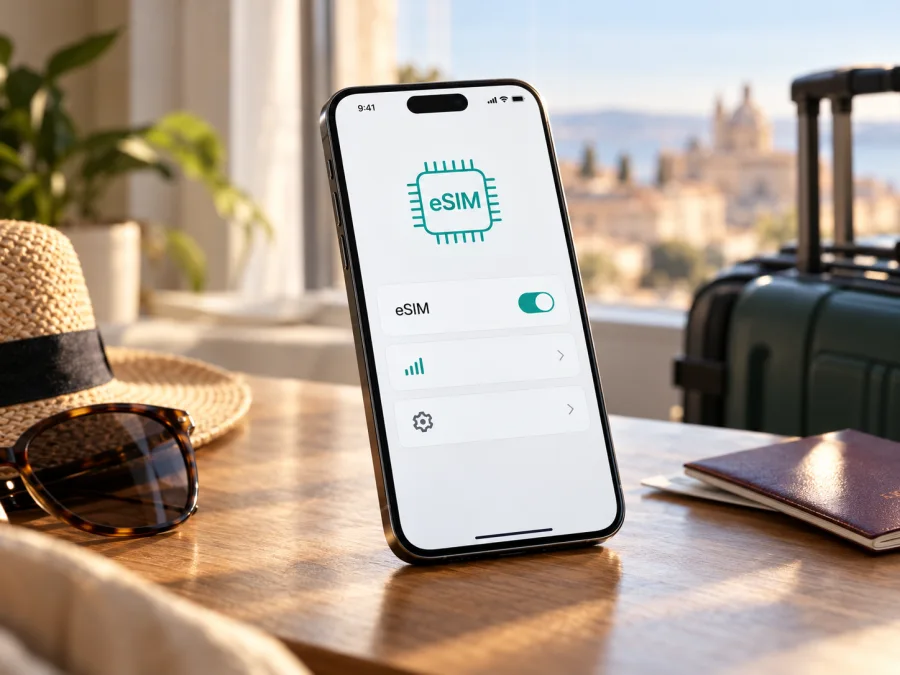
Apple iPhone 17 Pro 256GB eSIM: compatibility, setup and travel use
The Apple iPhone 17 Pro 256GB supports eSIM in most regional versions, but the exact answer depends on where the phone was sold. Apple lists iPhone 17 Pro models with eSIM and dual eSIM capability; some markets receive an eSIM-only version, many receive a model with both nano-SIM and eSIM, and the China mainland version is a regional exception. The 256GB storage option does not determine eSIM support. Before choosing a travel plan, identify the phone’s model number, confirm that eSIM settings are available, and make sure the device is not carrier-locked.
This guide explains what to check on your own phone, how to add a travel eSIM, and how to direct mobile data to the right line when you arrive. It does not assume that every device sold under the same retail name has identical SIM hardware.
Does Apple iPhone 17 Pro 256GB support eSIM?
Usually, yes, but check the regional version. Apple lists eSIM and dual eSIM support for iPhone 17 Pro. Some markets receive an eSIM-only version; many others have both eSIM and a physical nano-SIM tray. The 256GB storage option does not determine SIM support.
The mainland China version is the key exception: Apple identifies model A3524 and does not list iPhone 17 Pro among the models that can install eSIM profiles from mainland Chinese carriers. That version uses two physical nano-SIM cards. Do not confuse mainland China stock with a phone from Hong Kong or Macao; Apple’s regional guidance treats these markets separately. Verify the A-number and eSIM controls on the actual device.
| Item | What it means |
|---|---|
| Device | Apple iPhone 17 Pro 256GB; 256GB is storage capacity. |
| Most regional versions | eSIM support; some also have a nano-SIM tray. |
| Selected markets | eSIM-only hardware with no physical SIM tray. |
| Mainland China | A3524 is a regional exception; do not assume eSIM works. |
| Before purchase | Check model, EID, Add eSIM, carrier lock and plan requirements. |
A phone can be eSIM-capable but carrier-locked. Imported or refurbished devices may also have a different sales history than a seller’s listing suggests. Confirm the model and unlock status before buying a travel plan.
Regional versions and operator restrictions
Apple lists iPhone 17 Pro model numbers as A3256 for the United States and Puerto Rico; A3522 for Bahrain, Canada, Guam, Japan, Kuwait, Mexico, Oman, Qatar, Saudi Arabia, the United Arab Emirates and the U.S. Virgin Islands; A3524 for mainland China; and A3523 for other countries and regions. The first two groups are eSIM-only and have no SIM tray. In other markets, the phone generally has a nano-SIM tray as well as eSIM. Mainland China’s A3524 is the important eSIM exception.
A SIM tray only confirms that a physical SIM can be used; it does not prove eSIM is available. Conversely, no tray indicates an eSIM-only variant. Check the A-number under Settings → General → About and match it to the phone’s sales region. The software language or current location does not identify the hardware variant.
To check for a carrier lock, open Settings → General → About and look for Carrier Lock or Network Provider Lock. No SIM restrictions means the phone is unlocked. If another status appears, ask the original carrier to confirm eligibility; an update or reset will not remove a carrier lock.
Compatibility checklist: verify this exact phone
Use these checks before paying for a travel plan. The exact phone matters more than its retail name.
- [ ] Open Settings → General → About. Note Model Number; tap the part number to reveal the A-number and confirm the sales region.
- [ ] Look for EID in About and Add eSIM under Settings → Cellular (sometimes called Mobile Data).
- [ ] Confirm Carrier Lock says No SIM restrictions if you plan to use a different provider.
- [ ] Update iOS and restart if eSIM controls are missing or unresponsive.
- [ ] Confirm that the plan supports your phone and destination; read its activation, validity and roaming instructions.
- [ ] Keep internet access available during setup. A QR code displayed on this iPhone must be shown on another screen or printed so the camera can scan it.
If EID or Add eSIM is missing, verify the model number, update iOS and check with Apple or the seller before proceeding. The mainland China version may explain the limitation. A missing setting alone is not enough to identify the cause, so pause before purchasing. These checks confirm the phone can host a profile and the provider can activate it. For another way to confirm the phone, check your device compatibility.
Add and activate an eSIM on iPhone
Before starting, make sure the phone is unlocked, eSIM-compatible and connected to Wi-Fi or another working data connection. Have the provider’s QR code, activation details or supported in-app installation option ready. Keep the confirmation message accessible, and do not delete an installed profile while troubleshooting unless the provider tells you to do so: many activation codes can only be used once.
Step-by-step installation
- Open Settings. Tap Cellular (or Mobile Data) and choose Add eSIM. The wording can vary slightly by iOS version and region.
- Choose the installation method. Select Use QR Code to scan the code provided for your plan, or select the provider’s direct transfer or app-based option if it is explicitly available for that purchase.
- Scan or enter the details. If the QR code is in an email on this same iPhone, open it on a second device or print it so the iPhone camera can read it. If the provider issued manual activation details, enter them exactly as supplied.
- Follow the on-screen prompts. Allow iOS to download and add the cellular plan. This may take a few minutes. Keep the phone connected to the internet and do not close the setup flow while it is processing.
- Label the line. Choose a label such as “Travel” so it is easy to distinguish the new profile from your regular number. Labels help with selection but do not change the plan itself.
- Choose default lines carefully. Keep your home line selected for calls and messages if you want to retain that number. Choose the travel eSIM as the cellular-data line only when you are ready to use its data plan.
- Review data switching. Turn off Allow Cellular Data Switching if you want to prevent the iPhone from switching mobile data to your home line automatically. Check your home carrier’s roaming terms as well.
- Activate for the trip. Follow the plan’s start-date instructions. Some plans begin validity when installed, while others begin when they first connect in the destination. Do not assume all plans use the same activation rule.
- At the destination, select the travel line. In Settings → Cellular, turn on the travel eSIM, select it for cellular data and enable Data Roaming for that line only if the plan’s instructions require it. A brief wait for network registration is normal.
- Confirm service. Turn off Wi-Fi briefly and load a simple web page. Check that the cellular-data indicator appears and that the selected data line is the travel eSIM.
Kaspersky eSIM Store’s iOS installation guide covers the iPhone setup flow, and the Android installation guide is available for people preparing another device. Kaspersky eSIM Store is an app and website where you can choose, arrange and activate an eSIM with a mobile-data plan for an international trip. The plan’s actual network, availability and terms depend on the destination and the selected plan.
Install now, use later
You can install the profile over Wi-Fi before departure, then leave its line off until needed if the plan’s terms allow it. Check when validity begins: switching a line off does not necessarily pause the clock. If a plan offers scheduled activation, follow its stated date and time zone. Keep the QR code until installation is confirmed; do not delete the profile as a first troubleshooting step.
Use the iPhone 17 Pro 256GB for mobile data while travelling
A travel eSIM gives you a separate data line without removing a physical SIM on versions with a tray. On eSIM-only versions, it is the way to activate cellular service. The phone connects through networks available to the plan; signal and speed vary by location.
A common setup is to keep your home line for calls or verification messages and select the travel eSIM for cellular data. Turn off Allow Cellular Data Switching if you want to control which line uses data. Review your home carrier’s roaming terms, and disable data roaming on that line if appropriate. The travel eSIM’s roaming setting is separate: follow that plan’s instructions.
Three common travel scenarios
A short city break. Install over Wi-Fi before leaving, after checking whether installation starts validity. At the destination, select the travel eSIM for data and confirm the country is covered.
A multi-country itinerary. Check every destination. A plan for one country may not work in a neighboring country. Compare coverage, data allowance, validity and hotspot terms with your route.
A work trip. Keep the home line available for calls or messages if needed, but use the travel eSIM for mobile data. A data-only plan does not include a regular phone number, calls or SMS unless its terms say otherwise; internet-based apps use data.
The “256GB” in Apple iPhone 17 Pro 256GB is device storage. A plan’s data allowance is a separate amount and is consumed according to its terms.
Troubleshooting eSIM installation and mobile data
Check one setting at a time. Regional-model mismatch, carrier restrictions and line selection are common causes.
| Symptom | What to check |
|---|---|
| Add eSIM is missing | Verify the A-number and region, look for EID, update iOS and ask Apple or the seller to confirm the variant. Mainland China iPhone 17 Pro is an exception. |
| QR code will not scan | Show it on another screen, increase brightness, clean the camera and confirm the code has not been used. |
| Activation fails | Use reliable Wi-Fi, check that the phone is unlocked, and confirm destination and activation rules. Ask the plan provider before deleting a code marked used. |
| Installed but no service | Turn on the travel line, check destination coverage, wait briefly, toggle Airplane Mode and restart if needed. |
| Signal but no data | Select the travel eSIM for Cellular Data, follow any APN instructions and enable Data Roaming on that line when required. Check allowance status. |
| Home line is using data | Recheck Cellular Data selection, disable data switching and review home-line roaming settings. |
| Service varies by location | Confirm the plan covers that country and move to an area with better reception. Congestion and local network conditions affect performance. |
Avoid resetting network settings or erasing the phone as an early step. Record the alert, model number, iOS version and line status. Ask Apple or the seller about eSIM hardware and carrier lock; ask the plan’s support team about activation, coverage and profile details.
Frequently asked questions
Does every Apple iPhone 17 Pro 256GB have eSIM?
No. Most regional versions support it, but the mainland China version is an exception. Some markets have eSIM-only hardware; others combine eSIM and nano-SIM. Check the A-number, EID and Add eSIM setting.
Does 256GB change the SIM configuration?
No. It is internal storage. SIM hardware depends on the regional model.
Can I use eSIM and my regular SIM at the same time?
On compatible unlocked versions, iPhone 17 Pro supports Dual SIM and Apple lists dual eSIM capability. Available combinations depend on regional hardware and carrier support. Only one cellular-data network is used at a time.
Is an EID enough to confirm a travel plan will work?
No. Also confirm the phone is unlocked, the provider supports it, and the plan covers your destination.
Does a travel eSIM include calls or texts?
Only if its plan details say so. Data-only plans do not provide a regular number or standard cellular calls and SMS; messaging apps can use data.
Should Data Roaming be on?
Follow the travel plan’s instructions. Some require roaming on for that line. Keep data assigned to the intended eSIM and review your home carrier’s terms.
Can I delete and reinstall the profile?
Check with the plan provider first. Some codes are single-use, and a deleted profile may not be recoverable by scanning the same code.
Final check before your trip
For Apple iPhone 17 Pro 256GB, eSIM is supported on most regional versions, with eSIM-only configurations in several markets and a mainland China exception. Confirm the A-number and purchase region, look for the EID and Add eSIM option, verify that the phone is unlocked, and make sure iOS is current. Then compare the plan’s destination coverage, data allowance, validity and activation rules with your itinerary.
Once compatibility is confirmed, use Kaspersky eSIM Store’s app or website to choose and arrange an eSIM with a mobile-data plan for your international trip. If you are still comparing destinations or current plan options, browse the Kaspersky eSIM Store. This is the general store homepage for checking available destinations and current plans; it is not a country-specific tariff page. Install the profile while you have a reliable connection, choose the travel eSIM for mobile data when you are ready, and keep your home line settings under control. A few checks can simplify setup on arrival.


