Travel connectivity guide
Apple iPhone 17 Pro 5G eSIM: Compatibility Guide
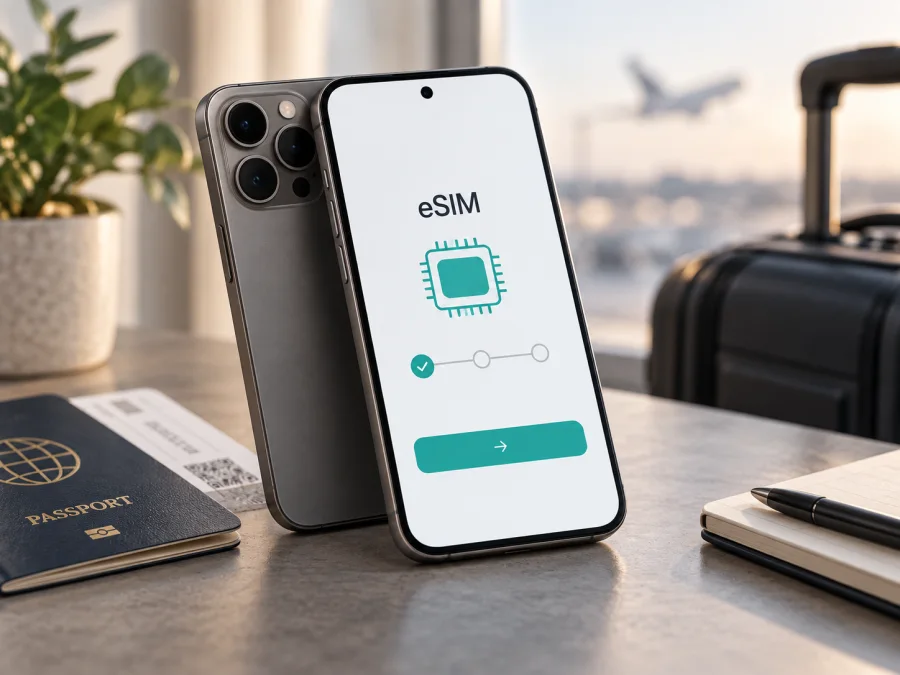
Apple iPhone 17 Pro 5G eSIM: compatibility and setup guide
Short answer: Apple iPhone 17 Pro 5G supports eSIM in most markets, but the exact SIM configuration depends on the country or region where the phone was sold. Some regional versions use eSIM only; many versions sold elsewhere combine eSIM with a physical nano-SIM. Mainland China is a key exception: Apple’s current compatibility information does not list the iPhone 17 Pro as supporting eSIM there, and models sold for that market use two physical nano-SIM cards. Check the exact phone before choosing a travel plan.
An eSIM is a digital SIM profile for mobile service without a separate card. Support in the model family is a useful clue, but the sale region, carrier lock, iOS settings, and provider rules still matter.
Apple iPhone 17 Pro 5G eSIM at a glance
| Item | What to know |
|---|---|
| Device name | Apple iPhone 17 Pro 5G |
| eSIM support | Yes on supported regional versions; confirm the exact unit |
| SIM options | Depending on market: eSIM only, nano-SIM plus eSIM, or in some Asian markets two nano-SIMs |
| 5G | The phone supports 5G; actual access depends on local network bands, coverage, and plan |
| Main checks | EID, Add eSIM option, carrier lock status, country of sale, and destination plan requirements |
| Best time to check | Before purchasing a travel eSIM, while connected to Wi-Fi |
Does Apple iPhone 17 Pro 5G support eSIM?
For most versions, yes. Apple lists eSIM and dual eSIM capability for iPhone 17 Pro, alongside dual SIM arrangements that can include a nano-SIM and eSIM. The important qualification is regional configuration. In several markets, including the United States and some other listed countries, iPhone 17 Pro is sold without a physical SIM tray and activates using eSIM. In many other markets the phone has a nano-SIM tray and can use a nano-SIM together with an eSIM. A model with a tray is not automatically eSIM-capable everywhere: check its regional model number and the eSIM controls in Settings.
Mainland China needs separate treatment. Apple’s current support information lists specific iPhone models that support eSIM activation in mainland China, and iPhone 17 Pro is not among them. A mainland China iPhone 17 Pro is designed for two nano-SIM cards. That is different from a phone bought elsewhere and brought into mainland China: an international version may have eSIM hardware, but an eSIM profile from a mainland Chinese carrier may still not be installable there. If the phone is intended for use in mainland China, confirm the exact model and carrier process before relying on eSIM.
Hong Kong and Macao also have distinct regional configurations and carrier arrangements. Apple documents certain iPhone models sold there as supporting two nano-SIM cards, while specific model and market combinations may support eSIM. Do not infer eSIM availability just from the retail country, the product name, the presence of two lines in a menu, or the fact that another iPhone 17 Pro works. Look up the model number shown on the individual device and confirm with the carrier or eSIM provider that will issue the profile.
A carrier can impose a separate restriction. A phone locked to one carrier may reject an eSIM from another provider even when the hardware supports eSIM. On a carrier-locked device, the issue is not solved by resetting network settings or repeatedly scanning a QR code. Ask the original carrier to confirm whether the phone is unlocked and eligible for a second line before you buy a travel plan.
How to identify your regional version
Open Settings → General → About. Note the model number. The displayed part number may be shown first; tap it to reveal the model identifier. Also record the country where the device was sold and whether it has a physical SIM tray. These clues help distinguish a global eSIM model from a regional dual-nano-SIM configuration, but a tray alone is not a final compatibility test.
Check EID and eSIM settings before purchase
The EID is the identifier associated with the phone’s embedded SIM hardware. To look for it, go to Settings → General → About and scroll through the device information. If an EID appears, that is a strong indication that the device has eSIM capability. It is still sensible to check that an eSIM can be added and that the phone is unlocked, because an EID by itself does not confirm carrier acceptance or destination coverage.
You can also inspect Settings → Cellular (called Mobile Service in some regions). Look for Add eSIM, Set Up Cellular, or a similar option. Menu wording changes by iOS version and language. If you do not see the option, restart the phone, connect it to Wi-Fi, install available iOS updates, then check again. If the menu is still absent and there is no EID, treat the device as not confirmed for eSIM until Apple or the carrier verifies it.
Before paying for a plan, use this quick checklist:
- [ ] The full model identifier and sale region are known.
- [ ] An EID is visible in Settings, or the exact model is confirmed eSIM-capable by Apple or the carrier.
- [ ] An Add eSIM option is available, where expected for that regional version.
- [ ] The phone is unlocked for use with another provider.
- [ ] The eSIM provider supports the phone’s market version and the destination.
- [ ] The plan’s data allowance, validity period, activation rules, and network access suit the trip.
- [ ] You have reliable Wi-Fi for installation and know when the plan begins to count down.
If any answer is uncertain, resolve it before purchase. Check your device compatibility using the device’s own settings and the provider’s current requirements; the product name alone is not enough.
What to expect when using eSIM on a trip
A travel eSIM is useful when you want mobile data after landing without looking for a physical SIM counter. You can keep a home number active for calls or messages if the phone and carrier allow dual SIM, while choosing the travel eSIM for mobile data. The exact combination depends on the regional iPhone hardware, your home carrier, and the travel plan. Only the lines enabled on the iPhone can be used, and two active lines do not mean that both provide data at once.
Kaspersky eSIM Store is an app and website where you can choose, arrange, and activate an eSIM with a mobile-data plan for an overseas trip. Review the destination, data amount, validity period, activation conditions, and supported networks shown for the plan. The app or site helps you prepare the travel eSIM; coverage and service depend on the network available at your destination and the plan terms. A travel data eSIM may not include a regular phone number, voice calls, or SMS unless the plan explicitly says so. Internet calling and messaging apps can work over data, subject to their own requirements.
How to install and activate an eSIM
Install only when you are ready and have the provider’s setup details. Many providers allow installation before travel, but the profile’s validity may start at installation, first connection, or another moment stated in the plan. Read that rule first. Keep access to the confirmation email or app and have a stable Wi-Fi connection, since the iPhone generally needs internet access to download the profile.
For a broader walkthrough, see the iOS eSIM installation instructions or, if you are helping someone with an Android phone, the Android eSIM installation instructions.
Install by scanning a QR code
- Connect Apple iPhone 17 Pro 5G to Wi-Fi and open Settings → Cellular or Settings → Mobile Service.
- Tap Add eSIM or Set Up Cellular, then choose the option to use a QR code. The exact wording may differ by iOS version.
- Scan the QR code supplied for your plan. If the code is displayed on this same phone, open the provider’s manual entry method or display the code on another screen.
- Follow the on-screen prompts to add the cellular plan. Do not scan a code intended for a different device or attempt to reuse a one-time code after an unsuccessful activation without checking the provider’s rules.
- Give the line a clear label, such as “Travel,” so you can identify it beside your home line.
- Choose whether to keep the home line available. Review the default voice line and mobile-data line instead of accepting a choice without checking it.
Install with an app or manual details
Some providers allow installation from an app, carrier activation link, or manual activation details. Follow the provider’s official instructions while online and enter any SM-DP+ address and activation code exactly as supplied. Keep those credentials private. If a code appears used or invalid, contact the provider before deleting or retrying the profile; another code may be needed.
Activate for data after arrival
When you are ready to use the plan, open Settings → Cellular/Mobile Service, select the travel line, and turn on Turn On This Line. Set Cellular Data/Mobile Data to the travel eSIM if that is the plan you intend to use. If you want to avoid unexpected home-carrier charges, check its roaming conditions and turn off data roaming for the home line as appropriate. Some travel eSIMs require data roaming to be enabled on the travel line; follow the plan’s instructions rather than applying one setting to every line.
At the destination, allow the phone to register with a supported network. Start with automatic network selection unless the provider names a network to choose manually. Confirm the travel line is the selected data line and shows signal before testing a web page or map. Activation may take several minutes and depends on the device, profile, and local network.
Common problems and practical checks
“Add eSIM” is missing. Confirm the regional model, EID, iOS version, and sale market. Restart while connected to Wi-Fi and check under Cellular or Mobile Service again. If the menu is still absent, ask Apple or the carrier to verify the exact model; a QR code cannot add eSIM hardware that is not supported.
The QR code will not scan or the profile will not download. Check Wi-Fi, screen brightness, and that the code belongs to this plan and has not already been used. If it is displayed on the same phone, use manual installation if offered. Do not delete a partly installed profile or repeatedly reuse a one-time code without asking the provider what to do.
The profile is installed, but there is no signal or data. Turn on the travel line, turn off airplane mode, select it for mobile data, and confirm that the plan includes your destination and is within its validity period. Start with automatic network selection unless the provider specifies a network. Some plans require data roaming on the travel line; use the plan’s directions and check that roaming is off for your home line if you want to avoid its charges.
The phone has signal but pages do not load. Check remaining data, the selected data line, and any provider-specified APN settings. Do not guess an APN. Turn Wi-Fi off briefly to test cellular data, then restart if needed.
Activation is blocked or the phone says it is locked. Check Settings → General → About → Carrier Lock. If the phone is not unrestricted, contact the carrier that sold it; an eSIM profile cannot bypass a carrier lock. “Unable to Activate” can also mean a temporary network issue, a used code, or a profile tied to another device. Keep the phone on Wi-Fi, check the order status, and contact the provider with the exact error and model identifier. Keep EID, QR codes, and activation codes private.
An eSIM profile may not transfer like a physical card. Removing it can make the original code unusable, and moving it to another iPhone may require a carrier transfer or new profile. Check the provider’s reinstallation rules before deleting it.
Frequently asked questions
Can the home SIM and travel eSIM work together?
Many versions support dual SIM, but the regional model and carriers decide which combinations work. The phone must be unlocked for lines from different providers. Mainland China and other regional configurations can differ, so check the individual handset.
Does 5G support guarantee 5G on the travel plan?
No. 5G depends on destination coverage, supported bands, provider arrangements, and plan terms; LTE/4G may be used instead.
Is EID enough to prove compatibility?
EID is useful, but also confirm eSIM can be added, the phone is unlocked, and the provider accepts its model and destination.
Should I install the eSIM before travelling?
Installation over reliable Wi-Fi can be convenient. First check when validity begins: at installation, first connection, or another time stated by the provider. Follow its instructions and avoid deleting the profile if it has not connected yet.
Before you travel
Check Apple iPhone 17 Pro 5G itself: confirm its regional model, EID or Add eSIM setting, and carrier-lock status. Then check the destination and terms for the specific eSIM plan, including data, validity, activation timing, and available networks. If the phone was purchased in mainland China, do not assume that an iPhone 17 Pro supports eSIM; verify its exact configuration with Apple or the carrier. For Hong Kong, Macao, and other regional models, confirm eSIM support for that exact identifier.
Once compatibility is clear, use Kaspersky eSIM Store, the app and website, to choose, arrange, and activate an eSIM plan for mobile data during your overseas trip. Set it up over Wi-Fi, label the line, and switch mobile data to it when appropriate. A few checks before departure can make it easier to get online after arrival and help you avoid choosing a plan that the handset cannot use.


