Travel connectivity guide
Apple iPhone 17 Pro eSIM: compatibility guide
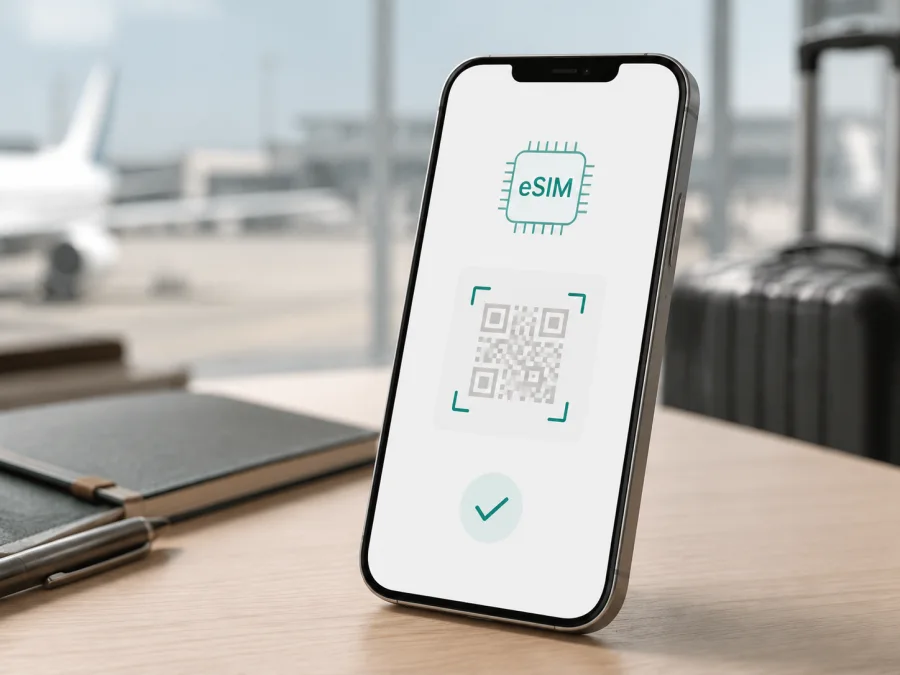
eSIM for Apple iPhone 17 Pro: compatibility and setup
Apple iPhone 17 Pro supports eSIM, so it can use a digital SIM profile for mobile internet abroad. Apple’s current specifications list dual eSIM support: two eSIMs can be active at the same time, and the phone can store eight or more eSIMs. The qualification is regional. The SIM arrangement depends on where the phone was purchased, its variant and the carrier that activates the plan.
The practical answer is therefore yes, with a check. Verify the individual phone before selecting a travel eSIM tariff. Some regional versions are eSIM-only, while others combine eSIM with a physical nano-SIM. Mainland China is a special case in Apple’s current guidance: only iPhone 17e and iPhone Air are listed as supporting eSIM there, so Apple iPhone 17 Pro should not be assumed to accept a mainland China eSIM profile.
Quick answer
Apple iPhone 17 Pro is ready for eSIM when the particular unit has the feature enabled, the phone is not carrier-locked, and the chosen plan supports eSIM. The fastest personal checks are the presence of an EID in Settings > General > About and an Add eSIM or Set Up Cellular option in Settings > Cellular.
An eSIM can let you keep a primary line for calls or messages and use a separate travel line for mobile data, subject to the carriers and plans involved. A travel eSIM is usually a data connection rather than a new phone number. Voice calls and SMS are included only when the selected plan expressly provides them.
Apple iPhone 17 Pro eSIM details
| Item | What to know |
|---|---|
| Exact device | Apple iPhone 17 Pro |
| eSIM support | Yes, according to Apple’s current specifications |
| Dual eSIM | Two active eSIMs are listed by Apple |
| Stored profiles | Eight or more eSIMs are listed; actual available space can vary |
| Physical SIM | Regional: eSIM-only in some markets, eSIM plus nano-SIM in others |
| Mainland China | Do not assume compatibility; Apple lists only iPhone 17e and iPhone Air for eSIM there |
| 5G and LTE | Depend on local coverage, supported bands, carrier and plan |
| Lock status | The phone must be unlocked when different carriers are used |
| First check | EID in About, then Add eSIM in Cellular settings |
The same commercial name can have a different SIM configuration in another market, so imported and second-hand devices deserve a model-number check.
Does Apple iPhone 17 Pro support eSIM?
Apple’s current technical information explicitly describes Apple iPhone 17 Pro as using advanced eSIM technology and lists dual eSIM capability. On a compatible unit, this means a digital cellular profile can be downloaded without inserting a physical SIM. Two eSIMs may be active together, which is useful when a home line and a travel-data line need to remain available.
The physical-SIM arrangement changes by market. Apple identifies eSIM-only iPhone 17 Pro models in the United States, the U.S. Virgin Islands, Canada, Mexico, Japan, Guam, the United Arab Emirates, Saudi Arabia, Bahrain, Kuwait, Qatar and Oman. Models sold outside that group are generally described as supporting eSIM and nano-SIM. The exact phone is still decisive because retail rules, local regulation and carrier activation can differ.
Mainland China needs separate attention. Apple’s current support information says that only iPhone 17e and iPhone Air support eSIM in mainland China. Therefore, a mainland-China version of Apple iPhone 17 Pro must not be treated as compatible simply because the model appears in Apple’s general eSIM documentation. Check the phone itself and confirm the intended plan before paying.
Other markets can also differ. Do not infer compatibility from a friend’s device, 5G connectivity or a SIM tray. Use the EID, cellular menu and model information. Hardware support does not guarantee that a plan will activate, cover your route or provide 5G.
<a id="kesim-device-compatibility"></a>
Check Apple iPhone 17 Pro compatibility before purchase
Use the following checklist before choosing an eSIM plan. It separates phone compatibility from plan compatibility:
- Find the EID. Open Settings > General > About, scroll through the identifiers and look for EID. It is the device identifier associated with the embedded SIM function.
- Find the setup option. Open Settings > Cellular or Mobile Data. Look for Add eSIM or Set Up Cellular. The wording can vary with iOS language and configuration.
- Check the lock. In Settings > General > About, review Carrier Lock. No SIM restrictions means the phone is unlocked. A carrier restriction can prevent a plan from another carrier from working.
- Record the model details. Note the model name and model number or part number. Tapping the part number can reveal the identifier used for regional hardware. Compare it with the seller’s market description.
- Prepare internet access. Keep the phone on reliable Wi-Fi while downloading the profile. A stable connection is normally required for activation.
- Check the plan. Confirm the destination, data allowance, validity, supported network and any hotspot limits. A technically compatible phone can still be unsuitable for a particular route.
- Update iOS when practical. The latest available update can improve carrier settings and activation behavior, but it cannot make a regionally unsupported version compatible.
What an EID proves
An EID is a strong sign that the phone has an eSIM subsystem, and the Add eSIM menu is a useful second confirmation. Neither guarantees that a chosen plan will work: the service must support eSIM, the phone must be unlocked for different carriers, and the plan must be available in the destination.
If both the EID and the eSIM option are missing, pause the purchase. Recheck the model number and software, then ask Apple, the seller or the intended carrier about that exact unit. Never enter an invented EID or another person’s identifier into an activation form.
After these checks, you can check your device again before choosing a plan.
What to check when choosing a travel eSIM tariff
Choose a country or regional plan that covers every stop on your route. Compare the data allowance with your habits: maps, translation and messaging use less data than streaming, video calls, cloud backup or tethering. Read when validity starts because installation and activation are not always the same event.
Confirm whether the tariff is data-only, whether hotspot use is allowed and which network types are supported. 5G depends on local coverage, bands, signal, congestion and the plan; LTE is not automatically a fault.
How to install and activate an eSIM on Apple iPhone 17 Pro
The screens vary slightly by iOS version and activation method. For platform reference, see the iOS installation instructions and the Android installation instructions. Apple iPhone 17 Pro follows the iOS flow.
1. Connect to Wi-Fi
Connect Apple iPhone 17 Pro to reliable Wi-Fi, charge the phone and open the message or profile containing the QR code or activation details.
2. Confirm the plan
Check the destination, allowance, validity and activation conditions. Confirm the EID, Add eSIM and carrier-lock checks passed.
3. Open cellular setup
Open Settings > Cellular or Mobile Data, then tap Add eSIM or Set Up Cellular. If a plan-ready notification appears, open it and follow the prompts.
4. Scan the QR code
Choose the QR-code option. Display the code on another screen, scan it and wait for the cellular-plan notification. If the code is in a supported email app or browser on the iPhone, press it and choose Add eSIM when offered.
5. Confirm the profile
Tap Continue, review the label and enter a confirmation code only when the activation details provide one. Do not guess or share a possibly single-use QR code.
6. Label the line
Choose a clear label such as Travel data or the destination name.
7. Choose cellular data
Select the travel eSIM for cellular data when asked. You can change it later in Settings > Cellular > Cellular Data. Turn off Allow Cellular Data Switching for one fixed data line.
8. Review data roaming
Open the travel line in Settings > Cellular and check Data Roaming. Enable it for that line only when the plan requires it; review the home line separately.
9. Wait and test
Allow a few minutes for registration. Turn Wi-Fi off, open a simple webpage or map and confirm that the travel line carries data. Restore Wi-Fi after the test.
Using the eSIM during a trip
Before departure
Complete the EID, Add eSIM and lock checks while you have dependable internet. Install and label the profile when appropriate, keep the activation details and save essential maps or bookings offline.
To keep your regular number available, leave the primary line enabled and select the travel eSIM under Cellular Data. Review roaming on the home line.
After arrival
Open Settings > Cellular, turn on the travel line, select it for data and enable roaming on that line if required. Use it for maps, messaging, translation and bookings. LTE rather than 5G can be normal.
For a multi-country trip, confirm that the next country is included. A regional eSIM still relies on a compatible local partner network.
After the trip
Return Cellular Data to your preferred line. Do not erase the travel profile while support may need the activation record; some profiles cannot be transferred or reinstalled after deletion.
Common problems and checks
The eSIM menu or QR code is missing
Check for an EID in Settings > General > About and Add eSIM in Settings > Cellular. If the QR code will not scan, increase brightness, remove glare and confirm that it has not expired or been used. Retry on reliable Wi-Fi; do not repeatedly use a single-use code on different devices.
The profile is installed but there is no service
Confirm that the line is on, the destination is covered and the travel line is selected for data. Turn Airplane Mode on and off, wait, then restart if needed. Review data roaming and network selection. Registration may take several minutes.
Mobile data uses the wrong line or does not work
Turn Wi-Fi off for the test and open Settings > Cellular > Cellular Data. Select the travel profile, enable its data roaming when required and turn off Allow Cellular Data Switching if another line may take over. Check that the plan has started and still has data. Change APN settings only when the plan gives exact values.
The phone is locked or the problem remains
If Carrier Lock does not show No SIM restrictions, contact the original carrier; eSIM cannot bypass an operator lock. If the phone still fails after the checks, record the exact error, destination, EID and order details, then contact support before deleting the profile.
FAQ
Can Apple iPhone 17 Pro use two eSIMs?
Yes. Apple lists two active eSIMs for Apple iPhone 17 Pro. The carrier must support the feature, and regional hardware and plan rules still apply.
Is every Apple iPhone 17 Pro configured the same way?
No. Apple distinguishes eSIM-only markets from markets with eSIM and nano-SIM. Mainland China has a specific limitation in Apple’s current guidance. Check the individual phone rather than relying on the model name alone.
Can I keep my normal number while using travel data?
Usually, you can keep the primary line enabled and choose the travel eSIM for cellular data, if the phone and carriers support that arrangement. Review roaming and data-switching settings.
Does a travel eSIM include calls and SMS?
Not necessarily. Many travel eSIMs are intended for mobile internet and do not include a regular number, voice calls or SMS. Use internet-based calling and messaging apps when appropriate, or keep a separate voice line.
What is Kaspersky eSIM Store here?
Kaspersky eSIM Store is an app and website where you can choose, arrange and activate an eSIM with a suitable tariff for mobile internet during an overseas trip. It helps with selection and activation; it is not the mobile operator, network owner or provider of mobile coverage.
Choose an eSIM plan after the device check
When Apple iPhone 17 Pro shows an EID and an eSIM setup option, the phone is unlocked or the relevant lines use the same carrier, and the destination is covered, you can move to choosing a plan. Kaspersky eSIM Store helps you select an available direction and a suitable eSIM tariff for mobile internet, review the conditions, arrange activation and manage the profile through the app or website. Compare the allowance and validity with your actual travel needs rather than choosing only by price.
Final device check before a trip
- Confirm that the phone is exactly Apple iPhone 17 Pro and recheck its sales region or model number if it was imported or bought second-hand.
- Confirm an EID under Settings > General > About.
- Confirm Add eSIM or Set Up Cellular under Settings > Cellular.
- Check Carrier Lock and verify that the intended plan can be used.
- Confirm that the selected eSIM tariff covers every destination, with suitable data and validity.
- Install over reliable Wi-Fi, label the profile Travel data and keep activation details accessible.
- On arrival, select the travel eSIM for cellular data and enable roaming for that line only if required.
- Test data with Wi-Fi off and review the selected line before relying on maps, bookings or messaging.
If these checks pass, Apple iPhone 17 Pro is a practical candidate for a trip eSIM. The final decision depends on the exact regional device and selected plan, so verify compatibility before purchase.


