Travel connectivity guide
Apple iPhone 17 Pro Max 256GB 5G eSIM
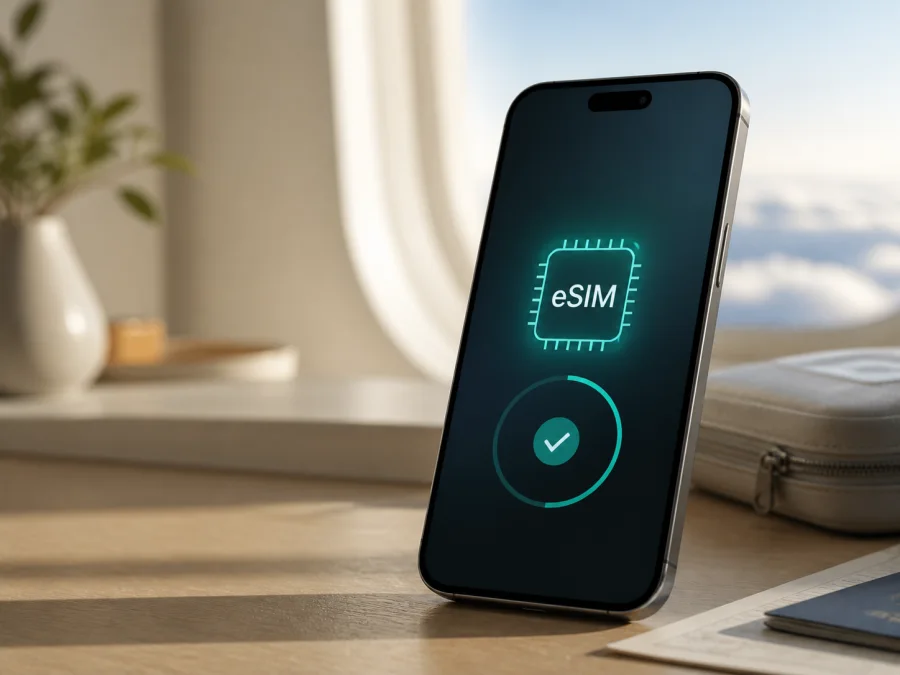
Apple iPhone 17 Pro Max 256GB 5G eSIM: compatibility and setup
Does Apple iPhone 17 Pro Max 256GB 5G support eSIM? For a supported sales version, yes. Apple’s current technical specifications list eSIM for iPhone 17 Pro Max, including two active eSIMs and storage for eight or more eSIM profiles. The 256GB label identifies storage; it does not change the eSIM feature.
The important qualification is regional. eSIM availability can depend on the exact market version, model number, carrier policy, iOS, and local rules. Apple’s current mainland-China guidance names only iPhone 17e and iPhone Air as supporting mainland-China carrier eSIM profiles. A mainland-China-market iPhone 17 Pro Max therefore needs an additional check before you buy a travel plan. This page preserves the supplied name exactly. It does not add a RAM value or a Cellular modifier because neither appears in the input.
Quick answer
For most supported regional versions, Apple iPhone 17 Pro Max 256GB 5G is eSIM-compatible. Some versions are eSIM-only; others may combine a nano-SIM with eSIM. Supported versions can use two eSIMs at once, subject to carrier and country conditions.
The 5G label does not prove eSIM support: 5G is a network generation, while eSIM is a digital SIM capability. A plan must cover your destination and compatible networks. If bought in mainland China, check the actual model and local rules.
Key specifications
| Item | Relevance to this check |
|---|---|
| Exact variant | Apple iPhone 17 Pro Max 256GB 5G |
| Storage | 256GB; capacity does not determine eSIM support |
| Network label | 5G; connection speed depends on bands, coverage, and plan |
| SIM feature | Apple lists eSIM for iPhone 17 Pro Max; a nano-SIM tray varies by market |
| Active profiles | Up to two active eSIMs on supported versions; eight or more can be stored |
| RAM | Not specified in the supplied device name; no RAM is assumed |
Cellular |
Not present in the supplied device name; no other variant is merged here |
| First checks | EID, Add eSIM, model number, carrier lock, destination, and plan conditions |
Why the sales region matters
Apple ships regional configurations with different SIM arrangements. A US or Puerto Rico model may activate only through eSIM, while another may have both a nano-SIM and eSIM. Local carrier support differs too, so the family name alone is not enough.
Apple’s current identification information lists iPhone 17 Pro Max model families such as A3257 for the United States and Puerto Rico, A3525 for named markets, A3527 for mainland China, and A3526 for other regions. Use the model shown on the phone, not a retailer title; the part number in Settings > General > About helps confirm the sales version.
Mainland China is the clearest exception. Apple’s current guidance says only iPhone 17e and iPhone Air support mainland-China carrier eSIM profiles; other iPhone models cannot install one. A mainland-China iPhone 17 Pro Max may therefore differ from an international version. An unlocked phone bought in a supported market may still use a travel eSIM elsewhere, subject to the plan and destination. Verify before payment.
Carrier lock is separate from eSIM hardware. Go to Settings > General > About and check Carrier Lock. To use a different travel provider, the useful status is No SIM Restrictions. An EID or Add eSIM menu does not automatically unlock the phone; only the current carrier can remove a carrier lock.
What to check before buying
Answer two questions separately: can the phone install eSIM, and can the chosen plan provide data on this phone at the destination?
- Confirm the full listing is Apple iPhone 17 Pro Max 256GB 5G. Do not substitute a different capacity, iPhone 17 model, or regional version.
- Open Settings > General > About and record the model number or part number. Tap the part number if you need the A-number identifier.
- Scroll to EID. It identifies the embedded-SIM component. Share it only through a trusted activation flow when required.
- Open Settings > Cellular or Settings > Mobile Data and look for Add eSIM, Set Up Cellular, or similar wording.
- Check Carrier Lock and look for No SIM Restrictions when the travel profile comes from another provider.
- Update iOS when practical, charge the phone, and prepare reliable Wi‑Fi for installation.
- Confirm the plan’s country or regional coverage, supported networks, data allowance, validity, activation timing, and data-only limitations.
- Keep the QR code, activation link, app, or manual details available. A code displayed on the same iPhone may require another screen or manual entry.
Use this internal compatibility check before selecting a tariff: Check your device.
<a id="kesim-device-compatibility"></a>
Verify the EID and Add eSIM menu
EID is useful evidence of eSIM hardware, but it does not guarantee that every provider or regional profile will work. Confirm EID, the eSIM menu, model, and unlock status together.
- Open Settings, tap General, then About.
- Scroll to EID. Touch and hold the number to copy it only into a trusted provider form.
- On the same screen, check Carrier Lock. If it does not say No SIM Restrictions, ask the original carrier about unlocking.
- Return to Settings > Cellular or Mobile Data.
- Look for Add eSIM, Set Up Cellular, or Add Cellular Plan. Labels can vary with language and iOS.
- If both EID and the Add eSIM control are missing, stop before buying. Recheck the model, region, iOS version, and any device-management restriction with the seller or carrier. Never guess an activation code.
Installation needs internet because the phone must contact the provider. Wi‑Fi is safest; keep the home line until testing.
Install and activate a travel eSIM
Kaspersky eSIM Store is an app and website where you can choose, arrange, and activate an eSIM tariff for mobile internet during an overseas trip. It is not a mobile operator, network owner, or provider of mobile coverage.
See the iOS eSIM installation instructions. For a profile transferred from Android, see the Android eSIM installation instructions.
QR code
- Connect the iPhone to Wi‑Fi and display the QR code on another screen.
- Open Settings > Cellular > Add eSIM or Set Up Cellular.
- Tap Use QR Code; it may be under Other Options.
- Scan the code, review the detected plan, and continue. Enter a confirmation code only if one was supplied.
- Label the line Travel so it is easy to identify.
- Wait for the activation message. Do not scan a one-time code repeatedly while the first attempt is processing.
On a compatible recent iOS version, touching and holding a QR code in the default email app or browser may offer Add eSIM. Otherwise use a second screen and ask support about a small, cropped, expired, or consumed code.
Link, app, or manual entry
If the provider sends a link, open it on the iPhone and approve Activate New eSIM. In an app, sign in and confirm the destination and plan. For manual entry, copy the SM-DP+ address and code exactly, including zeroes, hyphens, and letter case.
Transfer from another phone
If a carrier supports eSIM Quick Transfer, keep both iPhones nearby, turn on Bluetooth, unlock the old phone, and follow the prompts. The old SIM or eSIM may deactivate when the new line activates. Android transfers may require a new QR code or carrier support.
Use the eSIM for mobile data abroad
After installation, open Settings > Cellular, select the travel line, and turn on Turn On This Line. Open Cellular Data and choose Travel as the data line. Review Allow Cellular Data Switching; turn it off if you want to prevent the home line from becoming the data line unexpectedly.
For a data-only plan, the home line can remain available for calls and messages, but roaming charges may apply. Turn off its data roaming when appropriate; enable Data Roaming on the travel eSIM only if instructed.
Practical scenarios
Before departure: confirm model, EID, Add eSIM, unlock status, destination, and plan conditions. Install over stable Wi‑Fi, label the line, and keep activation details secure. Do not turn it on early if validity begins on first connection.
After landing: connect to Wi‑Fi if needed, turn on the travel line, select it for Cellular Data, enable roaming if required, then turn off Wi‑Fi and load a simple webpage.
Keeping the home number: two active eSIMs can keep the home and travel lines available together on supported versions. iMessage, FaceTime, and apps may use the home identity, while calls and SMS can incur roaming charges.
Several countries: choose a regional plan only when all stops are covered and its validity dates fit. Label profiles clearly and activate the intended one; stored eSIMs are not automatically active.
Common problems and checks
No Add eSIM option
Check Settings > General > About for EID, confirm the model and region, update iOS, and restart. If EID and the menu remain absent, investigate regional restrictions or device management with the seller or carrier. Capacity and 5G are not proof of eSIM support.
QR code will not scan
Use another screen, increase brightness, remove glare, and keep all corners in frame. Try Settings > Cellular > Add eSIM > Use QR Code. If it was sent to this iPhone, use touch-and-hold where available or request manual details. Do not delete a partial profile before checking its state.
No Service or SOS after installation
Confirm that the travel line is on, selected for Cellular Data, active, and allowed at the destination. Check roaming as instructed. Turn Airplane Mode on for about 30 seconds, then off; restart if needed. Check for a carrier-settings update in Settings > General > About. A lock, outage, or unsupported band can also cause the problem.
The wrong line uses data
Open Settings > Cellular > Cellular Data and select the travel eSIM. Review Allow Cellular Data Switching and the home line’s roaming setting. Turn off Wi‑Fi for a short test.
Data does not start
Make sure the line is installed and turned on, the plan has reached its activation point, and the destination is included. Check balance and validity in the provider’s app or account. A data-only plan does not need voice or SMS service.
Carrier restriction or support request
If Carrier Lock is not No SIM Restrictions, contact the original carrier; do not erase the phone or delete the home line while waiting. For support, have the model, iOS version, EID, destination, and failed step ready. Never post QR, activation, or EID details publicly.
FAQ
Does 256GB change eSIM support?
No. 256GB is the storage modifier in Apple iPhone 17 Pro Max 256GB 5G. eSIM depends on model, region, carrier, iOS, and local rules.
Is 5G required?
No. eSIM and 5G are separate. An eSIM may use 5G or LTE depending on coverage, bands, and plan.
Can two eSIMs be active?
Apple lists two active eSIMs for supported iPhone 17 Pro Max versions. Carrier and local rules still apply; select the data line explicitly.
Does a travel eSIM replace my number?
Usually not. A data-only travel eSIM is an additional mobile-internet profile. Voice, SMS, or a local number is included only if the plan says so.
Can I install without Wi‑Fi?
Installation normally requires internet; Wi‑Fi is safest. Some eSIM-only configurations may activate without Wi‑Fi in certain regions, depending on local support.
Can I move the profile later?
Do not assume it. Many profiles are issued for one device or activation; check transfer rules before deleting one.
Will this iPhone work with eSIM in mainland China?
Do not assume it. Apple’s current mainland-China guidance lists only iPhone 17e and iPhone Air for mainland-China carrier eSIM profiles. For Apple iPhone 17 Pro Max 256GB 5G, confirm the purchase region, model, and destination-specific conditions before buying.
Conclusion: check first, then choose a travel eSIM
Apple’s current specifications support eSIM on Apple iPhone 17 Pro Max 256GB 5G when its region and carrier status allow it. The 256GB and 5G modifiers do not override regional restrictions, especially for a mainland-China-market phone.
Before purchase, confirm the model number, find the EID, look for Add eSIM, check No SIM Restrictions, and match the destination, traffic, validity, activation timing, and roaming instructions. Install over a reliable connection, select the travel line for Cellular Data, and test it without Wi‑Fi.
Kaspersky eSIM Store can then help you choose, arrange, and activate an eSIM tariff for mobile internet on an overseas trip through its app or website. It does not replace a mobile operator or own the destination network.
Final device-check and trip eSIM block
- Device: Apple iPhone 17 Pro Max 256GB 5G; exact model confirmed.
- eSIM: EID visible; Add eSIM or Set Up Cellular available.
- Region: sales market checked; mainland-China restriction considered.
- Unlock: No SIM Restrictions shown when using another provider.
- Trip: destination, network compatibility, data allowance, validity, activation timing, and roaming settings checked.
- Setup: profile installed, clearly labelled, selected for Cellular Data, and tested before departure or on arrival.
If every item is confirmed, choose the eSIM option that fits the destination and dates, keep activation details private, and travel with a clear data plan.


