Travel connectivity guide
Apple iPhone 17 Pro Max 512GB eSIM Compatibility
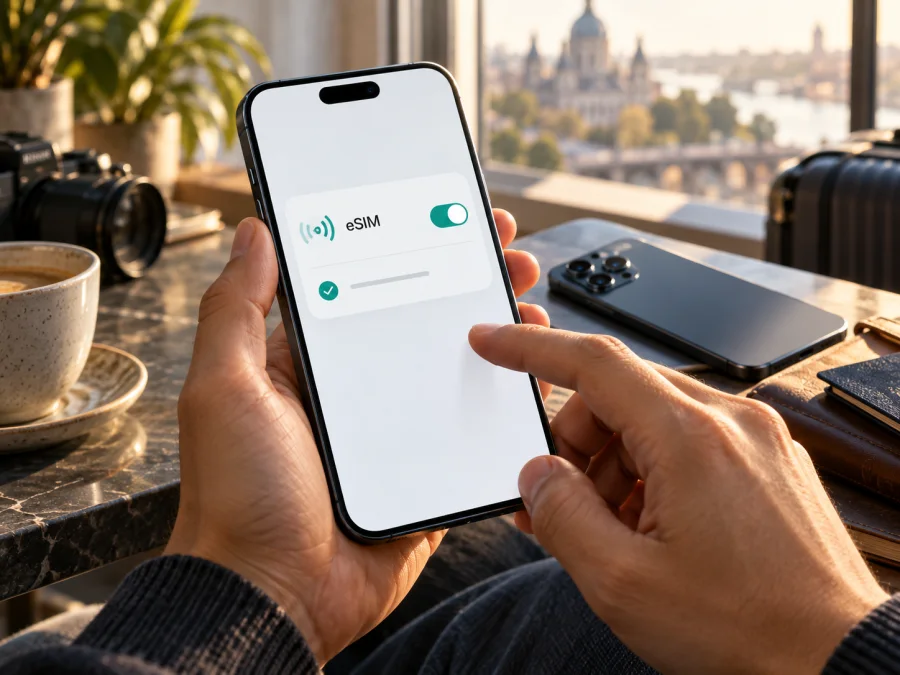
Apple iPhone 17 Pro Max 512GB eSIM: compatibility and setup
The Apple iPhone 17 Pro Max 512GB supports eSIM in markets where Apple sells an eSIM-capable version of the phone. It can keep two eSIMs active at the same time and store eight or more eSIM profiles, according to Apple's specifications. A 512GB storage configuration does not change cellular compatibility. The important detail is where the phone was sold: the mainland China version is a different regional configuration and is not listed by Apple among iPhones that support eSIM in mainland China. Confirm the model and the operator's rules before you buy a travel plan.
For a traveler, eSIM can make it possible to add a mobile-data plan without inserting a plastic SIM card. You can leave a home line available for calls or messages and select a separate travel line for data, subject to the capabilities and terms of both providers. An eSIM profile alone does not guarantee service: the phone must be compatible and unlocked, the plan must cover the destination, and the local network must support the device.
Apple iPhone 17 Pro Max 512GB at a glance
| Item | What to know |
|---|---|
| Device variant | Apple iPhone 17 Pro Max 512GB |
| eSIM support | Yes for eSIM-capable regional models; confirm the exact unit before purchase |
| Active lines | Up to two eSIMs can be active at once, where supported |
| Stored profiles | Apple lists eight or more stored eSIMs; stored profiles are not all active simultaneously |
| Physical SIM | Depends on the market: some versions are eSIM-only; many others have a nano-SIM tray and eSIM |
| Mainland China | This iPhone generation is not listed among the models that support eSIM in mainland China |
| Network access | Requires an eSIM-compatible carrier or service provider and an eligible plan |
| Storage capacity | 512GB; storage size does not determine eSIM support |
Does the 512GB version support eSIM?
Yes, for regional versions that include eSIM capability. Apple lists the iPhone 17 Pro Max with dual eSIM support. That means you can have two eSIM plans active at the same time, and the phone can store multiple additional profiles for later use. The 512GB label describes internal storage for apps, photos, video and files. It is not a separate cellular model and does not add or remove eSIM support.
The product name alone does not identify the sales region or exact hardware model. Apple lists eSIM-only versions sold in the United States, Canada, Japan, and several Gulf markets; in many other markets the phone has a nano-SIM tray and eSIM. Mainland China is a separate case: Apple’s current guidance does not list iPhone 17 Pro Max among models supported for mainland Chinese carrier eSIM. A phone bought elsewhere does not gain local eligibility simply because it supports eSIM abroad.
Hong Kong and Macao are not interchangeable with mainland China. Apple documents two physical nano-SIM support for some models sold in these markets, and directs owners of iPhone 17 Pro Max bought in Hong Kong or Macao to its eSIM Dual SIM guidance. Check the model number and the operator market; regional availability and carrier acceptance are separate questions.
An unlocked phone is also important. A carrier-locked iPhone may restrict which provider's eSIM it can add, even when the hardware supports eSIM. An unlocked phone can still be rejected by a provider if the model, local rules, account, or plan does not qualify. For a travel data eSIM, verify both device compatibility and whether the provider supports activation for that device and destination.
Regional versions and operator requirements
SIM configuration depends on the market of sale, not just the product name printed on a listing. A version without a SIM tray must be activated through eSIM. A version with a tray may support both a nano-SIM and eSIM, giving you a choice for the home line and the travel line. The presence of a tray does not mean that the phone lacks eSIM, and the absence of a tray is not a universal guarantee that every carrier's eSIM can be installed.
| What you are checking | Why it matters |
|---|---|
| Country or region where the unit was sold | Apple offers different SIM configurations and regional model numbers |
| Model number | Identifies the hardware variant more reliably than a reseller's generic title |
| Physical SIM tray | Helps distinguish eSIM-only versions from versions with nano-SIM support, but does not by itself confirm carrier eligibility |
| Carrier lock status | A locked phone may limit eSIMs to the carrier that locked it |
| Provider and destination | eSIM availability, activation method and network access vary by provider and market |
The operator is the party that determines whether it can issue or activate an eSIM for a line, and what identification or account checks apply. For a travel plan, also check the exact countries covered, the validity period, data allowance, activation window, tethering policy and any network restrictions shown before purchase. The regional model and destination rules can both affect the outcome. For a used or imported phone, ask the seller for its model number and unlocked status before paying.
How to check eSIM compatibility on your own iPhone
Use the menus on the device as a practical first check. Menu labels can vary slightly by iOS version and language.
- Open Settings.
- Tap General, then About.
- Look for EID. An EID is the identifier associated with the embedded SIM hardware. If it appears, that is a strong sign that the phone has eSIM capability.
- Return to Settings and open Cellular (called Mobile Data in some regions).
- Look for Add eSIM or Add Cellular Plan. The wording can differ by iOS release and market.
- If the option is present, open it only when you are ready to add a plan or test a provider's supported setup method. Do not scan a one-time activation QR code merely to see whether the menu opens.
- Check Settings > General > About > Carrier Lock. If the status says No SIM restrictions, the phone is unlocked. If it shows a restriction or you are unsure, ask the carrier that sold or locked it.
The EID and Add eSIM menu are useful checks, not a full compatibility guarantee. A missing EID can indicate a non-eSIM regional variant or a device issue. A visible EID does not override a carrier lock, local restrictions, or the provider’s supported-device rules. If the settings disagree with a reseller’s claim, confirm the model before buying a plan.
For the iPhone 17 Pro Max 512GB, check the model number too. In Settings > General > About, tap the part number beside Model Number to reveal the hardware model number. Compare it with Apple's information for the region where the device was sold. If checking a boxed device, request a photo of the model details and an explanation of the original sales market; a storage label alone is not enough to identify the SIM variant.
eSIM readiness checklist
- [ ] The exact phone is an eSIM-capable regional configuration.
- [ ] An EID appears in Settings, and the Add eSIM option is available.
- [ ] The iPhone is unlocked, or the intended eSIM provider is permitted by its carrier lock.
- [ ] The provider accepts the device and supports eSIM service for the destination.
- [ ] The plan's coverage, data allowance, validity and activation conditions fit the trip.
- [ ] You have a reliable internet connection for installation and know whether the plan starts on installation, first network connection, or another event.
- [ ] You have kept the activation details available until the profile is confirmed as installed.
Check whether your device is compatible before choosing a plan. The check should use the precise device variant and the destination, rather than the iPhone family name alone.
What eSIM changes when you travel
A travel eSIM is a digital SIM profile that can be installed on a compatible phone. It can provide mobile data through a participating provider's network in the destination. It does not automatically replace your home phone service, and a data-only plan usually does not include a standard mobile number, voice calls or SMS unless its terms explicitly say so. Internet calling and messaging apps can work over the data connection, but they still depend on app access and the people you are contacting.
Before departure, decide which line should handle each task. You can keep the home line for calls or messages and select the travel eSIM for data, but home-carrier roaming charges may still apply. Check its terms and disable data roaming on the home line if you do not intend to use it.
Apple lists eight or more stored eSIMs, with up to two active at once. Stored profiles are not connected automatically. Do not delete a working profile unless you know how to restore it; the provider may need to issue a replacement activation.
A plan may start on installation, activation, first network connection or another event. These are not always the same moment, so check the provider's terms and save its instructions before leaving Wi-Fi.
How to install and activate an eSIM
The exact process depends on the provider. Most providers offer an in-app installation, a QR code, or manual details. The iPhone must have internet access during setup in many cases. Use Wi-Fi or another connection, keep the phone powered, and follow the provider's current steps. An activation code may be single-use, so do not share it or scan it on a different phone.
- Confirm eligibility. Complete the EID, Add eSIM, carrier-lock and destination checks above. Confirm that the selected plan works with the specific iPhone and is intended for the trip dates.
- Choose the setup method. Check the provider's email, app or account page for an installation option. If the provider offers automatic installation, use the prompt on the iPhone. If it gives you a QR code, display that code on another screen or print it.
- Open the iPhone setup flow. Go to Settings > Cellular > Add eSIM (or Mobile Data > Add eSIM in some locales). Choose the QR-code option if prompted and scan the provider's code. If using manual details, enter the SM-DP+ address and activation code exactly as supplied. Some providers let you install from their app instead.
- Label the lines. Give the new profile a clear label such as Travel. Keep your home line label recognizable. This makes it easier to select the correct number for mobile data and calls.
- Set your default choices. When asked, choose which line to use for voice calls and messages. For a data-only travel plan, keep the home line for calls or messages if you want it, and set the travel eSIM as the line for Cellular Data.
- Wait for installation to finish. Do not close the setup screen, restart the phone or delete the profile while it is downloading. Once the line appears in Cellular settings, follow the provider's activation timing instructions.
- At the destination, select the travel line for data. Turn on the eSIM line and select it under Cellular Data. Enable data roaming for that eSIM only if the provider's instructions require it. Roaming can be needed for a travel profile to connect to its partner network, but the correct setting depends on the plan.
- Check the connection. Turn Wi-Fi off briefly and open a simple webpage or map. Confirm that the travel line is selected for data and that the phone shows a cellular network. Restore any preferred Wi-Fi setting afterward.
For Apple-specific menus and transfer options, consult the iOS eSIM installation instructions. If you are also helping someone prepare an Android phone, use the Android eSIM installation instructions. Follow the provider's own activation timing and coverage terms where they differ from a general device guide.
Kaspersky eSIM Store is an app and website where you can choose, arrange and activate an eSIM plan for mobile data on an international trip. Use it to review the destination and plan terms, then install the compatible eSIM profile using the iPhone setup flow. The service is not the mobile operator or the network itself; service and coverage depend on the provider and networks used for the selected plan.
Common eSIM problems and what to check
“Add eSIM” is missing
Restart the iPhone and check Settings > General > About for an EID. Install an available iOS update using Wi-Fi, then check the menu again. If there is still no EID or Add eSIM option, confirm the market and model number with Apple or the seller. The phone may be a regional version without eSIM support, or it may need service. Do not pay for an eSIM plan until the device's configuration is clear.
The QR code will not scan or the profile will not install
Make sure the iPhone has an internet connection, the QR code is legible and the code is intended for this device. Increase the brightness on the screen showing the QR code and avoid glare. If the camera will not scan it, use manual installation details only when the provider supplied them. If an error says the code is invalid or already used, contact the provider for help; repeatedly scanning a single-use code usually will not fix it.
The profile installed but there is no signal
Confirm that the travel line is switched on, that the selected plan has reached its activation window, and that the destination is covered. Turn Airplane Mode on briefly and then off, restart the phone, and check for a carrier settings update. If the provider allows it, select network choice as automatic. A travel eSIM may require Data Roaming to be enabled on that profile; check the provider's instructions before turning it on. Do not enable roaming on the home line unless you intend to use it and understand its charges.
The phone connects, but apps do not load
Check that Cellular Data points to the travel eSIM. Verify the plan has remaining data and has not expired. Turn off Wi-Fi temporarily to confirm cellular data is being tested. Check any VPN, content filter or custom DNS configuration if only some apps fail, and test a basic website. If the provider shows the plan as active but data remains unavailable, contact the provider with the device model, location, line status and the exact error message. Avoid posting QR codes, activation strings or account credentials.
The home number stopped working as expected
Open Settings > Cellular and confirm the home line is enabled. Review the default line for calls and messages and check whether your home carrier requires Wi-Fi Calling or another setting. Mobile data selection and the default voice line are separate controls. If the home line is disabled, messages and calls to that number may not arrive until you enable it again, and roaming rules still depend on the carrier.
An eSIM will not transfer to a replacement phone
Many travel eSIM profiles cannot be moved after installation, or may require the provider to issue a replacement. Do not erase the old phone until the provider confirms how to restore the plan. Apple supports some eSIM transfer methods between eligible devices and carriers, but that does not guarantee that a particular travel profile can be transferred. Ask the provider before removing the profile or resetting the device.
Frequently asked questions
Is eSIM support different on the Apple iPhone 17 Pro Max 512GB than on the 256GB or 1TB version?
The storage size does not determine eSIM support. The sales-region model and carrier conditions do. The same regional SIM configuration applies across storage options in the product family, but always verify the actual device being sold.
Does eSIM mean free roaming?
No. An eSIM is a way to provision a mobile plan. The plan has its own coverage, price, data allowance and validity terms. Your regular carrier may also charge for calls, messages or roaming if its line remains enabled. Review both the travel plan and home plan before departure.
Is a mainland China iPhone 17 Pro Max compatible with every travel eSIM?
Do not assume so. Apple does not list iPhone 17 Pro Max among iPhones that support eSIM service from mainland China carriers. Eligibility for an overseas travel profile can depend on the provider and installation location. Check the exact model and the provider's supported-device information before buying.
Final check before choosing a travel eSIM
The Apple iPhone 17 Pro Max 512GB can use eSIM when it is an eSIM-capable regional model, and Apple lists support for two active eSIMs with multiple stored profiles. The 512GB capacity does not change that. The mainland China variant and operator-specific eligibility need special care, while some other markets sell an eSIM-only version and many sell a nano-SIM-plus-eSIM version.
Before purchasing a travel data plan, identify the actual regional model, find the EID and Add eSIM option in Settings, and confirm that the device is unlocked. Then compare the provider's supported destinations, data allowance, validity, activation timing and roaming instructions. Kaspersky eSIM Store's app and website help you choose, arrange and activate an eSIM plan for mobile data during an international trip. A few minutes of checking before purchase can help you avoid discovering a device or plan restriction after arrival.


