Travel connectivity guide
Apple iPhone 17 Pro Max eSIM: Compatibility
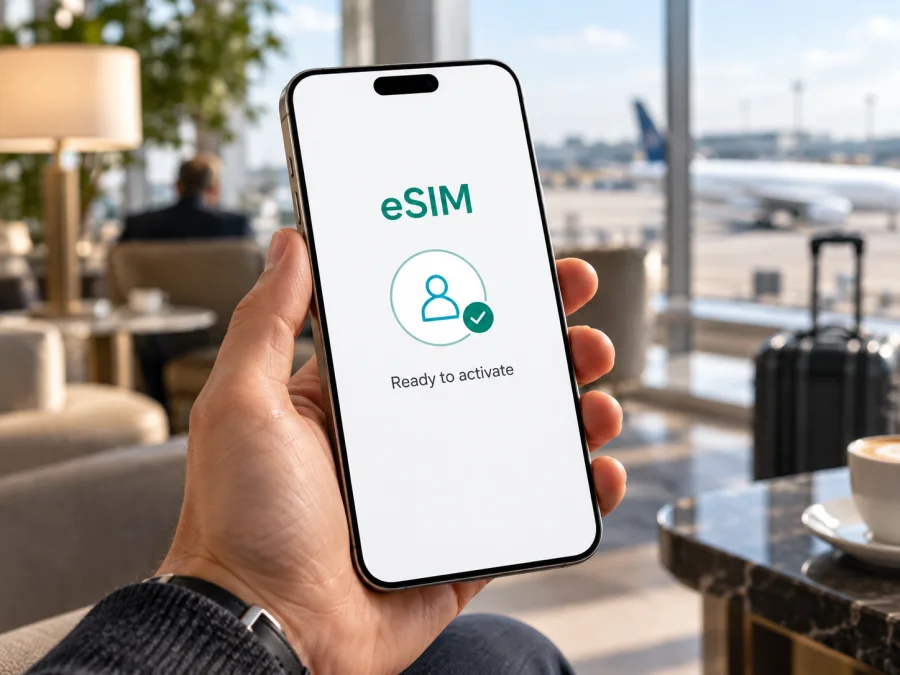
Apple iPhone 17 Pro Max eSIM: compatibility and setup
Short answer: Apple iPhone 17 Pro Max supports eSIM in markets where that version of the phone is sold with eSIM hardware. Apple lists the model with dual eSIM support, and some regional versions can use two active eSIMs at once. The important exception is a unit sold for mainland China: Apple says iPhone 17 Pro Max models for that market do not support eSIM. A US-market unit is eSIM-only and has no physical SIM card tray. Other regional versions may combine a nano-SIM tray with eSIM. Check the actual phone before buying a travel plan; the model name alone does not identify its SIM configuration.
For a trip, a compatible iPhone 17 Pro Max can keep a home line available while a travel eSIM is selected for mobile data. A travel plan is useful when its supported destination, data allowance, validity period, and activation conditions match your itinerary. Kaspersky eSIM Store is an app and website where you can choose, arrange, and activate an eSIM with a mobile-data plan for an international trip. It is not a mobile operator, and the network service itself depends on the plan and its local operator.
Does Apple iPhone 17 Pro Max support eSIM?
Yes, on supported regional versions. Apple lists dual eSIM for Apple iPhone 17 Pro Max: two eSIMs can be active, and eight or more profiles can be stored. A compatible carrier or service provider and an eligible plan are still required. The model name alone does not tell you which SIM hardware your unit has.
| Purchase market or version | SIM setup | Travel eSIM suitability |
|---|---|---|
| United States eSIM-only version | eSIM only; no physical SIM | Can add a travel eSIM if unlocked and supported. |
| Many other markets | nano-SIM and eSIM; dual eSIM support | Can retain a physical home SIM and add a travel eSIM, subject to carrier conditions. |
| Mainland China-market iPhone 17 Pro Max | Does not support eSIM; Apple documents two nano-SIMs for this model | Cannot install a travel eSIM, including when taken abroad. |
| Hong Kong or Macao | Apple lists iPhone 17 Pro Max bought there among eSIM-capable models; SIM arrangements can differ | Verify EID and Add eSIM on the actual phone and confirm it is unlocked. |
These are regional hardware and sales-market differences, not the phone’s current geographic location. A mainland China-market iPhone 17 Pro Max does not gain eSIM support when it travels. On the other hand, an eSIM-capable version used abroad still depends on the plan’s supported destinations, local operator, and network conditions. Keep the phone’s sales market distinct from the country you are visiting and the operator market used by the plan.
“Dual eSIM” means the phone can have two eSIM lines active; it does not mean both use mobile data simultaneously or that every carrier supports transfer. iPhone uses one cellular data network at a time. A travel data plan should not be assumed to include a regular number, calls, or SMS unless its terms say so.
Quick specifications relevant to eSIM
| Item | Detail |
|---|---|
| Device | Apple iPhone 17 Pro Max |
| eSIM | Supported on eligible regional versions; not on the mainland China-market version |
| Active and stored profiles | Two active eSIMs; eight or more stored profiles, per Apple |
| Physical SIM | Depends on market; none on the US eSIM-only version |
| To activate | Compatible version, unlocked phone when required, internet access, and a supported plan/provider |
Check the exact phone before buying
The safest check combines three things: the actual device settings, the phone’s original sales market, and its carrier-lock status. A listing title or a seller’s general claim about “iPhone 17 Pro Max” is not enough. Ask the seller which market the phone was intended for and request a screenshot from Settings if you cannot inspect it in person. If the phone is already in your hands, use the checks below.
Find the EID
EID is the identifier associated with the phone’s embedded SIM. On an eSIM-capable iPhone, open Settings → General → About and scroll through the device information for EID. You can also open the Phone app and enter *#06#; supported devices may display EID alongside other identifiers. Do not share a full EID or IMEI publicly. Use it only when a carrier or service provider’s official support flow requests it.
An EID is a strong practical sign that the phone has eSIM hardware, but it does not prove that a particular travel plan will activate. Check the available eSIM controls as well: open Settings → Cellular (called Mobile Data in some language settings) and look for Add eSIM or Add Cellular Plan. Menu wording can vary with iOS version and language. If that option is absent, do not assume the phone can accept an eSIM; confirm the sales market and ask Apple or the carrier to identify the exact model.
Check for a SIM tray and the sales market
Look at the side of the phone for a physical SIM tray, then check Settings → General → About → Model Number. Tap the part number if needed to reveal the model identifier. Compare it with Apple’s current regional identification and support information, or ask Apple Support to confirm which market variant it represents. The tray is only a clue: supported versions with a tray can still support eSIM, and the US version has no tray because it is eSIM-only.
A useful pre-purchase checklist:
- [ ] The phone is the exact Apple iPhone 17 Pro Max named in this guide, not another iPhone 17 model.
- [ ] EID appears in About, and Add eSIM is available in Cellular/Mobile Data settings.
- [ ] The phone was not sold as a mainland China-market iPhone 17 Pro Max.
- [ ] The device is unlocked, or the existing carrier confirms that another provider’s eSIM can be used.
- [ ] The intended travel plan supports the phone’s regional version and the countries on your route.
- [ ] You have a reliable Wi-Fi connection or another internet connection for downloading the profile.
- [ ] You have checked the plan’s data allowance, validity, start conditions, network access, and any restrictions.
Check your device before choosing a plan. If the menu is missing, EID is absent, or the device’s market cannot be established, pause the purchase and confirm compatibility with Apple or the seller. A screenshot of an eSIM menu from a different handset does not verify the phone you will receive.
Check whether the iPhone is carrier-locked
An eSIM-capable phone may still be restricted to one carrier. Open Settings → General → About and find Carrier Lock or Network Provider Lock. “No SIM restrictions” indicates that the phone is unlocked. If another status appears, contact the carrier that sold or locked the iPhone and ask whether it can be unlocked for a travel eSIM. A lock can prevent a profile from working with a different provider, even when EID and Add eSIM are present.
Install and activate a travel eSIM
Before starting, make sure the iPhone is charged, connected to Wi-Fi, unlocked for the intended plan, and running a current iOS version. Keep the activation details available on another screen or device if you plan to scan a QR code; the iPhone cannot scan a QR code displayed on its own screen using the same camera. Some plans support in-app installation, a link, or manual entry instead. Follow the method shown in the plan instructions, because activation timing and profile reuse rules differ.
Install with a QR code
- Open Settings. On the iPhone, go to Settings → Cellular or Settings → Mobile Data.
- Start adding a plan. Tap Add eSIM. If prompted, choose Use QR Code.
- Scan the code. Point the camera at the QR code provided for your plan. If the code is on this iPhone, open the plan’s instructions on another device or use a supported manual or app installation option.
- Confirm the plan. Review the information shown by iOS, then tap Continue or Add eSIM to download the profile.
- Wait for installation. Keep the iPhone connected to the internet until iOS reports that the plan has been added. Installation can take a few minutes.
- Label the line. Choose a clear label such as “Travel” so you can distinguish it from your home number in settings.
- Choose default services. Decide which line should handle calls and messages, if the iPhone asks. You can keep your home number as the default for calls while selecting the travel profile for mobile data.
- Choose the mobile-data line. Select the travel eSIM under Cellular Data/Mobile Data when you are ready to use the plan. If you are installing before departure, you can leave it off or keep your home line as the data line until you arrive, according to the plan’s activation instructions.
- Enable data roaming if required. Open the travel line’s settings and turn on Data Roaming only if the plan instructions require it. Check the plan details first; roaming settings do not by themselves create additional coverage or change a plan’s destinations.
- Test the connection. At the destination, turn off Wi-Fi briefly and load a simple webpage. Confirm that the travel line is selected for mobile data and that the iPhone shows a cellular network.
For screen-by-screen help, see the iOS eSIM installation instructions. If you are helping someone with a different device, the Android eSIM installation instructions cover that setup separately.
Activate at the right time
“Install” and “activate” can describe different steps. Downloading the eSIM profile places it on the phone; the plan may begin when it connects to a supported network, when you switch on the line, or at another point defined by its terms. Read the specific plan’s activation instructions before installing. Some profiles are intended for a single installation and cannot be scanned again after removal. Do not delete a working profile to troubleshoot unless support or the plan instructions specifically tell you to do so.
If you want to prepare at home, install the eSIM over Wi-Fi when the plan permits pre-installation, then leave it inactive or keep data roaming off until the appropriate time if the instructions say so. If the plan is designed to activate only on arrival, allow the iPhone to connect to a local supported network after landing. Avoid installing at the airport on a weak or congested connection when you can complete the download earlier.
Use Apple iPhone 17 Pro Max for mobile data while travelling
A typical setup keeps your regular number available while the travel eSIM handles mobile data. In Settings → Cellular/Mobile Data, select the travel line for data. If you do not want your home line to use data abroad, switch off data roaming on that line and check Allow Cellular Data Switching. Your home carrier may still charge for calls, voicemail, or SMS while the line is enabled; review its terms.
Check the plan’s coverage area against the whole itinerary. A country plan may cover only one destination; a regional plan may omit some countries or territories. Confirm the validity period and what starts it, such as first connection to a supported network. Storing several profiles on the iPhone does not make any plan global or guarantee reception in a particular building or rural area.
For example, a traveller flying from London to Rome could install an eligible profile over Wi-Fi before departure and select it for mobile data after landing if Italy is included. Someone crossing several countries should confirm each one is covered. A business traveller can keep a home line enabled for calls, use the travel eSIM for data, and use internet messaging where appropriate. The exact behavior depends on the home carrier and plan.
Travel eSIMs are commonly intended for data rather than a replacement phone number. Calls and messages through internet apps use data; ordinary calls and SMS require an eligible cellular line. If you need those services, keep an appropriate line active and check roaming charges with its provider.
Kaspersky eSIM Store is an app and website where you can choose, arrange, and activate an eSIM plan for mobile internet on an international trip. Compare the plan’s destination, data amount, validity, price, and activation notes before selecting it. Network availability and service conditions depend on the plan and its local operator.
Troubleshooting common eSIM problems
“Add eSIM” is missing or the phone has no EID
Restart the iPhone, install available iOS updates, then check Settings → General → About and Settings → Cellular/Mobile Data again. If EID and Add eSIM remain absent, identify the phone’s sales market and confirm its exact model with Apple or the seller. A mainland China-market iPhone 17 Pro Max does not support eSIM; changing region or language settings will not add eSIM hardware.
The QR code does not scan or the profile will not download
Raise the brightness of the screen showing the code, clean the camera lens, and hold the iPhone steady. If the QR code is on the iPhone itself, display it on another device. Check the internet connection and whether the code is complete, expired, or already used. If installation still fails, use the plan’s supported app or manual-entry method, or contact its provider before buying another plan. Do not share the QR code publicly.
The profile is installed but there is no service
Make sure the travel line is turned on and selected for mobile data. Check that your destination is included, the plan’s activation condition is met, and Data Roaming is on if the instructions require it. Toggle Airplane Mode briefly, then restart the phone. Allow a few minutes for registration; if needed, use manual network selection only as directed by the plan provider.
The phone connects but apps have no internet
Confirm mobile data is enabled and assigned to the travel eSIM. Turn Wi-Fi off briefly to test cellular data, and review the plan’s remaining data and validity. If a browser works but one app does not, check that app’s settings, any data-saving mode, VPN, or content filter.
The home line uses data or roaming unexpectedly
Select the travel eSIM under Cellular Data/Mobile Data and turn off Allow Cellular Data Switching if you do not want the phone to switch lines. Check data roaming for the home line and the carrier’s roaming conditions. Calls, voicemail, and SMS may still incur charges under the home carrier’s terms.
The iPhone is locked or the data plan is not starting
Check Carrier Lock in Settings → General → About; “No SIM restrictions” means the phone is unlocked. A lock can prevent a third-party eSIM from working. Also check when the plan’s validity begins: installation and activation may be separate. If the line is connected but the plan status looks wrong, contact the plan’s support with the order details. Do not remove a working profile unless its instructions or support tell you to.
Frequently asked questions
Can Apple iPhone 17 Pro Max use two eSIMs at the same time?
Yes, Apple lists support for two active eSIMs on supported versions. The phone uses one cellular data network at a time, and carrier support is required. A mainland China-market iPhone 17 Pro Max is an exception because that model does not support eSIM.
Can I use a physical SIM and an eSIM together?
On versions with a nano-SIM tray and eSIM support, yes, subject to carrier conditions. The US eSIM-only version has no physical SIM capability. The mainland China-market iPhone 17 Pro Max uses a different SIM arrangement and does not support eSIM.
Does every iPhone 17 Pro Max have an EID?
No. Regional SIM configurations differ. Check Settings → General → About on the exact phone and confirm its market version. Do not infer compatibility from the model name alone.
Will a travel eSIM work as soon as I install it?
Not necessarily. The profile download and the plan’s activation are separate events. The plan may start when the profile connects to a supported network or according to another condition in its terms. Follow its instructions and wait for network registration.
Can I keep my usual number active?
Usually, if your iPhone and home carrier support the configuration. Select the travel eSIM for data and check roaming settings; home-line calls or messages may incur charges.
Does a travel data eSIM include calls or SMS?
Do not assume so. Check the individual plan terms. Internet calling and messaging apps use data instead.
Can I move the eSIM to another phone?
That depends on the plan. Some profiles cannot be transferred or reinstalled after activation, so check the provider’s conditions before deleting a profile or changing phones.
Before you choose a plan
Use this final check for Apple iPhone 17 Pro Max: verify the EID, confirm that Add eSIM appears in Settings, identify the phone’s sales market, and make sure the device is unlocked. Do not buy an eSIM plan for a mainland China-market iPhone 17 Pro Max. For a supported version, check that the selected plan covers your destination and route, offers enough data for your expected use, and has a validity period and activation rule that fit your travel dates.
Once those details are clear, use Kaspersky eSIM Store on its app or website to choose, arrange, and activate a suitable eSIM plan for mobile internet during your international trip. Install it using the provider’s stated method, select the travel profile for mobile data at the right time, and keep the plan instructions available if you need to troubleshoot. A few checks before purchase can prevent an incompatible profile or an unexpected activation date from disrupting your trip.


