Travel connectivity guide
Apple iPhone Air 5G eSIM: Setup & Compatibility
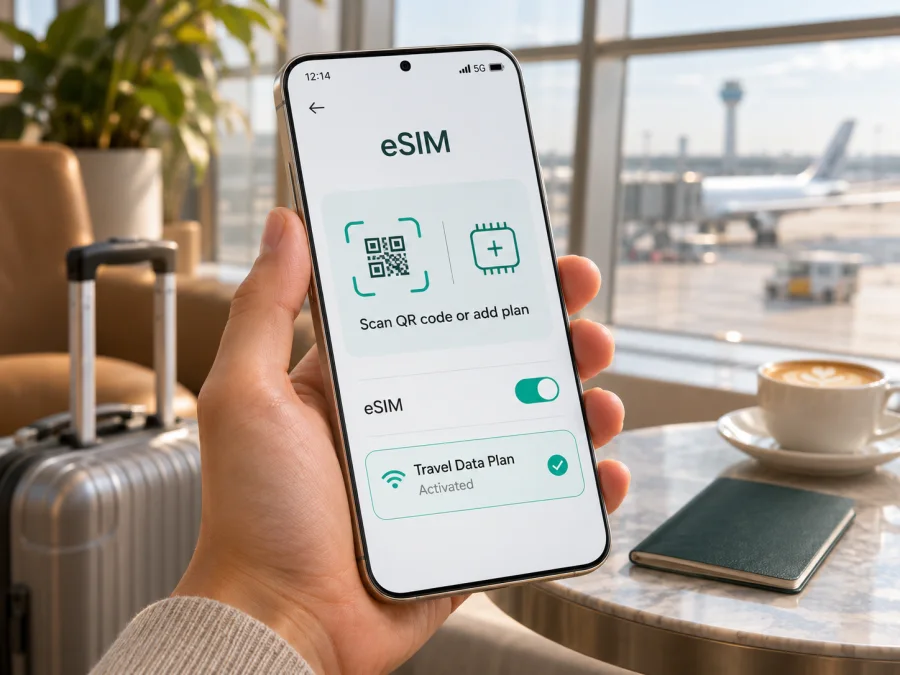
Apple iPhone Air 5G eSIM: compatibility, setup and travel use
Apple iPhone Air 5G supports eSIM. Apple’s “iPhone Air Technical Specifications,” checked November 2, 2026, describes iPhone Air as eSIM-only: it has no physical SIM card support. Apple lists two active eSIMs and storage for eight or more eSIM profiles. That makes this exact device a good fit for a compatible travel data plan, provided the phone is unlocked and the plan works in the destination. The name “Apple iPhone Air 5G” is retained here as supplied; Apple’s product name is iPhone Air, and 5G availability depends on the destination network, its bands and local service.
There is one important regional detail. Apple’s support article “Using eSIM with your iPhone in China mainland,” checked November 2, 2026, identifies the iPhone Air model sold for China mainland as A3518 and lists it as the model that can be activated with mainland Chinese providers. Other iPhone models—including iPhone Air models purchased outside mainland China—cannot install eSIM profiles from mainland Chinese carriers. Mainland China activation also follows local carrier procedures. This regional rule concerns mainland Chinese carrier eSIMs; it does not mean the device has no eSIM support elsewhere. Apple says an unlocked eSIM-only iPhone can be activated with supported carriers in other countries, subject to carrier, plan and cellular-band compatibility. Confirm your specific model and destination before purchase.
Apple iPhone Air 5G eSIM at a glance
| Item | What to know |
|---|---|
| eSIM support | Yes. Apple specifies eSIM-only operation; no physical SIM card is supported. |
| Active lines | Up to two eSIMs can be active at once, subject to the carrier and configuration. |
| Stored profiles | Apple’s specifications state eight or more eSIMs can be stored. Stored profiles are not all active simultaneously. |
| Travel data | A compatible travel eSIM can be used as a data line while a home line remains available, depending on plan and settings. |
| China mainland | Only the regional iPhone Air model A3518 is listed for activation with mainland Chinese providers. Local activation is through a provider store and may require identity verification. |
| 5G | The “5G” label does not guarantee 5G service everywhere. Network support, bands, plan and local coverage determine the connection. |
| Physical SIM | Not supported on iPhone Air. |
Check the exact phone before you buy
The model name on a listing or box is a useful starting point, but it is not a complete compatibility check. Retail region, model number, carrier lock, software state and the intended operator market can affect what you can activate. For a trip, check both the device and the plan rather than relying on the words “5G” or “eSIM compatible” alone.
Compatibility checklist
- Find the model number. Open Settings → General → About. “Model Number” first shows a part number; tap it to reveal the model identifier. Compare it with Apple’s support information for the market where you intend to activate service. For mainland China, Apple identifies iPhone Air model A3518.
- Look for an EID. In Settings → General → About, scroll down. An EID is a strong sign that the phone includes an eSIM component. Apple also lists EID on its device details in an Apple Account and on the original packaging. Treat the EID as private device information; share it only where a provider’s activation process explicitly requires it.
- Check the eSIM menu. Open Settings → Cellular (called Mobile Data in some regions). Look for Add eSIM or Set Up Cellular. Menu wording can vary with iOS version and language. The setting is a useful check, but a visible menu alone does not prove that a particular provider or plan can activate in your market.
- Check the carrier lock. In Settings → General → About, review Carrier Lock. “No SIM Restrictions” means the iPhone is unlocked. If a carrier name or restriction appears, ask the seller or carrier to confirm whether it can be removed before travel. A locked phone may reject an eSIM from another provider.
- Confirm the destination and plan. Check that the eSIM plan is valid for every country or region on your itinerary, supports iPhone eSIM activation and provides the data service you need. If 5G matters, confirm that the plan and destination network support it for your exact model.
- Check storage and access. Make sure iOS is current, you can connect to Wi-Fi during installation if required, and you can access the QR code or activation details on another screen. Do not delete a profile to make room unless you know how it can be restored.
If the EID or Add eSIM option is absent, pause before buying and confirm the exact model with Apple or the seller. A phone may have a market-specific configuration, restrictions or a software issue. Do not assume that a missing indicator can be fixed by purchasing a plan.
What regional and operator differences mean
Apple’s iPhone Air uses eSIM rather than a removable SIM card, but operator rules are separate from the hardware. A network provider must support eSIM and accept the device and plan. Some providers use a QR code; others use an app, carrier activation or a store visit. Identity checks and eligibility rules can also differ by country and by service type.
Mainland China is a special case documented by Apple. Its support page lists iPhone Air model A3518 for local eSIM activation and explains that activation takes place at a carrier store, with identity checks. Apple’s carrier support listing names China Mobile, China Telecom and China Unicom for the relevant eSIM service, but users should confirm current eligibility, plan terms and requirements directly with the chosen provider. A phone purchased outside mainland China cannot install a mainland Chinese carrier eSIM profile, according to Apple’s current guidance.
In other markets, verify the exact model number against the provider’s device requirements. Regional radio bands can differ, and a supported eSIM profile does not by itself guarantee 5G, LTE, tethering or a particular speed. Coverage depends on the partner network at your location, local infrastructure, plan rules and device bands. Ask the provider about any feature you consider essential. For a quick device-level check, check your device compatibility.
Install an eSIM on Apple iPhone Air 5G
Have a stable internet connection available, keep the phone charged, and read the plan’s activation instructions before scanning a code. An activation QR code is usually single-use. If it is displayed on the same phone, use the provider’s app-based installation flow or display the code on a second screen; the iPhone camera cannot scan a code that is only visible on its own screen.
- Prepare the phone. Connect to Wi-Fi or a reliable hotspot if the activation method requires internet. Update iOS if practical, and confirm that the phone is unlocked for the intended provider.
- Open cellular settings. Go to Settings → Cellular, then choose Add eSIM or Set Up Cellular. Labels can vary slightly by iOS version.
- Choose the provider’s method. Follow the supplied flow: transfer from a nearby iPhone, use carrier activation, scan a QR code, follow an activation link, use a provider app or enter details manually. Use manual details only when the provider has supplied them.
- Scan or confirm. If using a QR code, scan it from the provider’s email or account on another screen or a printed copy. Review the displayed plan information, then tap the on-screen option to add or continue. Enter any confirmation code only if the provider supplied one.
- Label the line. Choose a clear label such as “Travel data” so it is easy to distinguish from your personal line. This label is for your own settings and does not change the plan.
- Choose default settings carefully. Keep your home line selected for calls and messages if you want to use it that way. Set the travel eSIM as Cellular Data only when you intend to use its data plan. Consider turning off Allow Cellular Data Switching if you want to reduce the chance that the phone will use another line for data.
- Follow the plan’s activation timing. Installing a profile and starting a data package are not always the same event. Read the provider’s terms to learn when validity begins: at purchase, installation, first connection or a scheduled time. Do not assume that waiting to turn on a line will postpone a plan’s start.
- At the destination, enable the travel line. In Settings → Cellular, turn on the travel eSIM and select it under Cellular Data. Enable Data Roaming for that eSIM only if the plan’s instructions require it. Roaming on a travel eSIM can be part of the plan, but check its terms; keep your home line’s data roaming settings aligned with your own carrier’s charges.
- Check connectivity. Allow a few minutes for network registration. Confirm that Cellular Data points to the travel eSIM, that the line is enabled and that the phone shows a local network. Test a webpage or messaging app before relying on maps or ride services.
Apple’s support article “Set up eSIM on iPhone,” checked November 2, 2026, describes the available activation methods and settings. Kaspersky eSIM Store’s iOS installation guide explains its QR-based flow. The Android guide is available for another device at Android installation instructions.
Using a travel eSIM on a trip
A data-only travel eSIM can give you a separate route to mobile data while away from home. It may be useful for maps, transport apps, messaging, email, translation and booking details without swapping a physical card. A data plan does not automatically include an ordinary telephone number, voice calls over the mobile network or SMS; check the individual plan terms. Internet-based calling and messaging apps can work over data when configured and available.
Before departure, compare the destination coverage, data allowance, validity period, activation timing, tethering rules and supported networks shown for the plan. If your itinerary crosses borders, check that each country is included. A plan for one country should not be assumed to cover a neighboring country or a layover. Also check whether the provider requires installation before travel or whether its QR code can be used after arrival.
Kaspersky eSIM Store is an app and website where you can choose, arrange and activate an eSIM plan for mobile data on an international trip. Plan availability and conditions vary by destination and change over time. You can browse the Kaspersky eSIM Store to check current destinations and plan details; the homepage is a general starting point, not a specific country tariff.
Common issues and what to check
“Add eSIM” is missing
Check Settings → General → About for an EID, confirm the exact model number and install available iOS updates. Restart the phone and check the Cellular settings again. If the EID and menu are both absent, contact Apple or the seller with the model number before purchasing a plan. Regional configuration and device management restrictions may require additional investigation.
The QR code will not scan or activation fails
Use a second screen or print the QR code, increase brightness, and make sure the code is not cropped or blurred. Confirm that it belongs to this plan and has not already been used. Check Wi-Fi and date/time settings, then retry once.
The eSIM installs but has no data
Open Settings → Cellular and verify that the line is enabled and selected under Cellular Data. Confirm that the plan is valid in your current country and has started according to its terms. If the provider instructs you to enable Data Roaming for that line, do so. Check that the phone has not selected the home line for data, then toggle Airplane Mode or restart. If the plan requires a particular network selection or APN, use only the values provided by the provider.
The home SIM appears to be roaming
The phone’s status display can show a network name while data is routed through another line. Confirm which line is selected under Cellular Data and whether Allow Cellular Data Switching is enabled. Turn off data roaming on your home line if appropriate for your home carrier and use the travel line for data. Keep in mind that calls, SMS, voicemail or background services on the home line may still incur charges under its terms.
Service works, but 5G does not appear
First test whether data works at all. Then check that the plan and local network support 5G, that the model supports the necessary bands, and that the area has 5G coverage. Review Voice & Data or network settings without changing restrictions you do not understand. A 4G/LTE connection can still provide usable data; 5G is not guaranteed by the device name alone.
Personal Hotspot or tethering is unavailable
Tethering depends on the plan and provider configuration as well as the iPhone settings. Check the plan terms and whether Personal Hotspot appears in Settings. If the option is unavailable or clients cannot connect, ask the provider whether tethering is allowed for that plan. Do not assume that every data eSIM includes hotspot use.
A second eSIM cannot be turned on
Check how many active lines the phone currently has and whether one needs to be disabled. iPhone Air supports up to two active eSIMs according to Apple, while multiple other profiles can remain stored. A carrier or market-specific rule can impose a lower limit, so follow the provider’s instructions. Avoid deleting a profile unless you know how to reinstall it.
Frequently asked questions
Does Apple iPhone Air 5G support eSIM?
Yes. Apple’s current specifications describe iPhone Air as eSIM-only, with no physical SIM compatibility. Apple also lists two active eSIMs and storage for eight or more profiles. Carrier and regional restrictions still apply.
Can I use a travel eSIM and keep my regular line?
You can keep two eSIMs active at once on supported iPhone Air configurations, then select the travel line for mobile data. Your home carrier’s calls, messages and roaming charges remain governed by that carrier’s terms. Check the home line’s settings before departure.
Does eSIM support guarantee 5G abroad?
No. The eSIM profile, plan, phone model, radio bands and destination network must all be compatible. The phone may connect over LTE or another available network even when it supports 5G.
Can an Apple iPhone Air 5G bought outside mainland China use a mainland Chinese carrier eSIM?
Apple’s current China mainland support guidance says models purchased outside mainland China cannot install eSIM profiles from mainland Chinese providers. It lists iPhone Air model A3518 for local mainland activation and describes activation at a carrier store. Confirm current requirements directly with Apple and the provider if this market applies to you.
Can I use an iPhone Air bought in mainland China when travelling abroad?
Apple says a mainland China iPhone Air can use a local carrier eSIM while outside mainland China, subject to its stated requirements. Check the exact model, location settings, carrier compatibility and the travel plan’s installation rules before leaving.
Does a data-only travel eSIM replace my phone number?
Not necessarily. A data-only plan provides mobile data and may not provide a regular phone number, voice service or SMS. Keep your existing line for services that need it, and use messaging or voice apps over data where suitable.
Should I delete the eSIM after returning?
Usually, disable or change the data line as needed and follow the provider’s instructions. Deleting a profile can make it impossible to reuse the same QR code. If you expect to use that plan or profile again, confirm its reuse policy first.
Final check before your trip
Before buying, check the EID and Add eSIM setting, confirm the model number and Carrier Lock status, and verify destination coverage and activation timing. For mainland China, check Apple’s A3518 regional model and carrier-store process. Then choose a plan for your route, install it as instructed, and select the travel eSIM for data when ready. If compatibility is unclear, ask Apple or the provider to confirm the exact model before purchase.


