Travel connectivity guide
Apple iPhone Air eSIM: compatibility and setup
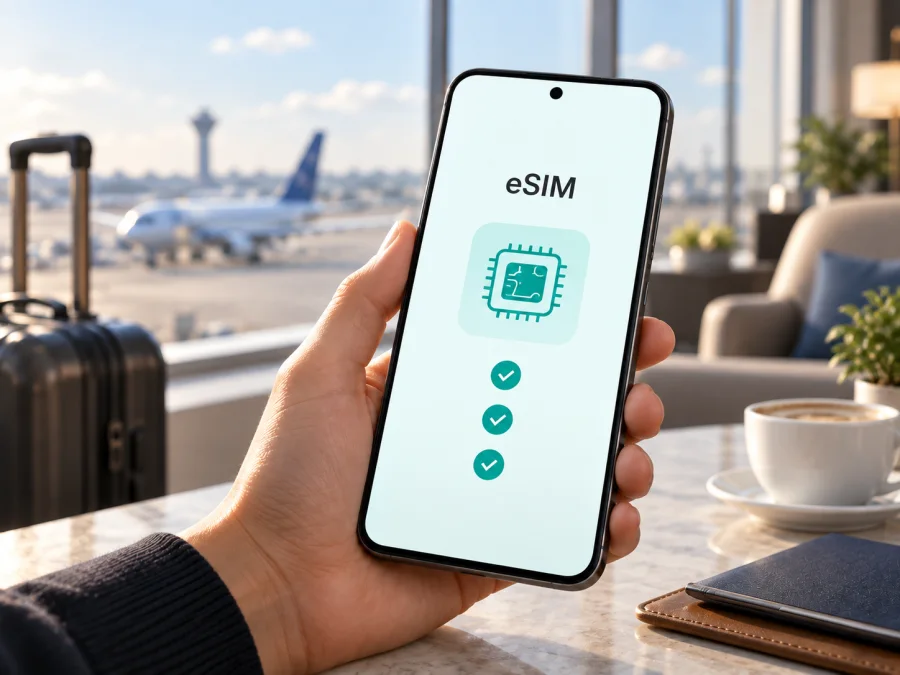
Apple iPhone Air eSIM: compatibility, setup and mobile data abroad
If you are preparing a trip and want mobile data without carrying or replacing a physical SIM card, Apple iPhone Air is designed for an eSIM workflow. Apple’s current technical specifications describe Apple iPhone Air as an eSIM-only phone: it does not accept a physical SIM card, supports two active eSIMs, and can store eight or more eSIM profiles. That makes the model convenient for keeping a home line and a travel data line available on the same device.
Hardware support is only one part of compatibility: the provider, plan, unlocked status and regional activation method must also match. Check the exact phone and destination terms before choosing a plan.
Quick answer: does Apple iPhone Air support eSIM?
Yes. Apple’s official specification for Apple iPhone Air lists Dual eSIM, meaning two eSIMs can be active at the same time, and says that the phone is not compatible with physical SIM cards. Apple’s support information also treats Apple iPhone Air as an eSIM-activated model. In practical terms, you can add a compatible digital SIM profile for a mobile-data plan and choose which line supplies data.
This answer applies to the Apple iPhone Air model family described by Apple, but it does not replace a check of the individual device. Country availability, carrier approval, an operator lock, software state, and local activation rules can affect whether a particular plan can be installed or used. If a seller or carrier identifies a different model number or a special regional version, use that information when confirming compatibility.
Apple iPhone Air eSIM specifications at a glance
| Item | What to expect |
|---|---|
| Device | Apple iPhone Air |
| SIM format | eSIM only; no physical SIM card |
| Active profiles | Up to two eSIMs active at the same time, according to Apple |
| Stored profiles | Eight or more eSIMs can be stored; the exact usable number can depend on settings and profiles |
| Mobile data | Select the eSIM line in Cellular settings as the line for mobile data |
| Travel use | A compatible prepaid or travel eSIM plan can be used for data abroad |
| Main limitation | The eSIM provider and the selected plan must support the phone, destination and activation method |
Read separate roaming terms before activating two eSIMs.
Regional and carrier differences to understand
Apple’s specifications confirm the eSIM-only design, but activation still depends on the provider, country or region, and the method used to issue the profile. A provider may use a QR code, app, link, manual details or transfer, and not every method is available everywhere.
China mainland requires particular care. Apple’s current support information states that only Apple iPhone Air model A3518 can be activated in China mainland, and that activation may involve visiting China Mobile, China Telecom or China Unicom for an identity check. Additional requirements can apply. Do not assume that an Apple iPhone Air purchased in another market will be activated there under the same process. If China mainland is on your itinerary, confirm the model number and activation rules before purchase or travel.
Other markets differ in local eSIM support, prepaid-plan eligibility and unlock rules. A carrier lock can prevent a travel eSIM from working even when the hardware is compatible, so confirm unlock status before paying for a plan.
What to check before you choose a plan
Use these checks before selecting a travel eSIM. They prevent a mismatch between phone hardware, plan and destination.
- Confirm the device name and model number in Settings, especially if a regional rule may apply.
- Confirm that an EID is displayed. The EID is the identifier associated with the embedded SIM; its presence is a strong device-level sign that eSIM functions are available.
- Open Cellular or Mobile Data and look for Add eSIM, Set Up Cellular, or a similar option.
- Ask whether the phone is carrier-unlocked. Do not rely only on the presence of an EID.
- Check that the plan covers every country or region on your route, including a transit stop if you expect to use data there.
- Compare the allowance, validity, activation window, top-up rules and any fair-use limits.
- Check when validity or data usage starts. Installing a profile and turning on its line can have different effects under different plan terms.
- Make sure the phone can reach Wi-Fi or another working connection during installation, unless the activation method explicitly allows offline activation.
- Update iOS when practical before departure.
The selected provider sets coverage and terms. Kaspersky eSIM Store is an app and website that helps you choose, arrange and activate an eSIM with a mobile-data plan for an overseas trip; it is not an operator or network owner.
How to verify EID and the Add eSIM option
Perform this check on the exact Apple iPhone Air you will take with you.
- Open Settings.
- Tap General.
- Tap About.
- Scroll through the information and look for EID. Share it only with a verified provider support channel when requested.
- Return to Settings and open Cellular or Mobile Data.
- Look for Add eSIM, Set Up Cellular, or an equivalent option. If you cannot find EID or an eSIM setup option, check the intended phone and update iOS. Restarting can clear a temporary display problem, but it cannot add eSIM hardware. If the result is still unclear, ask Apple or the original carrier to confirm the model’s eSIM capability and lock status.
Compatibility checklist for Apple iPhone Air
Use this checklist before payment:
- [ ] The exact device is Apple iPhone Air, and its model number has been recorded.
- [ ] An EID appears in Settings > General > About.
- [ ] Add eSIM or Set Up Cellular appears under Cellular or Mobile Data.
- [ ] The phone is not restricted to its original carrier.
- [ ] The chosen plan supports eSIM activation on iPhone.
- [ ] The plan covers the destination and the full travel period.
- [ ] You understand the data allowance, validity, activation trigger and top-up rules.
- [ ] You have reliable Wi-Fi or another connection for setup.
Check your device before choosing a plan, and repeat the check if the phone was purchased second-hand, imported, repaired, or supplied under a carrier contract.
How to install and activate an eSIM on Apple iPhone Air
Prepare the QR code, provider link, app flow, manual details or transfer prompt supplied with the plan. Do not scan an unknown QR code or delete a working profile while troubleshooting.
1. Connect Apple iPhone Air to the internet
Join trusted Wi-Fi or keep another working connection available. If installing before departure, keep the QR code or activation details accessible on another screen.
2. Open the eSIM setup screen
Open Settings, tap Cellular or Mobile Data, then tap Add eSIM or Set Up Cellular. During initial phone setup, choose the eSIM option when it appears. Labels vary by iOS version.
3. Select the activation method
Choose Use QR Code when one was supplied, or use the provider link or app. A QR code in a supported email app or browser can sometimes be pressed and held to reveal Add eSIM. Enter manual details exactly as supplied.
For iPhone-specific steps, see the iOS eSIM installation instructions. The Android eSIM installation instructions may help when an Android phone displays the QR code as a second screen; follow the steps for the receiving device.
4. Confirm the mobile plan
Review the plan name, tap Continue or Add Cellular Plan, and enter a confirmation code if requested. Wait for the profile to download; this can take several minutes. Do not repeatedly rescan a one-time QR code.
5. Label the lines clearly
Label the new profile Travel or Data and label the primary line separately to avoid choosing the wrong data line.
6. Choose the line for mobile data
Open Settings > Cellular or Mobile Data and select the travel eSIM under Cellular Data or Mobile Data. Switch off Allow Cellular Data Switching if you want to prevent automatic line changes.
7. Turn on data roaming only when the plan requires it
Some travel eSIMs need Data Roaming because they use partner networks. Read the plan terms and enable it only for the intended eSIM.
8. Test before relying on the eSIM
With the travel line selected, turn off Wi-Fi briefly and open a webpage or send a message through an internet app. Check the signal and selected line, then turn Wi-Fi back on. Installation alone does not prove destination coverage.
Using Apple iPhone Air for mobile data while travelling
For a short holiday or work trip, keep the usual number available if allowed and set the travel eSIM as the data line. For several countries, verify whether one regional plan covers the whole route.
Before takeoff, install the profile only if the plan permits it and check the activation rule. Validity can begin at installation or first network connection. If it should start on arrival, keep the travel line off until then.
At arrival, turn off Airplane Mode, select the travel eSIM for data, and enable roaming on that line if required. Wait for registration, test a map or messaging app, and monitor balance and validity. Video calls, cloud backup and hotspot sharing can consume data quickly.
Limit automatic updates and photo syncing when data is limited. A travel eSIM generally supplies mobile internet, not a regular number, voice service or SMS unless the plan says otherwise.
When you return home, switch Cellular Data back to your usual line. Keep or remove the profile according to its terms.
Troubleshooting: common eSIM problems
“Add eSIM” is missing
Recheck EID and model number in Settings > General > About. Update iOS, restart and check for a carrier restriction. If either item is absent, ask Apple or the original carrier before buying a plan.
The QR code will not scan
Increase brightness and avoid glare. Try Settings > Cellular or Mobile Data > Add eSIM > Use QR Code. If the code is on the same Apple iPhone Air, use a link, second screen or manual activation. A used one-time code requires provider help.
The profile downloads but there is no service
Confirm the travel eSIM is on and selected for data. Check destination, activation window, network selection and roaming. Toggle Airplane Mode and wait for registration; local conditions can affect coverage.
Data works on the wrong line
Verify the selected data line in Cellular or Mobile Data. Turn off Allow Cellular Data Switching to prevent changes, and confirm the home line is not roaming unexpectedly.
Installation says the plan is unavailable
Check destination, validity, eligibility and activation limit. Make sure the phone is unlocked and on Wi-Fi. A code or particular region may be required. Save the error and contact support.
Internet is slow or stops after working
Check allowance, validity, signal, selected network, roaming and Low Data Mode. Move if the signal is weak. If it still fails, give support the model, EID when requested, profile status, destination and error text.
FAQ
Does Apple iPhone Air accept a physical SIM card?
No. Apple describes Apple iPhone Air as eSIM-only and not compatible with physical SIM cards. Plan on digital activation rather than inserting a nano-SIM.
Can two eSIMs be active on Apple iPhone Air?
Yes. Apple lists Dual eSIM with two active eSIMs. Select the intended data line and follow each provider’s roaming rules.
Does an EID guarantee that any travel eSIM will work?
No. The phone must also be unlocked, the provider must support eSIM on iPhone, and the plan must cover the destination.
Can I install a travel eSIM before flying?
Usually, if the plan allows it and you have Wi-Fi. Check whether validity starts at installation, activation or first network connection.
Will a travel eSIM replace my regular number?
Not automatically. A data-focused travel eSIM normally supplies mobile internet rather than a telephone number, voice calls or SMS. Keep the home line only when its roaming terms are clear.
Is Apple iPhone Air supported in every region?
Apple documents the eSIM-only design, but local activation and carrier availability vary. China mainland has a specific model rule for Apple iPhone Air, and other destinations can have provider or identity-check requirements. Verify the model number and local conditions before travel.
Can I move an activated eSIM to another phone?
Not necessarily. Transfer depends on the provider and profile terms. Ask support before deleting or transferring it; a QR code may be one-time.
Final device check before your trip
Use this short sequence on the exact Apple iPhone Air you will carry:
- Confirm EID under Settings > General > About.
- Confirm Add eSIM or Set Up Cellular under Cellular or Mobile Data.
- Confirm the phone is carrier-unlocked and the iOS version is current enough for the offered activation method.
- Confirm that the selected eSIM plan covers every destination, has enough data for your use, and has a validity period that matches the itinerary.
- Confirm when the plan starts, whether data roaming is required, and how to get support if activation fails.
- Install, label and test the eSIM while you still have reliable internet, or follow the plan’s arrival instructions.
After these checks, Kaspersky eSIM Store can help you choose, arrange and activate an eSIM with a suitable mobile-data plan through its app or website. Base the choice on the destination, allowance, validity and conditions shown for the selected plan, together with the compatibility result from your Apple iPhone Air.


