Travel connectivity guide
Apple iPhone SE 2 128GB eSIM: Setup Guide
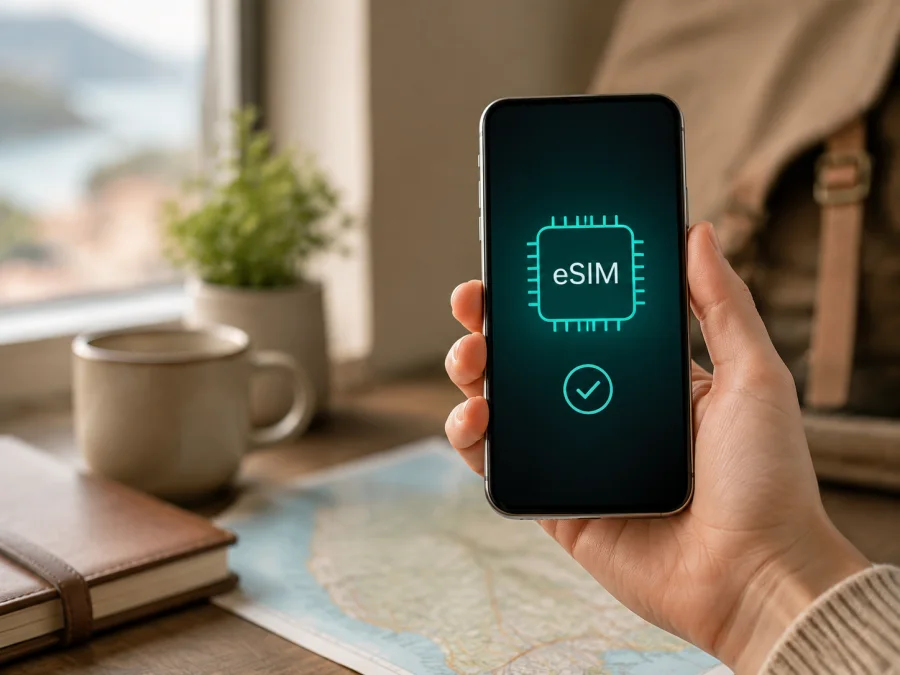
Apple iPhone SE 2 128GB eSIM: compatibility and setup
If you have the Apple iPhone SE 2 128GB and need mobile internet abroad, the short answer is yes: this storage variant belongs to the iPhone SE (2nd generation) family, whose Apple technical specifications list Dual SIM with one nano-SIM and one eSIM. The 128GB capacity does not remove the eSIM function. Apple also warns that eSIM is not supported in every region, that some carriers can disable it, and that a wireless service plan and carrier support are required.
That distinction matters for an imported, second-hand or operator-supplied phone. The exact name Apple iPhone SE 2 128GB is retained here because storage and generation are part of the search request. It should not be confused with the first-generation iPhone SE, the third-generation iPhone SE or another capacity. Before buying a travel eSIM, check the actual handset in Settings and confirm that it is unlocked.
At a glance
| Check | What applies to Apple iPhone SE 2 128GB |
|---|---|
| Device variant | Apple iPhone SE 2 128GB, iPhone SE (2nd generation) family |
| eSIM | Supported by the family according to Apple, subject to region and carrier conditions |
| Physical SIM | One nano-SIM can be used with an eSIM in the Dual SIM configuration |
| Storage | 128GB; capacity does not by itself change eSIM capability |
| 5G | Do not infer 5G from eSIM support; this is an LTE-generation phone |
| Before purchase | Confirm EID, Add eSIM, iOS, carrier-unlock status and destination coverage |
In practice, an Apple iPhone SE 2 128GB can use a travel eSIM when its settings expose eSIM, it is unlocked, and the selected service supports the device and destination.
Does Apple iPhone SE 2 128GB support eSIM?
Apple’s current technical information for the iPhone SE (2nd generation) lists “Dual SIM (nano-SIM and eSIM).” Apple’s Dual SIM guidance also includes the iPhone SE (2nd generation) among models that can use one physical SIM and one eSIM. This is the manufacturer-level answer for the family that includes the Apple iPhone SE 2 128GB.
Keep three conditions separate:
- Hardware family. The 128GB phone is a capacity variant of the second-generation SE, not a separate eSIM-disabled capacity. No RAM or 5G feature should be inferred from the eSIM function.
- Sales region. Apple notes that features can vary by country or region. Imported models may have different SIM arrangements; mainland China, Hong Kong and Macao require particular care because Apple lists region-specific SIM configurations.
- Operator status. Not all carriers support eSIM, and Apple notes that eSIM can be disabled when an iPhone is purchased from some carriers. A carrier lock can prevent a travel profile from activating even when the phone has an EID.
So “supports eSIM” does not mean “every Apple iPhone SE 2 128GB accepts every tariff.” The reliable test is: Apple lists eSIM for the generation, the phone shows an EID and an eSIM option, the handset is unlocked, and the tariff’s conditions match the destination and its LTE network requirements.
How to verify the individual phone
Perform this check on the phone you will take abroad. Seller listings and box labels can be incomplete, especially for imported handsets.
Find the EID
Open Settings > General > About and scroll through the identifiers. A compatible iPhone normally shows an EID, the identifier associated with its embedded SIM. You may also see IMEI and other network information. Keep these identifiers private; support may request them, but they do not belong in a public post.
Look for the eSIM menu
Open Settings > Cellular or Settings > Mobile Data, depending on language and iOS version. Look for Add eSIM, Set Up Cellular, Add Cellular Plan or similar wording. If the EID and the add-eSIM option are both present, iOS is exposing the relevant function. If either is missing, update iOS, restart the phone, reconnect to Wi-Fi and check again. If the option still does not appear, ask Apple or the seller to identify the exact region and model before buying.
Check the carrier lock
In Settings > General > About, find Carrier Lock. The clearest unlocked status is No SIM restrictions. If a restriction is shown, contact the original carrier before relying on a travel eSIM. Apple explains that only the current carrier can unlock a locked iPhone; Kaspersky eSIM Store cannot remove an operator lock.
Check the network conditions
Install the latest iOS version the phone can use, charge the battery and make sure Wi-Fi or another hotspot is available during installation. Confirm that the chosen plan supports the iPhone SE (2nd generation), the destination and the required LTE bands. eSIM provisions a cellular profile; it does not add 5G radios or guarantee coverage where the underlying network is unavailable.
<a id="kesim-device-compatibility"></a>
Compatibility checklist before you buy
Use Check your device as a final reminder, then confirm every point:
- [ ] The phone is exactly Apple iPhone SE 2 128GB, not a different capacity or generation.
- [ ] Settings > General > About shows an EID.
- [ ] Settings > Cellular/Mobile Data offers Add eSIM or an equivalent option.
- [ ] Carrier Lock says No SIM restrictions, or the carrier confirms the phone is unlocked.
- [ ] iOS is updated as far as this phone supports and Wi-Fi is available.
- [ ] The eSIM tariff covers the destination and fits the trip’s duration and data needs.
- [ ] You know whether the plan is data-only, whether data roaming is required and when validity begins.
- [ ] You understand that a travel eSIM usually does not provide a standard number, voice calls or SMS unless its own terms say so.
If an item is uncertain, postpone the purchase. This is safer than assuming that every phone with the same Apple iPhone SE 2 128GB label has the same regional or operator status.
Choosing a travel eSIM for Apple iPhone SE 2 128GB
Choose the destination first, then compare validity, data allowance and activation rules. Maps and messages usually need less data than video calls or hotspot use.
Kaspersky eSIM Store is an app and website where you can select a destination, choose an available eSIM tariff, complete the order and activate a profile for mobile internet during a foreign trip. It is not a mobile operator, network owner or provider of the underlying mobile service. Coverage and network conditions depend on the applicable service and destination. Before completing an order, check whether the profile is data-only, whether tethering is allowed, whether roaming must be enabled for the eSIM line and when validity starts. Device compatibility and carrier-unlock checks remain essential.
How to install and activate the eSIM
Install the profile before departure over reliable Wi-Fi, or after arrival when the plan is designed to start on first connection. Keep the QR code or manual details available on another screen. A QR code displayed on the same iPhone cannot normally be scanned by its own camera.
- Complete the purchase in the Kaspersky eSIM Store app or website and open the profile details.
- Confirm the destination, data allowance, validity and activation terms. Do not activate merely to test it if validity starts immediately.
- Connect the Apple iPhone SE 2 128GB to Wi-Fi, open Settings > Cellular or Mobile Data, and tap Add eSIM, Set Up Cellular or Add Cellular Plan.
- Select the QR-code option and scan the code from a laptop or another phone. If provided, use the supported on-screen add action or enter the SM-DP+ address and activation code manually.
- Wait for iOS to download the profile. Do not close Settings or disconnect Wi-Fi while it is processing.
- Label the lines, for example Personal and Travel data. Select the travel line under Cellular Data when you want it to provide internet.
- Turn on Data Roaming for the travel eSIM only when the plan requires it. Turn off Allow Cellular Data Switching if you want to prevent the iPhone from using the primary line for data.
- Wait for the line to register, then disconnect from Wi-Fi briefly and open a lightweight webpage. If the plan activates on arrival, it may remain pending until it reaches a supported local network.
For more detail, see the iOS eSIM installation instructions. The Android eSIM installation instructions can help if another person is displaying the QR code from Android, but the Settings path above is the relevant one for this iPhone.
Using eSIM for mobile internet while travelling
Open Settings > Cellular > Cellular Data and select the travel line. Keep your home line available for calls or SMS if needed, but review its data-roaming setting so it does not create an unexpected charge. A signal bar alone does not prove that the correct line is supplying data; test a page or message after selecting the line.
If the plan requires it, enable data roaming for the travel eSIM. For a multi-country trip, check every country or region on the route rather than assuming that one destination listing covers the whole itinerary. Borders, rural roads, underground transport and congestion can affect service even in a covered destination.
The Apple iPhone SE 2 128GB is an LTE-generation phone. An eSIM cannot add 5G hardware, so choose a plan that works with compatible LTE networks. To make a package last longer, limit automatic downloads, photo backup and video autoplay over cellular data. A travel eSIM is commonly data-only, so retain the primary line for ordinary calls and SMS unless the plan explicitly includes them.
Practical scenarios
Short city break: install over Wi-Fi, label the profile Travel, activate it when the plan says validity begins, and use it for maps, transport and messages.
Work trip: confirm tethering is allowed, select the travel line for data, monitor usage and avoid large updates until Wi-Fi is available.
Multi-country route: match coverage to each country and recheck the selected data line after crossing a border.
Common problems and checks
The QR code does not scan
Increase brightness, enlarge the code without cutting its edges, clean the camera area and hold both screens steady. Display it on another device or use manual entry if supplied. Do not share a QR code publicly because it may be a one-time credential.
Add eSIM is missing
Check Settings > General > About for EID, update iOS, restart the phone and look again under Cellular or Mobile Data. If there is still no EID or add-eSIM option, confirm the sales region and exact model with Apple or the seller. The label Apple iPhone SE 2 128GB alone cannot rule out a regional or carrier limitation.
The profile will not download
Check Wi-Fi, order status, activation details and whether the QR code has already been used. Avoid deleting a partially installed profile until support advises you, because some profiles cannot be reissued automatically. Keep the EID and error message ready for support.
There is no service after installation
Make sure the travel line is on and selected for Cellular Data. Enable its Data Roaming if required, toggle Airplane Mode briefly, restart the iPhone and allow time for registration. Check destination coverage and plan rules before deleting the profile.
Data uses the wrong line
Review Settings > Cellular > Cellular Data, turn off automatic data switching if needed, and check the primary line’s roaming setting. Disconnect from Wi-Fi for a short test so you can see which line actually provides data.
Calls or SMS do not work
Many travel eSIMs are data-only. Keep the primary number selected for voice and SMS, and use internet messaging over the travel line. Do not treat a data-only profile as a complete local phone service.
The iPhone is locked
If Carrier Lock does not say No SIM restrictions, contact the original carrier. Apple states that the carrier, not Apple or Kaspersky eSIM Store, handles unlocking. Do not buy replacement profiles as a workaround.
FAQ
Is the 128GB version different for eSIM?
No capacity-specific exclusion is listed by Apple. The iPhone SE (2nd generation) family includes 128GB and supports nano-SIM plus eSIM, subject to region, carrier and plan conditions.
Can the physical SIM and eSIM work together?
Yes. The second-generation SE supports one nano-SIM and one eSIM. Set the travel profile as the data line deliberately.
Do I need Wi-Fi to install it?
Usually. Apple recommends Wi-Fi or a hotspot for eSIM setup, and preparing the profile before departure avoids depending on airport or hotel Wi-Fi.
Does eSIM support mean 5G?
No. eSIM is a provisioning method. The Apple iPhone SE 2 128GB is an LTE-generation device, so an eSIM cannot add 5G capability.
Final check before your trip
For the Apple iPhone SE 2 128GB, Apple’s official specifications support the conclusion that the second-generation family can use one nano-SIM and one eSIM. Treat this as a verified family capability, not a promise for every imported handset. On your own phone, confirm the EID, find Add eSIM, check for No SIM restrictions, update iOS and test installation over Wi-Fi.
Then choose the country or region, data amount and validity that fit the route. In Kaspersky eSIM Store, the app or website can help you select and activate an available eSIM tariff for mobile internet during the trip. Before paying, recheck compatibility and the plan’s data-only, roaming, activation and coverage conditions. After installation, select the travel profile for Cellular Data, keep the primary line’s roaming under control and test the connection before relying on it for maps, tickets or work.


