Travel connectivity guide
Apple iPhone SE 2 256GB eSIM: Setup Guide
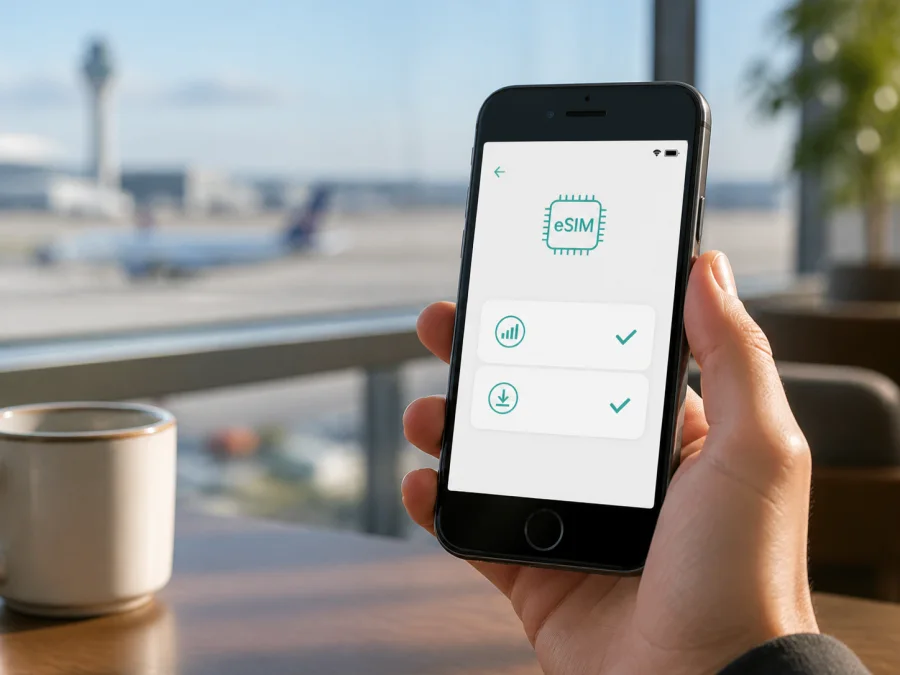
Apple iPhone SE 2 256GB eSIM: compatibility and setup
The short answer is yes: Apple lists the second-generation iPhone SE with Dual SIM support using one nano-SIM and one eSIM. The 256GB storage option does not change that capability. However, eSIM is not available in every region, and the result for an Apple iPhone SE 2 256GB depends on the sales market, carrier lock, iOS version, and selected plan.
Quick answer: does Apple iPhone SE 2 256GB support eSIM?
For most international versions, yes. Apple’s technical specifications for the iPhone SE (2nd generation) identify a nano-SIM plus eSIM arrangement. Apple’s Dual SIM guidance also includes the second-generation iPhone SE among phones that can use one physical SIM and one eSIM. Therefore, an international Apple iPhone SE 2 256GB can normally add a compatible eSIM profile and use it for mobile data while the physical SIM remains available for another line.
The answer is not universal. Apple says that eSIM is unavailable in some countries and regions. The regional configuration, the carrier that supplied the phone, the carrier lock status, and the provider of the chosen eSIM plan all matter. Apple’s current mainland-China guidance limits mainland-China carrier eSIM support to specific models, and the iPhone SE 2 is not in that listed group. An Apple iPhone SE 2 256GB purchased outside mainland China may support eSIM in other markets but must not be assumed to install a mainland-China carrier profile while in mainland China.
Apple also identifies the iPhone SE (2nd generation) among models that can use eSIM in certain Hong Kong and Macao Dual SIM situations. That regional distinction is why two phones with the same marketplace description can have different results. Confirm the phone’s market and the destination carrier before buying a tariff.
Device profile at a glance
| Item | Apple iPhone SE 2 256GB details |
|---|---|
| Exact variant | Apple iPhone SE 2 256GB |
| Generation | iPhone SE (2nd generation) |
| Storage | 256GB |
| Physical SIM | Nano-SIM on supported configurations |
| eSIM arrangement | One nano-SIM plus one eSIM, where supported |
| Travel role | eSIM can be selected for mobile data while the home line remains available |
| Important conditions | Regional availability, carrier eSIM support, carrier lock, iOS, and plan rules |
| On-device proof | EID plus Add eSIM or Set Up Cellular in Settings |
A phone may contain eSIM hardware and still reject a profile because the carrier, country, account, or tariff is not eligible.
Regional and carrier versions
First identify where the Apple iPhone SE 2 256GB was purchased. Check the packaging, seller documentation, and the information in Settings > General > About. If the market is unknown, treat regional support as unconfirmed. Then check the device itself: an EID and a visible Add eSIM control are stronger evidence than a retailer title.
Carrier lock is separate from eSIM capability. A locked phone can show Add eSIM but reject a plan from another carrier. In Settings > General > About, look for Carrier Lock. Apple uses No SIM Restrictions to indicate an unlocked device. If another status appears, contact the original carrier before purchasing a travel eSIM. Do not assume that a phone accepting its home SIM will accept a different travel line.
What to check before buying an eSIM tariff
Use this checklist on the exact Apple iPhone SE 2 256GB you will take on the trip. A stable Wi‑Fi connection is useful because an eSIM profile normally needs internet access to download and activate.
- [ ] Confirm that the phone is the second-generation iPhone SE and keep the 256GB variant in your records.
- [ ] Open Settings > General > About and find EID. EID is the eSIM identifier; it is different from the IMEI and serial number.
- [ ] Open Settings > Cellular or Settings > Mobile Data and look for Add eSIM or Set Up Cellular.
- [ ] Check Carrier Lock and confirm that it says No SIM Restrictions if you intend to use a different provider.
- [ ] Update to the latest iOS version available for the phone and charge the battery.
- [ ] Confirm that the selected plan covers the destination, route, validity period, data allowance, and any hotspot conditions.
- [ ] Check whether the plan is data-only. Kaspersky eSIM Store is intended to help prepare mobile internet for a foreign trip; ordinary calls, SMS, and a local number are not included unless the specific plan says otherwise.
- [ ] Check when validity starts. Some profiles begin at installation, while others begin on first connection in the destination.
For a compact reminder, Check your device before selecting a tariff. This matters especially for a used or imported Apple iPhone SE 2 256GB.
How to install eSIM on Apple iPhone SE 2 256GB
Before starting, prepare the eSIM QR code or activation details, a stable Wi‑Fi connection, and enough battery. Display the QR code on another screen if possible. Do not remove a working home SIM until you have decided which line will handle calls and which will handle data.
For platform-specific visual guidance, see the iOS installation instructions or the Android installation instructions. The Android page can help when activation details are stored on an Android phone; the device steps below are for the Apple iPhone SE 2 256GB.
Install with a QR code
- Connect the Apple iPhone SE 2 256GB to Wi‑Fi.
- Open Camera.
- Scan the QR code supplied for the selected eSIM plan.
- Tap the notification that a cellular plan was detected.
- Tap Continue.
- Tap Add Cellular Plan.
- Enter a confirmation code if one was supplied.
- Wait for the profile to download and install.
- Label the line, for example Travel data.
- Keep it on for immediate use or leave it off until arrival if the plan’s conditions start validity on first connection.
If the camera does not show a notification, open Settings > Cellular > Add eSIM and choose the QR-code option. Some providers use a carrier link or app instead.
If the provider supplies an SM-DP+ address and activation code instead of a QR code, open Settings > Cellular > Add eSIM, choose Enter Details Manually, copy the details exactly, and wait for activation. A supported carrier may also offer a transfer or carrier activation flow; follow the provider’s instructions.
Activate the travel line and select mobile data
Installation places the profile on the phone; usable data also requires the line, plan, network, and settings to be ready. After adding the eSIM on Apple iPhone SE 2 256GB, open Settings > Cellular.
- Tap the new eSIM and turn on Turn On This Line.
- Give it a clear label such as Trip eSIM.
- Open Cellular Data and select the travel eSIM.
- Consider turning off Allow Cellular Data Switching to prevent unexpected use of the home line.
- Enable Data Roaming for the travel line if the plan’s instructions require it. Travel profiles may need roaming to connect through a partner network.
- Keep the primary line on only when you need its number, calls, or texts and accept its roaming conditions.
- Turn off Data Roaming for the primary line when you want to avoid accidental charges.
- After arrival, turn Airplane Mode off, wait for registration, and test a simple webpage using mobile data.
The iPhone uses one cellular data line at a time. The home line may remain available for calls and messages while the travel eSIM handles mobile internet, depending on the home carrier’s rules. A data-only plan does not become a voice plan because the iPhone displays it as a second line; use internet messaging or calling apps when appropriate.
Using the eSIM during a trip
Short city break
Estimate data for maps, transport, messaging, translation, and occasional uploads. Choose a plan whose allowance and validity fit those needs. Install over Wi‑Fi, label the profile, and check whether installation starts the validity period. On arrival, select the travel line for Cellular Data and enable the required roaming setting.
Work trip with a home number
Keep the home line for the number you need, but select the travel eSIM for Cellular Data. Review which line is used for iMessage, FaceTime, calls, and contacts. Disable automatic data switching when you want predictable usage.
Multi-country route
Confirm that one regional plan covers every country on the route. A plan for one country may not cover a neighboring country even when the phone itself is compatible in both. Check route, traffic allowance, validity, and activation timing.
Common problems and practical checks
The QR code will not scan
Increase the brightness of the screen displaying the code, remove glare, and keep the whole code visible. If it is on the same iPhone, display it elsewhere or use Settings > Cellular > Add eSIM. Confirm that the code is for this plan and has not already been used. If manual entry is offered, copy the SM-DP+ address and activation code exactly; do not guess missing characters.
Add eSIM is missing
Check Settings > General > About for EID, restart the iPhone, and install the latest compatible iOS update. If both EID and the add-plan control are absent, the phone may be a regional version without the relevant support, need system attention, or not be the variant advertised. Ask the seller or Apple Support to identify the model and market. Do not assume that 256GB storage guarantees eSIM.
The profile downloads but will not activate
Use stable Wi‑Fi, set date and time automatically, and check that the plan has not expired or been installed on another device. Confirm the destination, carrier, account, and lock conditions. Record the exact error message and provide it, together with the EID, to the eSIM provider’s support team through a secure channel. Avoid repeatedly deleting and reinstalling the profile.
The line is installed but there is no internet
In Settings > Cellular, confirm Turn On This Line is enabled and select the travel line under Cellular Data. Enable Data Roaming if required. Toggle Airplane Mode, restart the phone, and wait for registration. If No Service remains, check that the destination is covered by the plan and contact support.
Frequently asked questions
Is Apple iPhone SE 2 256GB compatible with eSIM?
Yes, most international units are. Apple lists the second-generation iPhone SE with one nano-SIM and one eSIM. Regional availability, carrier lock, iOS, and provider rules still apply, so confirm EID and Add eSIM on the actual phone.
Can a travel eSIM work with my physical home SIM?
Usually, when the phone is unlocked, eSIM-capable, and both plans are supported. Select the travel profile for Cellular Data and review the home carrier’s roaming terms. The iPhone uses one cellular data line at a time.
Can I install the profile before departure?
Often, yes, over Wi‑Fi. Follow the plan’s activation timing: some plans start on installation and others on first connection in the destination. Do not turn on the line early if the conditions make that start the validity period.
Why might eSIM be unavailable in my region?
Apple documents country and region exceptions. Mainland-China carrier eSIM support is limited to the models Apple currently lists for that market, so an iPhone SE 2 may not install a mainland-China carrier profile there. A phone purchased for another market may still work with a travel provider outside mainland China, subject to that provider’s rules.
What is Kaspersky eSIM Store?
Kaspersky eSIM Store is an app and website that helps users choose, arrange, and activate an eSIM with a suitable tariff for mobile internet during a foreign trip. It is not a mobile operator, network owner, or provider of mobile coverage. The actual traffic allowance, validity, destination access, and network conditions depend on the selected plan and its carrier arrangements.
Conclusion: check the device, then choose the travel eSIM
Apple iPhone SE 2 256GB is generally eSIM-compatible because Apple identifies the second-generation iPhone SE as supporting Dual SIM with a nano-SIM and eSIM. Before buying a travel tariff, confirm the EID, find Add eSIM in Settings, verify No SIM Restrictions under Carrier Lock, update iOS, and check the destination and plan rules. Pay particular attention to the sales region and mainland-China limitation.
When those checks pass, install the profile over Wi‑Fi, label it, select it for Cellular Data on arrival, and understand whether Data Roaming is required. Keep the home line only when needed and review its roaming terms. Kaspersky eSIM Store can help you choose, arrange, and activate a suitable travel eSIM through its app or website; it does not replace the device, destination, carrier, or plan compatibility checks.
Final device-check and trip eSIM block
- [ ] Device: Apple iPhone SE 2 256GB is the exact unit checked.
- [ ] eSIM proof: EID and Add eSIM or Set Up Cellular are visible.
- [ ] Unlocked status: Carrier Lock shows No SIM Restrictions.
- [ ] Destination: the selected eSIM tariff covers every country or region on the route.
- [ ] Plan conditions: data allowance, validity start, roaming requirement, hotspot rules, and data-only limitations are understood.
- [ ] Trip setup: the profile is installed over Wi‑Fi, named clearly, selected for Cellular Data, and tested after arrival.
After this final check, choose the eSIM tariff that matches the trip and keep the activation details accessible. If any device or regional check is unclear, pause before payment and ask the seller, carrier, or support team to confirm the exact Apple iPhone SE 2 256GB unit.


