Travel connectivity guide
Apple iPhone SE 2 eSIM: Compatibility & Setup
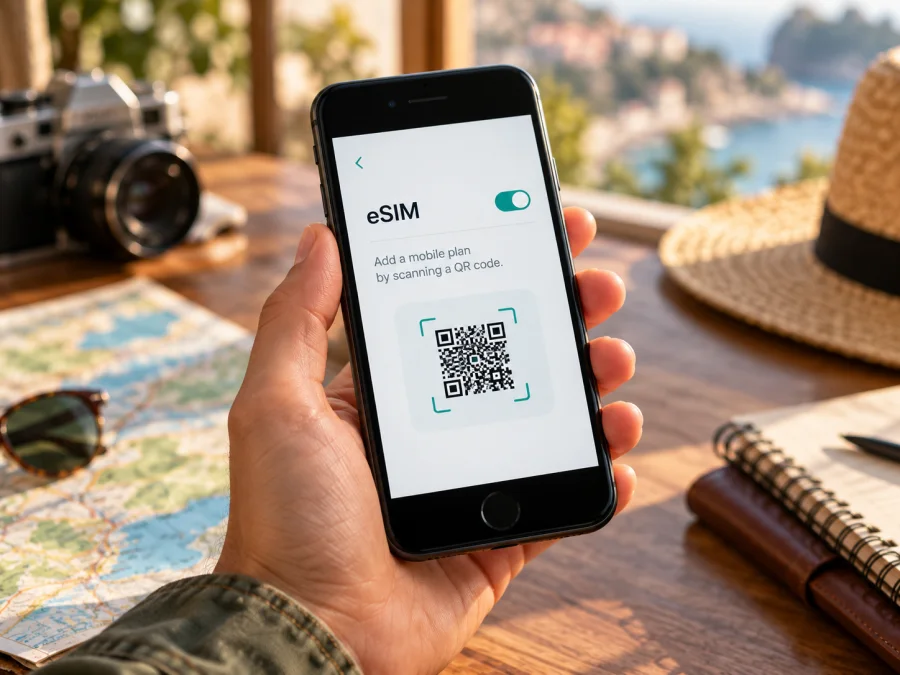
Apple iPhone SE 2 eSIM: compatibility and setup guide
Short answer: Apple iPhone SE 2 supports one physical nano-SIM and one eSIM when it is a compatible regional version. Apple lists iPhone SE (2nd generation) among the iPhones that can use Dual SIM with a nano-SIM and eSIM. That does not mean every phone sold under this name can add an eSIM: availability depends on the device’s market version, the country or region, the carrier, and whether the phone is unlocked. Before choosing a travel data plan, check the individual phone for an EID and an Add eSIM option.
This guide uses “Apple iPhone SE 2” for the exact device name in the query. Apple’s official support material calls this model iPhone SE (2nd generation). It was introduced in 2020 and is not the iPhone SE (3rd generation). Keep the generations separate when checking specifications or asking a seller about the phone.
Apple iPhone SE 2 eSIM at a glance
| Item | What to expect |
|---|---|
| eSIM capability | Supported by compatible regional versions of iPhone SE (2nd generation) |
| SIM arrangement | One nano-SIM plus one eSIM; the phone uses one cellular data network at a time |
| Two eSIMs at once | Not supported by this generation; Apple lists two active eSIMs for iPhone SE (3rd generation) and later supported models |
| Travel data | A compatible eSIM plan can be selected as the line for cellular data, subject to plan, network, and destination conditions |
| Main checks before purchase | EID, Add eSIM menu, carrier lock status, iOS update, destination coverage, plan terms |
| Important exception | Mainland China market versions and some carrier or market configurations may not offer eSIM; check the actual handset rather than relying on the model name alone |
Apple’s technical specifications list Dual SIM (nano-SIM and eSIM) for iPhone SE. Apple’s Dual SIM guide specifically includes iPhone SE (2nd generation) in the group that supports one physical SIM and one eSIM. The same guide distinguishes this from two-eSIM use, which is available on iPhone SE (3rd generation) and newer supported models. So the practical answer for Apple iPhone SE 2 is yes for a compatible version, with regional and operator checks required.
Does Apple iPhone SE 2 support eSIM in every country?
No single model label is enough to establish that a particular used or imported phone can install an eSIM. Apple warns that eSIM is not available in every country or region, and carrier support is also required. The market for which the phone was made matters, as can a carrier restriction or an altered device configuration. Treat support as a property to confirm on the specific handset.
Apple identifies several model numbers for iPhone SE (2nd generation): A2275 for Canada and the United States, A2296 for other countries and regions, and A2298 for mainland China. Those numbers help identify the market variant; they are not themselves a universal proof that an eSIM profile can be installed. In particular, Apple’s mainland China guidance limits eSIM availability to a small set of newer iPhone models, and iPhone SE (2nd generation) is not among them. For an A2298 mainland China version, do not assume eSIM support. If the phone has been imported or its sales history is unclear, check its EID and setup menu directly.
Hong Kong and Macao also have special Dual SIM arrangements for some iPhone models. Apple’s current guidance names iPhone SE (2nd generation) among devices that can use eSIM in those markets, while other models from those markets can use two physical nano-SIM cards. The exact market and physical model number therefore matter. Do not infer the configuration from the seller’s location, language, box, or the fact that a tray is present. Ask for the model number and inspect the phone’s settings before paying.
Operator support is a separate condition from the phone’s hardware. A carrier may need to enable eSIM service for the plan, and an iPhone locked to one carrier may reject a plan from another provider. Apple says an iPhone must be unlocked to use two different carriers. If you cannot confirm the lock status, contact the carrier that locked the device or ask the seller to show the Carrier Lock field in Settings. A software update cannot turn a market-specific model without eSIM hardware or provisioning into a compatible one.
Check compatibility on the phone
Look for the EID and eSIM controls on the phone. An EID identifies the embedded SIM component; setup still depends on device configuration, carrier, and plan.
- Open Settings.
- Tap General, then About.
- Scroll through the information and look for EID. If it appears, note that the device has an eSIM identifier. Do not post or share the full identifier publicly.
- Return to Settings and open Cellular or Mobile Data. Look for Add eSIM, Add Cellular Plan, or a similarly named option. Wording varies by iOS version and language.
- If the menu is missing, check that iOS is current, restart the phone, and look again. If EID is also absent, treat the phone as not confirmed for eSIM and ask Apple Support or the seller to verify the exact model and region.
- Check Settings → General → About → Carrier Lock. No SIM restrictions indicates that the device is not carrier-locked. If it names a restriction or the field is unclear, contact the original carrier.
- Confirm that the eSIM provider supports the destination and that its installation method works with this iPhone and iOS version.
Use this device compatibility check as a final reminder before selecting a plan: the exact model and its regional version, an EID or Add eSIM control, and the carrier lock status all matter. A model family that supports eSIM in general is not enough if the individual handset is restricted.
What to check before choosing a travel eSIM
A phone can have eSIM capability and still fail to connect for reasons unrelated to the embedded SIM. Review the following before you purchase a plan:
- Exact model and market: confirm the model number under Settings → General → About. For an imported iPhone, check the original sales market rather than only the current country.
- EID and menu: look for the EID and an Add eSIM control. Ask the seller for a live settings view if you are buying second-hand.
- Carrier lock: an eSIM from a different provider may not work on a locked phone. Ask the original carrier about unlocking if needed.
- iOS and network access: install an available iOS update and arrange a reliable Wi-Fi connection for setup, unless the plan’s instructions say another supported method is available.
- Destination and route: confirm that the plan covers every country or region where you expect to use mobile data. A plan for one country may not include a neighboring country or an airport layover.
- Plan conditions: read the data allowance, validity period, supported network access, activation instructions, hotspot rules, and when validity begins. Installation and activation do not always mean the same thing as the start of the plan’s validity.
- Data needs: estimate navigation, messaging, browsing, work calls, photo uploads, and video use. Keep offline maps and large downloads on Wi-Fi where practical.
- Primary number: decide whether to keep your regular line on for calls and messages. Check with your home carrier about roaming charges and the settings that control them.
After confirming compatibility, you can use the Kaspersky eSIM Store app or website to choose, arrange, and activate an eSIM plan for mobile data on an international trip. Check the destination, data amount, validity, and terms. Travel data does not replace your regular operator’s voice and SMS service unless a specific plan explicitly includes them. Explore plans for a multi-country trip.
How to install and activate an eSIM on Apple iPhone SE 2
Button labels vary by iOS version and language. Follow the plan’s instructions and connect to Wi-Fi; keep the QR code on another screen if needed.
- Confirm compatibility. Verify the EID, Add eSIM menu, unlocked status, and provider support for the destination. Do not buy a plan on the assumption that the generation name alone guarantees compatibility.
- Choose the plan. Select a destination or region, then compare the data allowance, validity, price, and usage conditions with your itinerary. Check whether the plan starts when installed, when activated, or on first connection; follow the terms shown for that plan.
- Open the iPhone settings. Go to Settings → Cellular or Settings → Mobile Data, then tap Add eSIM or Add Cellular Plan. If the plan provider gives a direct activation notification or link, follow its instructions instead.
- Scan the QR code. Choose the QR-code option and scan the code provided for your eSIM. On supported iOS versions, a QR code received in Mail or a browser may also be added by pressing and holding it. If the camera cannot scan the code, use the manual entry details only when the provider has supplied them.
- Review and add the plan. Follow the onscreen steps, confirm the plan details, and wait while the iPhone adds the cellular profile. Keep the phone connected to the internet. Do not scan the same one-time QR code repeatedly if the first attempt appears to have started; check the plan’s instructions or support first.
- Label the lines. Give the travel eSIM a clear label such as Travel Data and keep the primary line labeled separately. Labels help prevent selecting the wrong line later.
- Set mobile data. Under Settings → Cellular/Mobile Data → Cellular Data, select the travel eSIM when you want it to provide data. Turn off Allow Cellular Data Switching if you want to reduce the chance that the iPhone will use the other line for data. Follow the plan’s instructions for Data Roaming on the travel line; some travel eSIM plans require it, while others may not.
- Connect at the right time. If the plan is intended to begin on arrival, you can install it beforehand when its terms allow, then enable it and select it for data at the destination. If the provider’s instructions say activation or installation begins validity, follow those instructions and plan the timing accordingly.
- Test the connection. Turn off Wi-Fi, confirm the travel line is on and selected for mobile data, and open a lightweight webpage. Allow time for registration on a supported local network. If it does not connect, use the troubleshooting steps below.
See the iOS eSIM installation guide for iPhone steps or the Android eSIM installation guide for Android. Follow plan-specific instructions where activation flows differ.
Using the travel eSIM for mobile data
Compatible versions support one nano-SIM and one eSIM. You can keep a home number on the physical SIM and use the travel eSIM for data, but iPhone uses one data network at a time. Home calls and messages remain subject to your carrier’s terms.
If allowed, add the eSIM over Wi-Fi before departure and keep its activation details secure. At the destination, enable the travel line and select it for data. Turn on data roaming or enter network details only if the plan instructs you to.
If you keep the home line active for calls or verification messages, review its data roaming setting separately. On the travel line, consider turning off Allow Cellular Data Switching so that an app or weak signal does not cause mobile data to switch to the home plan unexpectedly. Incoming calls, voicemail, and SMS availability can depend on your home plan and network. A data-only eSIM generally does not provide a regular phone number, cellular voice calling, or SMS; internet calling and messaging apps can work over its data connection.
A travel eSIM can help with maps, messaging, ride information, and check-in after landing. Coverage and speed depend on the plan’s local network access and conditions; the phone cannot guarantee service everywhere.
Practical trip scenarios
Short city break: Install before departure if the plan permits, then select the travel eSIM for data on arrival. Keep maps and tickets available offline.
Multi-country route: Check every destination against the plan’s coverage; a country or regional label does not guarantee that every stop is included.
Work trip: Keep the home line for calls or account messages and select the travel eSIM for data. Check home-carrier roaming charges first. Save key information offline in case coverage is intermittent.
Troubleshooting eSIM setup and mobile data
First confirm that the travel profile is present, turned on, selected for data, and installed on an eSIM-capable, unlocked phone. Compare settings with the plan instructions: installation does not always mean that the line is active or selected for data.
The Add eSIM option is missing
Check for EID in Settings → General → About. Restart, update iOS if available, and check Cellular/Mobile Data again. If EID and the add option are both missing, confirm the model number and original market with Apple Support or the seller. A reset or language change cannot add eSIM hardware support.
The QR code does not scan
Increase brightness on the QR display, clean the iPhone camera lens, and hold it steady. Confirm the code belongs to this plan and has not been used. If it is on the iPhone screen, use a second screen or a provider-approved manual method. Keep activation codes private.
The profile will not download
Check Wi-Fi, restart, and confirm automatic date and time. Verify the activation details and plan eligibility. Look under Cellular/Mobile Data before retrying a partial installation; some codes are single-use, so contact the plan’s support before deleting or scanning again.
The eSIM appears, but there is no service
Select the travel line in Settings → Cellular/Mobile Data and turn it on. Confirm the plan is active and covers the destination. Follow its roaming and network-selection instructions, toggle Airplane Mode, then restart. If service remains unavailable, ask the provider to check the plan or a local outage; do not share your full EID or QR code publicly.
The phone connects, but apps have no internet
Select the travel line under Cellular Data and enable mobile data. Turn on roaming for that line only if instructed. Check data balance and validity, then turn Wi-Fi off for a clear test.
Data is coming from the wrong line
Select the travel eSIM under Cellular Data and, if needed, turn off Allow Cellular Data Switching. Check home-line roaming settings and verify the selected label.
The eSIM works in one country but not another
The plan may exclude the second destination or lack a supported local network there. Recheck coverage and follow network or APN instructions. Contact plan support if the destination is included but service still fails.
Frequently asked questions
Can Apple iPhone SE 2 use an eSIM and a physical SIM together?
Yes, compatible versions support one nano-SIM and one eSIM. Only one line provides data at a time, and different providers may require an unlocked phone.
Can I use two eSIMs at once on Apple iPhone SE 2?
No. This generation supports one eSIM with a physical nano-SIM; Apple lists two eSIMs for the iPhone SE (3rd generation) and certain newer models.
How can I tell if my phone is eSIM-capable?
Look for an EID in Settings → General → About, and for Add eSIM or Add Cellular Plan in Settings → Cellular/Mobile Data. Verify the model number and carrier lock status too. If either check is inconclusive, ask Apple Support or the seller to confirm the exact variant.
Does Apple iPhone SE 2 work with every travel eSIM plan?
No. Check eSIM support, carrier lock, iOS activation requirements, destination coverage, and plan terms before purchase.
Is an eSIM the same as a travel phone number?
Not necessarily. Many travel eSIM plans are for mobile data only and do not include a regular phone number, calls, or SMS. Check the specific plan description. Messaging and internet calls can use apps over mobile data.
Should I install the eSIM before traveling?
Often this is convenient if the plan permits advance installation and you have Wi-Fi. The time when validity begins varies by plan, so read its activation rules. If installation starts the validity period, take that into account before adding it.
Final compatibility check before your trip
Apple iPhone SE 2 supports eSIM on compatible regional versions, using one nano-SIM and one eSIM. Market restrictions and carrier locks still matter. Do not presume mainland China A2298 versions support eSIM; check the device directly.
Before choosing a travel plan, check the model number, EID, Add eSIM option, carrier lock, iOS version, destination coverage, and plan activation terms. Once the device passes those checks, choose a plan that matches your route and expected data use. Kaspersky eSIM Store’s app and website can help you choose, arrange, and activate an eSIM plan for mobile data on an international trip. Confirm compatibility first, then follow the plan’s installation steps and set the travel eSIM as the data line when you need it.


