Travel connectivity guide
Apple iPhone SE 2022 128GB eSIM: Setup Guide
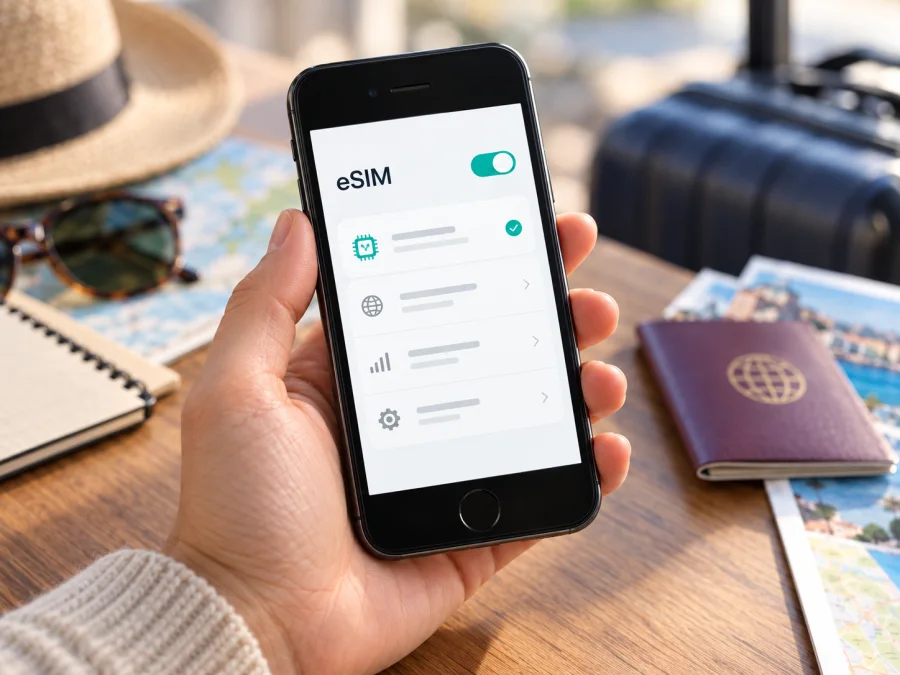
Apple iPhone SE 2022 128GB eSIM: compatibility and setup
Short answer: the 128GB storage option of Apple’s 2022 iPhone SE (3rd generation) supports eSIM in markets where that model is sold with eSIM hardware. Apple lists the iPhone SE (3rd generation) with nano-SIM and eSIM, as well as Dual eSIM support. The storage capacity does not change eSIM compatibility. There is an important regional exception: Apple says that only a small set of newer iPhone models supports eSIM in Mainland China; the iPhone SE (3rd generation) is not on that list. Check the actual device rather than relying on the product name alone, especially for a second-hand or imported phone.
In Apple’s iPhone SE (3rd generation) Technical Specifications, the company identifies 2022 as the introduction year, lists 128GB as a storage option, and specifies nano-SIM plus eSIM and Dual eSIM support. Apple Support’s current guidance on eSIM and regional SIM configurations, checked on 1 November 2026, also distinguishes Mainland China from Hong Kong and Macao. A phone purchased for Mainland China may have two physical nano-SIM slots and no eSIM capability; this is different from an eSIM-capable Hong Kong or Macao configuration. The exact model and its menus are the final check.
At a glance
| Item | Apple iPhone SE 2022 128GB |
|---|---|
| Generation | iPhone SE (3rd generation), introduced in 2022 |
| Storage | 128GB; capacity does not affect SIM features |
| eSIM | Supported on eSIM-capable regional versions; Apple lists Dual eSIM |
| Physical SIM | Nano-SIM on supported versions |
| Regional exception | Mainland China version is not listed among Apple’s eSIM-capable models there |
| Carrier lock | May prevent use of another provider’s eSIM |
The input name gives the generation and storage, but not the handset’s sales region, exact model, or lock status. For a used or imported phone, check the device and ask the seller for its original market and model number.
Does Apple iPhone SE 2022 128GB support eSIM?
For most regional versions of iPhone SE (3rd generation), yes. Apple’s specifications list nano-SIM and eSIM, along with Dual eSIM support. The 128GB capacity does not change that. Hardware support does not guarantee every carrier, plan, country, or activation method is available.
There is a key regional distinction. Apple’s current Mainland China guidance lists only certain newer iPhones as supporting eSIM there; iPhone SE (3rd generation) is not among them. Mainland China versions may use two physical nano-SIM cards and lack eSIM hardware. Apple’s Hong Kong and Macao guidance includes this generation in its eSIM instructions, so those regional configurations should not be conflated. A software update cannot add absent hardware.
Apple also describes restrictions on installing non-Mainland eSIM profiles while physically in Mainland China. If the phone was purchased there, confirm its exact model and travel setup with Apple and the plan provider before departure. Apple’s iPhone SE (3rd generation) Technical Specifications list the 2022 model, 128GB capacity, nano-SIM and eSIM. Apple Support’s “Learn which size SIM card your iPhone or iPad uses” and “Using eSIM with your iPhone in China mainland” pages distinguish Mainland China from Hong Kong and Macao; both were checked on 1 November 2026.
Regional and carrier versions
The same generation can have different SIM arrangements by market. Many versions combine a nano-SIM tray and eSIM; certain regional models are designed for two physical nano-SIMs. The 128GB label does not identify which one you have. Check the model number under Settings > General > About.
Carrier lock is separate from regional hardware. In Settings > General > About, check Carrier Lock. “No SIM restrictions” means the phone is unlocked. If a restriction appears, ask the original carrier whether it can unlock the handset. An eSIM-capable phone may still reject another provider’s profile while locked.
How to check the exact phone before buying a plan
Apple’s “Find the serial number or IMEI on your iPhone” guidance says EID is available under Settings > General > About. Scroll past the serial number and IMEI entries. EID is a useful indicator of eSIM hardware. Menu labels can vary by iOS language and version.
- Open Settings > General > About.
- Scroll down and look for EID. Share it only with a provider when needed for support.
- Open Mobile Service or Cellular in Settings and look for Add eSIM or Set Up Mobile Service.
- In About, check Carrier Lock and confirm “No SIM restrictions” if you intend to use another provider.
- Ask the seller for the original sales region and compare the model number with the packaging or purchase record.
An EID and an Add eSIM control are strong practical signs that the phone can provision an eSIM. If both are missing, restart the phone, update iOS, and confirm the model with Apple or the seller. A Mainland China variant may be expected to lack eSIM. A SIM tray by itself does not rule eSIM out: supported iPhones can have both.
What to check before selecting a travel eSIM
Before choosing a plan, check the exact regional model, EID and eSIM menu, carrier lock, destination coverage, data allowance, validity period, and activation timing. Keep Wi-Fi available for installation and read whether the plan is data-only. A country plan may not cover neighbouring countries on the same trip.
Check your device’s eSIM compatibility before selecting a plan, especially for a used or imported handset. When these checks pass, you can browse the Kaspersky eSIM Store and check current travel plans. This is the general store page for selecting a destination and reviewing current options, not a country-specific tariff.
Kaspersky eSIM Store is an app and website where you can choose, arrange, and activate an eSIM with a mobile-data plan for an international trip. Service, coverage, speed, and network availability depend on the selected plan and local network in the destination.
How to install and activate an eSIM on Apple iPhone SE 2022 128GB
Install while connected to Wi-Fi, ideally before departure. Keep the QR code on another screen or printed. If it is displayed on the iPhone itself, use the provider’s app or manual option rather than trying to scan it with that phone. A QR code may be single-use; do not delete an installed profile unless the provider confirms it can be restored.
Apple’s “Set up eSIM on iPhone” instructions describe adding a plan through Settings, a QR code, a provider activation method, or another supported transfer option. Menu labels depend on iOS version and region.
- Prepare: connect to Wi-Fi, install any available iOS update, and confirm the phone is not locked against the intended provider.
- Open settings: go to Settings > Mobile Service or Cellular.
- Add the profile: tap Add eSIM or Set Up Mobile Service.
- Choose a method: scan the QR code, use an activation link or app, or enter details manually if supplied.
- Complete setup: follow the prompts and wait for the profile to download.
- Label the line: use a clear name such as “Travel” to distinguish it from your home SIM.
- Choose data: select the travel eSIM for mobile data when ready to use it.
- Check roaming: enable Data Roaming for that line only if the plan requires it.
- Wait for registration: allow a few minutes. A profile can appear in Settings before it has service in the destination.
See the iOS eSIM installation instructions for a longer walkthrough. The Android eSIM installation instructions are for readers setting up another device; use the iOS steps for Apple iPhone SE 2022 128GB.
Profile installation and plan activation may be separate. Read when validity begins: at purchase, installation, first connection, or a scheduled date. Do not install early if the plan starts immediately and you do not want validity to run before the trip.
Using the eSIM for mobile data while travelling
Before departure, install and label the travel line. At your destination, turn it on and choose it under Settings > Mobile Service/Cellular > Mobile Data/Cellular Data. Enable Data Roaming for that line only if the plan requires it. Keep your home SIM active for calls or messages if needed, but check your carrier’s roaming terms. iPhone uses one cellular data line at a time; changing data lines does not automatically change the line used for calls or SMS.
After a SIM change or iOS update, recheck the data-line selection. If Allow Mobile Data Switching is enabled, iPhone may use another line for data in some conditions; disable it if you want to keep data on the travel eSIM. Turn off automatic downloads or cloud backups over cellular to conserve data.
Common travel situations
- Airport arrival: install while Wi-Fi is available, then select the travel line for data on arrival. Test a webpage or map; save an offline map as backup.
- Keep your home number: leave the home line enabled if needed, but use the travel eSIM for data. Check home-carrier charges. A data-only plan does not provide another number.
- Cross a border: confirm the plan covers every country on the route. Label profiles clearly and switch the data line if required. Hotspot use depends on device settings and plan terms; computers can consume data quickly.
Kaspersky eSIM Store helps you review plan details and manage a travel eSIM through its app or website. Network performance depends on local coverage and conditions.
Troubleshooting: when eSIM setup or data does not work
Add eSIM is missing: Check EID, model region, and Carrier Lock; restart the phone and update iOS. A Mainland China version may use two physical SIMs and have no eSIM hardware. Confirm the model before buying a plan.
QR code will not scan: Increase the brightness of the screen showing it, clean the camera lens, and hold the code steady. If the code is on the iPhone itself, use the app or manual setup option. Avoid repeated attempts if it is single-use.
Plan cannot be added: Confirm Wi-Fi, check that the QR code has not already been used, and verify destination eligibility. If the profile has downloaded, do not delete it before contacting the provider. A carrier restriction may require the original carrier to unlock the phone.
Profile appears but there is no service: Turn on the eSIM line, select it for data, confirm the destination is included, and enable Data Roaming only if required. Toggle Airplane Mode, restart, and wait for registration. Use manual network selection only as directed by the provider.
Connected but apps have no internet: Confirm Cellular Data is on and the travel eSIM is selected. Check plan validity and remaining data. Review low-data settings and app-specific cellular restrictions.
Home SIM is using data: Recheck the data-line setting and disable Allow Mobile Data Switching if you want to prevent automatic changes. Turn off home-line data roaming if you do not intend to use it abroad.
Profile was deleted or the phone changed: Contact the plan provider before resetting the phone or trying the code again. Transfer and reissue rules vary; some activation codes cannot be reused.
Compatibility checklist
- [ ] The handset is iPhone SE (3rd generation), not an earlier SE.
- [ ] The model number and original sales region are known.
- [ ] EID appears under Settings > General > About.
- [ ] Add eSIM appears in cellular settings.
- [ ] Carrier Lock shows “No SIM restrictions,” or the carrier confirms it is unlocked.
- [ ] The plan covers the destination and route.
- [ ] Data allowance, validity, and activation start time are clear.
- [ ] Wi-Fi and installation details are available.
- [ ] You know whether the plan includes data only or voice and text.
Frequently asked questions
Does the 128GB version support eSIM?
Yes, if it is an eSIM-capable regional iPhone SE (3rd generation). Apple lists storage and SIM features separately; 128GB does not enable or disable eSIM.
Can I use eSIM and a physical SIM together?
Supported regional versions offer nano-SIM plus eSIM, and Apple lists Dual eSIM support. Active-line combinations and carrier support can vary.
Does every regional version support eSIM?
No. Apple’s current Mainland China guidance does not list iPhone SE (3rd generation) as an eSIM-capable model there. Check the specific handset.
Will eSIM work if the phone is locked?
Not necessarily. Check Carrier Lock in About and ask the original carrier about unlocking.
Does a travel eSIM include calls and SMS?
Only if the plan says so. Many travel plans are data-only; internet calling and messaging apps can use that data.
Should I install before the trip?
Installing over reliable Wi-Fi is useful, but turn-on timing depends on when validity begins. Read the plan conditions first.
Can I reinstall the eSIM later?
Do not assume so. QR codes may be single-use; confirm transfer or reissue rules before deleting a profile.
Final check before your trip
Apple iPhone SE 2022 128GB supports eSIM when it is an eSIM-capable regional version and is not blocked by a carrier restriction. Apple lists eSIM and Dual eSIM for iPhone SE (3rd generation), with Mainland China variants an important exception. Storage capacity alone cannot identify the SIM configuration.
Check EID, Add eSIM, model region, and Carrier Lock on the phone. Then choose a plan for every destination, review its allowance and validity, and follow the provider’s setup steps. Kaspersky eSIM Store lets you review current travel options on its app and website and prepare an eSIM plan for mobile data abroad. Confirming compatibility and activation timing before departure helps avoid setup surprises.


