Travel connectivity guide
Apple iPhone SE 2022 256GB eSIM: Compatibility & Setup
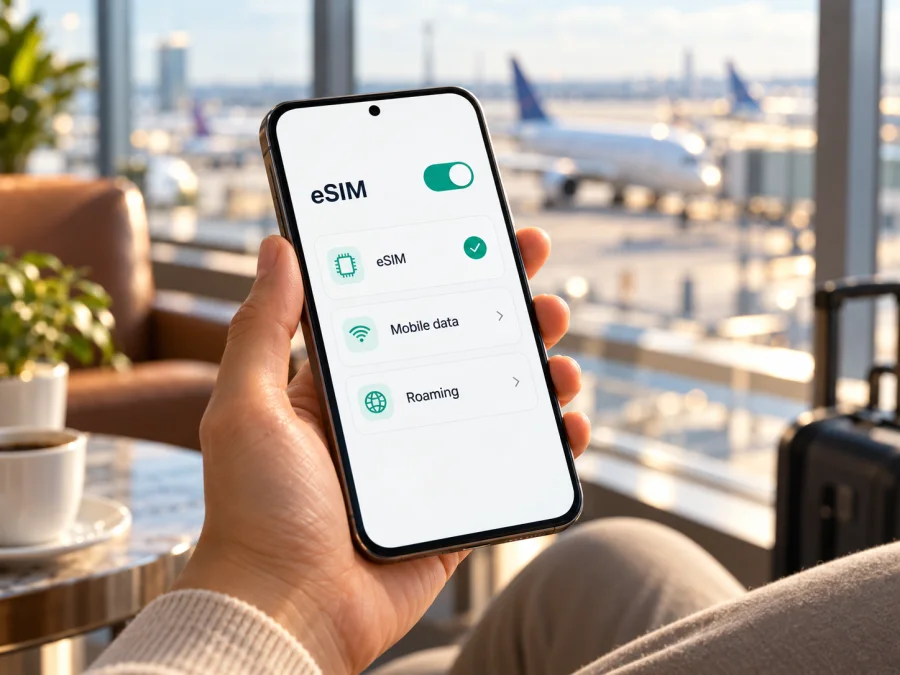
Apple iPhone SE 2022 256GB eSIM: compatibility and setup guide
The Apple iPhone SE 2022 256GB supports eSIM when it is the third-generation model sold in a market where Apple enables eSIM. Apple’s specifications for iPhone SE (3rd generation) list both nano-SIM plus eSIM and dual eSIM support. The storage size does not change that capability. The key exception is the sales region: Apple’s current guidance says that, in mainland China, only certain newer iPhone models support eSIM, so an iPhone SE 2022 256GB bought for that market should not be assumed to accept an eSIM. Carrier locks and the provider’s own activation rules can also affect whether a particular profile will work.
Use the checks below on the phone itself before choosing a travel plan. The exact name in a shop listing is not enough to establish the region or lock status of a used or imported device. If the phone has an EID and offers Add eSIM in Settings, that is a strong device-level indication; confirm that the phone is unlocked and that the provider supports eSIM activation for your destination as well.
Quick compatibility summary
| Item | What to know |
|---|---|
| Device named in this guide | Apple iPhone SE 2022 256GB |
| Apple generation reference | iPhone SE (3rd generation), introduced in 2022 |
| eSIM capability | Supported on the standard international version; Apple also lists dual eSIM support |
| Important regional exception | Mainland China models should be treated as not eSIM-compatible unless Apple’s current regional guidance specifically confirms otherwise for that exact model |
| Storage | 256GB does not determine eSIM support |
| Physical SIM | Many regional versions also have a nano-SIM tray; the exact arrangement depends on market and model |
| Network lock | A carrier-locked phone may reject an eSIM from another provider |
| Best confirmation | Check EID, the Add eSIM option, Carrier Lock, and the source market on the phone |
The practical answer is therefore yes for supported regional versions, with a mainland China exception and a carrier-lock check. Do not rely only on the words “iPhone SE 2022” or “256GB” on a receipt. The same memory configuration can be sold in different markets, and regional devices can use different SIM arrangements. A phone that looks identical from the outside may not have the same eSIM capability.
What the regional difference means
Apple’s product family name covers hardware sold in multiple countries and regions. Its general specifications describe eSIM capability for the third-generation iPhone SE, while current regional support information excludes this generation from the mainland China eSIM lineup. A mainland-China-market unit may instead be configured for two physical nano-SIMs. That is not eSIM, even though the phone can use two mobile lines.
Hong Kong and Macao require a separate check. Apple notes that some iPhones sold there use two nano-SIM cards, while its compatibility information identifies the iPhone SE (3rd generation) in those markets among models that can use eSIM. Do not infer support from a two-SIM label or SIM tray; check the EID and Settings on the actual phone.
There are three questions to keep separate:
- Can this hardware store an eSIM profile? The EID and Add eSIM menu help answer this.
- Is the phone free to use another provider? Carrier Lock in Settings shows whether the iPhone is restricted.
- Can this eSIM provider activate a profile for this device and destination? The seller or service’s compatibility and plan terms answer this.
An affirmative answer to one does not guarantee the other two. For instance, an unlocked phone may still be a regional model without eSIM, while an eSIM-capable phone may be locked to its original carrier. Plan eligibility may also depend on local network, activation timing, and the provider’s terms.
Check EID, Add eSIM, and Carrier Lock
Run these checks before buying a data plan. They help distinguish hardware capability from network restrictions.
1. Find the EID
- Open Settings.
- Tap General, then About.
- Scroll through the identifiers and look for EID.
The EID identifies the phone’s embedded SIM hardware. If it is present, the iPhone has an eSIM component. Keep it private and share it only through an official support or activation process when requested.
If no EID appears, confirm the model and update iOS, then check the Add eSIM menu. If both are absent, treat support as unconfirmed and ask Apple or the seller to verify the regional model before buying a plan.
2. Look for Add eSIM
- Open Settings.
- Tap Cellular (called Mobile Data in some regions).
- Look for Add eSIM, Set Up Cellular, or an equivalent option.
On a supported iPhone, this opens options such as scanning a QR code or entering activation details. Wording varies with iOS and provider. The menu does not prove the phone is unlocked or that a particular plan will work, but together with an EID it is a useful check.
3. Check whether the iPhone is unlocked
- Go to Settings > General > About.
- Find Carrier Lock or Network Provider Lock.
- Look for No SIM Restrictions.
If a carrier name or restriction appears, contact the carrier that supplied the phone and ask whether it can be unlocked for use with another provider. Only that carrier can normally remove its lock. Do this before travel: buying or installing a plan does not remove a device lock.
If results conflict, record the model number in Settings > General > About and ask Apple or the seller to confirm the market version. For a second-hand phone, verify the device itself rather than relying on a listing.
Compatibility checklist
- [ ] The phone is the iPhone SE third-generation model associated with the 2022 release.
- [ ] An EID appears in About, or Settings provides Add eSIM.
- [ ] The phone does not have a carrier restriction, or the original carrier confirms it is unlocked.
- [ ] The device was not sold as a mainland China version that lacks eSIM support.
- [ ] The iOS version is current enough for the activation method.
- [ ] The eSIM provider confirms support for this device and the country or region you will visit.
- [ ] You have a reliable Wi-Fi or cellular connection for installation.
Check your device’s eSIM compatibility before completing a purchase. If you are still unsure about the sales region, pause and confirm the model details with Apple or the seller first.
Before installing an eSIM
Prepare the phone and activation details while you have stable internet. The eSIM profile is stored on the phone; the data plan and its start rules are separate. Installation may use a QR code, an app, or manual details, so follow the method supplied for your plan.
Before starting, check that:
- the plan covers your route and its data allowance, validity, and activation rules fit your trip;
- the phone is unlocked and supports eSIM in its sales region;
- Wi-Fi or another working connection is available for setup;
- the QR code or activation details are ready, and you know when the plan starts.
Keep your existing line available until the profile is installed. If the QR code is on this iPhone, display it on another device or use manual installation if offered. Do not delete the profile while troubleshooting unless the provider advises it; some QR codes are single-use.
Install and activate the profile on iPhone SE
Labels vary slightly by iOS version. Stay connected to Wi-Fi and use the activation details for your selected plan.
For device-specific steps, see the iOS eSIM installation instructions. The Android eSIM instructions are for Android phones and do not apply to this iPhone, but they can help if you are assisting someone travelling with an Android device.
Add the eSIM with a QR code
- Open Settings.
- Tap Cellular or Mobile Data.
- Tap Add eSIM or Set Up Cellular.
- Choose Use QR Code. If that option is nested, tap Other Options first.
- Scan the QR code supplied with your eSIM plan.
- Enter a confirmation code if the provider requires one.
- Follow the prompts to download and add the cellular plan.
- Give the line a clear label, such as Travel, so it is easy to identify later.
If scanning fails, use the provider’s manual entry option rather than repeatedly scanning. If the plan is delivered through an app, follow its setup flow. A prompt to transfer a personal number is a separate carrier service, not the usual travel-eSIM installation method.
Choose which line handles data
After installation, confirm the line appears in Settings > Cellular. Turn it on when ready, then choose it under Cellular Data. If you keep your home number active, review its data and roaming settings to avoid unexpected home-carrier charges.
For tighter control, turn off cellular data switching and explicitly select the travel eSIM. The iPhone uses one line for mobile data at a time.
Activate at the right time
Installing a profile and starting plan validity are not always the same event. A plan may begin at purchase, installation, first network connection, or a scheduled time. Read its terms so the validity matches your departure. If early installation is allowed, you can add the profile at home and wait to enable the line until arrival. Follow any different sequence specified by the provider.
At your destination, turn on the travel line and select it for data. Some plans require Data Roaming on that eSIM. Enable it only if the provider instructs you to, and confirm your home line is not selected for data.
Use the iPhone SE 2022 256GB for data on a trip
Before departure, install the profile over reliable Wi-Fi and confirm it appears under Cellular. If the plan allows, leave the line off until your trip begins. Keep the setup instructions accessible offline.
At arrival:
- Open Settings > Cellular.
- Turn on the travel eSIM line.
- Tap Cellular Data and select the travel line.
- Turn off data roaming for your home line if you do not intend to use your home carrier’s roaming service.
- Enable data roaming on the travel line only if the provider’s setup instructions require it.
- Confirm the phone shows a network connection and test a webpage or map.
Travel data eSIM plans are commonly intended for internet access. Unless the plan says otherwise, do not expect a regular number, standard calls, or SMS. Messaging and calling apps work over data, while activity on your home line remains subject to your carrier’s charges and settings.
Match the plan to your route: confirm each country is covered, and compare validity and data allowance with trip length and expected use. Coverage and performance depend on local networks and plan terms; no device guarantees service everywhere.
If you need a hotspot, confirm the phone and plan allow tethering. Download maps and tickets over Wi-Fi, and consider Low Data Mode to conserve a limited allowance.
Kaspersky eSIM Store is an app and website where travellers can choose, arrange, and activate an eSIM with a data plan for an international trip. The actual mobile service is provided over the networks and under the terms associated with the selected plan. To browse current destinations and plan options, visit the Kaspersky eSIM Store; the homepage is a general starting point, not a country-specific tariff page.
Common problems and what to check
Add eSIM is missing
Check the EID in Settings > General > About and confirm the sales region, especially for a mainland China unit. Restart and update iOS. If both EID and menu are absent, verify the model with Apple or the seller. A SIM tray alone proves nothing about eSIM.
The QR code will not scan
Brighten the screen displaying it, hold the phone steady, and confirm the code is correct and unused. Try manual activation if available or contact the provider. Treat the QR code as private because it may install the profile.
The profile installs but shows no service
Turn on the eSIM line and disable Airplane Mode. Confirm the destination is covered, then restart or briefly toggle Airplane Mode. Enable data roaming on the travel line only if the provider requires it. Avoid resets unless support recommends one.
Mobile data uses the wrong line
In Settings > Cellular > Cellular Data, select the travel eSIM and turn off data switching for more control. Check the home line’s roaming switch and your carrier’s terms.
Activation is rejected or remains pending
Check Carrier Lock, the activation details, Wi-Fi, and whether the profile is already installed. Confirm plan eligibility for this phone and destination. Give the provider the exact error message; do not erase the profile before receiving guidance.
Signal appears but data does not work
Recheck which line is selected for data, whether the plan has started, and any required roaming setting. Turn off Wi-Fi and test a webpage. If only one app fails, check its cellular-data permission. Your home line’s calls, texts, and roaming remain subject to your carrier’s terms.
Frequently asked questions
Does Apple iPhone SE 2022 256GB support eSIM?
Yes, for the third-generation model sold in an eSIM-supported market. Mainland China-market devices are an important exception; 256GB does not identify the region. Check the EID and Add eSIM menu on the handset.
Can this iPhone use a physical SIM and an eSIM together?
Apple lists nano-SIM plus eSIM support for the generation. Regional setup and carrier rules can vary; only one line handles mobile data at a time.
Does 256GB change eSIM compatibility?
No. Storage describes built-in space, not SIM hardware. Check the sales market and carrier lock of the actual phone.
Can I install a travel eSIM before leaving home?
Usually, yes, over Wi-Fi. Plan validity may start at purchase, installation, first connection, or a scheduled time, so check its terms and do not delete the profile casually.
Do I need data roaming turned on?
Sometimes. Follow the plan instructions, verify the travel eSIM is selected for data, and check the home line’s roaming setting separately.
Does a data eSIM include calls and text messages?
Not unless the plan explicitly includes them. Data-only plans have no regular number; internet calling and messaging apps can use the data connection.
What if EID is present but installation fails?
An EID confirms the hardware, but a lock, used code, weak connection, or provider issue can still prevent setup. Check Carrier Lock and Wi-Fi, restart, then contact the provider with the error message.
Final check before your trip
For Apple iPhone SE 2022 256GB, eSIM support is confirmed for the regular third-generation model in supported markets, while a mainland China-market version should not be treated as compatible. The memory size alone cannot resolve that regional difference. Verify the EID and Add eSIM option on the phone, check for No SIM Restrictions, and confirm that the plan provider accepts the device and covers your destination.
Once compatibility is clear, compare the plan’s destination, data allowance, validity period, and activation timing with your route. Install the profile over a stable connection, label it clearly, and choose the travel eSIM for mobile data when you are ready to use it. This simple check before purchase helps avoid arriving with a plan that the phone cannot activate.


