Travel connectivity guide
Apple iPhone SE 2022 eSIM: Compatibility & Setup
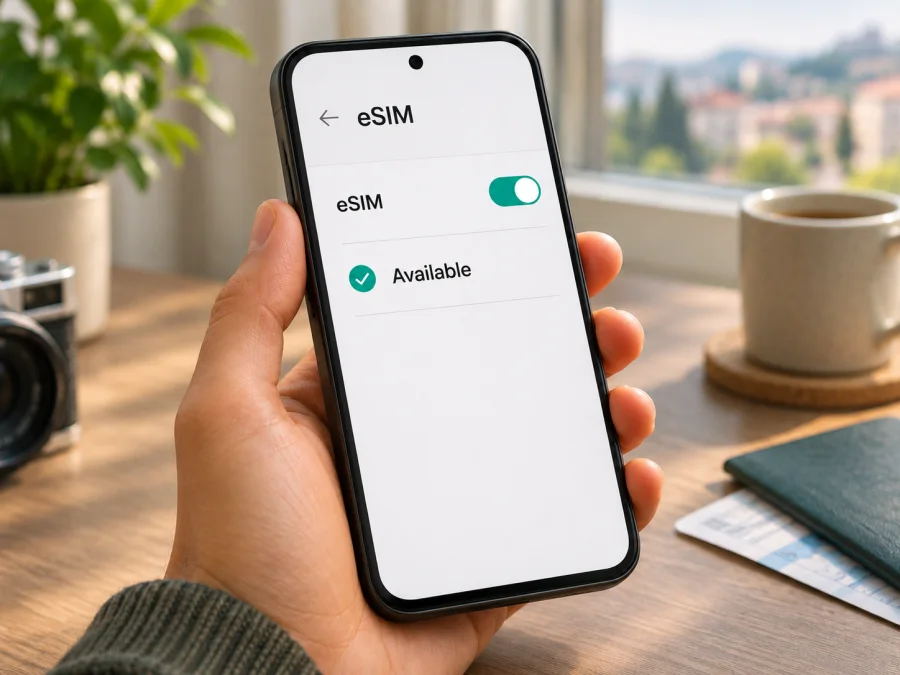
Apple iPhone SE 2022 eSIM: compatibility and setup guide
Short answer: Apple iPhone SE 2022 supports eSIM when it is the iPhone SE (3rd generation) introduced in 2022 and the specific unit has eSIM enabled. Apple lists the model with Dual SIM (nano-SIM and eSIM) and dual eSIM support. However, eSIM availability can depend on the country or region where the phone was sold, carrier settings, iOS, and whether the device is carrier-locked. Before choosing a travel plan, check the phone itself for an EID and an Add eSIM option.
The name “Apple iPhone SE 2022” is commonly used for the third-generation iPhone SE. Apple’s official model name is iPhone SE (3rd generation), with 2022 as its introduction year. ## Does Apple iPhone SE 2022 support eSIM?
Yes, the iPhone SE (3rd generation) supports eSIM. Apple’s specifications list a physical nano-SIM plus eSIM and support for two eSIMs. That means a compatible device can use an eSIM profile for a mobile plan, and it can keep more than one plan stored. The exact number of profiles that can be stored is not the same as the number of lines that can be active at once; follow the options shown in iOS and your provider’s instructions.
For travel, the usual arrangement is to keep a home SIM available for calls or messages and set a separate travel eSIM as the line for mobile data. You can also use two eSIM lines when the unit, software, and providers allow it. A data-only travel plan does not automatically replace your regular number: voice calls and SMS are not included unless a plan explicitly says otherwise. Internet calling and messaging apps can work over the data connection.
Apple also cautions that eSIM is not offered in every country or region and that some providers may disable eSIM use on phones they sell. As a result, the model-level answer is “yes,” while the answer for a particular handset is “confirm in Settings.” An EID and the eSIM setup controls are useful signs that the digital SIM hardware is present, but you should also confirm that the phone is unlocked and that the plan’s provider supports the destination and device.
At a glance
| Item | What applies to Apple iPhone SE 2022 |
|---|---|
| Apple’s official model name | iPhone SE (3rd generation) |
| Introduction year | 2022 |
| eSIM support | Yes on supported, enabled units |
| SIM configuration listed by Apple | One nano-SIM and one eSIM; dual eSIM support |
| Travel data use | Select the eSIM line for mobile data; provider and destination conditions apply |
| Cellular lock | A phone locked to a carrier may reject a plan from another provider |
| Best pre-purchase check | Look for an EID and Add eSIM in Settings, then confirm the exact unit is unlocked |
Regional versions, carrier restrictions, and model identity
A retail listing may shorten the name to “iPhone SE 2022,” but that label does not identify the sales region, carrier status, or whether eSIM is enabled. Apple’s specifications establish eSIM support for the third-generation family, while availability rules can vary by market. Apple’s current guidance lists a limited set of eSIM-compatible iPhones for mainland China and does not include iPhone SE (3rd generation) in that list. Apple separately identifies this generation as eSIM-capable in guidance for Hong Kong and Macao. These markets should not be treated as interchangeable.
Do not infer eSIM support from the seller’s location, phone language, SIM tray, or 5G. A SIM tray can coexist with eSIM, as on the standard iPhone SE (3rd generation). For a used or imported phone, ask for the exact model number and check the handset itself. A seller’s “unlocked” claim is useful but still needs confirmation in Settings.
Carrier lock is separate from eSIM hardware. Apple says an unlocked iPhone is required to use two different carriers. On recent iOS versions, open Settings > General > About and look for Carrier Lock. “No SIM restrictions” means the iPhone is unlocked. If the status is unclear, ask the carrier that sold the phone; only that carrier can remove its lock.
Menu names vary by iOS version and language: “Cellular” may appear as “Mobile Data.” An EID in About and an Add eSIM or Add Cellular Plan option are practical signs that eSIM is available. They do not guarantee that a specific plan covers your destination or that the phone is unlocked.
Check EID and eSIM settings on the phone
Do this before paying for a travel plan. It takes a minute and checks the actual device rather than relying on the name in a listing.
- Open Settings. Keep the iPhone connected to Wi-Fi if possible, especially if you are also checking for an iOS update.
- Go to General > About. Scroll through the device information. Look for EID, a long identifier associated with its embedded SIM.
- Check Carrier Lock. The desired status is No SIM restrictions. If it says that a SIM is locked, contact the carrier that applied the restriction.
- Return to Settings > Cellular (or Mobile Data). Look for Add eSIM, Add Cellular Plan, or a similar control. The exact label depends on iOS version and language.
- Confirm that a line can be added without completing a purchase. You can open the add flow to see its available methods, then cancel before scanning a QR code or confirming installation.
- Compare the results with the exact model and sales region. If the EID or add option is missing, or if the phone was imported, ask Apple or the seller to verify the variant. Do not order a plan until the mismatch is resolved.
Use this quick checklist before you choose a plan:
- [ ] The phone is the 2022 iPhone SE, officially called iPhone SE (3rd generation), rather than the 2020 second-generation model.
- [ ] An EID appears under Settings > General > About.
- [ ] Settings > Cellular / Mobile Data offers Add eSIM or Add Cellular Plan.
- [ ] Carrier Lock shows No SIM restrictions, or you have confirmed that the travel provider uses the same carrier.
- [ ] Your iOS version is current enough for the provider’s activation method.
- [ ] The plan covers the country or region you will visit and its validity period fits your dates.
- [ ] You have reliable Wi-Fi or another internet connection available during installation.
Check whether your device is compatible before purchasing a plan. If this iPhone’s region or lock status is uncertain, resolve that first rather than relying on the general model specification.
Prepare before installing a travel eSIM
Before checkout, confirm the plan’s country or regional coverage, data allowance, duration, and when validity begins. Installing a profile, turning on its line, and first connecting to a local network may be different events. Follow the selected plan’s conditions rather than assuming when the clock starts.
Check whether the plan is data-only. Travel eSIMs commonly provide mobile data without a telephone number, voice calls, or SMS. Keep your home SIM for calls or verification codes if needed, but check your home carrier’s roaming charges. Set the travel profile as the data line when you are ready, and manage roaming separately for each SIM.
Install over a stable internet connection. If you will use a QR code, have it ready on another screen or print it; many codes are for one-time use. Do not delete an installed profile or assume its code can be reused on another phone. Review the provider’s timing advice if setting up before departure.
See the iPhone eSIM setup instructions for the iOS flow, or the Android eSIM setup instructions if helping someone with an Android phone. The steps below use common iOS labels, which may vary slightly by software version.
Install and activate eSIM on Apple iPhone SE 2022
Before you begin, make sure the phone is unlocked for the provider you plan to use, the profile or QR code is ready, and Wi-Fi is available. If you have a physical SIM in the phone, you do not need to remove it to add an eSIM. Avoid deleting an existing profile during troubleshooting unless the provider tells you to do so: a used activation code may not be available again.
Add the eSIM profile
- Open Settings. Tap Cellular or Mobile Data.
- Choose Add eSIM. If the wording differs, look for Add Cellular Plan.
- Select the method provided for your plan. Choose Use QR Code to scan the QR code, or use Enter Details Manually only if the provider gave you the required activation details. Some providers may offer activation through an app or link.
- Scan the QR code or enter the details. Keep the QR image clear and fully visible. If scanning from a screen, set its brightness high enough for the camera to read it.
- Follow the on-screen prompts. Confirm that you want to add the cellular plan. Give iOS time to download the profile; do not close Settings while it is processing.
- Label the line. Choose a label such as “Travel” so you can distinguish the new eSIM from your personal line. This label is only for your own reference.
- Choose default line settings carefully. If asked, keep your usual number as the default for calls and messages if desired, and select the travel eSIM for cellular data when you are ready to use it. You can change these settings later.
- Finish the provider’s activation steps. A profile can be installed but not yet connected to a local network. Follow any confirmation or activation instructions shown in the app or plan details.
Select the travel eSIM for mobile data
When you are ready to use the plan, go to Settings > Cellular / Mobile Data. Tap Cellular Data and select the travel line. Confirm that the travel line is turned on. If the plan requires data roaming, enable Data Roaming for that eSIM line only, after checking the plan instructions. A roaming switch on a travel eSIM can be needed to connect to the partner network; it does not mean you should enable roaming on your home line. Your own carrier’s charges depend on its settings and plan.
Consider turning Allow Cellular Data Switching off if you want to prevent iPhone from switching mobile data to another line. This is especially useful if your home SIM could incur roaming fees. Keep in mind that the setting affects how the phone handles data when the selected line is unavailable. If you need uninterrupted access to your home line, check what your carrier charges for incoming calls, voicemail, or background data abroad.
On arrival, turn off Airplane Mode, allow the phone to register, and wait a few minutes. If there is no connection, confirm the selected data line, the eSIM line’s status, roaming requirements, and the plan’s destination. Restarting the phone or toggling Airplane Mode once can prompt a fresh network registration. Do not delete the profile as a first step.
Use the iPhone SE eSIM while travelling
For a short trip, install at home if the plan allows it, then select the travel eSIM for data when you arrive. This avoids depending on airport Wi-Fi to complete setup. Keep the home SIM configured for calls or texts if needed, and make sure it cannot unexpectedly become the data line if you want to avoid home-carrier roaming. Save tickets and other essentials offline in case registration takes a few minutes.
For a multi-country route, check every stop against the plan’s coverage list; “regional” does not necessarily include every country. Choose based on included locations, data allowance, validity, and price.
Estimate use from your habits: maps and messaging generally need less data than streaming, photo backup, or hotspot sharing. Download maps over Wi-Fi and check plan terms before tethering. A data-only eSIM does not replace your phone number; ordinary calls and texts depend on your other line and local rules.
Kaspersky eSIM Store is an app and website where you can choose, arrange, and activate an eSIM with a plan for mobile data on an international trip. Compare the listed destination, allowance, duration, and terms. Browse the Kaspersky eSIM Store to check current travel options; this is a general homepage, not a country-specific tariff page. Confirm compatibility and unlock status first.
Common problems and what to check
“Add eSIM” is missing
Look for an EID under Settings > General > About and check Settings > Cellular / Mobile Data. Restart the phone and install any available iOS update. If the phone is imported, ask Apple or the seller to confirm the exact regional variant. Without an EID or add option, do not assume a reset can enable eSIM.
The QR code will not scan or the profile will not download
Check that the code is complete, clear, and bright enough to scan. If it is displayed on the same iPhone, use another screen or the provider’s app if offered. Confirm that Wi-Fi works and that the activation code has not already been used. Restart and retry only if the provider says the code remains valid; do not repeatedly scan it or delete a profile that may have installed despite an error.
The profile is installed but there is no signal
Make sure the travel line is on, the destination is included, and the phone has arrived in a supported area. Check whether the provider requires Data Roaming on that eSIM, then toggle Airplane Mode once and wait for registration. A plan cannot connect where no compatible local network is available.
There is a signal but no internet
Go to Settings > Cellular / Mobile Data > Cellular Data and select the travel eSIM. Confirm mobile data is enabled, the plan has remaining data and validity, and any required roaming setting is enabled for that line. Turn Wi-Fi off briefly to test cellular data. If only certain apps fail, check their mobile-data permissions and any VPN or content-filter settings.
The home SIM is using data abroad
Select the travel line under Cellular Data and consider turning off Allow Cellular Data Switching. Review Data Roaming independently for each line and check the home carrier’s charges for calls, texts, and voicemail. Selecting the travel eSIM for data does not itself disable charges on the home line.
A code has already been used or the eSIM was removed
Activation codes are often single-use, and a profile may not be transferable or reinstallable. Check the provider’s rules before removing it. If it was deleted or the code is marked used, contact the provider for recovery or a replacement rather than assuming the same QR code will work again.
When contacting support, note the exact error, destination, and whether the profile appears in Settings. Share EID or IMEI only through the provider’s official support channel, and never post QR codes or activation details publicly.
Frequently asked questions
Can Apple iPhone SE 2022 use eSIM and a physical SIM together?
Yes. iPhone SE (3rd generation) supports nano-SIM and eSIM. Using two different carriers generally requires an unlocked phone.
Can it use two eSIMs?
Apple lists dual eSIM support for this generation. Actual use depends on iOS, carrier support, and regional configuration; check the options in Settings and with both providers.
How do I check my exact phone?
Look for an EID in Settings > General > About, then look for Add eSIM in Settings > Cellular / Mobile Data. Verify the market variant if either item is missing.
Does a travel eSIM provide a phone number?
Usually not if it is data-only. Check the plan terms; use your regular number for standard calls and texts unless voice and SMS are explicitly included.
Should I install it before departure?
It can be convenient while Wi-Fi is available, but follow the provider’s advice and check when the plan begins. Installation, enabling the line, and first network connection may have different effects on validity.
Do I need Data Roaming?
Possibly on the travel eSIM. Follow the plan’s instructions and manage roaming separately on your home SIM to avoid unwanted charges.
Will it work if the phone is carrier-locked?
A lock may prevent a plan from another provider from working. Ask the original carrier about unlocking and confirm No SIM restrictions in Settings before purchasing.
Final check before your trip
Apple iPhone SE 2022 supports eSIM when it is the iPhone SE (3rd generation) and the particular unit has the feature available. The practical checks are simple: verify the model, find the EID, confirm Add eSIM appears, and make sure Carrier Lock says No SIM restrictions if you plan to use another provider. Regional availability and provider settings can change the result for an imported phone, so rely on the actual device and its market details.
Once compatibility is clear, choose a plan for the countries on your route and compare its data allowance, duration, and activation conditions. Set the travel eSIM as the line for mobile data when appropriate, review roaming separately for each SIM, and keep the home line configured according to your needs and its charges. A few minutes of checking before purchase can prevent setup problems after arrival.


