Travel connectivity guide
Apple iPhone SE 2nd generation 256GB eSIM
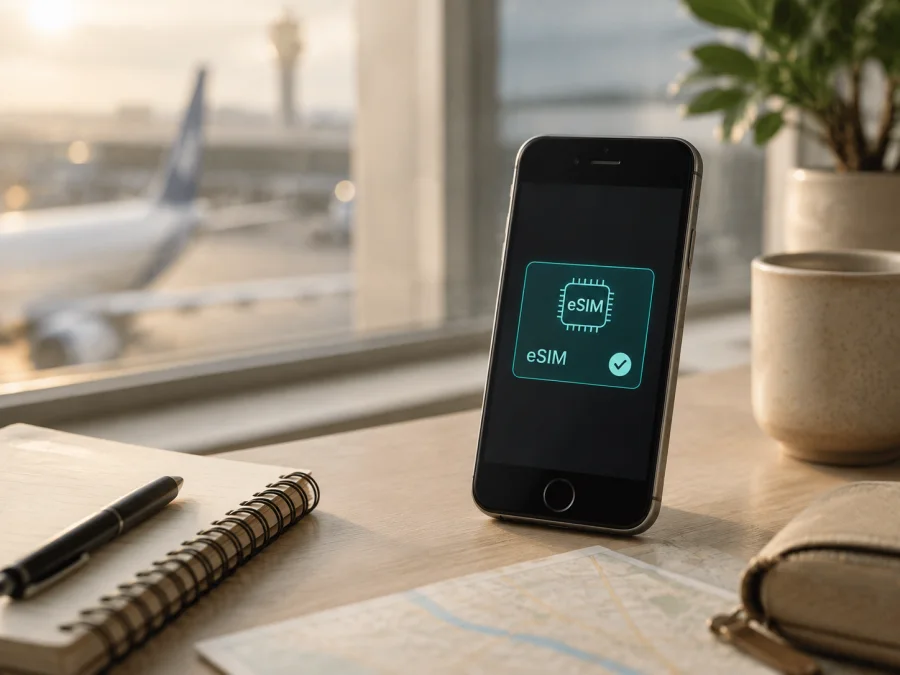
Apple iPhone SE 2nd generation 256GB eSIM: compatibility and setup
If you are checking whether Apple iPhone SE 2nd generation 256GB can use an eSIM for travel, the short answer is yes in versions and markets where Apple enables the feature. Apple’s technical specifications for the iPhone SE (2nd generation) list Dual SIM with a nano-SIM and eSIM, and include a 256GB capacity. Apple also warns that eSIM is not supported in all regions and may be disabled when the phone was purchased from some carriers. The reliable answer for your handset is therefore: the model family supports eSIM, but verify the exact regional and carrier version on the phone before buying a plan.
An eSIM is a digital SIM profile built into the phone, so a travel plan can use a second line for mobile data while your physical SIM remains available. Kaspersky eSIM Store is an app and website for choosing, arranging, and activating an eSIM plan for an overseas trip; it is not a mobile operator or network owner.
Quick answer: does Apple iPhone SE 2nd generation 256GB support eSIM?
Yes, Apple iPhone SE 2nd generation 256GB belongs to an iPhone line whose official Apple specifications support Dual SIM with one nano-SIM and one eSIM. A compatible, unlocked retail version can normally add a travel eSIM and use it for mobile data. The 256GB label describes storage, not a separate cellular technology, so it is not a reason to reject the device.
The hardware and software, sales region, carrier status, and selected plan must all allow eSIM use.
If one condition fails, a QR code may not install or the profile may install without connecting. A SIM tray, a seller’s generic title, or the capacity label is not proof that your particular phone is ready. Confirm the on-device menu and EID first.
Specifications that matter for eSIM use
This summary concerns the exact variant named on this page. It does not merge it with another iPhone SE generation or storage option.
| Item | What it means for Apple iPhone SE 2nd generation 256GB |
|---|---|
| Device variant | Apple iPhone SE 2nd generation 256GB |
| Manufacturer-listed family | iPhone SE (2nd generation) |
| Storage | 256GB; storage does not determine whether the eSIM menu is enabled |
| SIM configuration | Dual SIM with nano-SIM and eSIM in supported versions |
| Physical SIM | One nano-SIM slot; not a micro-SIM slot |
| Travel data use | An eSIM can be selected as the mobile-data line when the phone and plan are compatible |
| Main uncertainty | Region, carrier restrictions, lock status, iOS, and activation rules |
Regional and carrier versions: why the answer can differ
The iPhone SE (2nd generation) was sold in many markets, and Apple says eSIM is not supported in all regions. Apple’s current SIM guidance describes mainland China and Hong Kong/Macao exceptions, so imported stock must be checked by market.
Carrier policy is separate: Apple notes that eSIM may be disabled on iPhones purchased from some carriers. An unlocked phone can use another compatible provider’s eSIM under its terms; a locked phone may refuse it even when eSIM settings exist. Ask for the country of sale, a Cellular screenshot, and lock status. The plan provider must support iPhone activation.
How to check eSIM compatibility on the phone
Perform this check over Wi‑Fi or another working data connection.
1. Look for the EID
Open Settings > General > About and review the identifiers. A compatible iPhone normally shows an EID, the identifier for its embedded SIM. Confirm that the field exists; never publish the full EID.
2. Look for Add eSIM
Open Settings > Cellular or Mobile Data and look for Add eSIM, Add Cellular Plan, or similar wording. Names vary with iOS and region. A physical SIM line alone is not proof; you need an option that adds a digital plan.
3. Check the carrier lock
In Settings > General > About, find Carrier Lock. No SIM restrictions indicates an unlocked phone. If another status appears, contact the original carrier. Erasing the phone, changing the Apple Account, or updating iOS does not remove a lock.
4. Check software and internet
Install the latest offered iOS, restart, and make sure Wi‑Fi works. An update cannot add eSIM hardware to a regional version that lacks it.
5. Check the plan conditions
Before payment, confirm iPhone support, destination coverage, activation method, validity start, data-roaming requirement, and whether the profile can be installed only once.
Use this checklist before ordering:
- [ ] The phone is exactly Apple iPhone SE 2nd generation 256GB, not another generation or a two-nano-SIM regional variant.
- [ ] An EID appears in Settings > General > About.
- [ ] Add eSIM or an equivalent cellular-plan option appears in Settings.
- [ ] Carrier Lock says No SIM restrictions.
- [ ] iOS and the internet connection are ready for activation.
- [ ] The plan covers the destination and dates of the trip.
- [ ] You understand its data allowance, validity, activation trigger, and refund rules.
- [ ] You know whether data roaming is required for the travel line.
For a quick return to this decision point, use Check your device. If EID or Add eSIM is missing, pause the purchase and verify the market and lock status.
Choosing a travel eSIM plan
Compatibility comes before the plan. After the check, choose a destination and estimate data use. Maps, tickets, messaging, video, cloud files, and hotspot use consume data at different rates, so consider route, duration, apps, and access to Wi‑Fi.
Review these fields in the plan page or app:
- Destination: confirm every country, region, or route where service is needed.
- Data allowance: video, backups, navigation, and hotspot use can consume it quickly.
- Validity and activation: check duration, start event, QR/app/manual method, and any installation deadline.
- Tethering and expiry: confirm hotspot, top-up, extensions, balance, and unused-data rules.
- Calls and SMS: a travel eSIM is usually data-only and does not automatically provide a number, voice, or SMS.
Kaspersky eSIM Store helps you choose and arrange the destination eSIM plan through its app or website. Review direction, data, validity, and price before ordering. The service does not own the underlying network; rely on the selected plan’s terms for coverage.
How to install an eSIM on Apple iPhone SE 2nd generation 256GB
Install before departure if possible. If validity starts on installation or first connection, read the conditions first. Keep the QR code on another screen for scanning.
For the platform’s guides, see Android installation instructions and iOS installation instructions. The iOS sequence is:
1. Prepare the phone
Connect Apple iPhone SE 2nd generation 256GB to Wi‑Fi. Confirm EID, Add eSIM, and No SIM restrictions.
2. Open cellular settings
Go to Settings, tap Cellular or Mobile Data, and choose Add eSIM or Add Cellular Plan.
3. Start activation
Choose the QR-code option if supplied and scan a code shown on another device. If the provider gives an app-based or manual method, follow it exactly.
4. Add the plan
Review the label and confirm. Do not delete your existing line because the profile is data-only. Wait a few minutes for download if needed.
5. Label the lines
Name it Travel data and keep the primary label recognizable.
6. Keep the primary line if needed
For calls or SMS on your usual number, keep that line enabled under your home carrier’s terms. A data-only eSIM does not replace the number.
7. Select the data line
Open Cellular > Cellular Data and choose Travel data. Turn Allow Cellular Data Switching off to prevent fallback to the primary line.
8. Set data roaming as required
Check Data Roaming for the travel line. Some profiles need it for a partner network. Follow the plan instructions and keep it off on the primary line unless required.
9. Test at the right time
If delayed use is allowed, install before leaving but keep the line off. After arrival, turn it on, select it for data, wait for registration, and open a simple webpage. A status-bar change alone is not proof.
Activating and using eSIM during a trip
Installation downloads the profile; activation or service start may happen when it connects to a supported network, when you turn on the line, or under the plan’s own conditions. Read the terms so that installing early does not unexpectedly start validity.
Scenario 1: prepare before flying
At home, verify EID and lock status, choose the destination plan, and install over Wi‑Fi. Label it Travel data and leave it off if delayed activation is allowed. After landing, enable it and select it for data.
Scenario 2: activate after landing
If the plan begins on installation, use airport Wi‑Fi or another trusted connection. Add it, select it for data, and enable roaming if required. Avoid repeated deletion; some plans limit reinstallation.
Scenario 3: keep your number and use travel data
Keep the home line active for calls or SMS if its terms are acceptable. Set the travel eSIM as Cellular Data, turn off automatic switching, and watch the selected line. Messaging apps may remain registered to your usual number; SMS depends on the home line.
Scenario 4: travel across several countries
Verify coverage for every country. A regional plan may be suitable, but its coverage, validity, and activation rules still apply. At a border, allow time to register, then check the data line and roaming setting.
Manage data deliberately
Use Settings > Cellular to review app usage. Restrict background refresh, downloads, photo sync, and high-quality video when allowance is limited. Download maps over Wi‑Fi and monitor the balance.
Common problems and practical fixes
There is no Add eSIM option
Check EID, Carrier Lock, restart, and install available iOS updates. If EID and Add eSIM are both absent, the phone may be a restricted regional version or lack a carrier-enabled feature. Confirm the market and lock status with the seller or Apple support.
The QR code will not scan
Increase the display brightness, clean the camera lens, and hold the phone steady. Do not scan from the same iPhone. Use manual details only when allowed. A used or device-bound code may not work again.
The profile will not download
Check Wi‑Fi, complete any captive-portal sign-in, and retry in Settings > Cellular. Confirm free storage and automatic date and time. For an invalid, expired, or used code, contact plan support. Do not share the QR code or EID publicly.
The profile is installed but there is no service
Select the travel eSIM under Cellular Data, toggle it once, restart, and enable Data Roaming if required. Allow time for registration. Check coverage, activation, expiry, and allowance. Change network selection only if the provider recommends it.
The phone uses the wrong line for data
Open Settings > Cellular > Cellular Data and choose the travel label. Turn off Allow Cellular Data Switching and avoid large downloads while testing.
Calls or SMS do not work
This may be expected. A travel eSIM for mobile internet may not include a number, voice, or SMS. Use internet apps, or keep the primary line for ordinary services if permitted. Check the plan description.
The phone is locked
Check Carrier Lock again. Only the original carrier can normally change it. Erasing the iPhone or deleting the profile does not unlock it.
FAQ
Does the 256GB version have different eSIM support?
Not because of storage. Apple lists 256GB and nano-SIM plus eSIM for the family. Regional and carrier restrictions still apply to Apple iPhone SE 2nd generation 256GB, so verify EID, Add eSIM, and lock status.
Can I install the same eSIM on another phone?
Usually not automatically. Many profiles are intended for one device or installation and may not transfer after activation. Check the rules before deleting it.
Does a travel eSIM replace my phone number?
No, not when the plan is for mobile internet only. It provides data for maps, email, messaging, and internet calls, while ordinary calls and SMS remain tied to a supporting line.
What does Kaspersky eSIM Store do?
Kaspersky eSIM Store is an application and website that helps you select, arrange, and activate an eSIM with a mobile-internet plan for an overseas trip. It is not the operator, network owner, or provider of the underlying internet. Coverage and conditions come from the selected plan.
When should I ask for help?
Contact plan support when a valid profile will not activate, the QR code reports an error, or service does not match the destination. Note the error, data line, roaming setting, EID, and Add eSIM status; do not share private activation data.
Conclusion: check the device, then choose the trip eSIM
Apple iPhone SE 2nd generation 256GB can support eSIM according to Apple’s technical specifications for the iPhone SE (2nd generation), but that is not a blanket promise for every imported, locked, or carrier-restricted unit. Before paying for a plan, confirm the EID, find Add eSIM, and verify Carrier Lock: No SIM restrictions. Then check the destination, data allowance, validity, activation trigger, roaming requirement, and data-only limitations.
Once those checks pass, Kaspersky eSIM Store can help you choose a direction, arrange an eSIM plan for mobile internet, and activate it through the app or website. Install over a reliable connection, select the travel line for data, and monitor usage: check the exact device, match the eSIM to the trip, then activate it.


