Travel connectivity guide
Apple iPhone SE 3 64GB eSIM: compatibility
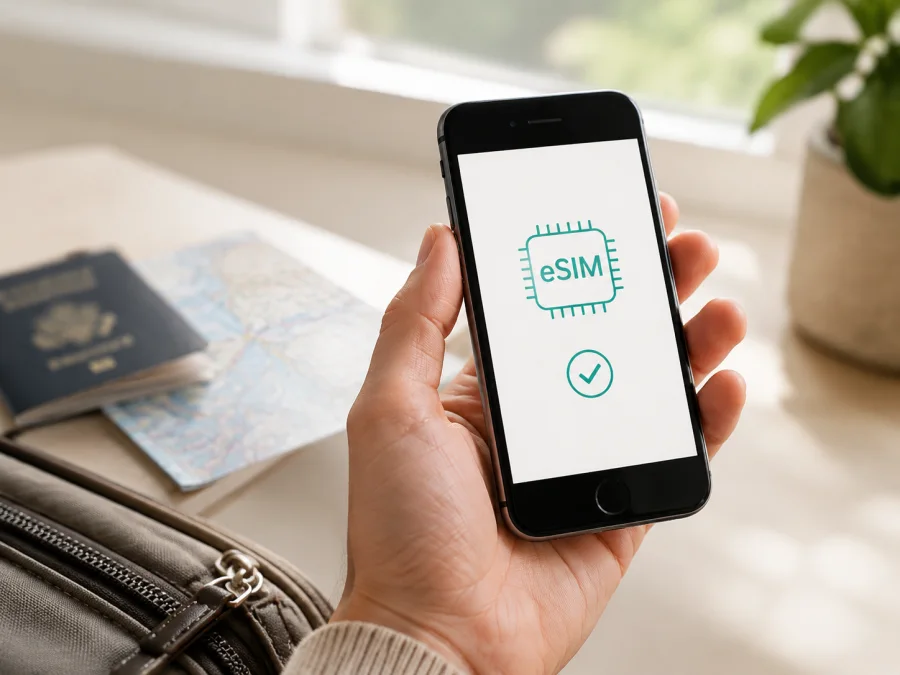
Apple iPhone SE 3 64GB eSIM compatibility and setup
If you are preparing Apple iPhone SE 3 64GB for an overseas trip, the short answer is yes: the iPhone SE (3rd generation) family supports eSIM. Apple’s current technical specifications list Dual SIM with a nano-SIM and eSIM, as well as support for two eSIMs. The 64GB storage option does not change that cellular capability.
The qualification matters for an individual phone. eSIM availability can vary with the country or region of sale, model configuration, carrier policy, and iOS. A carrier-locked phone or a regional version with another SIM arrangement may not expose the same options. Check the device itself before selecting a travel plan.
Quick answer for Apple iPhone SE 3 64GB
On a typical unlocked version of Apple iPhone SE 3 64GB, you can add a travel eSIM for mobile data while keeping a physical SIM for your usual number. Apple lists two-eSIM support for this generation too, but active-line behavior depends on the device, iOS, and carriers. Apple’s “Dual SIM (nano-SIM and eSIM)” specification applies to the family, so use the EID and settings checks below for your particular unit.
| Item | What it means for this device |
|---|---|
| Exact variant | Apple iPhone SE 3 64GB |
| Apple generation | iPhone SE (3rd generation) |
| eSIM | Supported by the family, subject to market and carrier conditions |
| Physical SIM | Nano-SIM on the relevant dual-SIM configuration |
| Dual SIM | Nano-SIM plus eSIM; Apple also lists two eSIMs for this generation |
| Storage | 64GB; storage does not enable or disable eSIM |
| Mobile data | One selected line is used for cellular data at a time |
| Network access | 5G/LTE, roaming, and local registration depend on model, plan, and carrier |
| Final proof | An EID and an Add eSIM option should be visible in Settings |
Regional and carrier differences
Apple’s current support guidance warns that eSIM is not available in all countries and regions. Some market variants use a different SIM arrangement; certain models sold in mainland China, Hong Kong, or Macao can differ from the international nano-SIM-plus-eSIM configuration. Do not infer compatibility from “iPhone SE 3” or 64GB alone when imported or refurbished. Verify the model information, EID, and cellular menu before buying a non-refundable plan.
Carrier locking is separate from eSIM hardware. Open Settings > General > About and look for Carrier Lock. No SIM restrictions indicates an unlocked phone. If a carrier restriction is shown, contact that carrier before using a second provider abroad. A travel eSIM cannot bypass a lock.
The eSIM provider must support activation for the destination and phone. A QR code can fail when a plan is for another country, already used, outside its activation period, or intended for an app or manual entry. Confirm destination, validity, data allowance, activation timing, and hotspot conditions.
Check compatibility before buying an eSIM plan
<a id="kesim-device-compatibility"></a>
Use this check on the exact phone you will carry. It is more reliable than a marketplace title or box photograph.
1. Look for an EID
Open Settings > General > About and look for EID. It is a long identifier associated with the embedded SIM. Its presence is strong evidence that the phone contains eSIM hardware. You only need to confirm that the field exists; do not publish or send the complete identifier unnecessarily.
2. Look for Add eSIM
Open Settings > Cellular or Settings > Mobile Data. Look for Add eSIM, Set Up Cellular, Add Cellular Plan, or comparable wording. Labels can change with iOS, but a supported configuration should provide a way to add a cellular plan.
If there is no EID and no eSIM option, pause the purchase. The unit may be a regional dual-nano-SIM version, restricted, misidentified, or affected by software. Ask the seller or carrier to confirm the configuration.
3. Check lock, software, and internet
Compare the model and storage with the requested Apple iPhone SE 3 64GB, then check Carrier Lock. Install available iOS updates and connect to Wi-Fi. Profile installation needs internet, battery, and the QR code or manual details on another screen.
Compatibility checklist
- [ ] The phone is the exact Apple iPhone SE 3 64GB unit you intend to use.
- [ ] Settings > General > About displays an EID.
- [ ] Settings > Cellular displays Add eSIM or a comparable option.
- [ ] Carrier Lock says No SIM restrictions when a second provider will be used.
- [ ] iOS supports the activation method supplied with the plan.
- [ ] Destination, validity, data allowance, and hotspot rules fit the itinerary.
- [ ] Wi-Fi, battery, and the QR code or manual activation details are available.
If an item fails, resolve it before buying. A compatible phone still needs a supported destination plan, and a valid plan cannot make an incompatible or locked phone accept eSIM. Check your device before you commit to a plan.
How to install an eSIM on Apple iPhone SE 3 64GB
Labels depend on iOS and delivery method. For platform reference, see the iOS installation instructions and the Android installation instructions. The steps here are for this iPhone.
Before you start
Make sure the phone is unlocked, charged, updated, and on Wi-Fi. Keep the QR code on another screen or prepare manual details. Do not delete an existing eSIM until you know it can be removed; a used activation code may not scan again.
Step 1: Open cellular settings
Open Settings, tap Cellular or Mobile Data, then tap Add eSIM, Set Up Cellular, or the closest matching option.
Step 2: Scan or enter the profile
Choose Use QR Code and hold the iPhone over the supplied code. Keep the full code in frame. If it is on the same iPhone, use manual entry or the provider’s activation link. Enter the SM-DP+ address, activation code, and confirmation code exactly as supplied.
Step 3: Name the line
Give the new line a clear label such as Travel data or the destination. Keep your home line’s label unchanged. Clear labels make it easier to select the right line after landing.
Step 4: Choose the default voice line
If iOS asks for a default voice line, keep your ordinary number selected when intended. A data-only travel eSIM does not replace it.
Step 5: Select cellular data
Choose the travel eSIM under Cellular Data when ready. To avoid home-line roaming, turn off data switching and confirm that the home line is not selected. Keep the travel line off if validity starts on activation or first use.
Step 6: Enable roaming when required
Some travel eSIMs need Data Roaming through partner networks. Open the travel line’s settings and follow the plan instructions. Enable it only for that line; the setting does not create a plan or guarantee coverage.
Step 7: Wait for registration
Allow a few minutes for registration. Signal bars, a carrier name, or a data indicator should appear. Installation can happen on Wi-Fi before departure; registration may wait until the phone reaches the destination.
Using eSIM for mobile internet while travelling
Separate your normal number from travel data. Install the profile on Wi-Fi, label both lines, and confirm the travel line under Settings > Cellular. At the destination, select it for data, enable roaming if required, and turn off automatic data switching to prevent home-line fallback.
Short city break
Estimate maps, tickets, translation, messages, and photo uploads. Select a plan covering the destination and stay. Install it at home, delay the line if activation starts validity, and test a web page or map request on arrival.
Work trip with a primary number
Keep the home line for calls or verification messages, but check roaming costs. Set the travel eSIM as data and disable data switching. A data-only eSIM supports internet calling in apps but does not automatically provide ordinary calls or SMS.
Multi-country itinerary
Check whether the plan covers every country or one destination. A country plan may stop at a border while the profile remains installed. Use a regional plan only when its coverage and validity include the route, and keep plan details accessible.
Kaspersky eSIM Store is an app and website where you can choose, arrange, and activate an eSIM with a suitable mobile-data plan for an overseas trip. It is not a mobile operator, network owner, or mobile-internet provider. Service and coverage depend on the selected plan and local operators. Review destination, data, duration, and conditions before proceeding.
After confirming Apple iPhone SE 3 64GB compatibility, choose an eSIM plan for your trip. Select the country, region, or route, compare allowance and validity with your needs, and complete setup. The app or site helps organize choice and activation; the iPhone and local network determine registration.
Troubleshooting common eSIM problems
The QR code will not scan
Increase the second screen’s brightness, clean the lens, and keep the complete code in frame. Confirm it is the correct plan code. If manual details were supplied, use Enter Details Manually. Check the cellular list before scanning again.
Add eSIM is missing
Check for an EID in Settings > General > About, restart, and install available iOS updates. If EID and Add eSIM are absent, investigate the market version with the seller or carrier. A dual-nano-SIM variant may not show the international menu; 64GB cannot change that hardware.
The profile was added but there is no service
Confirm that the travel line is on and selected under Cellular Data. Check Data Roaming, toggle Airplane Mode briefly, and allow time for registration. Review APN settings only when the provider supplied instructions; do not invent values.
Activation fails
Connect to Wi-Fi, set date and time automatically, and check that the code is not expired or used. Some plans are tied to one device or country. Contact plan support with the exact error and order details. Do not delete the profile until reinstallation is confirmed safe.
Data uses the wrong line
Open Settings > Cellular > Cellular Data and select the travel eSIM. Turn off Allow Cellular Data Switching for strict separation and review roaming on both lines. A selected home line can be used even when travel eSIM is installed.
Data runs out quickly
Review app usage in Settings > Cellular. Pause updates, photo syncing, and video autoplay, and use Wi-Fi for large downloads. Compare the phone’s estimate with the plan balance; counting periods can differ. Choose more data only when the itinerary justifies it.
The phone is locked
If Carrier Lock does not say No SIM restrictions, a second provider’s eSIM may fail even with an EID. Contact the original carrier about unlocking; changing data settings does not remove a lock.
FAQ
Does Apple iPhone SE 3 64GB support eSIM?
Yes. Apple lists the iPhone SE (3rd generation) with nano-SIM plus eSIM and two-eSIM support. For the exact Apple iPhone SE 3 64GB, confirm EID, Add eSIM, market version, and Carrier Lock before purchase.
Does 64GB storage change eSIM compatibility?
No. Storage does not add or remove the embedded-SIM function. Regional hardware, iOS, carrier policy, and lock status are the relevant checks.
Can I use my normal SIM and a travel eSIM together?
Usually, a supported iPhone can keep nano-SIM and eSIM active as Dual SIM. Select the data line and review roaming; combination and voice behavior can vary by carrier.
Can two eSIMs be active at once?
Apple lists two-eSIM support for this generation, but active-line behavior depends on iOS and carriers. Check cellular settings and plan conditions.
Does a travel eSIM provide a phone number?
Not normally. It is for mobile internet unless the plan says otherwise. Use your existing line or internet calling and messaging apps.
Should I install it before leaving?
Yes, installation on reliable Wi-Fi can reduce work after arrival. If validity begins on activation or first use, keep the line off until appropriate.
Why does an imported iPhone show no eSIM option?
The market variant may use another SIM arrangement, or the phone may have a software issue. Check EID and model information, and ask the seller or carrier to confirm the region. Do not rely on 64GB alone.
Where can I get setup help?
Check EID, cellular menu, data line, roaming, and lock status first. Then contact plan support with the destination, device state, and exact error. Keep the profile unless support says deletion is safe.
Key takeaways
Apple iPhone SE 3 64GB is an eSIM candidate because Apple lists nano-SIM plus eSIM and two eSIMs for the iPhone SE (3rd generation). The individual result remains conditional on region, carrier lock, software, plan rules, and local network.
Check EID and Add eSIM, confirm No SIM restrictions, and verify destination and data conditions before purchase. Install over Wi-Fi, label the lines, select travel data, and enable roaming only when required. If registration fails, check settings before removal.
Final device check and trip eSIM
Before departure, check the exact Apple iPhone SE 3 64GB: EID visible, Add eSIM available, phone unlocked, iOS ready, QR code accessible, and travel line labelled. Compare trip length, destination coverage, data allowance, and activation timing. Once compatibility is confirmed, use Kaspersky eSIM Store as the app or website that helps you choose, arrange, and activate an eSIM plan for mobile internet on your overseas trip.


