Travel connectivity guide
Apple iPhone SE 3rd generation 128GB eSIM
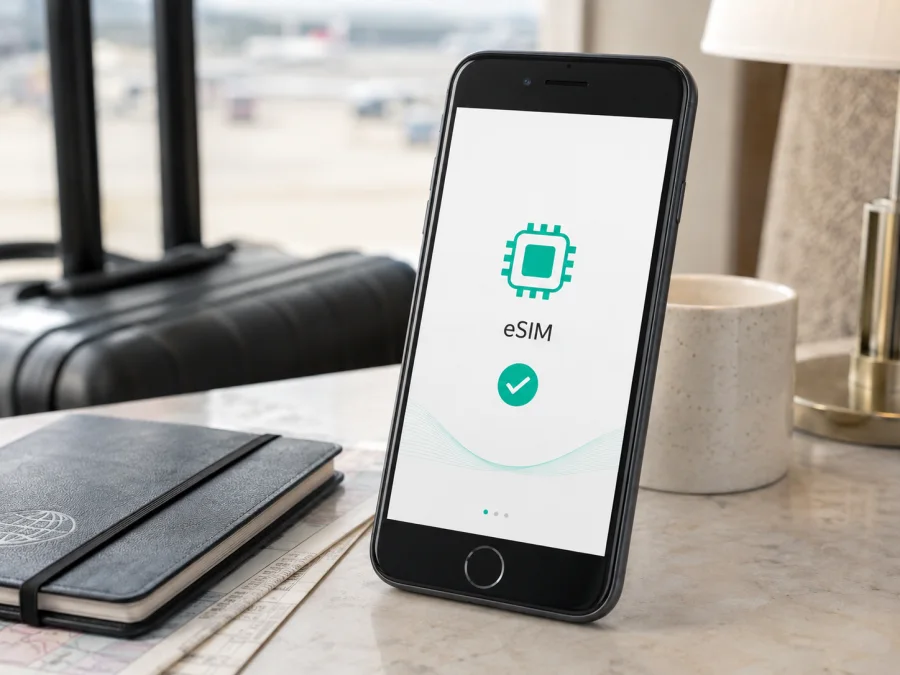
Apple iPhone SE 3rd generation 128GB eSIM: compatibility and setup
If you are asking whether Apple iPhone SE 3rd generation 128GB can use a travel eSIM, the short answer is yes in markets and with providers where eSIM service is available. Apple’s current technical specifications list the iPhone SE (3rd generation) as supporting Dual SIM with a nano-SIM and eSIM, and also list dual eSIM support. The 128GB capacity is a storage option within that model family; it does not remove the eSIM capability.
The answer has important conditions. eSIM activation depends on the provider, country or region, iOS, and the individual phone’s carrier status. Apple states that eSIM is not available in every country or region, and a carrier may restrict eSIM use. An iPhone locked to one carrier may refuse a plan from another carrier. Imported and second-hand phones deserve extra care because the same storage capacity can be sold in different regional versions.
For travel, this iPhone can keep a regular line available while a separate eSIM is selected for mobile data, subject to both providers’ terms. Kaspersky eSIM Store is an app and website that helps you select, order, and activate an eSIM with a suitable tariff for mobile internet during an overseas trip. It is not a mobile operator, network owner, or mobile-internet provider.
What the 128GB variant supports
The storage label is part of the exact device name, but eSIM compatibility is determined by the generation, regional model, software, carrier status, and provider. Apple lists 64GB, 128GB, and 256GB capacities for this generation and lists eSIM support for the family. The 128GB variant has the same documented capability as the other storage options in eligible markets.
| Item | What to know |
|---|---|
| Exact device | Apple iPhone SE 3rd generation 128GB |
| eSIM | Supported where local service and the provider allow it |
| Physical SIM | nano-SIM can be used with an eSIM on the model family |
| Dual eSIM | Apple lists two eSIM lines for iPhone SE (3rd generation) |
| Storage | 128GB; storage does not decide eSIM support |
| Data line | The installed eSIM must be selected for cellular data |
| 5G and LTE | Availability depends on provider, plan, device version, and location |
| Main limitation | Region, carrier lock, provider, and destination rules still apply |
Does Apple iPhone SE 3rd generation 128GB support eSIM?
Yes. Apple’s current Dual SIM guidance specifically includes iPhone SE (3rd generation) among the models that can use two eSIMs. Apple’s technical specifications also list nano-SIM + eSIM. That makes this exact 128GB variant suitable for a data-only travel eSIM when the plan covers the destination and the phone passes the checks below.
The provider must issue a profile that works with iPhone, and the phone needs internet while it downloads the profile. A travel eSIM normally provides mobile data, not a regular telephone number. Voice calls and SMS are not included unless the tariff says otherwise; your home line or internet calling and messaging apps may cover those needs.
Regional and operator differences
Do not generalize from a global specification to every retail version. eSIM availability and activation depend on the country, provider, model number, and destination coverage.
Mainland China is a specific exception. Apple’s current support information says that only iPhone 17e and iPhone Air models are supported for mainland-China carrier eSIM profiles. Apple iPhone SE 3rd generation 128GB should not be treated as compatible with a mainland-China carrier eSIM, even if it was bought elsewhere and its global specifications list eSIM. If the trip includes mainland China, verify the tariff and activation location separately. Apple lists iPhone SE (3rd generation) among eSIM-capable models for Hong Kong and Macao, but the exact device and local provider still need checking.
For other destinations, confirm the model, carrier status, provider support, and tariff coverage. A “global” label does not override a device restriction or local activation rule.
Check compatibility before buying an eSIM tariff
<a id="kesim-device-compatibility"></a>
Compatibility should be confirmed on the phone itself rather than inferred from a store listing that only says “iPhone SE” or “128GB”.
Compatibility checklist
- [ ] Confirm the name is Apple iPhone SE 3rd generation 128GB, not the 2nd-generation SE or another iPhone with a similar design.
- [ ] Open Settings > General > About and look for EID, the identifier associated with the built-in eSIM.
- [ ] Open Settings > Cellular or Mobile Data and look for Add eSIM or Set Up Cellular. Wording varies with language and iOS version.
- [ ] Check Carrier Lock in Settings > General > About. “No SIM restrictions” indicates an unlocked phone; a restriction may block another provider.
- [ ] Compare the model number in About with the box or seller information if the phone was imported.
- [ ] Update iOS, restart the phone, and make sure Wi-Fi or another working data connection is available.
- [ ] Confirm the tariff’s destination, data allowance, validity period, activation condition, and roaming instructions.
An EID is strong evidence of eSIM hardware, but it does not make every provider’s tariff compatible. A carrier lock, regional rule, or unsupported destination can still prevent activation. If neither EID nor an eSIM option appears, pause the purchase and ask the seller or provider to confirm the model; the 128GB label is not enough.
Check your device compatibility before placing an order.
How to install and activate eSIM
Prepare the eSIM details and stable internet. Keep the QR code on another screen for scanning, and do not reuse a one-time code without provider approval.
1. Confirm the prerequisites
Verify EID, Add eSIM, carrier status, destination coverage, and Wi-Fi. Keep any confirmation code supplied with the profile.
2. Open cellular settings
Open Settings, tap Cellular or Mobile Data, and tap Add eSIM or Set Up Cellular. If the option is missing, return to the compatibility checklist.
3. Select the supplied method
Choose Use QR Code for a QR installation. If the provider supports carrier activation, an activation link, an app, or transfer, choose that method instead and follow its instructions.
4. Add the profile
Scan the QR code, tap the cellular-plan notification, tap Continue, and then tap Add Cellular Plan or the equivalent prompt. If manual entry is offered, enter the SM-DP+ address, activation code, and confirmation code exactly as supplied.
5. Label the line
Name the profile Travel data or another clear label. This helps prevent selecting the home line by mistake.
6. Select mobile data
In Settings > Cellular > Cellular Data, select the travel eSIM. Keep Allow Cellular Data Switching off while testing if you want the phone to stay on that line.
7. Set the travel line’s options
In Settings > Cellular, open the travel profile and enable Turn On This Line. Enable Data Roaming for that profile only when the tariff instructions require it. Some travel profiles use partner networks and need this setting.
8. Wait and test
Allow a few minutes for the profile to download and register. The time depends on the phone, provider, location, and local network. Once service appears, open a small webpage before relying on the connection.
For a second walkthrough, see the iOS eSIM installation instructions. The Android eSIM installation instructions can help when another phone in your group uses Android; the menu names on Apple iPhone SE 3rd generation 128GB remain the iOS names above.
Using eSIM for mobile internet during a trip
Read the activation rule first. Some plans begin validity on installation; others start when the profile connects to a supported network. If local activation is required, finish setup after arrival over Wi-Fi.
Before departure
- Check every country or region on the route against the tariff coverage.
- Compare data allowance, validity, and activation timing with expected use.
- Save the QR code, label both lines, and download essential maps or booking details for offline use.
After landing
- Turn on the travel line and select it under Cellular Data.
- Enable Data Roaming only if instructed and disable automatic switching while testing.
- Wait for registration, test a lightweight webpage, and check remaining data and validity.
The iPhone uses one cellular data line at a time. The home line may remain available for calls or SMS, but its provider may charge for roaming. Review home-line roaming, disable automatic data switching, and limit background-heavy apps; these settings do not change the tariff’s conditions.
Practical travel scenarios
Weekend city break. A small allowance may cover maps, transport, messages, and browsing; monitor the remaining data.
Multi-country route. Verify every border crossing and validity rule, then confirm the travel line after a network change.
Work trip or reachable home number. Account for video calls, files, and hotspot use; Personal Hotspot uses the selected data line. Keep the home line only when its roaming terms are clear, and remember that a data-only plan has no automatic second voice number.
Common problems and troubleshooting
No Add eSIM option
Check About for EID, confirm the model number, update iOS, and restart. If EID and the eSIM option are both absent, pause installation. If EID exists but the option remains hidden, ask the provider whether the regional version is eligible.
QR code will not scan
Increase the other screen’s brightness, clean the camera lens, and hold the phone steady. Try Settings > Cellular > Add eSIM > Use QR Code. If the code is displayed on the iPhone, use a second screen or the supported press-and-hold method on recent iOS versions. Do not reuse a one-time code without support approval.
Installation fails
Reconnect to reliable Wi-Fi, confirm that the profile has not already been used, and check carrier lock. A partial attempt may consume a one-time profile, so contact the provider before deleting anything or requesting a replacement.
No service after installation
Turn on the travel line, select it for Cellular Data, check destination coverage, and apply the plan’s Data Roaming instruction. Toggle Airplane Mode briefly, then restart if needed. Use manual network or APN settings only when the provider supplies them.
Signal appears but data does not work
Make sure Cellular Data points to the travel eSIM, automatic switching is off while testing, and Data Roaming is set as required. Check remaining data and validity. If one app fails, check its cellular-data permission; if every app fails, contact support with the exact error.
Carrier lock or unexpected calls
An eSIM does not remove a carrier lock. Review Carrier Lock, Default Voice Line, Cellular Data, and roaming settings. Ask the home carrier about charges and the travel provider about data-only limitations. One line may show limited availability while another is handling a call.
Frequently asked questions
Is the 128GB version eSIM-compatible?
Yes. Apple lists the iPhone SE (3rd generation) with eSIM and dual eSIM support, and 128GB is one of its capacities. Region, provider, iOS, and carrier lock still matter.
Can I keep my physical SIM and add a travel eSIM?
Yes. The model family supports nano-SIM + eSIM. Select the travel eSIM for data and review the home line’s roaming settings.
Will a travel eSIM provide a phone number?
Not normally. Kaspersky eSIM Store helps you activate an eSIM tariff intended for mobile internet; voice and SMS are not included unless the specific tariff says so.
Can I install it in mainland China?
Do not assume so. Apple’s current guidance excludes iPhone SE (3rd generation) from mainland-China carrier eSIM profiles. Confirm the device and plan’s activation rules separately.
Can I move the profile to another phone?
Do not count on it. Transfer and reissue rules depend on the provider and tariff, and some one-time profiles cannot be reused. Check the conditions before deleting a working profile.
Key takeaways
Apple iPhone SE 3rd generation 128GB supports eSIM in eligible markets. Apple documents nano-SIM + eSIM and dual eSIM for this generation; storage does not change that capability. Model, carrier lock, iOS, provider, destination, and activation rules still matter. Mainland China is a specific exception.
Kaspersky eSIM Store helps you select, order, and activate an eSIM tariff for mobile internet on an overseas trip. Review data, validity, destination, and roaming conditions, then select the correct line in iPhone settings. If activation fails, check the device and plan methodically.
Final device check and travel eSIM
Before buying, confirm that Apple iPhone SE 3rd generation 128GB shows an EID and an Add eSIM option, has no carrier restriction blocking the chosen provider, and is eligible where you will activate it. Then choose a travel eSIM tariff by comparing coverage, data allowance, validity, activation timing, and roaming instructions. Prepare the profile on Wi-Fi, select the travel eSIM for cellular data when needed, and keep the installation details available until service works.
When those checks are complete, choose an eSIM plan for the trip in Kaspersky eSIM Store’s app or website and activate it using the supplied instructions. This ties the choice to your exact device and route and leaves a clear checklist if the network does not register immediately.


