Travel connectivity guide
Apple iPhone SE 3rd generation 256GB eSIM
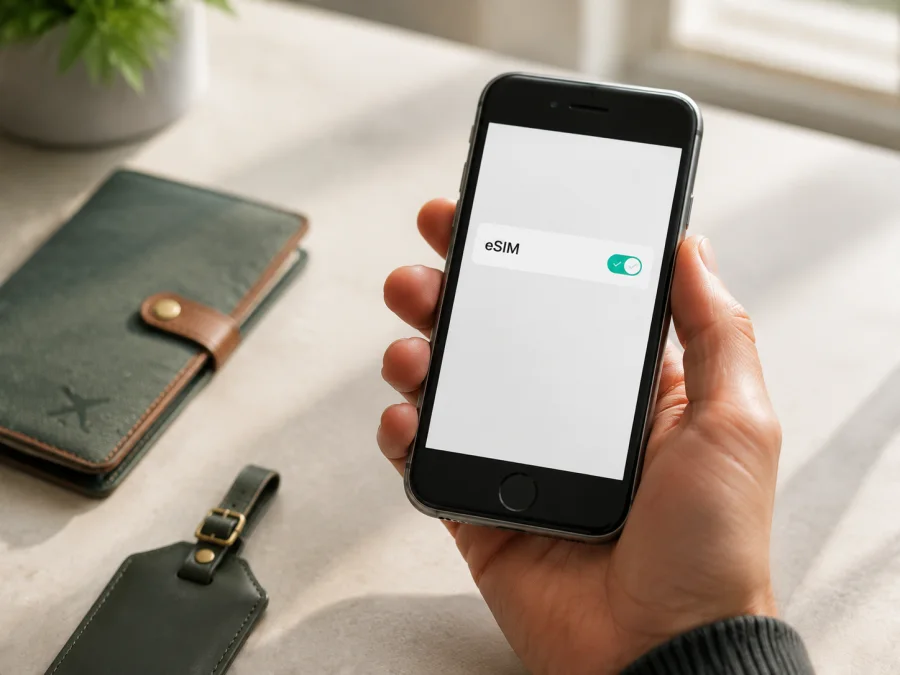
Apple iPhone SE 3rd generation 256GB eSIM: compatibility and setup
If you are preparing an overseas trip with an Apple iPhone SE 3rd generation 256GB, eSIM can help you arrange mobile internet without replacing your physical SIM card. The important details are the sales region, exact model configuration and carrier status.
The short answer is: Apple lists the iPhone SE (3rd generation) as supporting Dual SIM with a nano-SIM and eSIM, and Dual eSIM. Apple also warns that eSIM may be disabled on iPhones purchased from some carriers, and regional versions can differ. An international version or a supported Hong Kong or Macao version can support eSIM, while a mainland-China unit should not be assumed to do so. Check the actual phone before buying a travel plan.
Quick answer: does Apple iPhone SE 3rd generation 256GB support eSIM?
For a supported, carrier-unlocked version, yes. The 256GB storage option does not remove eSIM support. You can normally keep a physical nano-SIM for your usual number and add a travel eSIM for mobile data, subject to the plan, local network and iPhone settings.
There is an important qualification: the name Apple iPhone SE 3rd generation 256GB identifies the generation and storage, but not the complete model number or sales market. Apple documents eSIM support for this generation, while also identifying market and carrier limitations. Its current regional guidance lists the iPhone SE (2nd or 3rd generation) among eSIM-capable models purchased in Hong Kong or Macao. Mainland-China rules are different, so an iPhone SE (3rd generation) from that market requires direct verification. A carrier-customized or locked phone can also prevent activation.
The safest answer for your particular device comes from the handset itself. Check for an EID and for Add eSIM in Settings. If both are present, that is strong local evidence that eSIM is available. If they are absent, do not buy a plan expecting it to work; first confirm the region, model and carrier conditions.
Key specifications to check
| Item | What it means for eSIM use |
|---|---|
| Exact device | Apple iPhone SE 3rd generation 256GB; preserve this full variant when checking compatibility. |
| Generation | 3rd generation, introduced in 2022; do not confuse it with the 2nd generation. |
| Storage | 256GB. Storage affects apps and media, not the embedded-SIM function. |
| SIM configuration | Apple lists nano-SIM + eSIM and Dual eSIM for supported versions. |
| Cellular capability | 5G and LTE bands depend on the model and the network used at the destination. |
| Software | Use a current supported iOS version; menu names can vary by version and language. |
| Carrier status | The phone should be unlocked if you intend to use plans from different providers. |
| Travel use | A travel eSIM generally supplies mobile data; voice calls and SMS require separate support in the plan. |
Regional and carrier differences
Apple's technical specifications describe the iPhone SE (3rd generation) family as Dual SIM capable with a nano-SIM and eSIM, and as supporting Dual eSIM. The same specifications say that eSIM requires a wireless service plan, not every carrier supports eSIM, and eSIM may be disabled on an iPhone purchased from some carriers. This matters for an imported or second-hand phone.
The sales market can matter just as much. International versions commonly expose eSIM and the Add eSIM flow. Apple identifies the iPhone SE (2nd or 3rd generation) as an eSIM option for devices purchased in Hong Kong or Macao. Mainland-China rules are different, so an iPhone SE (3rd generation) from that market must not be presumed compatible. A physical dual-SIM tray is not proof of eSIM.
Carrier lock is a separate issue. An unlocked phone can use a compatible plan from another provider, but “unlocked” does not create missing eSIM hardware or restore a regional feature. Conversely, an eSIM menu does not guarantee that every travel plan will activate: the plan and its underlying network must support the phone, destination and activation method.
How to check Apple iPhone SE 3rd generation 256GB compatibility
Run these checks before purchasing a travel plan. You need the phone, Settings and, ideally, Wi-Fi.
1. Find the EID
Open Settings → General → About and look for EID, the long identifier associated with the embedded SIM. Do not publish it or send it in an open chat. Its presence strongly suggests that the phone exposes eSIM; its absence is a reason to investigate the region or carrier version.
2. Look for the eSIM action
Open Settings → Cellular or Settings → Mobile Data, depending on your language and iOS version. Look for Add eSIM, Add Cellular Plan or a similar option. The wording can change, but a supported phone should offer a way to add a plan by QR code, transfer or an approved provider flow.
If a physical SIM is installed, it does not hide eSIM support. If no add option appears, do not try to force installation through a QR code.
3. Check the carrier lock
In Settings → General → About, find Carrier Lock. For a separate travel plan, the ideal status is No SIM restrictions. If the phone is locked, contact the original carrier before buying. A lock can block a second provider even when EID and Add eSIM are visible.
4. Confirm model and market
Note the Model Name, Model Number and sales region. If imported, ask whether it was sold for mainland China, Hong Kong or Macao.
5. Check software and network conditions
Install available iOS updates and make sure Wi-Fi works. An eSIM profile usually needs internet access while it is downloaded. Check that the plan supports the destination network and bands you need.
Check your device before you select a plan. This is more reliable than assuming that every iPhone SE 3rd generation 256GB has identical regional behavior.
Compatibility checklist
- [ ] The phone is exactly Apple iPhone SE 3rd generation 256GB, not another generation or capacity.
- [ ] An EID appears in Settings → General → About.
- [ ] Add eSIM or an equivalent plan option appears in Settings.
- [ ] Carrier Lock says No SIM restrictions, or the intended provider is allowed.
- [ ] The sales region is known.
- [ ] The iOS version supports the available setup flow.
- [ ] The selected plan covers the destination and required network.
- [ ] You have Wi-Fi for profile installation.
- [ ] You understand the data amount, validity, activation trigger and transfer rules.
How to install and activate an eSIM
Install the profile before departure over stable Wi-Fi, but read the plan conditions first. Validity may begin on installation or when the eSIM connects in the destination. Keep the QR code available and do not delete a profile until you know the reinstallation policy.
For the general setup flow, see the iOS eSIM installation instructions. The Android eSIM installation instructions can help when setting up another phone type.
1. Prepare the phone
Confirm EID, Add eSIM, carrier-lock status and Wi-Fi. Keep the physical SIM active if you need your usual number.
2. Open cellular settings
Go to Settings → Cellular or Settings → Mobile Data. Tap Add eSIM or the equivalent option. Choose QR code, transfer or manual entry if the plan provides that method.
3. Scan or enter the details
Scan the QR code from another screen or use the supported activation flow. If it is on the same iPhone, show it on another device. Check the plan name before confirming.
4. Label the line
Give the new line a clear label such as Travel data or the destination name. Keep your main line separate. A label only helps you manage the profile; it does not change the plan or validity.
5. Choose the data line
When iOS asks which line should provide cellular data, select the travel eSIM. Consider turning Allow Cellular Data Switching off so the iPhone does not use the primary line unexpectedly.
6. Activate at the right time
If the plan starts on connection in the destination, enable it after arrival; otherwise follow the plan's activation condition. Registration can take several minutes. Do not repeatedly delete and reinstall a profile tied to one device or installation.
Using the eSIM for mobile internet on a trip
Before departure, save the plan details and decide which line will handle calls, messages and data. Keep the primary line for incoming messages if its roaming terms are acceptable, while assigning data to the travel eSIM. Only one cellular data line is active at a time.
After landing, open Settings → Cellular, turn on the travel line and select it under Cellular Data. If the provider requires it, turn on Data Roaming for the travel line. This is not the same as allowing the primary line to roam; check which line is selected before switching it on.
Use the travel eSIM for maps, translation, transport, bookings, messages, email and other data tasks. A data eSIM is not automatically a second phone number; voice calls and SMS require separate plan support. Keep the primary line enabled only when you understand its roaming conditions.
Practical scenarios
Short holiday. Choose data and validity for navigation, messaging and browsing. Install over Wi-Fi, label the line and select it for data after arrival.
Work trip. Estimate video calls, file transfers and hotspot use. Personal Hotspot may depend on the plan and network; keep the primary line only if its terms are acceptable.
Multi-country route. Check that a regional plan covers every stop; do not assume that a country plan follows you across a border.
Returning home. Select the primary line for data and turn off the travel line. Do not delete the profile until its validity ends or you confirm it is no longer needed.
Common problems and checks
“Add eSIM” is missing
Check EID, update iOS and restart. If EID and Add eSIM are missing, investigate the sales region and carrier history. A mainland-China or carrier-restricted version may not be suitable.
The QR code will not scan
Increase the brightness of the screen showing the code, keep the whole code in frame and use stable internet. If it is on the same phone, display it elsewhere or use an approved manual method. An expired or used code may not work again; ask support about its status.
The eSIM installed but there is no data
Open Settings → Cellular, turn on the travel line and select it under Cellular Data. Check whether Data Roaming is required, turn off Airplane Mode and allow registration time. Confirm destination, validity and remaining data.
The plan cannot be activated
Check Carrier Lock, destination and plan requirements. Make sure the eSIM is not active on another device and Wi-Fi works. Ask the original carrier whether eSIM was disabled. For mainland China, verify the local rule.
Data is slow or drops out
Move to a stronger-signal area, toggle Airplane Mode briefly and confirm the intended network. Check data limits and validity. The iPhone's 5G capability does not guarantee 5G access on every plan or destination; LTE may be available instead.
The primary line uses unexpected roaming data
Return to Settings → Cellular, confirm the travel eSIM is the data line and consider turning off Allow Cellular Data Switching. Keep primary-line data roaming off unless you intentionally need it.
Frequently asked questions
Is the 256GB version different from other iPhone SE 3rd generation capacities for eSIM?
No, storage does not normally determine eSIM support. Region, model configuration, carrier restrictions and the phone's settings matter more than capacity.
Can I use my physical SIM and a travel eSIM together?
Yes, on a supported version you can use Dual SIM with nano-SIM and eSIM. Keep the physical line for your usual number and choose the travel eSIM for data. One data line is active at a time.
Does an eSIM provide a new phone number?
Not necessarily. A travel eSIM selected for mobile data usually provides data rather than an ordinary phone number. Check the plan if calls or SMS matter.
Can I move the eSIM to another phone?
Do not assume so. Some profiles are tied to the first device or cannot be installed again after deletion. Check the plan and contact support before removing or transferring it.
What if my phone is locked?
Ask the original carrier about unlocking. Kaspersky eSIM Store can help you choose, arrange and activate an eSIM tariff through its app or website, but it cannot remove a carrier lock or change the iPhone's regional configuration.
Final device and trip eSIM check
Before paying for a plan, confirm: the phone is exactly Apple iPhone SE 3rd generation 256GB; an EID appears; Add eSIM is available; Carrier Lock shows no restrictions or the intended provider is allowed; the sales region is known; the destination and network bands are suitable; and you have read the plan's data, validity, activation, roaming and transfer conditions.
Once those checks pass, Kaspersky eSIM Store can help you choose a destination and suitable eSIM tariff, complete the order and activate the profile through the app or website. It is a practical way to prepare mobile internet for a foreign trip without replacing a physical SIM. It does not turn a regional or locked iPhone into a compatible one, and it does not replace reviewing the chosen tariff's conditions.
If the iPhone is compatible, select a plan that fits the length and style of your trip, install it with reliable internet and set the travel line as the data line at the appropriate time. If any compatibility check fails, pause the purchase and resolve that issue first.


