Travel connectivity guide
Apple iPhone se2 128GB eSIM: Setup & Compatibility
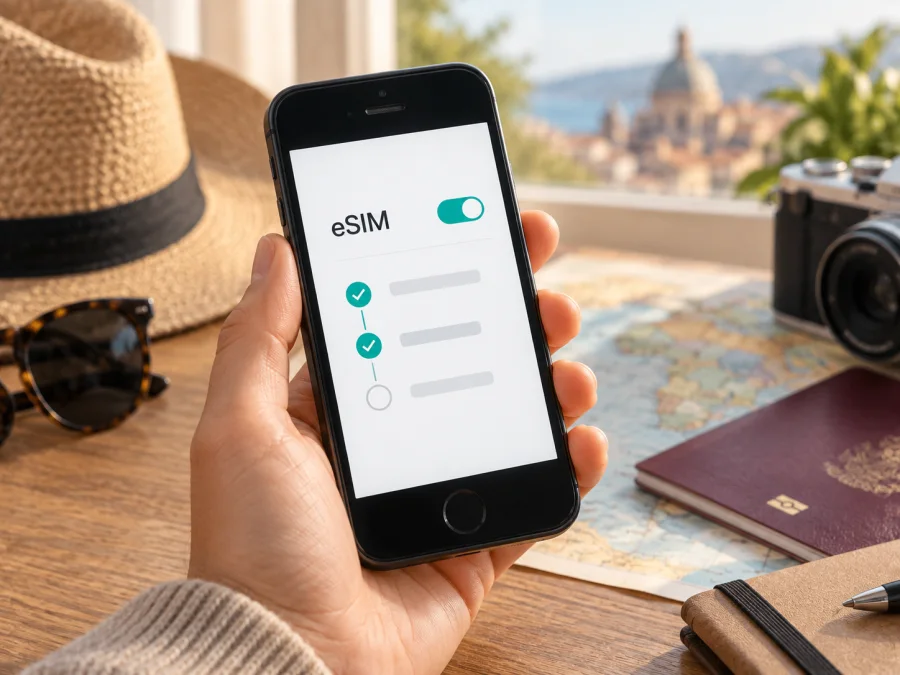
Apple iPhone se2 128GB eSIM: compatibility and setup guide
The Apple iPhone se2 128GB supports eSIM on eligible versions where the feature is enabled and the carrier supports it. Apple’s technical specifications identify this device generation as iPhone SE (2nd generation) and list Dual SIM with one nano-SIM and one eSIM. The 128GB storage option does not change eSIM capability. Still, availability can depend on the country or region where the phone was sold, its model number, iOS configuration, and carrier restrictions. Check the actual phone before choosing a travel plan.
This generation supports 4G LTE, not 5G. That does not prevent eSIM use: eSIM stores a mobile plan, while LTE supplies the radio connection. A compatible, unlocked iPhone SE (2nd generation) can keep its physical SIM for its usual line while using a travel eSIM for mobile data, subject to each plan’s terms and network availability.
| Item | Details |
|---|---|
| Device name for this page | Apple iPhone se2 128GB |
| Apple product generation | iPhone SE (2nd generation) |
| Storage | 128GB; capacity does not determine eSIM support |
| eSIM | Supported on eligible regional and carrier versions; verify the handset |
| SIM arrangement | One physical nano-SIM and one eSIM for Dual SIM |
| 5G | Not supported; this generation uses 4G LTE |
| Before buying | Check EID or Add eSIM, carrier lock, destination coverage, and plan terms |
Does Apple iPhone se2 128GB support eSIM?
Yes. Apple lists iPhone SE (2nd generation) as supporting Dual SIM with a nano-SIM and an eSIM. That is the generation-level answer for Apple iPhone se2 128GB. eSIM service must also be available on the particular handset, enabled in its configuration, and supported by the provider that issues the plan. A listing that says only “iPhone SE” may not identify the generation or regional version, so check the model number and the phone’s Settings app.
Apple notes that eSIM is not available in every region and that some carrier-sold iPhones may have eSIM disabled. An imported, refurbished, or carrier-supplied phone can therefore differ from an otherwise similar device. Do not infer support from the 128GB label, appearance, or the fact that a physical SIM works. Apple’s current availability notes and the carrier’s support policy matter for the specific handset.
The iPhone SE (2nd generation) is different from the later third-generation model. Its Dual SIM arrangement is one nano-SIM plus one eSIM, not two eSIMs. Service in a destination also depends on network availability, plan coverage, and whether the phone is unlocked for another provider.
An eSIM is a digital SIM profile rather than a removable card. Kaspersky eSIM Store is an app and website where you can choose, arrange, and activate an eSIM with a mobile-data plan for an international trip. Coverage, data allowance, validity, activation timing, and restrictions depend on the plan; review them before purchase.
Check the phone before buying a travel eSIM
Use these checks on the actual Apple iPhone se2 128GB rather than relying on a seller’s description.
- Find the EID. Open Settings → General → About and scroll through the device information. An EID is the identifier associated with embedded SIM hardware and is a useful compatibility signal.
- Look for Add eSIM. Open Settings → Cellular (called Mobile Data in some regions or iOS versions). Look for Add eSIM or a similar option to add a cellular plan. Menu labels may vary.
- Check the model number. In Settings → General → About, tap the model number if needed to display the regulatory number beginning with “A”. Ask the seller or carrier to confirm the regional variant if the phone was imported or refurbished.
- Check Carrier Lock. In About, look for Carrier Lock. “No SIM restrictions” means the iPhone is unlocked. If it is locked, contact the carrier that applied the restriction before travel.
- Update iOS and keep internet access. Install available updates over Wi-Fi and have an internet connection for profile setup. The wording in an older iOS release may differ from current instructions.
- Read the plan details. Confirm the destination list, data allowance, validity period, activation trigger, and whether hotspot use is permitted.
The EID indicates embedded SIM hardware, while Add eSIM shows that iOS exposes plan setup; neither guarantees that a specific plan will work. Carrier support and unlock status matter too. If both checks are missing, restart, update iOS, then ask Apple or the carrier to confirm the model and region before purchase.
Check whether your device is compatible before selecting a plan. This is especially important for a second-hand, imported, or carrier-linked phone. Avoid posting the EID or serial number publicly; give device identifiers only to the official support channel that needs them.
How to install and activate an eSIM on Apple iPhone se2 128GB
Keep the iPhone connected to Wi-Fi and have the QR code ready on another screen or on paper. Check the plan’s activation rules before installing: some plans start their validity when installed, while others start when they first connect to a supported network or at a time stated by the provider. Follow the instructions for the plan rather than assuming all eSIMs start on arrival. Do not delete a profile after activation unless the provider tells you to; a QR code may be single-use, and reinstallation may require a replacement.
Install from a QR code
- Confirm compatibility. Check for an EID or Add eSIM and make sure no carrier restriction prevents use of this plan.
- Open cellular settings. Go to Settings → Cellular → Add eSIM. Depending on iOS, the option may be called Add Cellular Plan.
- Scan the code. Tap Use QR Code and scan the code provided for your plan. If the code is on the iPhone screen, show it on another device or use manual entry if the provider offers it.
- Approve the prompts. Confirm that you want to add the plan and allow the profile to download. Keep Wi-Fi connected until setup finishes.
- Label the line. Choose a clear name such as “Travel” to distinguish it from your personal line.
- Choose line settings. Keep your usual number as the default voice line if needed. Select the travel eSIM for mobile data when you are ready to use it.
- Apply the activation instructions. Leave the travel line off until the plan says to use it if its validity begins at first network connection. If the plan starts at installation, account for that when timing setup.
- Set data roaming if required. Some travel plans need roaming enabled for the eSIM to connect to a partner network. Follow the plan’s instructions and apply the setting to the travel line.
- Test service. When the plan should be active, turn off Wi-Fi briefly and open a basic web page. If it fails, check the selected data line, coverage, and activation time.
If the provider supplied a manual activation code, choose manual entry during Add eSIM and enter the details exactly as provided. Do not reuse another plan’s code or share it publicly. If the profile fails to install, note the message and contact the provider that issued it; deleting or retrying repeatedly may not help if a code can only be used once.
For illustrated steps, see the iOS eSIM installation instructions. If you are helping someone install a plan on an Android device, the Android eSIM installation instructions cover that platform. Apple iPhone se2 128GB uses the iOS flow.
Install before departure or after arrival?
Installing before departure can make troubleshooting easier while you have reliable Wi-Fi. First check whether installation starts the plan’s validity. If it does, wait until the appropriate time; if the plan begins at first supported network connection, pre-installing may be convenient. Keep the travel line switched off until the plan’s instructions say to use it.
Installing after arrival requires Wi-Fi or another internet connection. Save or print the QR code beforehand, use a second screen, or use manual setup if offered. Have plan details and support contact available until the phone connects.
Use eSIM for mobile data on a trip
After installation, open Settings → Cellular and confirm that the travel line is switched on. Under cellular or mobile data, select the travel eSIM. If you want to prevent the iPhone from using your regular SIM for data when the travel line has weak coverage, turn off Allow Cellular Data Switching. Check the exact wording and behavior in your iOS version. Data roaming charges from your home carrier may apply if the regular SIM uses data abroad.
You can keep the physical SIM active for your regular number if your carrier allows it, while using the travel eSIM for data. Review the home carrier’s terms before leaving. A data-only plan usually does not include an ordinary phone number, voice calls, or SMS unless its terms say otherwise. Internet calling and messaging apps can use the data connection, subject to their own requirements.
For example:
- City break: Check that the data allowance and validity cover maps, transport apps, and messaging.
- Multi-country route: Confirm every destination is listed; a country plan may stop working at a border.
- Keep a home number: Check voice and SMS roaming charges for the physical SIM, and select the travel eSIM for data.
- Work and navigation: Estimate data use and confirm hotspot rules before connecting a laptop.
Choose by coverage, validity, and expected use, not price alone. Maps and messaging use less data than streaming or video calls. Kaspersky eSIM Store lets you review available trip plans and their terms in the app or on the website.
Planning a trip? After the handset passes the checks above, open Kaspersky eSIM Store to choose and arrange a data eSIM for your destination. Review coverage, allowance, validity, and activation terms before checkout.
Common problems and checks
The QR code will not scan. Enlarge and brighten it, clean the camera lens, and confirm the whole code is visible. Use another screen or manual entry if available. If the code was used already, ask the provider whether it can be reissued.
There is no Add eSIM option. Check About for an EID, restart, and install an iOS update. Verify the model number and region with Apple or the carrier; do not buy until support confirms eSIM is enabled.
The profile installs but there is no service. Confirm the plan has started and covers the destination. Check that the travel line is on and selected for data; enable roaming for it if required. Wait briefly, then toggle Airplane Mode or restart. Do not delete the profile before contacting support.
The phone says SIM not supported. Check Carrier Lock and confirm model and region support. Share the model number and exact error with the provider or carrier.
The wrong line is using data. Select the travel eSIM for mobile data and review data switching. Test with Wi-Fi off, then check plan usage and home SIM roaming settings.
Signal bars appear but data does not work. Confirm start time, coverage, allowance, selected data line, and roaming settings. Follow the provider’s current network or APN instructions rather than guessing.
Service stops after a border crossing. Check that the new country is covered. Keep automatic network selection unless instructed otherwise, and ask the provider to verify the route if service does not return.
Frequently asked questions
Does the 128GB version have different eSIM support?
Apple’s eSIM specification is tied to the iPhone SE (2nd generation) and its regional or carrier configuration, not its storage capacity. The 128GB label does not confirm or remove eSIM capability. Check the actual phone’s EID, Add eSIM menu, model number, and carrier lock.
Can I use the nano-SIM and eSIM together?
The second-generation iPhone SE supports Dual SIM with one nano-SIM and one eSIM, subject to regional and carrier support. It is not a two-eSIM model. Ask both carriers about simultaneous line use and any roaming charges.
Does Apple iPhone se2 128GB support 5G?
No. This generation supports 4G LTE, not 5G. eSIM and 5G are separate features, so lack of 5G does not by itself prevent a supported eSIM from connecting over an available compatible network.
Will a travel eSIM replace my regular number?
A travel data eSIM usually provides data rather than a new number. Keep the physical SIM for your usual line if its carrier permits it, and select the travel eSIM for mobile data. Check each plan’s voice, SMS, and roaming terms.
Can I move the eSIM to another phone?
Do not assume it can be transferred. Plan rules vary; check them before removing the profile or replacing the device.
Final device check and trip eSIM
Before choosing a travel plan for Apple iPhone se2 128GB, confirm the EID or Add eSIM option, verify the model and regional version, and make sure the iPhone is unlocked for the provider you plan to use. Apple lists iPhone SE (2nd generation) as supporting one nano-SIM plus one eSIM, while regional availability and carrier restrictions still apply. Storage capacity does not change the check, and this generation is 4G LTE rather than 5G.
Then select a plan covering every destination and fitting your data use and travel dates. Check when validity starts, whether roaming is needed, and hotspot rules. Install over a reliable connection and select the travel eSIM for data when the plan is ready. If compatibility remains uncertain, ask Apple, the carrier, or the provider before purchase.


