Travel connectivity guide
Apple iPhone se2 256GB eSIM Guide
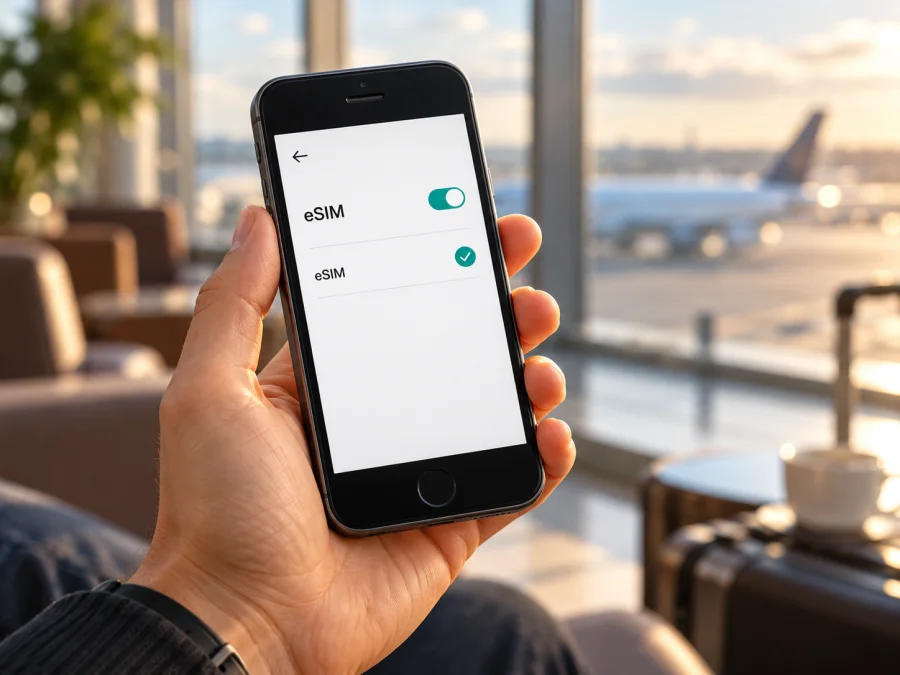
Apple iPhone se2 256GB eSIM: compatibility and setup
Short answer: Apple iPhone se2 256GB can use eSIM when it is a compatible regional version. The 256GB storage size does not determine eSIM support. The key detail is the hardware model number: Apple identifies A2275 as the United States and Canada version, A2296 as the version for other countries and regions, and A2298 as the mainland China version. A2275 and A2296 are the eSIM-capable configurations in markets where the feature and carrier service are available. Treat A2298 as a physical-SIM-only version for eSIM travel plans: Apple’s current mainland China support information does not include iPhone SE (2nd generation) among models that support eSIM there. If a seller lists only “se2 256GB,” ask for the model number before you buy or install a plan.
This is a regional distinction, not a difference in storage. iPhone SE (2nd generation) was sold in 64GB, 128GB, and 256GB capacities, so a 256GB listing can refer to any of the regional hardware versions. Check the phone itself rather than relying on the product title, box, SIM tray, or the country where the seller is located.
Compatibility at a glance
| Item | What to know |
|---|---|
| Exact device name | Apple iPhone se2 256GB |
| Apple product family | iPhone SE (2nd generation), introduced in 2020 |
| Storage variant | 256GB; storage capacity does not add or remove eSIM hardware |
| Regional model numbers | A2275 (United States and Canada), A2296 (other countries and regions), A2298 (mainland China) |
| eSIM answer | Expected on A2275 and A2296 where regional and carrier support allows; do not expect it on A2298 |
| Physical SIM | A nano-SIM tray is present; the exact Dual SIM arrangement depends on the regional model |
| Practical travel use | A supported, unlocked iPhone can keep a home line and use a separate travel eSIM for mobile data |
The model number is more useful than a generic “iPhone SE 2” label. Apple’s specifications list nano-SIM plus eSIM for the model family while warning that eSIM is not available in every region. Its mainland China guidance is narrower: iPhone SE (2nd generation) is not among the listed eSIM-capable mainland China devices. That means a global statement such as “all iPhone SE 2 phones support eSIM” is too broad. For an A2298 phone, plan around its physical SIM capability unless Apple or the seller can verify the specific device otherwise.
A2275 or A2296 is a strong indication that the phone has eSIM hardware, but it does not guarantee that every carrier, country, or eSIM service will activate on it. The iPhone also needs a compatible iOS version, the device must not be locked in a way that prevents another provider’s plan, and the service must support eSIM for the phone and destination. A used or refurbished phone may have a different carrier-lock status from the region suggested by its model number.
Which regional version do you have?
Check the model identifier in iOS before placing an order. The model number printed in Settings is the A-number, not the retail part number on a receipt. To find it:
- Open Settings.
- Tap General, then About.
- Find Model Number. The value may first appear as a longer part number. Tap it once to show the A-number, such as A2275, A2296, or A2298.
- Compare that A-number with the regional list above.
You can also check the regulatory label or original packaging, but use Settings when possible because boxes can be mixed up or missing after resale. The storage amount shown on the phone confirms the 256GB variant; it does not identify the eSIM configuration. If the phone will not start, ask the seller to provide a clear image of the model number from the device’s About screen and make return terms clear before paying.
Regional identifiers describe where a hardware version was intended for sale; they do not by themselves prove which network it can join today. For example, a U.S. model may be carrier-locked if it was sold under a contract, and a device imported into another market may have firmware or carrier settings that affect service. Likewise, a local eSIM provider’s supported-device page may use a general “iPhone SE 2” label without spelling out every regional submodel. If your number is A2298, do not assume that changing the App Store country or updating iOS will add eSIM hardware.
Check EID and the eSIM menu
A model-number lookup is useful, but a quick on-device check is the best final confirmation before buying a travel plan. An EID is the identifier associated with the embedded SIM component. On an eSIM-capable iPhone, you can normally find it in Settings → General → About. You may also see an Add eSIM or Add Cellular Plan option under Settings → Cellular; wording can vary with iOS version and region.
Use this compatibility checklist:
- [ ] The Model Number is A2275 or A2296, rather than A2298.
- [ ] An EID appears in Settings → General → About.
- [ ] Settings → Cellular offers an option to add an eSIM or cellular plan.
- [ ] The phone is unlocked for use with another carrier if your existing line and travel eSIM use different providers.
- [ ] iOS is updated to a version supported by the eSIM provider.
- [ ] You have a stable Wi-Fi connection for downloading the profile.
- [ ] The exact country or region you will visit appears in the plan’s coverage details.
A visible EID and Add eSIM option together are reassuring signs. If neither appears, pause before paying. Recheck the A-number, restart the phone, install an available iOS update, and ask Apple Support or the seller to confirm the hardware. A device can show an eSIM option yet still fail activation if the phone is locked, the carrier does not support eSIM, the plan is not valid for the destination, or the profile has already been used. The model number and menu check answer different questions, so check both.
Check whether your device is compatible before choosing an eSIM plan. Confirm the exact model with the store or provider if its compatibility checker does not distinguish A2275, A2296, and A2298.
How to install an eSIM on Apple iPhone se2 256GB
Install the profile while you have reliable Wi-Fi and enough time to complete the on-screen steps. Keep the QR code available on a second screen or printed page; a phone cannot scan a QR code displayed on its own screen unless the provider offers another installation method. Do not delete a profile just to retry without first checking the provider’s instructions, because some activation codes can only be used once.
Before you begin
- Confirm that the phone is an eSIM-capable regional version and is not carrier-locked.
- Check the selected plan’s destination, data allowance, validity period, and any activation conditions.
- Connect to Wi-Fi and keep the iPhone charged.
- Open the QR code or manual activation details supplied for your plan.
- If you need your regular number for calls or messages, leave its physical SIM or existing eSIM active and label the new line clearly.
Install with a QR code
- Open Settings on the iPhone.
- Tap Cellular (called Mobile Data in some regions or iOS versions).
- Tap Add eSIM or Add Cellular Plan.
- Choose Use QR Code and scan the code supplied with the plan. If the provider gave you a confirmation code, enter it when prompted.
- Follow the screen prompts and wait while iPhone adds the cellular plan. Keep Wi-Fi connected until the setup finishes.
- Give the line a clear label, such as Travel data, so you can distinguish it from your home line.
- Choose which line to use for mobile data. If you are installing ahead of your trip, you can leave the travel line turned off or keep your home line selected until you are ready, subject to the plan’s own activation rules.
- Confirm that the new line appears in Settings → Cellular. Follow the provider’s instructions for when to enable the line and data roaming.
If you do not have a QR code, the provider may support an activation link, manual SM-DP+ details, or installation through an app. Use only the method stated in the order or account instructions. Do not copy activation information from someone else or reuse a QR code that has already installed a profile.
For additional device steps, see the iOS eSIM installation instructions. The Android installation guide is for Android phones and is not the path for this iPhone.
Installing a profile and starting its data allowance are not always the same event. Read the selected plan’s conditions before setup: the validity period may begin at purchase, at installation, on a scheduled date, or when the phone first connects in the destination, depending on that plan. If you want to install before departure, confirm that early installation will not start the validity period sooner than intended.
Use the travel eSIM for mobile data
After the profile is installed, keep your home line and travel line easy to identify. On arrival, open Settings → Cellular and select the travel eSIM under Cellular Data. Turn on the travel line and, if the plan’s instructions require it, enable Data Roaming for that line. Roaming settings apply to the selected eSIM profile; verify the line name on the same screen before changing them. Your home operator may charge roaming fees if the home line uses data abroad, so check its terms and select the intended data line before browsing.
The iPhone can use one cellular data line at a time. You may keep your regular number available for calls and messages while routing mobile data through the travel eSIM, depending on the home carrier and your settings. If you do not want the home line to switch to cellular data, turn off Allow Cellular Data Switching. This reduces the chance that iPhone changes data lines automatically, but it does not replace checking which line is selected for data.
A travel data eSIM is generally for internet access, not a replacement phone number. Unless the selected plan explicitly says otherwise, it does not provide ordinary voice calls or SMS. You can continue using internet-based messaging or calling apps over mobile data, subject to their account and app requirements. Keep access to your home number in mind if you rely on it for banking codes or account recovery.
Kaspersky eSIM Store is an app and website where you can choose, arrange, and activate an eSIM with a plan for mobile internet on an overseas trip. To browse current destinations and plan details, visit the Kaspersky eSIM Store. Check the specific plan’s coverage, data amount, validity, price, and activation conditions; the homepage is a general starting point, not a country-specific tariff page.
Practical travel scenarios
Set up before departure. Check the model number and EID first. Install ahead of time only if the plan permits it without starting validity early; follow the provider’s timing instructions and save the setup email for offline access.
Keep your home number. If your carrier permits, leave the regular line active for calls and messages, but choose the travel eSIM for Cellular Data after landing. Turn off automatic data switching if you want to keep data on the selected line. Check possible home-carrier roaming charges.
Visit several countries. Confirm that the plan explicitly covers every stop, including transit destinations. Regional coverage is plan-specific; do not infer coverage from neighboring countries.
Return home. Select your usual line for data again and review each line’s roaming settings. Do not delete the travel profile until you know whether it can be reinstalled or reused.
Common problems and what to check
“Add eSIM” is missing
Check Settings → General → About for the EID and verify the A-number. Treat A2298 as a non-eSIM regional model. For A2275 or A2296, restart the phone, update iOS if possible, and check the Cellular or Mobile Data menu again. If the EID and option are still absent, ask Apple Support or the seller to verify the exact unit before buying a plan.
The QR code will not scan
Raise the brightness of the screen displaying the code, clean the iPhone camera lens, and keep the full code in frame. Do not use a blurry or cropped image. If the code is on the same iPhone, use only an installation alternative supported by the provider, such as a direct link or manual details.
The profile will not download
Check Wi-Fi, confirm that the code belongs to your order, and enter any confirmation code the provider supplied. If the message says the code is invalid or already used, stop retrying and contact the provider with the error and order details. Some activation codes are single-use.
The eSIM is installed but there is no service
Make sure the travel line is on and the plan covers your current country and date. Enable Data Roaming for that line if the plan requires it. Briefly toggle Airplane Mode, restart the phone, and allow a few minutes for network registration. Use a manual network or APN setting only if the provider supplies one.
Signal appears, but apps have no internet
Set Cellular Data to the travel eSIM, confirm the plan is active and has data remaining, then test a webpage with Wi-Fi off. Check any provider instructions about APN, roaming, or activation timing.
The home SIM is using data
Check Settings → Cellular → Cellular Data, select the travel line, and review Allow Cellular Data Switching. If needed, disable data roaming on the home line or switch it off after considering calls and messages. Ask your home operator about charges; travel-line settings do not change its billing rules.
Setup fails on a locked iPhone
Check Settings → General → About for Carrier Lock or Network Provider Lock. Ask the original carrier whether it can unlock the device. Even when unlocked, the phone and destination must still be supported by the eSIM provider.
You cannot reinstall after deleting the profile
Some activation codes cannot be reused after removal. Contact the provider before deleting the profile, resetting the iPhone, or moving service. Do not assume the original QR code can restore it.
Frequently asked questions
Does Apple iPhone se2 256GB support eSIM?
It depends on its regional model number. A2275 and A2296 are the eSIM-capable regional versions where local carrier and service support is available. A2298 is the mainland China version and should be treated as not supporting eSIM for travel-plan installation. The 256GB storage capacity does not change this distinction.
Can I tell from “se2 256GB” in a shop listing?
No. That description identifies the product family and storage capacity, but it does not identify the regional A-number. Ask for the model number from Settings → General → About, then verify it on the actual phone.
Is EID enough to prove that my eSIM will work?
An EID is a useful sign that the phone has eSIM hardware, but it does not prove that a particular plan, carrier, destination, or locked phone will activate. Also check for Add eSIM, the A-number, carrier lock, iOS version, and the plan’s coverage conditions.
Can I use my physical SIM and travel eSIM together?
On a supported regional version, you can generally use a physical SIM and an eSIM as Dual SIM. The iPhone uses one line for mobile data at a time. Carrier support and regional configurations can affect the setup, so check the actual phone and your home operator’s conditions.
Will a travel eSIM replace my phone number?
Usually not. A travel eSIM plan for data does not include a new phone number, ordinary calls, or SMS unless the plan explicitly says otherwise. Keep your regular line available if you need its number, and use the travel eSIM for mobile data.
Does the plan start when I install the profile?
Not necessarily. Activation and data validity depend on the plan’s stated rules. Check the start trigger before installation so you can choose the right time to set up or turn on the eSIM.
Should I buy the plan before checking the model number?
No. Confirm the A-number, EID, Add eSIM menu, and carrier lock status first. If the model number is missing or the phone is A2298, get confirmation from the seller or Apple Support before paying for an eSIM plan.
Final check before your trip
For Apple iPhone se2 256GB, the reliable decision comes from the exact A-number and the phone’s own settings, not the storage size or a short shop title. Confirm A2275 or A2296, look for an EID and Add eSIM, check that the phone is unlocked, and verify the plan covers every destination on your route. Treat A2298 as a physical-SIM version for this purpose unless the exact device is confirmed otherwise.
Once compatibility is clear, choose a travel eSIM plan based on where you will go, how much data you expect to use, and how long you need it. Review its activation timing and data-roaming instructions, install it over Wi-Fi, and select the travel line for mobile data when appropriate. A few checks before purchase make it easier to arrive prepared and know which line your iPhone is using.


