Travel connectivity guide
Apple iPhone se2 eSIM: Compatibility and Setup
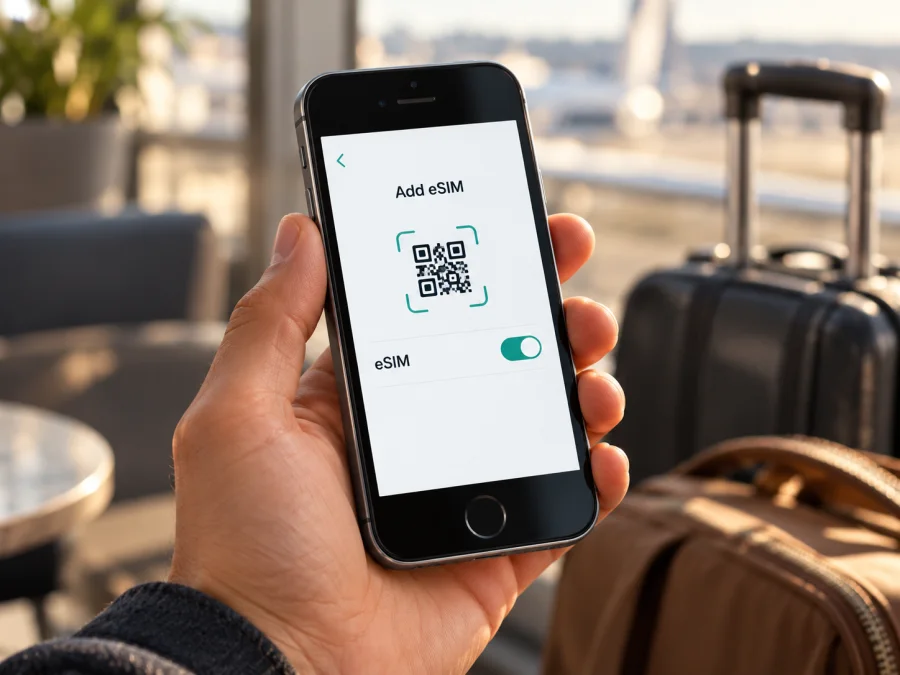
Apple iPhone se2 eSIM: compatibility and setup
Short answer: Apple iPhone se2 supports eSIM on eligible regional versions, provided the phone is unlocked and the plan’s provider supports activation in the relevant market. Apple’s formal name for this device is iPhone SE (2nd generation), whose specifications list Dual SIM with nano-SIM and eSIM. Regional exceptions apply: Apple’s current mainland-China guidance does not include this model for mainland carrier eSIM profiles. Check the exact phone before buying a plan.
The input name Apple iPhone se2 is preserved here as supplied. This guide covers the second-generation device only, not the first- or third-generation iPhone SE.
At a glance
| Item | What to know |
|---|---|
| Device | Apple iPhone se2 (iPhone SE (2nd generation) in Apple support material) |
| eSIM support | Available on eligible regional versions; verify the individual phone |
| Model numbers | A2275, A2296, and A2298 are regional variants |
| Mainland China | A2298 is the mainland-China variant; Apple’s current mainland-China eSIM guidance does not list this model as supported |
| SIM arrangement | One physical nano-SIM and one eSIM; not two active eSIMs |
| Check before purchase | Model number, EID or Add eSIM option, carrier lock, provider support, and destination coverage |
A model-family specification is not a guarantee for every handset. Hardware market, software, carrier restrictions, country rules, and the provider issuing the plan can all affect activation. Check both the actual phone and the plan’s terms.
Does Apple iPhone se2 support eSIM?
Yes, conditionally. Apple lists eSIM alongside nano-SIM for iPhone SE (2nd generation). On supported versions, it can use one physical SIM and one eSIM. Apple also states that eSIM is not available in every country or region.
Apple identifies A2275 as the version for Canada and the United States, A2296 for other countries and regions, and A2298 for mainland China. The A-number helps identify the sales variant, but does not confirm that a particular provider or destination supports your plan. Apple’s current mainland-China instructions exclude iPhone SE (2nd generation) from models that can install a mainland-China carrier eSIM profile. Treat A2298 as unsupported for that use; do not assume importing it changes the restriction.
Mainland China, Hong Kong, and Macao have different rules. Apple lists iPhone SE (2nd generation) as eSIM-capable in Hong Kong and Macao, while some models sold there use two physical nano-SIMs. Check the exact A-number and the phone’s Settings screen rather than relying on a broad description such as “Chinese model.” An imported or refurbished handset may not match the seller’s regional label.
The provider market is a separate check. The operator or worldwide service provider must offer an eSIM plan and activation method supported on the device, and the plan must cover the country or region you will visit. Device eSIM support alone does not confirm coverage, network access, or plan eligibility.
Check the exact phone before buying
Use the phone itself where possible. A box or product listing may help, but Settings shows the installed device’s details.
- Find the model number. Open Settings → General → About. Tap Model Number if needed to reveal the A-number. Compare it with Apple’s identification information: A2275, A2296, or A2298.
- Look for an EID. On the same About screen, scroll for EID. This is an identifier used in eSIM provisioning, not an activation code. Keep it private.
- Look for Add eSIM. Open Settings → Cellular (or Mobile Data in some regions). Look for Add eSIM, Add Cellular Plan, or similar wording.
- Check carrier lock. In Settings → General → About, find Carrier Lock. No SIM restrictions means the iPhone is unlocked. If the phone is locked, only its carrier can confirm or remove the restriction.
- Check the plan. Confirm the destination, data allowance, validity period, activation method, and when the validity starts. For a multi-country trip, check every destination.
- Prepare for setup. Update to the latest iOS version available and have Wi-Fi access for profile installation.
Before you install a travel eSIM
Installation may happen before the first network connection, and a plan can start its validity at installation, activation, or first use. Read the plan conditions so you know when the clock starts. Keep Wi-Fi available until the profile downloads and save the activation instructions on another screen if the iPhone will scan a QR code.
Confirm that the handset is unlocked if the plan comes from another provider, and that its model and EID indicate eSIM capability. Have the QR code, setup link, or activation details ready. A travel eSIM may provide data only, without a conventional phone number, voice calls, or SMS; check the plan description. Your usual line may remain available for calls, but its carrier can charge roaming fees.
Check your device before choosing a tariff. An EID is a strong sign of eSIM hardware, but does not guarantee that every provider accepts the phone. A missing EID or Add eSIM option warrants further verification; regional restrictions, software, or device management can affect what appears. For A2298, follow Apple’s explicit regional guidance rather than repeatedly trying a QR code.
How to install and activate eSIM on Apple iPhone se2
Menu names vary slightly by iOS version and region. Use the method supplied with the plan; some providers use an app or link instead of a QR code.
QR-code setup
- Connect to Wi-Fi. Keep the phone online until the profile has downloaded.
- Open cellular settings. Go to Settings → Cellular or Settings → Mobile Data.
- Add a plan. Tap Add eSIM or Add Cellular Plan, then choose the QR-code option if shown.
- Scan the code. Point the camera at the provider’s QR code. If the code is on this iPhone, use the provider’s alternative method; supported iOS versions may let you press and hold a QR code received in the default email app or browser.
- Confirm installation. Follow the prompts and enter a confirmation code only if the provider supplied one.
- Label the line. Use a label such as “Travel” to distinguish it from your usual number.
- Choose lines. Keep your usual number for calls or messages if desired, and select the travel eSIM for mobile data when ready.
- Finish activation. Wait for the status to update; activation can take several minutes.
- Set data options. In Settings → Cellular → Cellular Data, select the travel line. Turn off Allow Cellular Data Switching if you want to keep data on that line.
- Set roaming if instructed. Some travel plans require Data Roaming on for the travel line. Do not enable roaming on your home line unless you understand its charges.
See the iOS eSIM installation instructions and Android eSIM installation instructions. Apple iPhone se2 follows the iOS steps; the Android guide is for a different device.
Other activation methods
If the provider supplies a setup link, open it on the iPhone and follow the on-screen instructions. For manual setup, choose Enter Details Manually in the add-plan flow and copy the SM-DP+ address and activation code exactly. Keep these credentials private. Some profiles can only be installed once or cannot be transferred; contact the provider before deleting a profile or moving it to another phone.
Use eSIM for mobile data on a trip
At your destination, open Settings → Cellular and turn on the travel line. Select it under Cellular Data and enable Data Roaming for that line if the plan requires it. Turn off Airplane Mode, confirm cellular data is enabled, and allow a few minutes for the phone to register with a supported network.
Kaspersky eSIM Store is an app and website where you can choose, arrange, and activate an eSIM with a suitable mobile-data plan for an overseas trip. It helps you prepare the eSIM before departure and keep plan details together. The mobile service is provided under the relevant plan arrangements; Kaspersky is not a mobile operator or network owner. Availability, coverage, speed, and activation conditions depend on the destination and provider.
Choose a plan by checking the countries included, data allowance, validity, and any tethering limits. Maps and messaging usually need less data than video calls, streaming, or cloud backups. Download offline maps before departure and consider disabling automatic updates over cellular data if you want to conserve your allowance.
A few practical settings help avoid surprises:
- Keep your usual number for calls: check its roaming charges, and disable data roaming for that line if needed.
- Use the travel line for data: verify the selection in Cellular settings instead of relying only on the status-bar icon.
- Manage the start time: install early only after checking whether validity begins at installation or first connection.
- Check the whole route: a regional plan may cover several countries, but confirm each one in the terms.
- Share data carefully: check whether Personal Hotspot is permitted and monitor the allowance.
A travel data eSIM is not automatically a replacement for your regular mobile service. Internet calls and messaging apps use data; voice and SMS on your usual number remain subject to your home carrier’s roaming terms.
Common problems and checks
“Add eSIM” is missing
Check the A-number and EID in Settings → General → About. Confirm that the phone is the second-generation SE, review regional restrictions, update iOS, and check whether a work or school management profile limits cellular changes. If the EID is absent, ask Apple or the seller to confirm the device before purchase.
The QR code will not scan
Increase the brightness of the screen showing the code, clean the iPhone camera lens, and fit the whole code in the frame. If the code is displayed on the iPhone itself, use the provider’s link, app, or manual method. Ask whether a previously used code can be reissued.
The eSIM profile will not download
Check Wi-Fi and retry from Settings → Cellular → Add eSIM. The code may have expired, been used already, or been issued for another device. Keep the error message and ask the provider for an approved replacement method; do not delete other working SIM profiles.
The profile is installed but there is no service
Confirm the travel line is on and selected for mobile data. Toggle Airplane Mode, restart if necessary, check that the country is covered, and set Data Roaming as instructed for that line. If the plan allows network selection, follow the provider’s recommended setting.
The phone reports a lock or rejects the plan
Check Settings → General → About → Carrier Lock. If the screen does not say No SIM restrictions, contact the carrier that sold the phone. If it is unlocked, ask the plan provider to confirm that its activation method supports the exact model and market.
Mobile data does not work or the allowance seems unchanged
Check that Cellular Data uses the travel eSIM, that the plan has started, and that your location is covered. Verify the allowance and validity period, required roaming setting, and that Wi-Fi is off while testing cellular data directly.
The home line uses data unexpectedly
Select the travel eSIM under Cellular Data and turn off Allow Cellular Data Switching if you want a fixed line. Check Data Roaming separately for each SIM.
If you contact support, provide the model number, iOS version, country, and exact error message. Share EID, IMEI, QR codes, and activation credentials only through an official support channel when specifically requested.
Frequently asked questions
Can Apple iPhone se2 use two eSIMs at once?
No. Apple lists the second-generation SE as one nano-SIM plus one eSIM, not as a Dual eSIM model.
Does every Apple iPhone se2 support eSIM?
No. Regional rules apply. A2298 is the mainland-China variant, which Apple’s current guidance excludes from mainland-China carrier eSIM activation. Check the exact phone’s A-number, EID, and Add eSIM option.
Will a mainland-China phone work with a travel eSIM abroad?
Do not assume that it will. Apple’s guidance excludes this SE model from mainland-China eSIM profiles, and regional restrictions can affect use outside that market. Verify the exact handset with Apple and the travel-plan provider before purchase.
Does eSIM support mean that the phone is unlocked?
No. Check Carrier Lock in Settings → General → About. For another provider, look for No SIM restrictions; only the original carrier can remove a lock.
Does a travel eSIM include calls and SMS?
Not necessarily. Many travel plans are data-only. Check the plan terms, and consider roaming charges if you keep your usual SIM active for calls or messages.
Should I install the eSIM before flying?
Installing over Wi-Fi before departure gives you time to resolve problems. First check whether validity starts at installation or at first network connection, then follow the provider’s timing instructions.
Why can’t I activate a plan even though I see an EID?
The EID indicates eSIM provisioning capability, not acceptance by every provider. Check the carrier lock, model market, iOS version, destination, and code validity; ask the provider to confirm support for your exact A-number.
Final check: device first, plan second
Before choosing a travel eSIM for Apple iPhone se2, confirm the A-number, look for an EID and Add eSIM control, and check that the iPhone is unlocked if the plan comes from another provider. Pay particular attention to A2298 and mainland-China restrictions. Then confirm that the plan covers every destination, provides suitable data, and states when its validity begins.
Once compatibility is clear, use Kaspersky eSIM Store to choose and arrange an eSIM with a suitable mobile-data plan for your overseas trip, then follow the supplied iOS installation steps. If a model or market detail is uncertain, verify it with Apple, the seller, and the plan provider before purchase.


