Travel connectivity guide
Apple iPhone XR eSIM: compatibility and setup
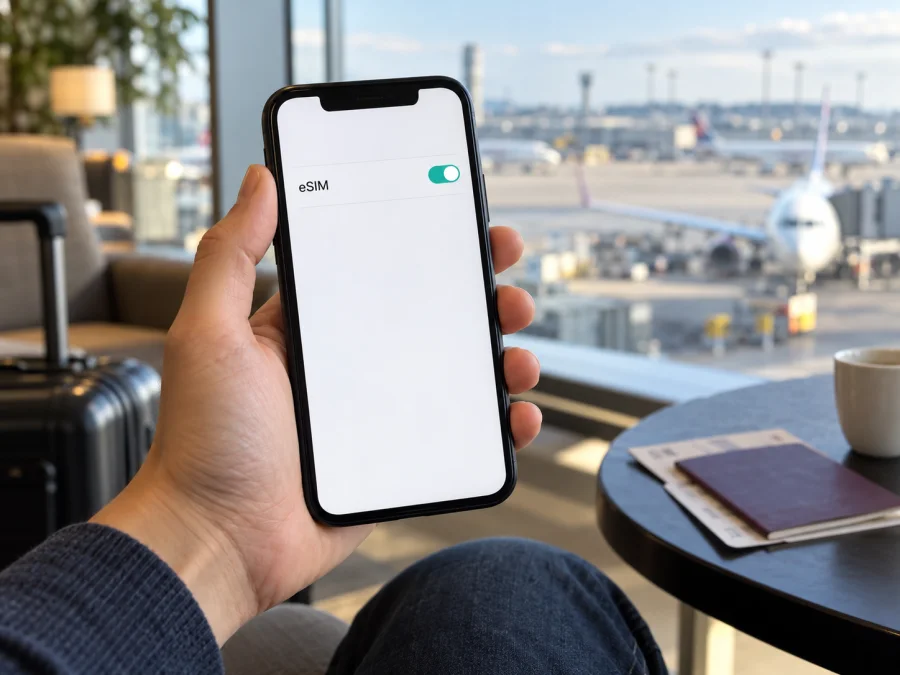
Apple iPhone XR eSIM: compatibility, setup and travel use
The Apple iPhone XR supports eSIM on versions equipped for it, so it can use a digital SIM alongside a physical nano-SIM. There is one important exception: versions sold for mainland China, Hong Kong and Macao may use two physical nano-SIM cards instead of eSIM. Check the exact phone in Settings before choosing a travel plan; the name on the box alone does not confirm the regional configuration.
An eSIM is a digital subscriber profile stored by the phone rather than a removable card. For a traveller, that can mean adding a data line without taking out the home SIM, but the technology is only one part of compatibility. The hardware variant must include an eSIM, the software must expose its setup controls, the phone must be allowed to use another provider, and the provider must support eSIM for the destination. A plan can be valid for a country and still fail on a phone that has no EID or remains carrier-locked. Checking these conditions in order is more dependable than relying on a generic list of compatible iPhone models.
The iPhone XR is an older model, so refurbished stock and imported versions are common. A listing may accurately name the model while leaving out the SIM configuration. Before checkout, ask which market supplied the device and request a photo of Settings → General → About with personal identifiers hidden. You only need to confirm that an EID and eSIM setup option exist; do not post your serial number, IMEI or EID publicly. If the seller cannot verify the variant, treat support as unknown until you can inspect the phone.
Does Apple iPhone XR support eSIM?
Yes, the standard international configuration supports one physical nano-SIM and one eSIM. You can keep your home line on the physical card and add a digital profile for mobile data while travelling, if the eSIM provider supports the destination and your phone is unlocked. The phone uses one cellular data line at a time; you choose which line handles data in Cellular settings.
Apple documents another Dual SIM configuration for selected devices sold in mainland China, Hong Kong and Macao: two nano-SIM cards. Apple’s current regional guidance lists the iPhone XR among models that can have this physical-SIM arrangement. A dual-SIM tray does not prove that one line is an eSIM. If your XR accepts two physical cards, do not assume it can also download a travel eSIM.
| Check | What applies to Apple iPhone XR |
|---|---|
| Standard eSIM configuration | One nano-SIM plus one eSIM |
| Regional exception | Some mainland China, Hong Kong or Macao units use two nano-SIMs |
| eSIM and data line | The phone can use one cellular data network at a time |
| Carrier restriction | A carrier-locked device may reject an eSIM from another provider |
| Best confirmation | Find an EID and an Add eSIM option in Settings, then confirm with the seller or provider |
| Travel use | A compatible eSIM plan can be used for mobile data where its terms include your destination |
Apple’s support information confirms the general XR capability and the regional two-nano-SIM exception. It does not identify the sales region of an individual phone or guarantee that a particular travel service will work. An eSIM profile must also be supported by the device software, permitted by any carrier lock, and valid for the country or region on the plan.
Check the exact phone before buying
Use the following checks before paying for an eSIM plan. No single visual detail, such as a SIM tray or a “Dual SIM” description, is enough to confirm digital SIM support.
- [ ] Look for an EID. Open Settings → General → About and scroll through the device information. On an eSIM-capable iPhone, an EID is normally shown with the other identifiers. Apple’s guidance says the same screen contains the EID and IMEI where available. You do not need to share the full EID publicly; it is a device identifier.
- [ ] Look for eSIM setup controls. Open Settings → Cellular (called Mobile Data in some localizations). Check for Add eSIM or Add Cellular Plan. Wording varies with iOS version and region. If the option appears, continue to check the lock status and plan requirements rather than treating the menu alone as a guarantee of successful activation.
- [ ] Check the carrier lock. In Settings → General → About, find Carrier Lock. “No SIM restrictions” means the iPhone is unlocked. If another message appears, ask the carrier that locked the device about unlocking it. Apple says only that carrier can remove its lock.
- [ ] Confirm the sale region and model number. In Settings → General → About, tap the part number if needed to reveal the model number. Compare that information with the seller’s documentation and ask Apple or the seller to confirm the regional SIM configuration. Do not infer support solely from the country where you currently use the phone.
- [ ] Check the iOS version and internet access. Install available software updates before travel and keep a Wi-Fi connection available during setup. The exact menu labels can differ by iOS release, and the provider may require an internet connection to download its profile.
- [ ] Read the plan conditions. Confirm that the destination is included, the plan is for data if that is what you need, and the rules explain when its validity period begins. Also check whether the profile can be installed before departure and whether it can be reinstalled if removed.
If both the EID and an eSIM-add option are missing, treat compatibility as unconfirmed. This can happen because of the regional variant, software or restrictions. Restart the phone, install the latest compatible iOS update, and check again. If the information still is not present, verify the model with Apple or the seller and do not buy a plan until you have a clear answer.
For a quick next step, check your device and compare the displayed model and EID with the information supplied by the seller. A compatibility check should be completed before selecting a travel data plan, particularly when the phone was imported or bought used.
How to install and activate an eSIM
On an eligible iPhone XR, the plan provider may offer a QR code, an in-app installation flow, or manual details. Follow the method supplied with your plan; these methods are not interchangeable in every case. Apple’s iPhone setup instructions explain QR-code and provider-assisted activation. The iOS installation guide gives a practical walkthrough. The Android installation guide is useful if you are helping someone set up a different device.
Before starting, connect the XR to Wi-Fi or another working internet connection. Keep the installation instructions available on a second screen or printout if the QR code is displayed on the same iPhone. Have the confirmation code ready if the provider issued one. Avoid deleting an existing profile just to make room unless the provider or Apple’s instructions specifically tell you to do so.
Install with a QR code
- Open Settings on the iPhone.
- Tap Cellular or Mobile Data.
- Choose Add eSIM or Add Cellular Plan.
- Choose the option to use a QR code, then scan the code provided for your plan.
- Follow the on-screen prompts. Enter a confirmation code if requested.
- Give the new line a clear label, such as Travel data, so it is easy to distinguish from your home SIM.
- When asked, choose which line to use for calls, messages and cellular data. You can change these choices later.
- Keep the eSIM installed and wait for the phone to finish adding the plan. The status may take a short time to update.
If the QR code is saved as an image or arrives in a browser or email, iOS versions with supported QR installation may let you touch and hold the code and select the eSIM action. Never scan a QR code that was sent for another account or device unless the provider confirms it is valid for you.
Complete setup for a trip
After installation, open Settings → Cellular and select the travel line. Confirm that Turn On This Line is enabled. Set Cellular Data to the travel eSIM when you want it to carry internet traffic. If you want your home number to stay available for calls or messages, review the default voice line and any data-switching setting carefully; your home carrier may charge roaming fees when its line is used.
The setting for data roaming depends on the plan’s instructions. Some travel eSIMs require it to be on for the profile to connect to a partner network; others may specify different steps. Follow the provider’s instructions for that profile, and do not switch on roaming for your home line unless you understand the charges. If you are not ready to use the plan, leave the travel line off until the provider’s stated activation process requires it.
Apple describes profile setup and activation as related but distinct steps: installing the eSIM places the profile on the phone, while the provider’s conditions determine when service or plan validity begins. Do not assume that scanning a code always starts the data period, or that waiting to arrive always delays activation. Read the plan’s activation and validity terms before installation.
Browse plans for your destination
Once compatibility is confirmed, Kaspersky eSIM Store is an app and website where you can choose, arrange and activate an eSIM with a plan for mobile data during an international trip. Check the destination and the plan’s data allowance, validity period, activation rules and supported network conditions before continuing. Browse Kaspersky eSIM Store to check current options for your destination. The homepage is a general store page; it is not a country-specific tariff page, and availability and plan terms can change.
Use the eSIM for mobile data while travelling
A travel eSIM is most useful when you want data for maps, transport bookings, messaging, email and web browsing without removing your home SIM. On a standard XR configuration, the physical SIM and eSIM can be installed together. You can keep the home number available and choose the travel profile for cellular data, subject to your home carrier’s roaming rules and the travel plan’s coverage and terms.
Before departure, add the eSIM while you have reliable Wi-Fi if the provider allows advance installation. Review the activation instructions to decide whether to leave the line off until arrival or enable it earlier. Save the provider’s support details and plan information where you can access them offline. If your itinerary crosses borders, confirm each country is included; a country-specific plan and a regional plan can have different coverage and validity terms.
After landing, enable the travel line and select it for Cellular Data. If it does not connect automatically, open the travel line’s settings and check the network-selection and data-roaming instructions supplied for the plan. Give the phone a moment to register. Network availability depends on the visited network and local conditions, so no device setting can guarantee service in every location.
Common problems and what to check
The phone has no Add eSIM option. Confirm the exact regional model and look for an EID under Settings → General → About. An XR configured for two physical nano-SIM cards may not support eSIM. Update iOS and restart once; if the controls are still absent, check with Apple or the seller before purchasing a plan.
The QR code will not scan. Increase screen brightness on the device displaying the code, clean the iPhone camera lens and hold the phone steady. Make sure the code is complete and intended for your plan. If the camera reports no usable code, use the provider’s approved activation link or manual details. Some QR codes can only be used once, so do not repeatedly attempt installation without checking the plan instructions.
The eSIM profile does not install. Confirm that the iPhone has an internet connection, has not reached the plan or device profile limits, and is running a compatible software version. Check for a typo in any manual activation details. If you see an activation error, note the exact message and contact the plan provider before deleting or resetting anything.
The line is installed but there is no service. Verify that the travel line is turned on, the plan is active for the current location and the phone is unlocked for the provider’s network. Check network selection and data roaming according to the plan instructions. Toggle Airplane Mode off and on or restart the phone, then check for a carrier settings update under Settings → General → About.
There is signal but apps have no internet. Make sure the travel eSIM is selected under Cellular Data, mobile data is enabled, and the plan has not reached its data allowance or validity limit. Disable Wi-Fi briefly to test the cellular connection. If the provider requires data roaming for the travel line, enable it only for that line and as described in its setup instructions.
The phone says the SIM is not supported. Check Carrier Lock in Settings → General → About. If the phone is locked, the original carrier must unlock it. An unlocked phone can still have a regional eSIM limitation, so verify that the EID and Add eSIM controls are present as well.
The plan was installed but seems not to have started. Review the provider’s activation condition: installation, first connection to a supported network, or a scheduled activation time can have different effects. Do not delete and reinstall the profile to try to restart the clock. Ask the provider to confirm the profile status and next step.
The data line changes unexpectedly. Check which line is selected for cellular data and whether data switching is enabled. Turn off automatic switching if you want to keep data on the selected travel line; confirm that doing so will not affect incoming calls or services you need on your home line.
For troubleshooting, record the iOS version, model number, whether an EID appears, the exact error and the time you tried to connect. Do not send account passwords or one-time verification codes. Contact the provider that issued the eSIM for plan or activation questions; contact the original carrier for a network lock and Apple for device hardware or iOS issues.
Frequently asked questions
Can I use my home SIM and a travel eSIM at the same time?
On a standard eSIM-capable iPhone XR, one nano-SIM and one eSIM can be installed as Dual SIM. You can keep both lines available, but the iPhone uses one cellular data network at a time. A regional two-nano-SIM XR has a different configuration and does not become eSIM-capable just because it supports two physical lines.
Does an EID guarantee that a travel plan will work?
An EID is a useful sign that the phone has eSIM hardware, not a promise that every plan will install or connect. The phone must also be carrier-unlocked for the plan’s network, the profile must be supported, and the destination must be covered by the plan conditions.
Does a travel eSIM include calls and text messages?
Not necessarily. Many travel plans are intended for mobile data only. Check the selected plan’s inclusions. You can use internet messaging and voice apps over data, while your home number remains governed by your regular carrier and its roaming terms.
Should I install the eSIM before travelling?
If the provider permits advance installation, doing it over a stable connection can make preparation easier. Follow the stated activation timing: some profiles can be installed early, while a plan’s service or validity may begin only under conditions described by its provider. If the instructions say to install on arrival, follow that instead.
Can I move the eSIM to another iPhone XR later?
Do not assume that you can. Transfer and reinstallation rules depend on the provider and profile. Check those terms before installation, and contact the provider before removing a profile if you plan to change phones.
What if my imported XR has two SIM slots?
Two physical nano-SIM positions may indicate a regional dual-physical-SIM model. Confirm the model number and EID in Settings. If there is no EID and no Add eSIM option, treat eSIM compatibility as unconfirmed and ask the seller or Apple to identify the variant.
Before you choose an eSIM for your trip
For Apple iPhone XR, the practical answer is “yes, if this is an eSIM-equipped regional version and the phone is unlocked.” Apple confirms eSIM on the model’s standard nano-SIM-plus-eSIM configuration and documents two-physical-SIM variants for certain markets. Because the name alone cannot distinguish these versions, check the EID, the Add eSIM option, the model information and Carrier Lock before purchase.
Then match the plan to your route and use: confirm each destination, the data allowance, validity period, activation timing, roaming instructions and any limits on hotspot use or profile transfer. Kaspersky eSIM Store helps you review current options on its app and website, then choose and activate an eSIM plan for mobile data on an international trip. If compatibility remains uncertain, pause the purchase and ask Apple or the seller to confirm the exact device configuration. A few minutes spent checking the phone can prevent an unusable plan and make it easier to go online when your trip begins.


