Travel connectivity guide
Apple iPhone XS 512GB eSIM Guide
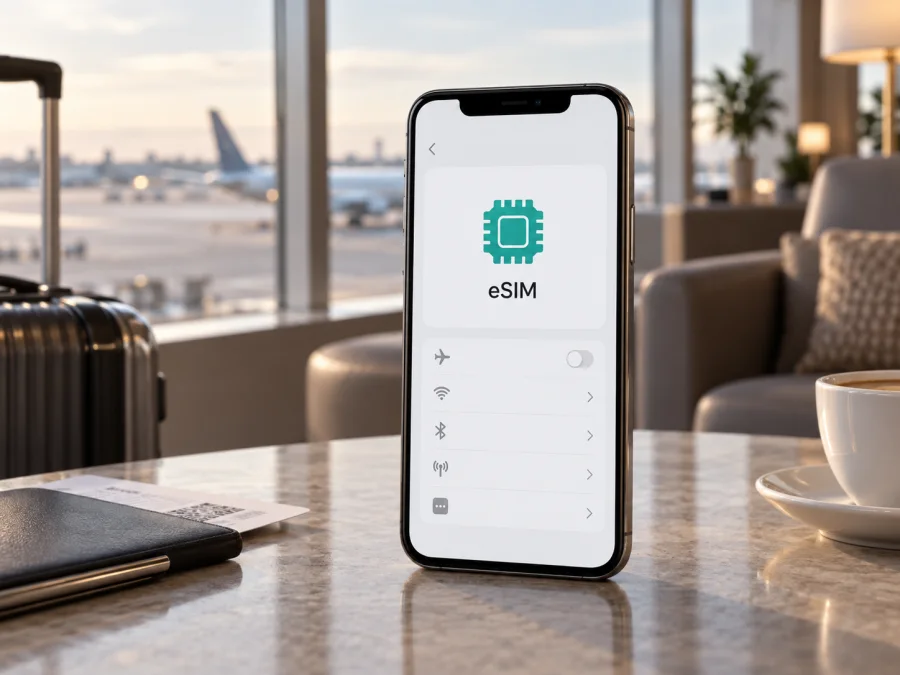
Apple iPhone XS 512GB eSIM compatibility and setup guide
Short answer: Many Apple iPhone XS 512GB models support eSIM, provided the regional hardware, carrier and plan are compatible. The 512GB figure describes storage only. Check the individual phone’s model number, EID and carrier-lock status before buying a plan.
Introduced in 2018, iPhone XS was among Apple’s first eSIM-capable phones. But a family-level specification cannot establish that a particular used or imported unit will accept an eSIM. Apple lists multiple regional model numbers, and some versions use different SIM configurations. In particular, Apple’s current guidance excludes iPhone XS from eSIM profiles issued by mainland Chinese carriers.
Check the handset; do not infer support from a seller listing, SIM tray or another owner’s experience. Confirm provider support at your destination.
At a glance
| Item | Apple iPhone XS 512GB |
|---|---|
| Device variant | Apple iPhone XS 512GB |
| eSIM capability | Supported on eligible regional variants; verify this handset |
| Physical SIM | A nano-SIM tray is present on many regional versions |
| Storage | 512GB; storage size does not affect eSIM capability |
| Network generation | 4G LTE; the XS is not a 5G model |
| Main prerequisites | Supported model and carrier, current compatible iOS, Wi-Fi for setup, and no incompatible carrier lock |
| Best first check | Settings → General → About: look for EID and check Carrier Lock |
Does Apple iPhone XS 512GB support eSIM?
Yes, many Apple iPhone XS versions support eSIM, but eligibility depends on the exact regional model and carrier. Apple includes iPhone XS in its eSIM setup guidance for compatible providers. The 512GB label describes storage and does not alter cellular hardware. For the individual phone, the practical answer is “yes” only after confirming its EID, eSIM menu, region and lock status.
Apple lists several iPhone XS hardware model numbers, including A1920, A2097, A2098, A2099 and A2100. These correspond to different markets; SIM configurations are not identical everywhere. Apple’s current guidance specifically excludes iPhone XS from models that can install eSIM profiles from mainland Chinese carriers. Some regional versions have different dual-SIM arrangements, and Hong Kong and Macao have model-specific rules. Check the number displayed by the phone, rather than relying on the generic product name or a seller’s description.
Also distinguish device capability from plan eligibility. The EID and Add eSIM option indicate that the phone can work with an eSIM profile, but the provider must support the device and destination. If the phone is carrier-locked, Apple says both plans must be from the same carrier; an unlocked phone offers more flexibility. For cross-border use, local rules may determine whether a profile can be installed in that location. A phone purchased outside mainland China may be able to use an eligible travel eSIM abroad even though an XS cannot install a mainland Chinese carrier profile.
The XS has a physical nano-SIM tray in many markets, and many eSIM-capable versions can use that SIM alongside an eSIM. A dual-nano-SIM version is a different arrangement and does not prove eSIM capability. Confirm the exact hardware model and sales region with the seller or provider before ordering.
How to check eSIM on the phone
Use the handset itself whenever possible. These checks take only a few minutes and are more reliable than a marketplace description.
- Connect the iPhone to Wi-Fi and open Settings.
- Tap General, then About.
- Scroll through the device information and look for EID. It is a long identifier for the embedded SIM component. Do not post it publicly or send it to an unknown seller.
- On the same screen, review Model Number. Initially, iOS may show a part number. Tap it once to reveal the hardware model number, which begins with “A”. Compare that number with Apple’s identification for iPhone XS and ask what sales region it represents.
- Look at Carrier Lock. “No SIM restrictions” indicates that the iPhone is not locked to one carrier. If it says otherwise, contact that carrier before using a different provider’s plan.
- Return to Settings → Cellular (called Mobile Data in some regions). Look for Add eSIM or Add Cellular Plan. Labels vary with iOS version and region.
- If both the EID and the add-plan option are present, ask the intended eSIM provider whether it supports this exact XS model and the destination. If either is absent, do not buy on assumption: confirm the model number, update iOS, restart, and contact Apple or the carrier if the uncertainty remains.
Menu names vary with language and iOS version. For a remote purchase, ask to see current About and Cellular screens with personal identifiers hidden; an old screenshot may not show the offered phone.
Compatibility checklist before purchase
Use this short checklist for the exact Apple iPhone XS 512GB you plan to travel with:
- [ ] The phone’s About screen shows an EID.
- [ ] Settings has an Add eSIM or equivalent option.
- [ ] The hardware model number and sales region are known.
- [ ] The phone is unlocked, or both plans will use the same carrier.
- [ ] The chosen provider confirms support for this device and destination.
- [ ] The plan is for mobile data if that is what you need; voice, SMS and a local phone number may not be included.
- [ ] You can connect to reliable Wi-Fi during installation and activation.
- [ ] You have checked the plan’s countries, data allowance, validity period, activation timing and any device restrictions.
Use the device compatibility checker before choosing a plan. A positive model-family result is a starting point; verify the actual handset and carrier conditions listed above as well.
Installing and activating an eSIM
Providers may offer a QR code, app, activation link or manual details. Follow the instructions for the specific plan: validity can begin at installation or at first network connection. Do not delete an installed profile to retry unless the provider confirms that it can be reissued; a QR code may be single-use.
Before setup, update iOS to the latest version available for the phone, restart it, and connect to stable Wi-Fi. Keep the provider’s instructions handy and verify destination, data allowance, validity and activation timing. If you need your home number for calls or texts, check roaming charges and keep that line enabled.
Add a QR-code or app-based plan
- Open Settings → Cellular → Add eSIM (the label may vary by iOS language or version).
- Select the QR-code option and scan the code supplied for your order. For an activation link or provider app, open it on the iPhone and follow its prompts.
- Check the plan identity, then allow iOS to download the profile. Keep Wi-Fi connected and the phone powered on.
- Give the line a useful label, such as Travel Data, so it is easy to identify.
- Choose which line to use for calls and which to use for cellular data. You can change these later in Settings.
- Follow the provider’s activation timing. If it says to activate on arrival, leave the travel line off until then; if it says to activate at home, follow that instruction.
If you received an SM-DP+ address and activation code, choose manual entry in the Add eSIM flow and copy each value exactly. Contact the provider if a code is missing, expired or rejected; do not substitute information from another order. The phone can show Activating or No Service before the plan reaches its start time or a supported network.
For Apple-specific steps, see the iOS eSIM installation instructions. The Android eSIM installation instructions are useful for companions using Android phones.
Using the eSIM during a trip
For a data-only travel setup, leave your home line available for calls or messages if needed, and select the travel plan for data after reaching the destination. Open Settings → Cellular → Cellular Data and choose the travel line. The iPhone XS uses one cellular data network at a time. Turn off Allow Cellular Data Switching if you want to prevent the phone from changing data lines automatically.
When the plan should begin, enable its line and turn on Data Roaming if the provider requires it. A travel eSIM may use a partner network, so roaming can be part of normal operation; follow the plan’s instructions. Keep data roaming off on the home line if you want to reduce the chance of using its data allowance. Check the home carrier’s costs for calls, messages and roaming before travel.
Match the plan to your route and usage. For a city break, estimate data for maps, transit and messaging. On a multi-country trip, check each destination and transit stop, validity and allowance. Navigation, photo uploads, video calls and hotspot use can consume data quickly. Data-only plans may not include calls or SMS; internet messaging depends on apps and connectivity.
If a plan is meant to activate on arrival, install it earlier only if the provider allows this. Save setup instructions offline. After returning, select the home line for data again and remove a travel profile only when it is no longer needed and the provider confirms removal is safe. Some profiles cannot be restored using the same QR code. Reception also depends on local network availability, location, plan terms and supported bands; an eSIM does not guarantee service in every place.
Troubleshooting common problems
No Add eSIM option: Check About for EID and model number, confirm the sales region, install available iOS updates and restart. If the EID or option is still missing, ask Apple or the carrier to check the handset before purchasing a plan.
QR code fails: Make sure it is fully visible and brightly displayed, then try the provider’s manual method if offered. If iOS says the code was used or is invalid, request help or a replacement from the provider; repeated scans will not reset a single-use code.
Plan added but no service: Check activation timing and destination coverage. Turn on the travel line, select it for cellular data, and enable Data Roaming if instructed. Toggle Airplane Mode on for about 15 seconds, then off. Restart if needed and contact the provider with the exact error.
Signal appears but data does not work: Confirm cellular data is enabled and the travel line is selected. Check allowance and validity. Enter APN values only when the provider supplies them, and use automatic network selection unless instructed otherwise.
Incompatible plan or activation rejected: Verify the model number, iOS version and Carrier Lock field. A locked phone may reject another carrier’s profile, and regional restrictions can block installation in some locations. Ask the provider to check the order and device before deleting an eSIM.
Wrong line is being used: Review Cellular Data, Default Voice Line and messaging settings separately. These choices are independent. Disable data switching if the phone should remain on the travel plan for mobile data.
Frequently asked questions
Does 512GB storage improve eSIM support?
No. Storage capacity affects saved content, not cellular hardware. Regional model, iOS, carrier support and lock status determine whether eSIM can be used.
Can I keep a physical SIM and add an eSIM?
Many eSIM-capable XS versions support a nano-SIM alongside an eSIM, but regional configurations differ. Check the exact model; two physical SIM slots do not mean the phone has an eSIM.
Can I keep more than one eSIM?
The XS supports eSIM functionality, but stored and simultaneously active profiles depend on Apple’s device and iOS rules. It uses one cellular data network at a time. Check the intended dual-line setup with the carrier.
Does a travel eSIM include calls and SMS?
Not necessarily. Many are data-only. Check the plan terms; internet calls and messages require compatible apps and data connectivity.
Is the XS a 5G phone, and when should I install?
No. Apple iPhone XS 512GB supports 4G LTE, not 5G. Install over reliable Wi-Fi at the time the provider recommends: validity may begin at installation or at first network connection.
Key points
Apple iPhone XS 512GB supports eSIM on many regional versions, but storage size does not determine compatibility. Check the EID, Add eSIM, model number and Carrier Lock status, then confirm the provider supports the handset and destination. Mainland China has a specific restriction on iPhone XS eSIM profiles from local carriers; other regional versions can also differ.
For installation, use Wi-Fi, follow the provider’s activation timing and choose the correct line for data. Before removing a profile or repeating setup, check the error and ask the provider for help. Review the plan’s coverage, validity, allowance and roaming requirements before departure.
Check your device and choose a trip eSIM
Before buying a plan, check Apple iPhone XS 512GB in Settings → General → About for EID and model number, then confirm Add eSIM and No SIM restrictions in the appropriate settings. Ask the eSIM provider whether that regional model is accepted in your destination. Check the countries covered, data allowance, validity, activation start and whether tethering or calls are included.
Once compatibility and plan conditions are clear, Kaspersky eSIM Store is an app and website where you can choose, arrange and activate an eSIM with a mobile-data plan for an overseas trip. Select a plan for your route, review its terms, and keep its setup instructions available before departure. A few minutes spent checking the exact device and the plan can prevent avoidable setup problems after arrival.


