Travel connectivity guide
Apple iPhone XS Max 512GB eSIM Compatibility
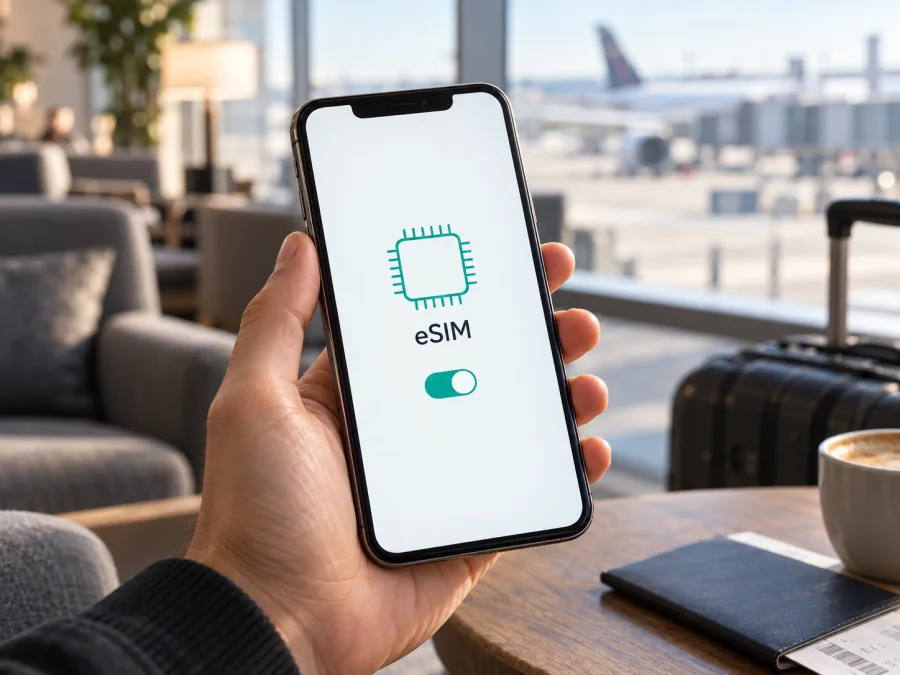
Apple iPhone XS Max 512GB eSIM Compatibility and Setup Guide
The Apple iPhone XS Max 512GB supports eSIM on eSIM-capable regional versions, provided the phone is unlocked for the chosen provider and runs compatible software. The 512GB capacity does not affect SIM support. The key exception is the regional configuration sold in mainland China, Hong Kong, and Macao: that iPhone XS Max has two physical nano-SIM slots and no eSIM. Because phones are often imported or resold, verify the handset itself before arranging a travel plan.
Apple’s current support information includes iPhone XS Max among eSIM-capable phones and also documents the dual-physical-SIM version for mainland China, Hong Kong, and Macao. Carrier availability, device lock status, iOS version, and the terms of a particular plan still matter. This guide covers how to identify the version, check EID and settings, install a profile, and use the eSIM for mobile data abroad.
Quick compatibility overview
| Detail | Apple iPhone XS Max 512GB |
|---|---|
| eSIM hardware | Supported on eSIM-capable regional versions |
| Storage | 512GB; capacity does not determine eSIM capability |
| Mainland China, Hong Kong, Macao version | Two physical nano-SIMs; no eSIM on this variant |
| eSIM version | One nano-SIM plus eSIM, subject to carrier and iOS support |
| 5G | Not supported; this is a 4G LTE model |
| Carrier lock | Another provider’s eSIM generally requires an unlocked phone |
| Travel use | Mobile data works where the selected plan has service |
The short answer is yes for eSIM-capable Apple iPhone XS Max 512GB versions, and no for the dual-nano-SIM configuration sold in mainland China, Hong Kong, and Macao. The storage size, listing title, or seller’s location alone cannot tell you which SIM hardware is inside. Check Settings and confirm the sales region if the result is uncertain.
Why the region matters
Apple did not sell one SIM configuration worldwide. Many iPhone XS Max versions combine a nano-SIM tray with an embedded eSIM. The mainland China, Hong Kong, and Macao configuration instead supports two physical nano-SIM cards. This is a hardware difference; changing settings or updating iOS cannot add an eSIM to that version.
The 512GB label identifies storage, not market. A second-hand, refurbished, or imported phone may have been made for a different region than the country where it is now used. A carrier lock is another separate issue: an eSIM-ready phone may still reject another provider’s profile until the original carrier unlocks it.
On an eSIM-capable version, a digital profile can work alongside the physical SIM, subject to the iPhone’s dual-SIM limits and carrier support. Only one line supplies cellular data at a time. The XS Max supports LTE, not 5G; an eSIM plan cannot add 5G hardware. Plan support, network coverage, and activation requirements vary, so check them for the destination before purchase.
Check this exact phone before buying a plan
Use this checklist with the Apple iPhone XS Max 512GB in hand:
- Find the EID. Open Settings → General → About and scroll through the device information. An EID (Embedded Identity Document) is a strong indication that the phone has eSIM hardware.
- Look for the add-eSIM control. Open Settings → Cellular (called Mobile Data in some regions). An option such as Add eSIM, Add Cellular Plan, or Add Mobile Data Plan means the setup flow is available. Labels vary by iOS version and language.
- Check the model details. In Settings → General → About, tap Model Number to reveal the part number if needed. Apple Support or the original seller can help confirm the market configuration. Model details are useful context; the EID and available setup control are practical checks on the handset.
- Check carrier lock. Find Carrier Lock or Network Provider Lock on the About screen. No SIM restrictions means it is unlocked. If a lock is shown, ask the original carrier whether it can be removed before trying another provider’s eSIM.
- Check software and Wi-Fi. Install the latest iOS offered for the phone and connect to a reliable Wi-Fi network before setup. Older software may use different menu labels, and profile downloads need internet access.
- Review the plan. Verify destination, data allowance, validity, activation timing, and whether the plan is data-only.
If neither the EID nor an eSIM-add option appears, restart the phone, install any available iOS update, and check again. If they are still absent, treat the device as not eSIM-ready until Apple or the seller confirms its configuration. A software or management restriction can hide features, but do not buy a plan assuming the option will appear later.
Check your device against these details before selecting a plan. This is especially useful for an imported or refurbished Apple iPhone XS Max 512GB, because two versions that look alike can have different SIM hardware.
Prepare your iPhone for a travel eSIM
Before installation, make sure the phone is compatible and unlocked, then review the plan’s destination, data amount, validity period, and activation instructions. Many travel eSIMs provide mobile data only and do not include a standard phone number, voice calls, or SMS unless the plan says so. Keep the QR code or activation information available on another screen and connect the iPhone to Wi-Fi. Follow the stated activation timing: some plans start validity when installed, while others start when they first connect abroad.
Kaspersky eSIM Store is an app and website where you can choose, arrange, and activate an eSIM with a mobile-data plan for an international trip. Review the destination and plan details there, and confirm that the Apple iPhone XS Max 512GB is compatible before arranging a plan. Kaspersky eSIM Store is not a mobile operator or network owner; service is provided through the applicable networks under the plan’s terms.
Install the eSIM profile
Menu labels can differ with iOS version and activation method. Keep the phone online over Wi-Fi and follow the plan’s instructions.
Scan a QR code
- Open Settings → Cellular or Settings → Mobile Data.
- Tap Add eSIM or Add Cellular Plan and choose the QR-code option if shown.
- Scan the code supplied with the plan and follow the prompts. Enter a confirmation code if requested.
- Label the line Travel or with the destination name so it is easy to recognize.
- When asked how to use the lines, set the travel eSIM according to the plan’s directions. You can change the data line later in Cellular settings.
Use an app or manual details
Some providers allow installation in an app or supply an SM-DP+ address and activation code. Start from the provider’s instructions, open the iPhone’s Add eSIM flow, and enter manual details exactly as supplied. Some activation codes are one-time use. If a code was already used or is rejected, contact the provider before deleting the profile or requesting another one.
After setup, confirm that the profile appears in Settings → Cellular/Mobile Data. Installation and activation can be separate: a profile added before departure may not connect or start validity until the plan’s conditions are met. See the Android installation guide or the iOS installation guide for additional steps. The iOS guide applies to this phone.
Activate and use it while travelling
On arrival, open Settings → Cellular/Mobile Data, select the travel line, and turn on Turn On This Line if needed. Choose the travel eSIM under Cellular Data/Mobile Data. If the plan requires roaming, enable Data Roaming for that travel line. Menu wording can vary slightly by iOS release.
You may keep your main line available for calls or messages, but your home carrier may charge roaming fees even when the eSIM supplies data. Check its terms. To reduce unintended data charges, turn off data roaming on the primary line and select the travel eSIM for cellular data. iPhone uses one data line at a time; Allow Cellular Data Switching can affect which line is used, so review the setting rather than assuming both plans share data.
A data-only travel eSIM normally provides internet access rather than a new conventional phone number. Calling and messaging apps can work over data, while calls and SMS to your usual number depend on the primary line and its roaming terms. Check the plan if you need regular voice service or text messages.
Common travel scenarios:
- Install before departure. If permitted, add the profile at home over Wi-Fi, leave it off until the plan says to activate it, then enable it on arrival.
- Install after landing. Use Wi-Fi to open installation details if activation is limited to the coverage area. When the plan allows pre-installation, setting it up earlier is simpler.
- Keep the home number available. Leave the main SIM ready for calls, select the travel eSIM for data, and review roaming charges. This depends on the eSIM version and carrier support for dual SIM.
- Visit multiple countries. Check that each destination is included. A country-specific plan may stop working at a border; coverage and validity come from plan terms, not the phone model.
An eSIM does not guarantee signal everywhere. Coverage and speed depend on local networks, location, buildings, settings, and the plan. This phone supports LTE rather than 5G.
Troubleshooting: what to check first
If installation or data fails, check one item at a time:
| Symptom | Checks to make |
|---|---|
| No Add eSIM option | Look for EID in Settings → General → About, update iOS, restart, and check for device management. Mainland China, Hong Kong, and Macao XS Max versions use two physical nano-SIMs. |
| QR code will not scan | Brighten the screen showing the code, clean the iPhone camera lens, and ensure the full code is visible. Use manual entry only if provided; ask whether the code expired or was used. |
| Profile will not install | Confirm Wi-Fi, current iOS, unlocked status, and correct activation details. Contact the plan provider if the error continues. |
| eSIM has no signal | Turn the line on, check destination and validity, toggle Airplane Mode briefly, then restart. Follow the plan’s network-selection and roaming instructions. |
| Signal but no mobile data | Select the travel line for Cellular Data, check mobile data and any APN instructions, then briefly turn off Wi-Fi to test. |
| Wrong line uses data | Review Cellular Data selection and Allow Cellular Data Switching. Disable data roaming on the home line if you do not want it used. |
| Activation code is rejected | It may be mistyped, expired, already used, or assigned to another phone. Contact the provider; do not delete an installed profile unless support asks. |
When contacting support, note the error, iOS version, whether an EID appears, destination, and selected data line. Do not send passwords or account security codes. If the regional hardware has no EID or eSIM controls, changing network settings will not add eSIM support.
Frequently asked questions
Does every Apple iPhone XS Max 512GB support eSIM?
No. eSIM-capable regional versions do, but versions sold for mainland China, Hong Kong, and Macao use two physical nano-SIM cards. Check the EID and eSIM controls on your own phone.
Does storage capacity change eSIM support?
No. 512GB is a storage specification. Two Apple iPhone XS Max 512GB phones can have different SIM configurations if intended for different markets.
Is this a 5G phone?
No. It supports 4G LTE. An eSIM plan cannot add 5G radio capability.
Can I use a physical SIM and eSIM together?
On an eSIM-capable version, both lines can be configured subject to iOS and carrier support. Only one line supplies cellular data at a time. The China, Hong Kong, and Macao configuration uses two physical nano-SIM cards instead.
Can I install the eSIM before a trip?
Often, if the plan allows it and you have Wi-Fi. Check when validity starts: it may begin at installation or at first connection to a supported network.
Why can an unlocked phone still fail to activate?
Unlock status is only one requirement. The phone also needs eSIM hardware, compatible software, internet for setup, a valid profile, and service for that device and destination.
Before you choose a trip eSIM
Check the Apple iPhone XS Max 512GB in Settings → General → About for an EID, confirm that Add eSIM appears, and verify the phone has no carrier restriction if you plan to use another provider. If it was sold in mainland China, Hong Kong, or Macao, expect the dual-physical-SIM configuration rather than eSIM. Confirm an uncertain regional version with Apple or the seller before arranging a plan.
Compare the trip plan’s destination, data allowance, validity, activation timing, and whether it includes data only. Kaspersky eSIM Store is an app and website that helps you choose, arrange, and activate an eSIM with a mobile-data plan for an international trip. Check compatibility before purchase, follow the plan’s installation instructions, and select the intended data line after arrival. This short pre-trip check helps you travel with a clear setup and fewer surprises.


