Travel connectivity guide
AQUOS R7 eSIM: Compatibility and Setup
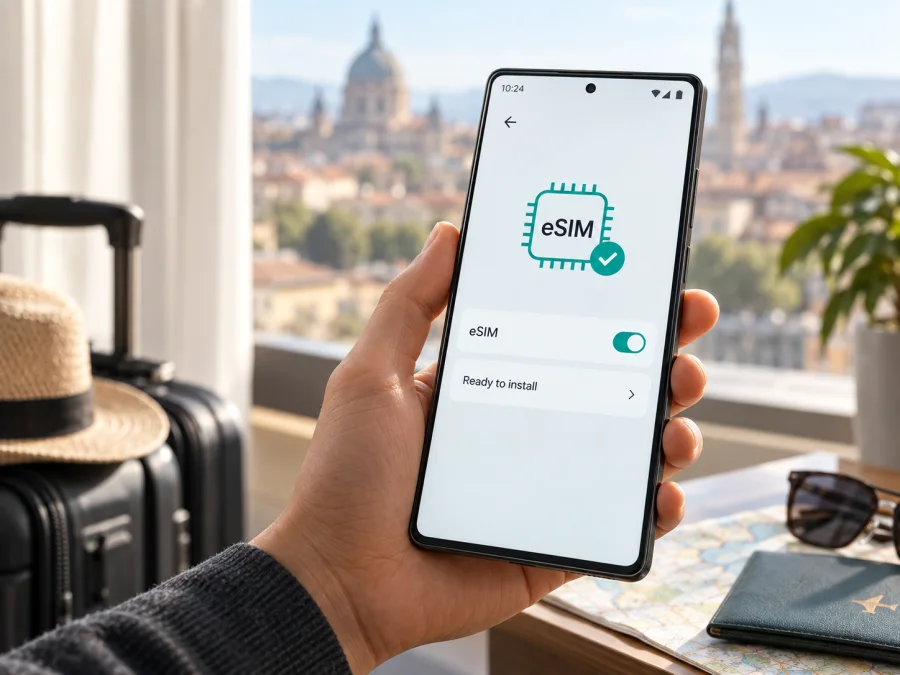
AQUOS R7 eSIM: compatibility, setup, and travel use
The AQUOS R7 supports eSIM in its official Japanese carrier editions. Sharp lists eSIM alongside nanoSIM for the docomo AQUOS R7 SH-52C and the SoftBank AQUOS R7. This confirms support for those editions, but the short name “AQUOS R7” is not proof that every handset sold under that name worldwide has the same SIM hardware or software. If yours is imported, refurbished, or carrier-modified, check its exact model and settings before choosing a travel plan.
An eSIM is a digital SIM profile stored in the phone. On a compatible edition, it can be used alongside a physical nanoSIM, subject to the phone’s SIM settings and carrier rules. For a trip, a travel eSIM may provide mobile data through a supported local network while you keep your usual number available, if your home plan allows it. Data eSIM plans generally do not include an ordinary phone number, voice calls, or SMS unless their terms specifically say so.
AQUOS R7 eSIM compatibility at a glance
| Item | What to know |
|---|---|
| Device in this guide | AQUOS R7 |
| Official Japanese editions checked | docomo SH-52C and SoftBank AQUOS R7 |
| SIM support listed by Sharp | nanoSIM and eSIM on these editions |
| Compatibility answer | Supported on the cited Japanese editions; verify the exact phone |
| Network generation | 5G-era phone; 5G access depends on edition, bands, plan, and local network |
| Check on the phone | Look for an EID or eSIM add/download option in Settings |
| Other conditions | Carrier unlock, software, plan compatibility, and destination coverage |
The model name does not identify every regional SKU. Sharp’s Japanese product pages describe carrier editions, not a guarantee for every AQUOS R7 sold worldwide. The docomo model code SH-52C is a more precise identifier; SoftBank is a separate carrier edition with its own firmware and network conditions. An imported or used unit may have different software, restrictions, or history. Ask the seller or carrier about the full model code and whether the phone can download a third-party eSIM profile.
Do not infer eSIM support from 5G, a “dual SIM” label, or another AQUOS model. Those facts do not establish that this handset has eSIM enabled. Hardware support and permission to use a particular profile are also separate: a network lock, carrier firmware, provider rules, or plan requirements can prevent activation even where the phone has an EID. Confirm that the exact unit is unlocked for the intended profile.
Check the exact phone before buying a plan
Use the phone itself as the final check. Menu names vary between Android versions, translations, and carrier software, so treat these labels as a guide.
- Find the model code. Open Settings and look under About phone or Device information. Record the full model number and market or carrier edition, such as SH-52C. If only AQUOS R7 appears, check the box, purchase record, or carrier account.
- Look for eSIM settings. In Settings, open Network & internet, SIM, Mobile network, or the closest equivalent. Look for Add eSIM, Download a SIM, Add mobile plan, or an eSIM option in the SIM manager. You can confirm the option without scanning a QR code.
- Check for an EID. Search Settings for “EID,” or inspect SIM status or About phone information. An EID identifies the embedded SIM component and is strong evidence of eSIM hardware. It does not prove that the phone is unlocked or that a particular profile will work.
- Confirm restrictions. If the result is unclear, give the full model code to the seller or carrier and ask whether eSIM download is enabled, whether the phone is unlocked, and whether a third-party travel profile can be used.
- Check the plan. Confirm the destination and device requirements in the plan’s terms. A settings menu confirms a device function, not service or coverage in a country.
If neither an EID nor an add/download option appears, pause before buying a plan. Carrier software can affect menus, but do not assume that explains an absent option without confirmation for the exact unit. A plan cannot add eSIM hardware to an incompatible phone.
Use this quick checklist before checkout:
- [ ] The full model code and carrier or market edition are known.
- [ ] An EID is visible, or Settings offers eSIM download/add.
- [ ] The phone is not locked against the intended profile.
- [ ] The profile and plan support the phone and destination.
- [ ] You understand installation and validity start conditions.
These checks cover both device hardware and the conditions imposed by a carrier or profile provider. A passing device check still leaves destination coverage and plan terms to confirm. Check your device against these points before selecting a travel eSIM. If you are comparing two AQUOS R7 listings, compare their complete identifiers and carrier terms rather than relying on the shared family name.
Prepare before leaving
Complete the compatibility check while you still have reliable internet and access to seller or carrier support. Review the plan’s destination, data allowance, validity period, activation conditions, and restrictions. Validity may begin at purchase, installation, or first connection, depending on the plan. Keep QR codes and activation details private; many codes are intended for one-time use.
Make sure the phone has enough battery and supported software. Install over reliable Wi-Fi if the plan allows advance installation, and note which line will handle calls, messages, and data. Some plans require data roaming on the travel line; do not enable it on the home line unless you accept your carrier’s roaming terms. For multi-country travel, confirm coverage for every stop.
A profile does not guarantee coverage: signal varies by location and supported network. Check hotspot terms if tethering matters, and follow the plan’s timing instructions because waiting to switch on data may not delay validity.
Install and activate an eSIM
The AQUOS R7 runs Android. In general, add a plan through the SIM settings, then enable it and choose its purpose. Carrier firmware may use different labels, so follow the prompts on your own screen and the provider’s instructions.
- Get the activation details. Open the order or account where the eSIM is provided. It may offer a QR code, an in-app setup, or manual activation details. If scanning a QR code, display it on another device or print it.
- Connect to Wi-Fi. Use a reliable internet connection for downloading the profile. Keep your existing SIM settings unchanged while setup is in progress.
- Open SIM settings. Go to Settings and the network or SIM section. Choose Add eSIM, Download a SIM, or a similar control. Scan the supplied QR code if prompted. Do not scan one code on multiple phones.
- Download the profile. Check that the displayed plan or carrier name matches your order, confirm, and wait for Android to finish. Avoid closing Settings or disconnecting Wi-Fi during the download.
- Name the line. Choose a clear label such as “Travel” or the destination name. This label only helps you distinguish SIMs; it does not change the plan.
- Choose its use. If you keep a physical SIM active, select which line handles mobile data, calls, and texts. You may use the travel eSIM for data and retain the home number, subject to home-carrier roaming charges.
- Activate at the right time. Turn on the eSIM when the plan says to. At your destination, select it for mobile data if needed. Enable data roaming on that line only if the plan instructions require it.
- Test the connection. Turn Wi-Fi off briefly and try a simple webpage or messaging app. If it does not connect, use the troubleshooting steps below before deleting or reinstalling the profile.
For Android screenshots and general guidance, see Kaspersky eSIM Store’s Android installation instructions. The iOS installation instructions apply to iPhone users and are a separate platform reference; they do not describe AQUOS R7 menus. If your interface differs, use the prompts and instructions for your exact phone and plan.
Installing a profile does not always mean that the plan is active. Depending on the terms, validity can start at installation, activation, or first connection to a supported network. Check before departure. Do not delete and redownload a profile simply because service has not started: a QR code may be single-use, and removing a profile can make recovery difficult.
Using AQUOS R7 for mobile data while travelling
For a short trip, you can often leave the home SIM available for calls or messages and select the travel eSIM for data. Check roaming charges first. To avoid home-line data charges, disable data roaming on that SIM or switch it off, understanding that calls and SMS to that number may then be unavailable.
For a multi-country itinerary, verify coverage for each stop. After crossing a border, allow time for the phone to register. Automatic network selection is usually appropriate unless the plan says otherwise. 5G availability depends on the local partner, coverage, supported bands, device edition, and plan; 4G may be available where 5G is not.
An eSIM can support maps, messaging, bookings, and browsing without relying entirely on public Wi-Fi. Download offline maps before departure and use Wi-Fi for large updates when practical. Check hotspot terms before tethering. A travel data profile is not necessarily a second phone number: internet-based apps can use mobile data, while ordinary calls and SMS follow your other SIM and home-carrier terms.
Kaspersky eSIM Store is an app and website where travelers can choose, arrange, and activate an eSIM with a mobile data plan for an international trip. Review the destination, data allowance, validity, price, and activation terms shown for the plan. The local network and coverage depend on the relevant network operator and destination conditions.
Troubleshooting: start with the setting that can explain the symptom
There is no “Add eSIM” option. Check the full model code, search Settings for EID, and inspect SIM or mobile network menus. Restart the phone and check for a carrier-supported update. If the option remains absent, ask Sharp or the carrier about that exact unit before buying a profile.
The QR code will not scan. Increase the display brightness, clean the camera lens, and steady the code in the scanner frame. If the code is on the AQUOS itself, use a manual or in-app method if offered. Confirm that it belongs to this order and has not already been used.
Download stops or reports an error. Check Wi-Fi, restart, and retry only if the plan instructions allow it. Confirm the profile was not already added. Record the error message and contact the profile provider. Avoid deleting a partly installed or active profile until advised; code-reuse rules vary.
The profile is installed but data does not work. Ensure it is enabled and selected for mobile data. Check whether validity has begun, the destination is covered, and data roaming is required on that line. Toggle airplane mode briefly, wait for registration, then restart if needed.
There is signal but no data, or service is slow. Turn Wi-Fi off for the test, check the selected data SIM and any plan-specific APN instructions, and try another location. Congestion, buildings, terrain, and local network conditions affect performance. Enter only APN values supplied for your plan.
The home SIM is roaming or the eSIM seems missing. Check the selected data line and disable data roaming on the home line if appropriate. In SIM settings, confirm the eSIM is not merely switched off. If deleted, do not assume the QR code can be reused; contact the provider. Keep QR codes, activation codes, and full EIDs private.
Common questions
Does every AQUOS R7 support eSIM?
Sharp lists eSIM for the Japanese docomo SH-52C and SoftBank editions. The family name alone does not confirm the SIM hardware or profile permissions of an imported or modified unit. Check its model code, EID, and eSIM menu.
Will any travel plan work, and will it replace my number?
No plan is guaranteed by eSIM support alone. Check lock status, profile compatibility, destination coverage, and plan terms. A travel data profile generally does not provide an ordinary number; calls and texts remain subject to your other SIM and home plan.
When should I install it, and can I move it later?
Follow the plan’s validity start instructions; installation may require Wi-Fi. Do not assume a profile can be transferred or its QR code reused after deletion. Ask the provider before changing phones.
Final device check before your trip
Before choosing a travel eSIM, confirm that your AQUOS R7 has an EID or eSIM add/download option, identify its full regional or carrier model code, and check that it is unlocked for the intended profile. Compare destination, validity, data allowance, network conditions, and activation timing with your itinerary. Sharp documents support for the Japanese docomo SH-52C and SoftBank editions; for another market or a modified unit, check the handset and confirm with its seller or carrier.
After confirming the match, install the profile using its instructions and select the travel eSIM for mobile data when appropriate. Kaspersky eSIM Store’s app and website can help you choose, arrange, and activate an eSIM plan for mobile data during an international trip. Checking the exact phone and plan before departure makes setup more predictable on arrival.


