Travel connectivity guide
Asus Zenfone 12 Ultra 128GB eSIM: setup
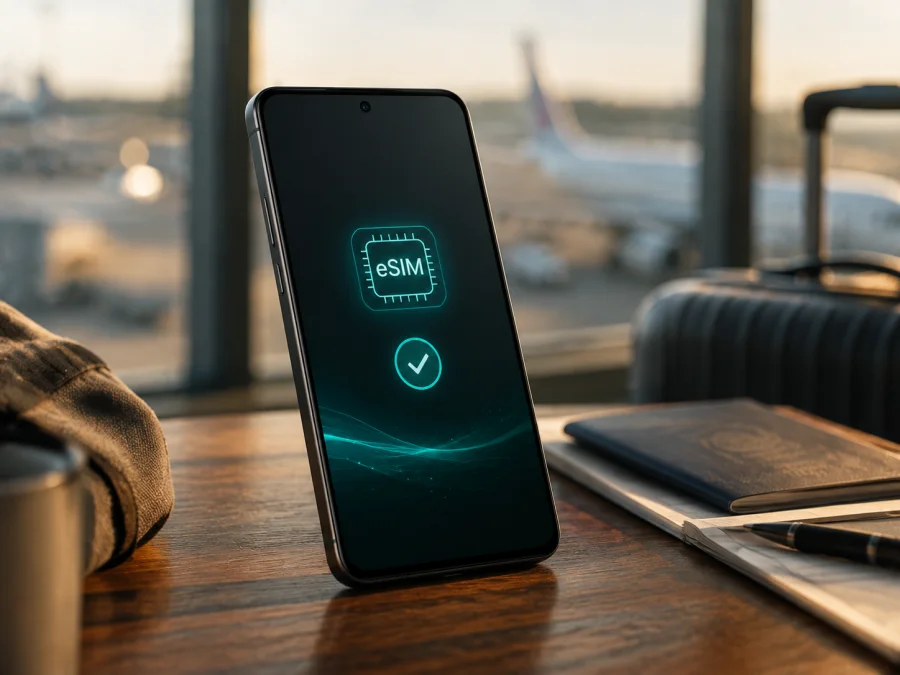
Asus Zenfone 12 Ultra 128GB eSIM: compatibility and setup
If you are planning a trip, the short answer is positive with one important qualification: the ASUS Zenfone 12 Ultra model family supports eSIM, but the exact “Asus Zenfone 12 Ultra 128GB” listing must be checked on the phone itself. ASUS’s current global technical specification lists eSIM support for the Zenfone 12 Ultra, and ASUS’s official eSIM support article identifies the Zenfone 12 Ultra (AI2501). However, the current global specification lists 256GB and 512GB storage options, not 128GB. The 128GB label may therefore be a market-specific listing, a seller catalogue error or a mismatch with another Zenfone model.
The safe conclusion is: a genuine Zenfone 12 Ultra/AI2501 is eSIM-capable, but compatibility for the exact Asus Zenfone 12 Ultra 128GB unit is confirmed only when its model, region, firmware and EID agree with the eSIM controls in Settings. Storage size and eSIM hardware are separate characteristics, so do not use “128GB” alone as proof either way.
Quick answer for the exact variant
An eSIM is a digital SIM profile stored in the phone. It can provide mobile data without inserting another physical SIM. ASUS lists eSIM support in the Zenfone 12 Ultra specifications and documents how to view the EID, add a profile, enable it and troubleshoot it. That is the relevant manufacturer confirmation for this family.
| Item | Current ASUS information | Meaning for this listing |
|---|---|---|
| Device | Zenfone 12 Ultra | Preserve the exact name Asus Zenfone 12 Ultra 128GB |
| Model reference | Zenfone 12 Ultra (AI2501) in ASUS eSIM support | Compare it with About phone and the box |
| eSIM | Supported in the Zenfone 12 Ultra specification | Positive indication, subject to region and provider |
| Physical SIM | Two nano-SIM slots are listed | Activating eSIM can change slot availability |
| Activation | QR code or manual activation code | Keep Wi-Fi or working data during setup |
| Active profiles | Only one eSIM can be enabled at a time | Stored profiles are not the same as active profiles |
| Storage | Global page lists 256GB and 512GB | 128GB remains an unconfirmed listing detail |
| Cellular bands | 4G/5G compatibility varies by region | Check the destination network and plan |
Does the Asus Zenfone 12 Ultra 128GB support eSIM?
For a genuine Zenfone 12 Ultra based on the AI2501 platform, yes, eSIM support is listed by ASUS. The manufacturer’s current global technical specification includes eSIM in the SIM section. Its official support FAQ also gives a Zenfone 12 Ultra eSIM flow: select eSIM, find the EID, add an eSIM and enable the profile.
The 128GB capacity is not shown on the current global Zenfone 12 Ultra specification. Treat “Asus Zenfone 12 Ultra 128GB” as the exact requested retail variant, but do not treat its storage label as an official confirmation. Check Settings > System > About phone, compare the model and software information with the box or invoice, and look for an EID. If there is no EID and no eSIM option, do not assume a QR code or update can add missing hardware.
Regional and operator differences
Phones with the same family name may be intended for different markets. Region can affect cellular bands and firmware. An operator can require an unlocked phone or decline a profile even when the hardware supports eSIM.
ASUS’s regional pages show why the physical-SIM arrangement matters. The Japanese Zenfone 12 Ultra specification lists eSIM support and explicitly says that eSIM and physical SIM slot 2 are mutually exclusive: when eSIM is enabled, the nano-SIM in slot 2 is disabled. ASUS’s global support FAQ describes Physical SIM 1 + eSIM as a dual-SIM mode and says that only one eSIM can be enabled at a time. Your regional build may display a slightly different combination, so read the on-screen warning.
What to check before buying an eSIM plan
Start with the handset, not the QR code. A QR code is only an activation method. Perform these checks while the device can still be returned:
- Confirm the model. Open Settings > System > About phone and compare the model name, number and software information with the box and invoice. If the phone sold as Asus Zenfone 12 Ultra 128GB identifies another generation, resolve the mismatch.
- Find the EID. ASUS explains that the EID is tied to the built-in eSIM chip. Its absence is a strong sign that eSIM is unavailable or not exposed by regional firmware.
- Find the eSIM control. ASUS’s documented path is Settings > Network & internet > SIM card > Switch SIM type > eSIM. Regional wording may differ, but look for an eSIM selection or Add eSIM control.
- Read the SIM warning. Activating eSIM can disable physical SIM 2. Decide which card remains in slot 1 and which line carries data.
- Check the operator lock. An operator-locked phone may reject a travel profile. eSIM support does not override a network lock.
- Check the plan. Confirm route, data allowance, validity, activation rule, hotspot conditions and data-roaming requirement.
- Prepare internet access. Keep Wi-Fi or working data available. If validity begins on installation, choose the timing carefully.
<a id="kesim-device-compatibility"></a>
Compatibility checklist
- [ ] The phone identifies as the correct Zenfone 12 Ultra model.
- [ ] The advertised 128GB capacity has been checked against the actual phone and documentation.
- [ ] An EID is visible.
- [ ] Settings offers eSIM or Add eSIM.
- [ ] The phone is not operator-locked.
- [ ] The device is updated and can connect to Wi-Fi or mobile data.
- [ ] The plan covers the destination and expected trip length.
- [ ] You understand which physical SIM slot may be disabled.
If you want a final reminder, Check your device against every item above. Complete this check before selecting or paying for a travel plan, especially when the listing includes the unverified 128GB modifier.
How to install and activate an eSIM
The Zenfone 12 Ultra can use a QR code or activation code supplied with an eSIM. Kaspersky eSIM Store is an app and website for choosing, arranging and activating a suitable mobile-data eSIM plan for a trip abroad; it is not a mobile operator, network owner or mobile-internet provider.
1. Connect to the internet
Connect to Wi-Fi or use working data from a physical SIM. ASUS recommends choosing SIM 1 for data while adding the eSIM.
2. Open the eSIM controls
Go to Settings > Network & internet > SIM card > Switch SIM type > eSIM. Read the notice about physical SIM 2. If the menu is missing, recheck the model, EID and update.
3. Choose Add eSIM
Tap Manage eSIM, then Add eSIM, then Set up an eSIM. Labels can differ by firmware or region.
4. Scan or enter the code
Choose the QR-code option and scan the code supplied with the eSIM. If scanning fails, choose Enter activation code and type the details exactly. A QR code displayed on the same phone may be impossible to scan; use another screen or paper.
5. Wait for download
Keep the connection stable while the profile downloads; this may take several minutes. Do not delete the profile because the first network search is slow. Check when validity starts.
6. Enable the profile
Return to Manage eSIM and turn on the travel profile. ASUS states that only one eSIM can be enabled at a time. Give the active profile a clear name such as “Travel data”.
7. Select mobile data
In SIM settings, select the travel eSIM for mobile data. Keep the primary SIM for calls or messages if needed and turn off its data roaming. If the plan requires roaming, enable it for the travel eSIM only.
For a visual walkthrough, use the Android installation instructions and, when helping someone with an iOS device or moving from an iPhone, the iOS installation instructions. These are general guides; the exact ASUS menu remains the authority for this phone.
When to install and activate
Installation and activation are not always identical. Downloading places a profile on the phone; enabling it lets it search for service. Validity may begin on installation, first connection or another event stated in the plan.
If you need data immediately after landing, install before departure on trusted Wi-Fi and leave the profile off until needed if permitted. If validity starts on installation, install close to departure. If you wait until arrival, keep the QR code offline and arrange Wi-Fi.
After activation, check for a signal and open a simple webpage. Avoid video streaming, updates or photo backup until the correct line is confirmed.
Using eSIM for mobile data while travelling
A practical setup is the primary line for your regular number and the travel eSIM for data. Enabling eSIM may disable physical SIM 2, so choose the card that remains in slot 1. Unless stated otherwise, a travel eSIM is data-only and does not include a number, voice calls or SMS.
Short city break
Install before departure, label the profile and select it for data after landing. Keep primary-line data roaming off.
Several countries on one route
Check whether the plan covers the whole region or one country. At a border, confirm the profile is enabled, the destination is included and data has not switched back.
Long stay or heavy use
Estimate maps, navigation and work use before choosing the allowance. Use trusted Wi-Fi for large updates and track validity.
Returning home
Switch data back to the primary SIM and turn off the travel profile. Do not clear it until it is no longer needed; ASUS says clearing removes its information and does not automatically cancel the plan.
Common problems and what to check
| Problem | First checks | Next step |
|---|---|---|
| No eSIM menu | Model, EID, update and region | Ask seller/provider to confirm the exact build |
| QR code will not scan | Brightness, full code, another screen and Wi-Fi | Use manual code or request a fresh one |
| Profile will not download | Internet, profile space and whether code was used | Restart once, then ask provider to verify it |
| “SIM already downloaded” | Whether it was installed on this or another phone | Ask provider to check the profile status |
| Profile is offline | Enabled profile, data-line selection, airplane mode and destination | Check data roaming for the travel eSIM and restart |
| Data is not being used | Correct data line, validity and any APN instruction | Test with a small webpage |
| Physical SIM 2 disappeared | eSIM switch and the warning shown | This may be expected; use slot 1 or disable eSIM |
| Network activation error | Signal, plan status, destination and unlock status | Send the error text and EID to the provider |
ASUS’s troubleshooting sequence is to turn off Airplane mode, confirm eSIM is selected and enabled, update the system and restart. If it still fails, the provider should verify the profile and roaming permission. If the phone reports insufficient eSIM space, remove only unneeded profiles; removal is permanent and only one eSIM can be enabled at a time.
FAQ
Is Asus Zenfone 12 Ultra 128GB definitely eSIM-compatible?
ASUS lists eSIM support for the Zenfone 12 Ultra / AI2501 family, but the 128GB capacity is not shown on the current global Zenfone 12 Ultra specification. Confirm the individual handset with its EID and eSIM menu. If both are missing, treat the unit as incompatible until the regional build is clarified.
Can two physical SIMs and an eSIM be active together?
Not necessarily. ASUS documents Physical SIM 1 + eSIM as a dual-SIM mode, one active eSIM at a time and, on the Japanese regional specification, eSIM and slot 2 as mutually exclusive. Follow the warning on your own phone.
Where is the EID?
Use Settings > System > About phone > Status > EID. You may first need Settings > Network & internet > SIM card > Switch SIM type > eSIM. No EID means you should pause and recheck the model and firmware.
Can a data-only travel eSIM replace my normal number?
Usually no. Unless the selected plan expressly includes it, a travel eSIM supplies mobile data rather than an ordinary number, voice calls or SMS. Keep the primary line for those services and use internet messaging apps where suitable.
Should data roaming be enabled?
It depends on the plan. Some travel profiles require roaming to use a partner network. Enable it for the travel eSIM only when required, and check that the primary SIM is not the selected data line.
What is Kaspersky eSIM Store?
Kaspersky eSIM Store is an app and website that helps you choose, arrange and activate an eSIM with a suitable tariff for mobile internet during an international trip. It is not a mobile operator, network owner or mobile-internet provider. The selected plan determines destinations, data and validity.
Final device check and travel eSIM plan
Before paying for a plan, complete this final sequence for Asus Zenfone 12 Ultra 128GB:
- Verify the model and region in About phone and compare them with the box or invoice.
- Confirm that an EID is visible and that Settings offers eSIM or Add eSIM.
- Confirm that the phone is unlocked and the destination is covered by the selected plan.
- Check whether enabling eSIM disables physical SIM 2 on your regional build.
- Choose by destination, route, data allowance, validity and activation rules.
- Install with Wi-Fi or working data, then select the travel eSIM for mobile data.
- Keep the QR code, plan details and support route accessible during the trip.
Kaspersky eSIM Store can help you choose, arrange and activate the eSIM plan for that journey. The final compatibility decision belongs to the actual phone and selected plan: verify the device first, then prepare your travel eSIM.


