Travel connectivity guide
Asus Zenfone 12 Ultra 512GB eSIM Compatibility
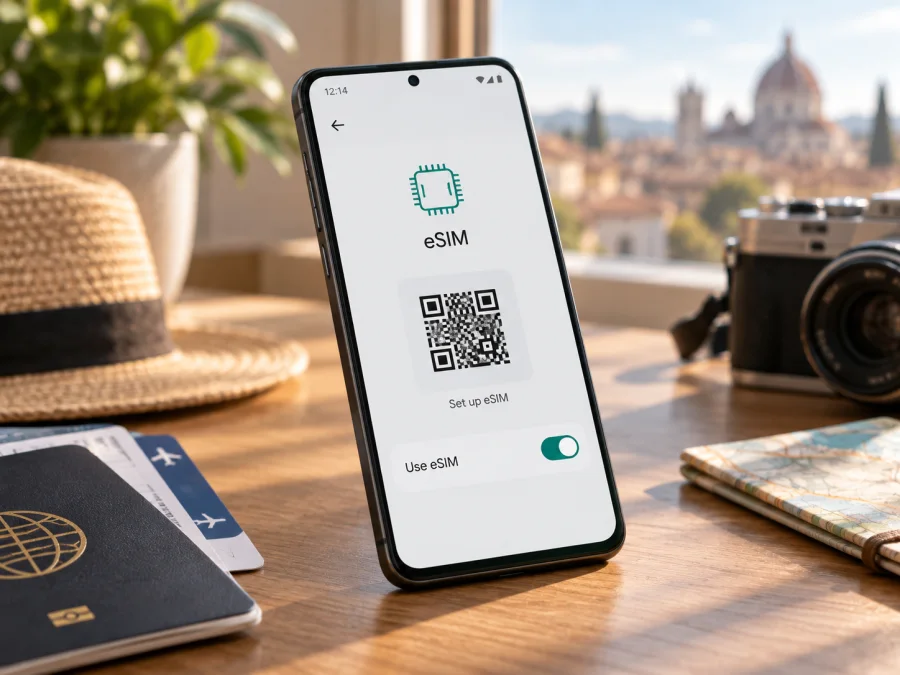
Asus Zenfone 12 Ultra 512GB and eSIM: compatibility and setup
The Asus Zenfone 12 Ultra 512GB supports eSIM according to ASUS’s current global technical specifications for the Zenfone 12 Ultra. ASUS’s official eSIM setup guide also names the Zenfone 12 Ultra (AI2501). The 512GB storage label does not indicate a separate eSIM limitation. However, eSIM availability can depend on the exact regional model, software configuration, and mobile provider. Check the phone itself for an EID or an eSIM menu, and confirm that it is unlocked before arranging a travel plan.
ASUS documents eSIM as a model-level feature rather than separately for each storage capacity. If your box, invoice, or About phone screen gives a regional model code other than AI2501, confirm eSIM support for that exact code with ASUS or the seller. This matters most for imported and carrier-supplied units: a page for the global model family cannot guarantee that every regional configuration has the same firmware or provisioning.
Asus Zenfone 12 Ultra 512GB eSIM compatibility at a glance
| Item | What to know |
|---|---|
| Device variant | Asus Zenfone 12 Ultra 512GB |
| ASUS model named in eSIM instructions | Zenfone 12 Ultra (AI2501) |
| eSIM support | Listed in ASUS global technical specifications for Zenfone 12 Ultra |
| On-device checks | EID, “Switch SIM type,” “Manage eSIM,” or “Add eSIM” in Settings |
| Setup methods | Scan a provider QR code or enter an activation code |
| SIM behavior | Selecting eSIM may disable the physical card in SIM slot 2; follow the phone’s prompt |
| Qualification | Functionality may vary by carrier, country or region, device model, and software |
The practical answer is yes, the Zenfone 12 Ultra model family supports eSIM, and ASUS’s setup guide covers AI2501. The 512GB storage capacity is not presented as a separate condition. Still, verify the unit you own before paying for a plan: the model code, regional software, carrier lock, and provider compatibility matter.
An eSIM is a digital SIM profile stored by the phone’s embedded SIM hardware. For travel, it can provide mobile data without removing your everyday SIM. Many travel plans are data-only; they do not automatically include an ordinary phone number, voice calls, or SMS. Check the terms of the specific plan. Messaging and internet calls may work through apps over data.
Regional versions, carrier status, and SIM behavior
ASUS’s global specifications list eSIM, and its official setup and troubleshooting guide names Zenfone 12 Ultra (AI2501). The guide shows where to find EID and how to add and enable an eSIM. ASUS also says support functions may vary by provider, country or region, and device model. Treat the model documentation as confirmation of the feature, then check the particular phone and service you intend to use.
A carrier-branded phone may have a network lock or other restrictions. An EID confirms the presence of eSIM hardware; it does not prove that a different carrier will accept activation. If the phone came from a mobile provider or was purchased second hand, check its unlock status with that provider or seller. Ask whether the exact device can use another provider’s eSIM profile.
Pay attention to the SIM-slot note in ASUS’s setup directions: switching to eSIM may disable the physical card in SIM slot 2. Do not assume that two physical SIMs and an eSIM can all remain active together. Read the prompt before switching, then check which lines are enabled. The number of profiles the phone can store and the supported active combination may depend on eSIM capacity and software; follow the messages shown on your handset.
Check eSIM on your own Asus Zenfone 12 Ultra 512GB
Use the menus on your phone as the final compatibility check. Their names can vary with Android version, region, and ASUS software. If a path differs, search Settings for “EID” or “eSIM.”
- Check the model code. Open Settings → System → About phone and note the model number. ASUS names AI2501 in its eSIM instructions. Compare your code with the regional device information from ASUS or the seller.
- Find the EID. ASUS lists Settings → System → About phone → Status → EID. The Status submenu may be elsewhere on some builds; Settings search can help. The EID is a long device identifier, so share it only through a trusted support channel when necessary.
- Look for the eSIM selector. ASUS describes Settings → Network & internet → SIM card → Switch SIM type → eSIM. An eSIM choice or Manage eSIM entry is a positive sign that your software exposes the feature.
- Check for profile setup. Under Manage eSIM, look for Add eSIM or Set up an eSIM. You can inspect this without scanning a QR code or installing a profile.
- Verify carrier restrictions. If the handset came from a provider, ask whether it is unlocked and whether it permits eSIM activation with another provider.
- Resolve missing options before purchase. Give ASUS support or the seller the model code, region of purchase, and software version. Ask whether that exact version supports eSIM or needs an update.
If EID and eSIM menus are missing, restart the phone, install official system updates over Wi-Fi, and check again. If they remain absent, pause before buying and ask ASUS about the exact code and region.
Check whether your device is compatible
Install and activate an eSIM
Before setup, connect the phone to reliable Wi-Fi and keep the eSIM QR code or activation details available on another screen or printed page. Read the plan’s instructions for when validity begins: some plans start at installation, while others start on first connection or another activation event. Do not assume download and activation happen at the same time. A QR code may be single-use, so do not scan it repeatedly or delete a profile to troubleshoot unless the provider says to.
Step-by-step setup on the Zenfone
- Check the plan and device. Confirm EID/eSIM support, unlock status, destination coverage, data allowance, validity, and the plan’s start condition.
- Connect to Wi-Fi. ASUS recommends Wi-Fi or mobile data for setup. Wi-Fi keeps the existing connection available while the profile downloads.
- Open eSIM settings. Go to Settings → Network & internet → SIM card → Switch SIM type → eSIM, or the closest equivalent. Review any notice about the physical SIM in slot 2 before confirming.
- Start adding a profile. Open Manage eSIM → Add eSIM → Set up an eSIM or the corresponding option shown on your phone.
- Download the profile. Scan the QR code supplied with your plan. If needed, use manual entry and type the activation code exactly as provided. Treat both as private credentials.
- Wait for confirmation. Keep the phone online until the download finishes. An installed profile may still need to be enabled or reach its activation condition before it has service.
- Label and select the line. Name it “Travel data” or by destination. When ready, choose it for mobile data. Keep your home SIM configured for calls or SMS if your plan and device arrangement allow it; check home roaming charges.
- Set data roaming if required. Some travel plans need roaming enabled on the travel eSIM. Enable it for that profile when instructed, and leave it off for your home SIM if you want to avoid roaming charges there.
- Test mobile data. In a covered area, temporarily turn off Wi-Fi and load a simple webpage. Confirm that the travel profile is selected for data and that the connection follows the plan instructions.
For device-specific steps, see the Android eSIM installation instructions. If you are helping someone with an Apple device, the iOS eSIM installation instructions cover that platform. Always follow the activation timing and conditions provided for your own plan.
Many travelers install over Wi-Fi at home and select the travel profile for data after landing. Follow the plan’s activation rules, label each line, and keep setup details available offline.
Kaspersky eSIM Store is an app and website where you can choose, arrange, and activate an eSIM with a mobile data plan for an overseas trip. Check destination coverage, allowance, validity, and activation notes; service depends on local networks.
Practical travel scenarios
A trip to one country. If the plan allows advance installation, add the profile before departure. On arrival, select it for data, enable roaming for that line if required, and test a connection. Note the plan’s data amount and expiry rule.
Several countries. Confirm every destination is covered; service in one country does not guarantee service across a border. Label profiles and check the selected line before each stop. A regional plan’s coverage list should match your itinerary.
Keeping your regular number. You may use a home SIM for calls or verification texts and a travel eSIM for data. Check home-provider charges for roaming, incoming calls, and SMS. Because ASUS notes that eSIM mode may disable SIM slot 2, verify the active line arrangement before relying on two numbers.
Maps and messaging. Mobile data can support maps, email, ride services, and internet calls where available. Download offline maps first. Confirm a separate arrangement if you need conventional calls or SMS.
A layover. Check transit-country coverage and when validity starts; do not assume a country-specific plan covers nearby destinations.
Troubleshooting: when setup or data does not work
No EID or Add eSIM option. Restart and search Settings for “EID” and “eSIM.” Check for official ASUS system updates, then verify the precise model code and region with ASUS or the seller. Do not attempt to install an unrelated QR code; ask about that specific handset before buying a plan.
QR scanning or download fails. Check Wi-Fi, confirm the code belongs to the plan, and make sure it has not already been used. Increase screen brightness or enter the activation code manually if supported. Save the error message and contact the provider before retrying a single-use code or deleting a profile.
The profile is installed but has no service. Confirm you are in a covered destination and that plan validity has begun. Check that the profile is enabled and selected for mobile data; enable data roaming on that line if required. Toggle airplane mode or restart, then allow the phone time to register. Use manual network selection only if the plan instructions recommend it.
The wrong SIM is supplying data. In SIM or mobile network settings, verify the selected data line. Check calls and messages separately; enabling a profile does not automatically make it the default for every service.
A physical SIM stopped working. Return to Switch SIM type and review the status of each line. ASUS warns that selecting eSIM may disable the physical card in slot 2. Restore the arrangement you need where available, and contact your home provider if the number still has no service.
Data is slow. Test with Wi-Fi off in an area with stronger signal. Indoor coverage can vary, and 5G depends on the local network and plan.
Before deleting an eSIM or resetting the phone, contact the provider or ASUS. The original QR code may not work again; ask whether a profile can be reissued.
Frequently asked questions
Does Asus Zenfone 12 Ultra 512GB support eSIM?
ASUS lists eSIM for the Zenfone 12 Ultra and its support instructions name AI2501. The 512GB capacity is not shown as a separate restriction. Check the model code, EID, and eSIM menu on your own phone because regional or software differences may matter.
Does a travel eSIM include a phone number?
Not necessarily. Many travel eSIMs are data-only. Check the plan terms for calls and SMS; internet calling and messaging apps can use mobile data where available.
Should I install it before departure?
Installing over Wi-Fi can be convenient, but the plan may start at installation or at a later connection event. Follow its activation instructions and avoid deleting a working profile while travelling.
Before you travel: verify the phone and choose the plan
ASUS documentation supports eSIM on the Zenfone 12 Ultra family and specifically covers AI2501, making the Asus Zenfone 12 Ultra 512GB an eSIM candidate. Confirm your own handset’s code, EID or setup menu, and unlock status. Keep the SIM slot 2 notice in mind if more than one line must stay active.
Then match the plan to your route and data needs. Check covered destinations, allowance, validity, activation timing, and whether anything beyond mobile data is included. Follow the provider’s steps and test the connection when service should be available. Kaspersky eSIM Store’s app and website let you choose, arrange, and activate an eSIM with a mobile data plan for an overseas trip. Verify compatibility before arranging a plan, and keep its setup details until the phone is online.


