Travel connectivity guide
Batken eSIM: Mobile Internet for Your Trip
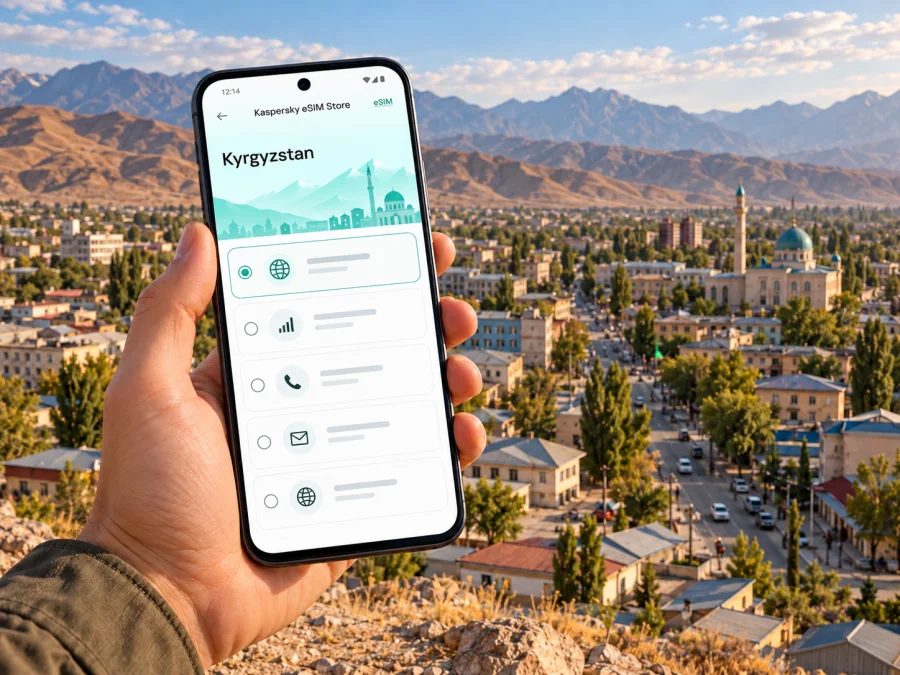
Batken eSIM for mobile connection and internet: a practical travel guide
Batken is the administrative centre of Batken Region in southwestern Kyrgyzstan. If you are travelling here, mobile internet can help with the airport transfer, directions through town, accommodation messages, and coordination with people you are meeting. An eSIM can be a convenient way to prepare data access without replacing your regular physical SIM, provided your phone supports eSIM and the selected plan covers Kyrgyzstan.
Batken is a regional city rather than a large international hub. Travel plans may include a domestic flight, a road journey from another Kyrgyz city, or onward travel around the region. This makes preparation useful: save your lodging address, confirm how you will get from your arrival point, and decide which number or connection you will use for calls and messages. Details such as flight times, local transport, and network availability can change, so verify them close to departure.
Why mobile data helps in Batken
A connection is most useful when it solves a particular task. In Batken, you may need to find your accommodation, share a location with a driver, translate a short message, check a meeting time, or contact your host after a change in plans. A working map and messaging app can make these steps easier, especially if you arrive outside the hours when a hotel desk or local office is easy to reach.
An eSIM is a digital SIM profile installed on a compatible device. A travel eSIM plan is commonly intended for mobile data; it may not include a Kyrgyz phone number, ordinary calls, or SMS. Check the terms of the specific plan. If you need voice calls or local SMS verification, arrange a separate option, such as keeping your home SIM active for calls or asking a local mobile operator about its current service and registration requirements.
A travel eSIM does not guarantee a signal at every address. Reception depends on the local network, the device, the building, and the route. City-centre performance cannot be used to predict service on a road outside Batken or in a more remote part of the region. Keep an offline fallback for essential information.
Common arrival and city scenarios
| Situation | How mobile internet can help | Useful preparation |
|---|---|---|
| Arriving at Batken Airport | Open a map, message your host, or coordinate a pickup | Save the address and agree on a meeting point before boarding |
| Reaching a guesthouse or hotel | Check the route and send an update if plans change | Keep the property name and phone contact somewhere available offline |
| Moving between appointments | Review directions and share an estimated arrival time | Download an offline map area if your app supports it |
| Working remotely | Join a call, send files, and check calendar updates where service permits | Ask your accommodation about Wi‑Fi and have a mobile-data backup |
| Taking a day trip beyond town | Follow the route and tell someone about schedule changes | Check the route, transport, and connectivity separately before leaving |
The table describes possible uses, not a promise of network service. If a call or meeting is time-critical, confirm the route and venue directly and make sure you have a second way to reach the other person.
Arrival: plan the first connection
Batken Airport serves the city, and Asman Airlines lists Batken among its domestic destinations. Operating days and schedules can vary by season and update; check the current timetable with the airline before travelling. Do not assume that a flight shown in an old search result is still operating on your date.
Before departure, save the following on your phone and, if practical, on paper:
- the complete accommodation address, including the name as written by the property;
- a contact number or messaging contact for your host;
- your arrival and transfer details;
- a map pin for the airport and accommodation;
- any booking or appointment reference you may need to show;
- an offline translation or notes with key names and addresses.
After landing, use the connection method you prepared. If your eSIM is already installed, select it for mobile data only when you are ready to use it and the plan instructions say it is time to activate it. If installation requires a stable internet connection, complete the download before departure while connected to reliable Wi‑Fi. Keep your usual SIM profile available if you still need its number for calls or one-time codes.
Do not rely on a QR code as your only copy of the setup information. Save the purchase and installation instructions somewhere accessible on the device, and keep a copy in a secure account or another device. Follow the plan-specific instructions about when validity begins; installing a profile and starting a plan are not necessarily the same event.
A simple first-hour checklist
- Check that the phone has power and that your accommodation details are available offline.
- If you are meeting a driver, use the agreed pickup point and send a brief message when possible.
- Select the correct line for mobile data in your phone settings.
- Confirm that data roaming is enabled for the travel eSIM only if its instructions require it.
- Open a map or message to check whether the selected line can connect.
- If it does not connect, use Wi‑Fi if available, review the plan settings, and contact the service provider through its stated support channel.
An eSIM profile can take time to register on a local network. Avoid repeatedly deleting and reinstalling it: some profiles cannot be transferred or downloaded again after removal. Check the plan instructions or support guidance before removing an installed profile.
Moving around Batken
For a short stay in town, mobile data is useful for checking a route, communicating with accommodation, and updating plans. Keep a locally written address as well as a map pin: spelling and transliteration can differ between booking details, map labels, and what a driver recognises. If a destination is important, ask the host to confirm the best name or landmark to use when arranging a ride.
Treat navigation apps as a guide rather than the final authority. A mapped route may not reflect temporary roadworks, access restrictions, weather, or local instructions. Confirm unfamiliar routes with your host or driver, particularly when you are travelling late, carrying luggage, or heading beyond the urban area. If you use a taxi or private transfer, agree on the destination and any fare terms before departure.
Batken Region shares international borders with Tajikistan and Uzbekistan. That regional geography does not mean that a trip across a border is a routine extension of a city journey. Border procedures, checkpoint status, road access, and travel requirements may change. If your itinerary goes toward a border area or another country, confirm the route and current official requirements before setting out; do not use a map alone to decide whether a crossing is open or suitable for your trip.
Mobile access can be especially helpful when plans change, but do not make navigation dependent on continuous data. Download an offline map for the area you expect to visit, write down key directions, and tell someone your broad itinerary for a longer road journey. Offline maps do not replace current road or border information.
Choosing an eSIM plan for Batken
For a city stay, choose by destination, duration, and the way you expect to use data. A plan listed for Kyrgyzstan is the relevant starting point for a visit to Batken; a city name alone does not determine what a plan covers. Read the plan details to confirm the country or region, data allowance, validity, start conditions, and any fair-use or tethering limits that matter to you.
Use these questions to estimate what you need:
- How long will you stay? Match the validity period to the trip and check when the clock starts.
- What will you do online? Maps, messaging, email, and occasional browsing use data differently from frequent video calls or streaming.
- Will you work remotely? Check your accommodation’s Wi‑Fi, video-call reliability, and backup arrangements instead of assuming mobile data alone will support every meeting.
- Will you travel outside Batken? Confirm that the plan is valid for the full itinerary and remember that a country-level plan does not promise coverage in every location.
- Do you need a local number? Many travel eSIM plans are data-only. Check the plan terms or arrange a separate voice/SMS option if needed.
Kaspersky eSIM Store is an app and website where you can choose, arrange, and activate an eSIM with a suitable plan for mobile internet on an international trip. To review the available destination options for your own dates, explore eSIM plans for Kyrgyzstan. The page is for the country; check its current plan conditions before choosing, and do not treat it as a Batken-specific coverage map.
Travel eSIM or local operator eSIM?
These are different choices. A travel eSIM plan selected through Kaspersky eSIM Store is intended to help prepare mobile data for an overseas trip, subject to the plan’s stated terms. Local operators in Kyrgyzstan also publish eSIM information, but their registration steps, eligibility, identity checks, number features, and activation process are their own. Verify those requirements directly with the operator if you want a local number or local voice and SMS service.
Neither option should be selected on the assumption that a particular phone model or every regional variant will work. The phone must support eSIM, be eligible for use with another profile, and be free of any carrier restriction that prevents adding it. If you are unsure, check the device settings and manufacturer information before paying.
Check your device before purchase
Some phones sold under the same model name differ by sales region. eSIM support can depend on the exact model number, market version, and carrier lock status. Check the device’s specifications and settings for an option to add an eSIM, and ask the seller or original carrier about restrictions if the phone was purchased through a mobile plan.
Before you select a plan, confirm:
- the exact model and regional variant support eSIM;
- the phone is not locked in a way that blocks another eSIM profile;
- you can connect to Wi‑Fi or another line during installation;
- you know which line will handle mobile data after installation;
- your essential calls and SMS can still reach the number you need.
You can check whether your device supports eSIM. If the model is not listed or the regional version is unclear, use the manufacturer’s information or contact the seller; do not infer support from a similar-looking model.
Install and activate before you travel
The safest time to add a profile is when you have reliable Wi‑Fi, enough battery, and time to read the instructions. The exact screens vary by device and operating-system version. Use the plan’s activation directions and keep the profile installed until you have confirmed that you no longer need it.
- Check the plan details. Confirm Kyrgyzstan is included, and review the validity period, activation trigger, data conditions, and support route.
- Connect to Wi‑Fi. Keep the device online while you add the profile if the instructions require internet access.
- Add the eSIM. Scan the supplied QR code or follow the in-app installation flow. Do not share the QR code; it may contain private activation details.
- Label the line. Use a clear label such as “Travel data” so you can distinguish it from your home SIM.
- Choose the data line at the right time. Select the travel eSIM for mobile data when the plan says it can be used. Keep your regular number selected for calls or SMS if needed.
- Check roaming settings. Enable data roaming for the eSIM only when the plan’s instructions say to do so. Avoid changing settings for the wrong SIM.
- Test after arrival. Allow time for registration, then check the signal and open a basic web page or message.
For device-specific steps, follow the Android eSIM installation guide or the iOS eSIM installation guide. Menu names can differ between phone brands and software versions.
If you prefer to install after landing, make sure you can access the required QR code or account and have an internet connection for setup. That may mean using airport or accommodation Wi‑Fi temporarily. Keep a backup method for contacting your host while the eSIM is being added.
If the connection does not work
A missing data connection can have several causes; it does not automatically mean the plan is invalid. Work through the basics calmly:
- Confirm that the eSIM profile is present and switched on.
- Check that it is selected as the mobile-data line.
- Review the plan instructions for network selection and data-roaming settings.
- Turn airplane mode on briefly, then off, or restart the phone if appropriate.
- Check that the plan’s validity has started and that data remains available.
- Move to a different location, since indoor reception can differ from outdoor reception.
- Use Wi‑Fi to contact the service’s support if the issue continues.
Avoid deleting the eSIM as an early troubleshooting step. Some profiles are single-install or cannot be restored without assistance. If a support team asks for diagnostic information, share only what is necessary through its official support channel.
For urgent directions, switch to a saved offline map or ask your accommodation to help confirm the route. A second phone, home-SIM roaming, or a local connection may be useful as a backup, depending on your device and travel needs.
What to keep available offline
A short offline pack reduces stress if data is delayed or unavailable. Store it securely and avoid exposing identity documents or QR activation codes to other people.
- accommodation name, address, and contact details;
- airport transfer or driver arrangement;
- flight or bus details and booking references;
- map of the city and planned route;
- names and phone numbers for meeting contacts;
- eSIM installation instructions and support details;
- a note of which SIM should handle calls, SMS, and mobile data.
Offline information should be current. Refresh maps and bookings before departure, and confirm schedules with the provider rather than relying on a screenshot from an earlier trip.
Frequently asked questions
Is an eSIM useful for a trip to Batken?
It can be useful if your phone supports eSIM and the selected plan includes Kyrgyzstan. It may help with maps, messaging, and travel arrangements. Check the plan terms and remember that availability depends on the local network and your location.
Does a travel eSIM give me a Kyrgyz phone number?
Not necessarily. Many travel eSIM plans provide mobile data only. Check the individual plan details if you need ordinary calls, SMS, or a local number; those features should not be assumed.
Can I use an eSIM at Batken Airport?
You can use a travel eSIM there only if the profile is installed, the plan is valid for Kyrgyzstan, and a compatible local network is available at your location. Prepare the profile before travel and keep airport or accommodation Wi‑Fi as a backup.
Will the same signal be available throughout Batken Region?
No single city-centre check can establish reception for the whole region. Coverage varies by operator, terrain, buildings, device, and route. Check current operator information for places on your itinerary and save essential directions offline.
Should I buy a plan before departure?
That can make setup easier if you have confirmed device compatibility, plan coverage, and activation timing. If you are still comparing options, review current terms and make sure you understand when validity begins before completing the purchase.
Can I keep my regular SIM active?
Often a dual-SIM phone can keep a physical SIM and an eSIM profile available, but behaviour varies by device and settings. Confirm which line handles mobile data and review your home carrier’s roaming charges if its SIM remains enabled.
What if my phone does not support eSIM?
Use another compatible device or ask a local operator about a physical SIM and its registration requirements. A similar model name does not prove eSIM support; check the exact regional version first.
Prepare your Batken connection
Before you go, confirm the destination, check your device, compare the plan’s validity and data terms with your itinerary, and save essential details offline. Kaspersky eSIM Store helps you choose, arrange, and activate an eSIM plan for mobile internet on an international trip. When you are ready, review eSIM options for Kyrgyzstan and select a plan only after confirming its current terms for your travel dates.


