Travel connectivity guide
Blantyre eSIM: Mobile Internet in Malawi
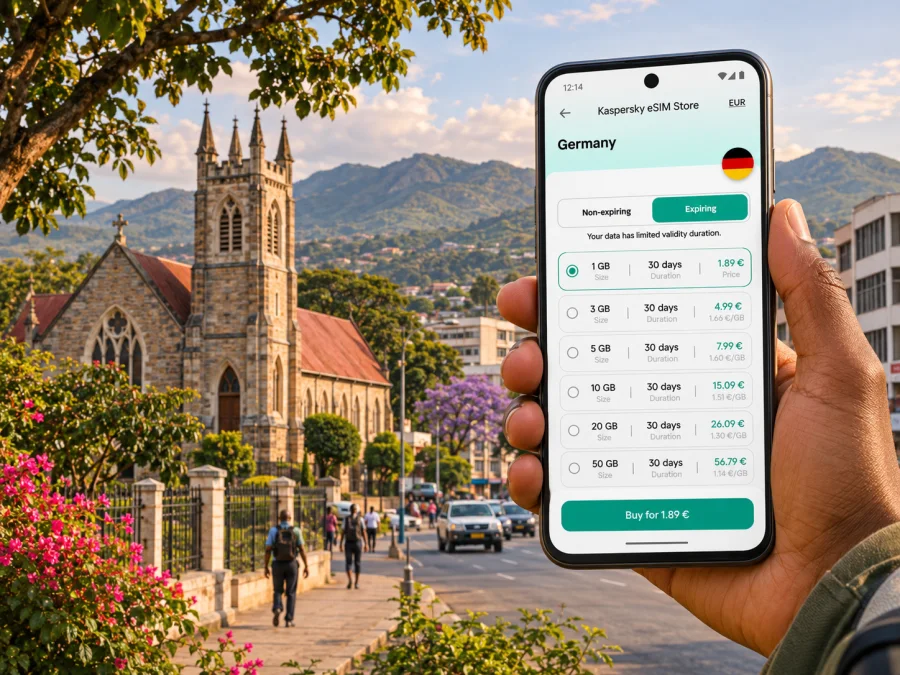
Blantyre eSIM for mobile connection and internet
Blantyre is Malawi’s commercial city and a practical starting point for work, city visits and trips through the south of the country. A mobile connection can help you confirm an airport pickup, reach your accommodation, check a route between Blantyre and Limbe, and stay in touch while plans change. An eSIM can prepare mobile internet without replacing the SIM already in your phone, provided that your device supports eSIM and is not locked to another carrier.
This guide focuses on using mobile data in Blantyre: what to plan before landing at Chileka International Airport, how to think about travel across the city’s two traditional centres, which details to check in a data plan, and what to do if the connection does not start as expected. Network availability and performance can vary by neighbourhood, building, device and time. Treat online maps and messaging as useful tools, and keep key addresses available offline as a backup.
Why mobile data is useful in Blantyre
Blantyre is not a single compact stop around the airport. The city’s commercial centre, accommodation, shops and places of interest are spread across an urban area that also connects with Limbe. Malawi Tourism describes development between the traditional centres of Blantyre and Limbe, with shopping areas, services and visitor sites in between. That matters when you are arranging a pickup, meeting a colleague or trying to estimate how much time to leave between appointments: check the exact destination and traffic conditions rather than assuming two places with “Blantyre” in their address are next door.
Mobile data is especially useful for small decisions that come up throughout a day:
- opening a map while travelling between your hotel, the business centre and Limbe;
- sharing a live location or arrival update with a driver or host;
- checking the latest message about a meeting place or airport pickup;
- looking up opening hours, contact details or directions before setting out;
- translating a short message or confirming a booking while away from Wi-Fi;
- checking a flight update before the return journey.
A connection is not a substitute for local advice or a confirmed transport arrangement. Save your destination’s name, address and phone number before leaving a Wi-Fi connection. If you are meeting someone, agree on a precise entrance or landmark in advance instead of relying on a pin alone.
Arrival at Chileka International Airport
Chileka International Airport (BLZ) is located in Blantyre and serves the southern region of Malawi. The Ministry of Transport lists Blantyre among the country’s two primary international-airport locations, and the airport operator publishes flight information. Schedules can change, so use your airline and the airport’s current information for the specific date rather than relying on an old timetable.
Before you travel, make a simple arrival plan:
- Save the accommodation details. Keep the full address, a contact number and a map pin in your phone. A screenshot or note remains accessible if mobile data is unavailable.
- Agree on the pickup. Confirm the driver’s name, vehicle details if available, meeting point and what to do if the flight is delayed. Do not assume you will have a working data connection the moment you land.
- Keep your home SIM available if needed. An eSIM for mobile data can often be used alongside a physical SIM, but dual-SIM behaviour depends on the phone. Decide which line handles calls and which one handles mobile data.
- Check the route before leaving. Ask your host or driver about the expected journey to your destination and whether a stop is planned. A map can help with orientation, but it cannot confirm local road conditions.
- Use airport Wi-Fi only as a bridge. If you connect to Wi-Fi to message your driver or check setup instructions, switch to your intended data line when you leave the terminal and confirm that it is selected for mobile data.
If your arrival is late or you have a short onward connection, prepare more than one way to find your next step. Keep booking confirmations accessible offline, let your contact know your flight number and avoid depending on a single messaging app or map session. For a short stop, you may use very little data if you download maps and tickets first; live directions, video calls and frequent uploads can use much more.
Getting around between Blantyre and Limbe
Blantyre and Limbe function as linked urban centres for visitors, but a trip between a hotel, an office and a market still takes planning. Names in a map app may refer to a neighbourhood, a business or a nearby landmark. Confirm the destination with the person you are meeting, and share the written address with the driver when possible. If a route looks unfamiliar, check it before you set off and confirm any change in person.
| Situation | What mobile data helps with | What to prepare as a backup |
|---|---|---|
| Airport to hotel | Confirming a pickup and checking the destination pin | Address, host’s number and pickup instructions saved offline |
| Blantyre centre to Limbe | Reviewing the route and messaging about arrival time | Destination name written exactly as provided; extra time for the trip |
| Business appointments | Updating colleagues if a meeting time or location changes | Calendar entry, phone numbers and meeting address stored locally |
| Shopping or errands | Checking opening details and finding a place | A landmark or cross-street to use if the pin is unclear |
| Evening return | Contacting your host or driver and checking the route | Transport arranged in advance; do not rely on a map alone |
A map app may reroute when location data shifts or a road is difficult to identify. If the suggested route seems wrong, pause somewhere safe and verify with your driver or host. Avoid typing while walking through traffic or while riding. Download an offline map of the areas you expect to visit, then use mobile data for updates and searches when available.
For walking, use directions as orientation rather than a guarantee that every route is suitable on foot. Road layout, pedestrian access, lighting and local conditions can differ from what a map suggests. Ask your accommodation for area-specific guidance, especially if you plan to walk after dark or leave the main business and shopping areas.
Choosing an eSIM plan for a Blantyre trip
A city-specific page does not mean that the mobile-data plan is limited to Blantyre. The relevant destination is Malawi, and the plan’s own terms determine where it can be used, how much data is included and how long it remains active. Before purchase, look for Malawi in the coverage details and check any regional limitations. Do not infer a particular network, speed or city-level coverage from the word “Malawi” alone.
Kaspersky eSIM Store is an app and website where you can choose, arrange and activate an eSIM with a suitable plan for mobile internet on an international trip. Review the plan details shown for your destination before deciding. You can browse eSIM options for Malawi and compare the data allowance, validity period, price and activation conditions available at the time of purchase.
A practical way to estimate data is to list what you will actually do. A trip with maps, messaging and occasional email usually has a different pattern from one with frequent video meetings, cloud backups or streaming. The following guide is a planning aid, not a promise about usage; apps vary, and automatic updates can consume data in the background.
| Travel use | Data-planning approach |
|---|---|
| Maps and short searches | Download an offline map first; use mobile data for live searches and route changes |
| Messaging and email | Keep automatic media downloads limited if your plan is small |
| Voice or video calls | Prefer audio when practical; calls can use data continuously |
| Photos and cloud storage | Pause automatic backups until you are on trusted Wi-Fi |
| Hotspot for a laptop | Check the plan terms and monitor usage; a computer can sync large files without warning |
| Several days of mixed use | Estimate by day, then include a buffer for changes and unexpected uploads |
Consider the number of days you will need data, whether you will leave Blantyre for other destinations, and whether you can use reliable Wi-Fi at your accommodation or workplace. If you continue to Limbe, Thyolo, Zomba, Mulanje or another part of Malawi, check that the selected plan covers the full route. A city visit and an overland journey are different use cases; data availability away from urban areas may vary, and maps should be saved before departure.
Check your phone before buying
Support for eSIM depends on the exact phone model and the market variant, not just the product family name. Some devices sold under the same model name differ by region, and a carrier lock can prevent activation with another provider. Check the phone’s own settings or manufacturer documentation for your exact model and confirm that it is unlocked. Check whether your device supports eSIM before completing a purchase.
Apple’s current carrier-support information lists eSIM for Airtel in Malawi. That confirms a local carrier’s listed capability in Apple’s carrier table; it does not guarantee that every iPhone variant, every account or every travel-data plan will work in the same way. If you are considering a local Airtel service, confirm current eligibility and activation requirements with Airtel directly. A travel eSIM is a separate product: check the chosen plan’s terms and supported network information rather than assuming it uses a named local operator.
Before departure, check these items:
- Your exact device variant supports eSIM.
- The device is not carrier-locked.
- You can access a stable internet connection during installation.
- You know whether the plan begins on installation, activation or first connection; this depends on the plan terms.
- You have saved the QR code or installation details where you can retrieve them.
- You understand whether the plan is data-only and whether it includes calls or SMS. Do not assume it supplies a local phone number.
- You know how to contact support if setup fails.
Keep your regular number active for calls or verification messages if you need it. Your phone may allow a physical SIM and eSIM to remain installed together, but the available line combinations and settings vary by model. Decide in advance which line should use mobile data, and check that roaming on your home line is disabled if you want to avoid unintended charges. Follow the conditions for the eSIM itself; some plans may require data roaming to be enabled on that profile.
Install and activate before or after arrival
If the plan allows installation before travel, setting up the eSIM at home gives you time to read the instructions and resolve device questions while you still have dependable Wi-Fi. Installation and activation are not always the same event. Some plans start their validity when installed, while others start at first connection or at another point defined in the terms. Check this detail before scanning a QR code, particularly if you are buying well ahead of the trip.
A careful setup sequence is:
- Connect to reliable Wi-Fi and open your purchase or installation instructions.
- Add the eSIM using the method provided for your phone, such as a QR code or in-app installation flow.
- Label the new line clearly, for example “Malawi data”, so you can identify it in settings.
- Keep your home line selected for calls and messages if that is what you want.
- Set the eSIM as the mobile-data line when the plan should begin, following its activation terms.
- If required by the plan, enable data roaming for the eSIM profile. Check that the home SIM is not selected for data by mistake.
- Once connected, open a simple webpage or messaging app to confirm that data works before relying on maps.
Use the relevant step-by-step guide for your phone: eSIM installation instructions for Android or eSIM installation instructions for iOS. Menu names can differ by operating-system version and manufacturer, so follow the screen on your device rather than expecting every setting to have the same label.
If you prefer to wait until Blantyre, install only when you have a dependable Wi-Fi connection and enough time to troubleshoot. Do not delete an installed eSIM profile to fix a temporary connection issue unless the plan’s support instructions tell you to; some profiles cannot be reinstalled after removal. Save support details and setup instructions offline before you travel.
Use data thoughtfully in the city
Navigation, cloud backups, automatic updates and video can use data in the background. If your allowance is limited, disable automatic downloads over mobile data and check your phone’s usage screen. Download maps, tickets and hotel details over Wi-Fi; wait for Wi-Fi before uploading large files; and use text or audio instead of video when practical. Keep a charger available, as continuous navigation and screen use drain battery.
Public Wi-Fi may be useful but is not always available when you need directions. A travel eSIM can reduce the need to find a hotspot, but it cannot guarantee uninterrupted service. Keep essential addresses and bookings available offline.
If mobile internet does not connect
First separate setup from a possible coverage issue. Confirm that the eSIM is installed and enabled, selected for mobile data, and active under its terms. Check for signal and review whether the plan requires data roaming on the eSIM profile. Try these steps:
- Turn Wi-Fi off briefly and test a simple page, so you know which connection is being used.
- Confirm that mobile data is assigned to the eSIM rather than the home SIM.
- Check the plan’s validity and remaining data in the app or account where it was purchased.
- Review the plan instructions for any required network selection or roaming setting.
- Move to a different location, such as outdoors or nearer a window, and try again.
- If the problem continues, contact the plan provider’s support with your device model, location, time and a description of the steps already tried.
Reception can vary between buildings and routes. Confirm important appointments or pickups before leaving Wi-Fi, and keep the other person’s contact details offline.
Short stays, work trips and onward journeys
For a short stop: check when plan validity begins, download your map and accommodation details, and agree on a late-arrival pickup before boarding.
For business: store meeting addresses and contacts in your calendar. Leave time to travel between Blantyre and Limbe, and use Wi-Fi for large work files.
For a longer stay: match the plan’s validity and data amount to your expected use. If you need a local number or regular voice calls, ask a local provider about its current service and registration requirements. For trips to Thyolo, Mulanje, Zomba or the Lower Shire, download maps in advance and do not assume signal will be uniform outside the city.
Frequently asked questions
Does an eSIM for Malawi work throughout Blantyre?
Coverage depends on the plan, its supported network, your exact location, your device and local conditions. Check the plan’s coverage information and do not treat a city name as a guarantee of service in every building or neighbourhood.
Is an eSIM the same as a local phone number?
A travel data eSIM usually provides mobile internet, not a local number for ordinary calls or SMS. Check the plan details; you may keep your regular SIM for calls and use messaging apps over data.
Can I use the eSIM and my regular SIM together?
Line combinations depend on the phone model and regional variant. Choose the intended data line and review your home carrier’s roaming settings.
Should I install the eSIM before flying?
Yes, if the plan permits it. Check when validity begins; installation may start the plan period.
What if the phone shows a signal but apps cannot connect?
Check the selected data line, plan status and required roaming setting. If it still fails, contact the plan’s support with your location and device model.
Does the Malawi listing for Airtel eSIM guarantee compatibility?
No. A carrier feature listing is not a guarantee for every device variant, account or plan. Verify your exact phone model and confirm current local service conditions with Airtel if you plan to use its service.
A simple Blantyre connectivity checklist
Before leaving for Malawi, confirm that your phone supports eSIM, is unlocked and has enough battery and storage for setup. Choose a plan that explicitly covers Malawi, read when its validity starts, and save the installation details. Add your hotel and pickup information to an offline note. Once in Blantyre, select the correct data line, test a basic connection and keep offline maps available for the route between the city centre, Limbe and your next stop.
Kaspersky eSIM Store helps you choose, arrange and activate an eSIM plan for mobile internet during an international trip. Review the current Malawi plan terms, select an option that fits your dates and expected use, and prepare the eSIM before you travel. Choose an eSIM plan for your trip to Malawi.


