Travel connectivity guide
Choluteca eSIM: Mobile Internet in Honduras
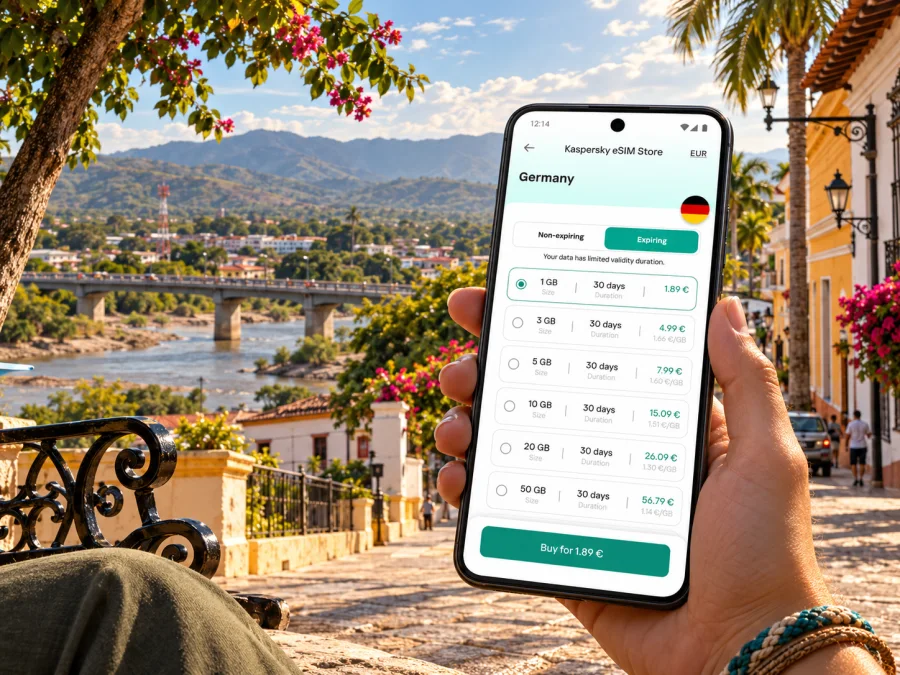
Choluteca eSIM: mobile connection and internet for your trip
Choluteca is a practical base in southern Honduras, whether you are visiting for work, continuing toward the Gulf of Fonseca, or exploring the region at a slower pace. A working mobile connection helps with the unglamorous but useful parts of the trip: confirming a pickup, finding your lodging, checking a route, translating a message, and letting someone know that your plans have changed.
An eSIM can make mobile data easier to plan before you leave. It is a digital SIM profile installed on a compatible, unlocked device. A travel data plan may be useful alongside your regular number, but the exact network, coverage, data allowance, validity period, and activation conditions depend on the selected offer. Check those details for Honduras before checkout; service and signal can vary by place, building, device, and local network conditions.
This guide focuses on using mobile internet in Choluteca itself: arrival planning, getting around the centre, staying connected at your accommodation, and preparing for trips beyond the city. It also explains what an eSIM can and cannot do, and how to reduce the chance of a setup problem after you arrive.
What to plan for in Choluteca
Choluteca is the capital of the department of the same name in Honduras’s south. The municipal administration lists its location in Barrio El Centro, opposite Parque Valle, giving visitors a useful central reference point when arranging a taxi, meeting someone, or saving a destination in a map app. Honduras’s official tourism site also highlights Choluteca as a birdwatching destination. Those details point to two different kinds of itinerary: navigating a compact urban visit, and coordinating onward travel or outdoor plans where the route matters as much as the destination.
Before you travel, save the names and addresses of your hotel, host, meeting venue, and any transport terminal you expect to use. A pin can be more helpful than a translated street name, but keep the address in text as a backup. If you are meeting a driver, agree on a recognizable pickup point and share it in advance rather than relying on a last-minute call.
A phone is especially useful when you need to:
- locate a hotel or business in the central area;
- check a route after leaving a bus or private vehicle;
- message a host if arrival is delayed;
- confirm a meeting location without making an international voice call;
- download a map or reservation before travelling outside the city;
- keep a copy of booking details available when signal is weak.
Arrival: arrange the last leg before you land
Check the airport and ground route shown on your actual ticket. Choluteca is not a large international-airport gateway, so travellers may need a separate road transfer from the airport serving their itinerary. Do not assume that a flight arrival and the final ride to your accommodation are part of one seamless journey. Confirm the pickup point, onward transport, expected travel time, and late-arrival arrangements with your airline, hotel, or transport provider using their current information.
If you are travelling into Choluteca by bus or private car, download or save the destination details before departure. Mobile data is handy for checking messages and adjusting navigation, but a long drive can pass through areas where signal changes. Keep your route available offline when your map app supports it, and save the booking confirmation as a screenshot or in an offline-capable travel folder.
A simple arrival checklist:
- Save the lodging address in both text and map form.
- Confirm who is meeting you and where to look for them.
- Keep your ticket, reservation, and emergency contact details accessible offline.
- Make sure your phone has enough charge for navigation and messages.
- Wait until you are in a safe, convenient place before changing mobile settings.
For the first few minutes, use airport or hotel Wi-Fi if needed to contact your host or finish a booking check. Treat public Wi-Fi as a temporary fallback: you may need a mobile connection once you leave the building, and public networks can be unreliable or unavailable on the road.
Choosing data for a city stay and onward travel
Choose a plan around the way you will use your phone rather than an assumed “typical” visitor. A short business visit with maps and messaging has different needs from a longer stay with video calls or frequent uploads. Also check whether the plan covers Honduras as a country and whether its validity period fits the dates you will use it. A country-level plan does not by itself guarantee equal signal in every neighbourhood or on every road.
| Travel pattern | Likely data use | What to check before choosing |
|---|---|---|
| One or two nights in the city | Messaging, maps, ride coordination, confirmations | Validity dates, hotspot rules if you need a laptop, and how activation begins |
| Several days with local meetings | Navigation, email, cloud documents, calls in apps | Whether the allowance suits video calls and whether tethering is permitted |
| City plus rural or coastal excursions | Maps, check-ins, schedule changes | Country coverage terms and an offline backup for stretches with weak signal |
| Short stop between destinations | Directions, pickup messages, essential browsing | Whether the plan can be installed before departure and when it starts counting |
| Remote work | Email, meetings, file access, authentication | Data volume, hotspot conditions, local network variability, and a Wi-Fi backup |
A practical estimate starts with the tasks you cannot postpone. Map searches, messaging, email, and browsing reservations usually use less data than repeated video meetings, high-resolution photo uploads, or streaming. If your phone automatically backs up photos or updates apps over mobile data, pause those settings before travel or limit them to Wi-Fi. Download playlists, documents, and offline map areas ahead of time where possible.
For Honduras, the Kaspersky eSIM Store country page is the place to review current options for this destination. Browse eSIM options for a trip to Honduras. Compare the plan’s stated allowance, validity, activation instructions, and other conditions with your itinerary before completing an order. Honduras’s domestic carriers Tigo and Claro publish eSIM information for their own customers. That does not identify the host network of a specific travel plan: check the selected offer, and do not assume the same coverage or service terms.
Mobile connection around central Choluteca
Use central Choluteca as an orientation point, then navigate to the exact address. The municipal administration is in Barrio El Centro, opposite Parque Valle, which is a useful reference when arranging a meeting or ride. A hotel or bus stop may be elsewhere, so save its pin and written address and confirm that the map label matches what your host gave you.
Maps help most when you leave a terminal, change vehicles, or walk from a drop-off to a building. For a pickup, share the pin in advance and agree on the same entrance or street corner. Review directions from a safe place rather than while crossing traffic or walking in unfamiliar surroundings.
Keep navigation useful when signal changes
A country plan does not guarantee continuous service. Local infrastructure, buildings, distance, congestion, and device settings can affect reception, particularly beyond the built-up centre. Download an offline map, save the route back, and agree on a check-in time before an outdoor excursion. The official tourism site highlights Choluteca for birdwatching, but that does not confirm mobile service at a specific trail or observation point.
If a page fails to load, check that the travel eSIM is enabled and selected for data, move to a place with a clearer signal, and retry. Use Wi-Fi to consult setup guidance or support if needed. Do not delete the profile unless the plan instructions say to; reinstall rules vary.
Accommodation, work, and everyday use
Ask your hotel or guesthouse which Wi-Fi network belongs to the property and whether its password changes. Wi-Fi is useful for large downloads and video calls; mobile data helps when you are out or the property connection is unstable.
Before a work meeting, test email, calendar, document access, multi-factor authentication, and meeting apps. Check hotspot terms if you need a laptop connection, and save important files offline. A data-only eSIM generally does not replace your usual number for standard calls or SMS. If you need one-time codes by text, keep your primary line available if your phone supports it and check your carrier’s roaming charges.
Device compatibility and regional variants
Check the exact phone model and regional variant before buying. eSIM support can differ between versions with the same family name, and a supported device may still be locked to its original carrier. Confirm support in your phone settings and the manufacturer’s information for your market. Check whether your device supports eSIM.
Before checkout, make sure the device is unlocked, can connect to Wi-Fi during setup, and has the QR code or activation details available. Check when validity begins and whether data roaming must be enabled for the travel profile. Keep your primary line installed if you still need your regular number; compatible phones may let you assign calls, messages, and data to different lines.
Install before departure, connect when ready
Set up the eSIM on a stable internet connection and check its activation rule first. A plan may start at installation or at its first connection to a supported network. Follow the plan’s instructions if you want to use it only after reaching Honduras.
- Check the device. Confirm eSIM support for the regional variant and check that the phone is unlocked.
- Review the plan. Note destination, data allowance, validity, activation trigger, and roaming instructions.
- Connect to Wi-Fi. Use a stable connection if setup requires downloading a profile.
- Add and label the eSIM. Follow the current app, QR-code, or manual instructions.
- Select the data line. Choose the travel profile when ready and follow its data-roaming directions.
- Wait for registration. It can take a few minutes; consult the instructions before changing advanced settings.
Use the Android eSIM installation guide or iPhone eSIM installation guide. Menus vary by device and software. Do not remove a profile to troubleshoot unless instructed, as reinstall options vary.
When an eSIM is useful—and when to keep another option
An eSIM may suit maps, messaging, and online bookings if your phone is compatible and unlocked and the selected plan covers Honduras. A physical local SIM or your current carrier’s roaming may fit better if you need a local number, your phone is locked, or the eSIM is data-only. Compare terms for your device and account.
| Need | First check |
|---|---|
| Keep your number | Dual-SIM support and line settings |
| Make standard calls | Whether voice is included |
| Connect a laptop | Hotspot terms and data use |
| Go beyond the centre | Offline maps and route details |
| Avoid home-carrier charges | Roaming settings and rates |
Common connection questions
Will an eSIM work everywhere in Choluteca?
No. Signal varies by network, location, device, and current conditions. Check the plan’s Honduras terms and keep offline directions for important trips.
Does a travel eSIM give me a Honduran number?
Not necessarily. Many travel eSIMs are data-only. Check the selected plan; a compatible dual-SIM phone may keep your usual number active, subject to your carrier’s charges.
Can I use an eSIM beyond the city?
Possibly, if Honduras is covered, but reception may vary outside urban areas and along roads. Download maps before leaving and confirm the route locally.
What if data does not work after arrival?
Check that the profile is on and selected for data, then follow its roaming instructions. Wait a few minutes or try a clearer-signal location. Use Wi-Fi to contact support; do not delete the profile unless instructed.
Can I install it at home and use it later?
Often, but validity may start at installation or first connection. Check the plan terms before adding the profile.
Does an eSIM replace my regular SIM?
No. It adds a digital profile. You may keep your usual SIM for your number and use the eSIM for data, depending on your phone.
A simple plan for your first day
Before departure, save your lodging and meeting pins, download an offline map, and confirm how you will reach Choluteca from the airport or bus stop in your itinerary. Check the eSIM’s activation terms and keep booking details accessible offline.
On arrival, confirm the pickup point, then enable the travel profile as instructed and select it for data. Navigate to the exact address rather than a broad city search result. Before an excursion outside town, confirm the meeting point and save directions while connected. Offline maps and saved contacts are a useful backup if signal or plans change.
Prepare your eSIM for Choluteca
Check that your phone variant supports eSIM, review the current Honduras plan details, and choose an allowance and validity period that fit your trip. Kaspersky eSIM Store is the app and website where you can select, order, and activate an eSIM plan for mobile data during an international trip. Review eSIM options for Honduras and confirm the specific plan conditions before you travel.
After installation, keep your regular number available if you need it, use the travel profile for data according to its instructions, and save important routes offline. With those basics in place, you can focus on your plans in Choluteca while staying prepared for changes in signal or schedule.


