Travel connectivity guide
Coron eSIM: Mobile Internet for Your Trip
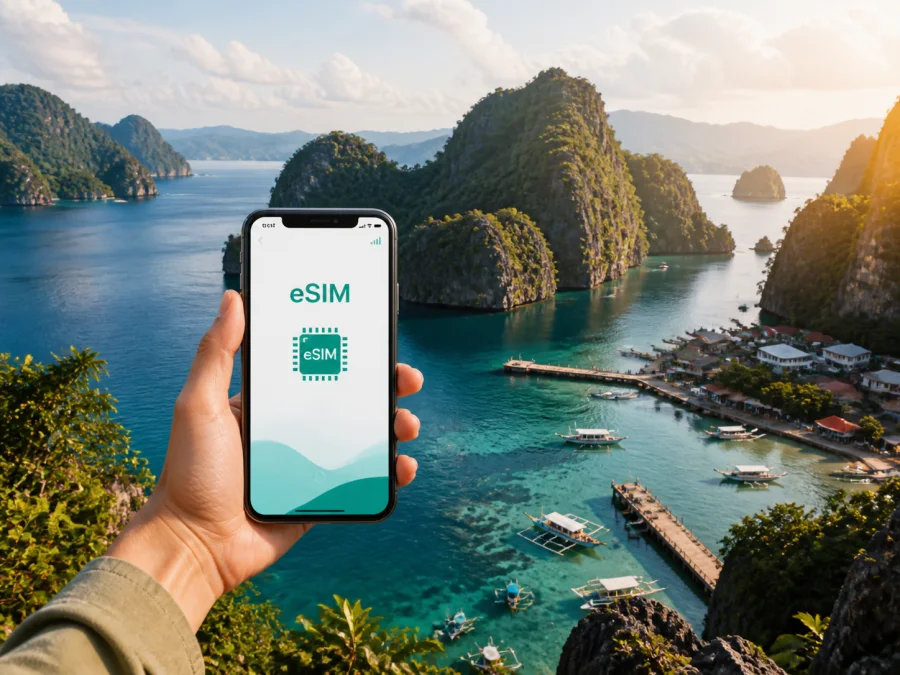
Coron eSIM for Mobile Connection and Internet in the Philippines
Coron is the kind of destination where a working mobile connection becomes part of the travel plan. You may arrive through Busuanga Airport, arrange a transfer to Coron town, confirm a boat tour, open a map, or message a hotel before you have settled into your room. An eSIM, or digital SIM, can help you prepare mobile internet for the trip without taking out your everyday physical SIM card.
Kaspersky eSIM Store is an app and website where you can choose, arrange, and activate an eSIM with a suitable data plan for an international trip. Choose a Philippines plan, install it on a compatible phone, and use mobile data for the parts of your Coron itinerary that need it. This guide covers arrival, island-hopping days, transport, accommodation, work, and trips beyond town.
Why mobile data matters in Coron
Coron combines a compact town with time on the water and excursions around northern Palawan. At the airport or port, you may need to find a driver, identify your accommodation, or tell a tour contact that you have arrived. In town, a map and messaging app can be more useful than printed directions. During a day trip, you may want to check a reservation, share your location, or receive an update about a meeting point.
An eSIM can be prepared before departure or after arrival, depending on the plan and device. You can keep the physical SIM that carries your usual number while using the eSIM for data, provided the phone supports dual-SIM use and the settings are correct.
The most useful approach is to think in terms of tasks rather than a generic promise of being online:
- use data for maps while moving between Busuanga Airport, Coron town, the port, and your accommodation;
- message a hotel, driver, guide, or boat operator when a meeting point changes;
- check bookings and updates before leaving town;
- coordinate a pickup without searching for public Wi-Fi first;
- keep a work chat or email session available during a business stopover;
- use a translation or note-taking app when you need to clarify a detail;
- share a route or arrival status with people at home.
These small actions are spread across the day. A plan with enough data for maps, messages, bookings, and occasional browsing may suit you better than choosing only by the largest allowance.
Quick answer: An eSIM for Coron is a digital SIM profile for mobile data in the Philippines. It can help you stay connected after arrival, around Coron town, and during a planned itinerary without replacing your physical SIM card.
Arrival: make the first hour in Coron easier
The route into Coron can involve a flight, airport exit, transfer, accommodation check-in, and a walk to the port or town centre. Save the accommodation name, address, driver contact, and first meeting point before landing. At the airport, confirm the eSIM is selected for mobile data, check the driver’s instructions, send an arrival message, and keep the primary SIM available for calls if needed.
Save tour, transfer, ferry, and hotel details offline where possible. Town data needs may differ from conditions during boat travel, so mobile internet is a useful layer of preparation, not a substitute for an itinerary and a charged phone.
Moving around Coron town
Coron town is walkable for many errands, while some accommodation and activity points are better reached by a local ride. A map helps with the centre, restaurants, piers, and pickup points, but read the accommodation or tour notes as well.
For a day in town, check the route before leaving, note the destination name, confirm whether the meeting point is a lobby, street, or pier entrance, and allow time to orient yourself before departure. Use messages for updates instead of repeatedly refreshing media-heavy apps. Choose a data plan around these local actions and the length of your stay in the Philippines.
Maps and navigation without unnecessary data use
Navigation can use more data when you repeatedly load satellite imagery, video, or photo-heavy pages. Before setting out:
- Save the hotel, airport, port, and meeting points in your map app.
- Record the accommodation address and screenshot reservations.
- Use messages when a full voice or video call is unnecessary.
- Turn off automatic updates and check the selected data line.
This provides a fallback when you are on a moving boat, conserving battery, or dealing with an uncertain signal.
Choosing an eSIM plan for a Coron trip
The right plan depends on the whole route, not only on the town name. Coron is in the Philippines, so start with a Philippines plan. If the itinerary includes Manila, Cebu, or another Palawan destination, check the stated area before paying.
Kaspersky eSIM Store helps you review data allowance, validity period, price, and other conditions shown for the selected direction. Read the current details at purchase: a short-stopover plan may not suit a longer holiday with video calls, photo uploads, or laptop tethering.
The Philippines eSIM plan options can be reviewed before your trip. Use the page to confirm the direction, validity, data amount, and other conditions that apply to the option you select.
Estimate your data needs by activity
List what you expect to do instead of guessing from travel days. A quiet beach day and a workday in town have different patterns.
| Travel pattern | Likely data tasks | Planning thought |
|---|---|---|
| Short stopover | Messages, maps, searches, booking checks | A smaller allowance may suit limited media use |
| Island-hopping holiday | Coordination, weather checks, selected uploads | Leave room for changes and photo sharing |
| Remote-work or family stay | Calls, documents, group chats, photos, hotspot use | Allow more data and confirm tethering |
| Multi-stop route | Navigation and transport coordination | Confirm the plan applies at every stop |
There is no universal allowance for Coron. Video meetings and automatic photo backups use more than maps and messages. Read the tariff conditions with your actual activities in mind.
How to install and activate an eSIM
The exact menu names differ between phone models and operating-system versions. Start with a compatible, unlocked device and an internet connection for the installation step. Keep the QR code from your purchase or the profile information in the app or email available.
1. Check the device and the plan
Before purchase, check your device compatibility and confirm that the phone is not restricted by an operator. Regional versions of the same model can differ. Also check that the selected plan is intended for the Philippines and that its validity matches your itinerary.
2. Open mobile-network settings
In your phone settings, find the mobile-network or cellular section and choose the option to add an eSIM or mobile plan. Keep the physical SIM in place if you need its number during the trip.
3. Scan the QR code or follow the profile flow
Use the QR code supplied after purchase, or follow the activation flow shown in your account or app. Make sure you are adding the travel profile rather than changing the settings of your primary line.
4. Name the travel line
Give the eSIM a clear label such as “Philippines data”. This makes the next settings easier to review, especially if your phone stores more than one SIM profile.
5. Select the eSIM for mobile data
Choose the travel eSIM as the mobile-data line when you want to use it in the Philippines. Keep data switching between lines disabled unless you understand how your phone will choose a network.
6. Allow the required data-roaming setting
Some eSIM profiles require data roaming to be enabled for that eSIM line. Follow the selected plan’s instructions and check that roaming is enabled on the travel line, not accidentally on the primary line.
7. Test the connection carefully
After activation, open a lightweight webpage or send a message. If the connection does not appear immediately, give the device a few minutes, then recheck the selected data line, signal state, and plan instructions. Do not delete the eSIM while troubleshooting unless support tells you to do so; an eSIM profile may not be transferable after activation under the applicable conditions.
For platform-specific steps, use the Android installation instructions or the iOS installation instructions. These links belong next to the installation guidance because the controls and labels are platform-dependent.
Coron scenarios: which setup fits?
A weekend around Coron town
For an arrival, hotel stay, and one excursion, prioritise airport coordination, maps, messages, and booking checks. Install before the flight if the activation rules suit you, or keep the QR code ready for arrival. Limit media backups so data remains available for navigation and changes.
An island-hopping or work stay
Before a boat departure, save tour confirmations and keep the next contact easy to find. For work, allow for authentication, documents, calls, and possible hotspot use; check the tariff conditions before relying on a laptop connection. Select validity for the full journey and verify geographic scope if the route extends beyond Coron.
A transfer to another Philippine destination
Check whether the same tariff applies to the next destination and whether validity continues for the whole route. If it does not, prepare the next option before leaving a place with a dependable connection. The important question is whether the stated destination and conditions match your itinerary.
Common mistakes to avoid
Review this checklist before departure:
- [ ] The phone supports eSIM and is not operator-locked.
- [ ] The selected direction is the Philippines, with the right regional scope for the itinerary.
- [ ] The data allowance and validity period fit the trip’s activities.
- [ ] The activation conditions have been read, including when validity begins.
- [ ] The QR code or account access is available when needed.
- [ ] The eSIM is labelled clearly in the phone settings.
- [ ] The travel line is selected for mobile data when you want to use it.
- [ ] Data roaming is enabled on the travel line if required.
- [ ] Data switching is understood and controlled.
- [ ] Hotel, transfer, port, and tour details are saved offline.
- [ ] The phone and power bank are charged before a boat day.
- [ ] The primary SIM’s roaming settings are understood so unexpected charges can be avoided.
If something goes wrong, check the selected data line, airplane mode, signal indicator, and plan status, then consult the installation instructions. If you still need help, contact support with the device model, eSIM label, and the step where the problem occurred.
FAQ about eSIM and mobile internet in Coron
Is a Coron eSIM different from a Philippines eSIM?
Usually, the important distinction is the destination covered by the plan. Coron is in the Philippines, but a city search does not by itself define the plan’s geographic scope. Review the Philippines destination, regional coverage stated in the offer, validity, data allowance, and other conditions before selecting an option.
Can I keep my regular SIM card in the phone?
Often, a dual-SIM phone can keep the physical SIM active while the eSIM is used for mobile data. The exact behaviour depends on the device and operator. Choose the line for calls and messages deliberately, and check data switching so the phone does not use the wrong line unexpectedly.
Does an eSIM include a phone number, calls, or SMS?
Not unless the specific tariff says so. Travel eSIMs in this context are intended for mobile internet and generally do not replace a regular telephone number. Use internet-based messaging or calling apps for communication, and keep your primary line available if you need its normal number.
Why is mobile data not working after installation?
Check that the eSIM is turned on, selected for mobile data, and permitted to use data roaming if required. Confirm that the device is not operator-locked and that the plan is active for the current destination. Restarting the phone can help it refresh its network registration. If the issue continues, use the relevant installation guide and contact support.
Can I move the eSIM to another phone later?
Do not assume that you can. An eSIM profile may not be transferable after activation under its conditions. Check the device first and use the intended phone for installation.
A practical plan for your Coron trip
Use this preparation sequence:
- Save the airport, transfer, accommodation, and first town or port meeting point.
- Check eSIM compatibility and operator-lock status.
- Choose a Philippines plan whose allowance and validity fit the whole itinerary.
- Read conditions for activation, roaming, hotspot use, expiry, and support.
- Install and label the eSIM, save key details offline, then test the travel data line on arrival.
Prepare your mobile connection before Coron
Coron rewards practical preparation. A saved hotel address, a confirmed transfer, a charged phone, and a suitable Philippines data plan can make arrival and daily movement less complicated. Check the eSIM conditions, keep your primary number settings in mind, and choose the amount of data around what you will actually do: navigate, message, coordinate tours, work, and share selected moments.
When ready, choose an eSIM plan for your trip to the Philippines, review the conditions, and prepare the profile for Coron.


