Travel connectivity guide
Fergana eSIM: Mobile Internet in Uzbekistan
Fergana eSIM: mobile connection and internet for your trip
Fergana is a useful base for discovering the eastern part of Uzbekistan: you can settle into the city, find your hotel, check a route across town and plan onward visits without having to solve every connection question at the airport. An eSIM can make the mobile-data part of that preparation simpler, provided your phone supports it and the plan you select covers Uzbekistan. This guide focuses on the city itself: arrival, local movement, parks and museums, workdays, and short trips to nearby places.
Fergana is a city in Fergana Region, in the southern part of the Fergana Valley. It is a comparatively modern city rather than a destination whose main appeal is a dense old town. Visitors are more likely to notice its tree-lined streets, parks, public squares and everyday urban life. The city’s Central Park and the monument to Al-Fergani are among the places identified by Uzbekistan’s official tourism service. That setting makes a phone useful for more than directions: it can help you coordinate a pickup, translate a menu, confirm a meeting point or message your accommodation when plans change.
What mobile data helps with in Fergana
A reliable connection is most valuable at transitions. After landing, you may need to contact the person meeting you, confirm the address of a guesthouse, check a map pin or translate a short message. Once in town, data helps you compare walking directions with a taxi route, look up opening information, and coordinate a visit to a market or museum. If you are travelling with colleagues or family, a working messenger connection can also reduce the need to reconnect to a new Wi-Fi network at every stop.
A practical travel connection should match your itinerary, not an imagined promise of uninterrupted signal. Availability and speed vary by location, building, device, network load and the plan’s underlying network. Save the essentials offline as a backup, and check the selected plan’s country coverage and conditions before you pay.
| Trip moment | Why data can help | A useful backup |
|---|---|---|
| Airport arrival | Contact your host or driver and confirm the destination | Save the address in Uzbek or Russian and keep the booking offline |
| First journey into town | Compare a map route with the driver’s destination | Screenshot the hotel pin and nearby landmark |
| Exploring central Fergana | Navigate between the park, museum and meal stops | Download an offline map of the city area |
| Work or study visit | Join a call or share documents when Wi-Fi is unsuitable | Ask the venue about its guest network before the meeting |
| Day trip outside the city | Check the pickup point and message your contact | Agree on the return meeting place and time in advance |
Arriving in Fergana and getting oriented
Fergana International Airport serves the city. Before departure, check your ticket and the airport’s current information for the operating terminal, airline instructions and any schedule changes; route availability can change by season. After landing, use the exact address from your accommodation rather than relying on a hotel name alone. A saved map pin is useful because transliteration can vary between English, Uzbek and Russian, and a driver may recognize a nearby landmark more readily than a booking-platform listing.
If your arrival is late or you have a tight connection, set up your data plan before travelling where possible. Do not depend on finding public Wi-Fi immediately after the plane doors open. Keep your booking details, passport information and key contacts accessible offline, and let someone know if your arrival time changes. A digital connection helps with coordination, but it does not replace arranging transport or confirming the pickup in advance.
Moving around the city
Fergana’s visitor experience is spread across ordinary city streets and several individual stops rather than one compact historic quarter. Plan each outing around a clear starting point and destination. For a short central walk, a map can help you find the park, a museum, a café and your return route. For a longer ride, send the destination pin to the driver and confirm the place name before setting off. Do not assume that a driver will use the same spelling as your map app.
Save each important location both as a map pin and as a written address or nearby landmark; transliteration may differ between your map and what a driver recognizes. Download an offline map of central Fergana in advance. It can show your position without data if the area is saved, though live traffic and fresh search results will be unavailable.
Public transport routes, hours and payment methods can change, so check locally for current details. For longer trips or luggage, a taxi may be convenient; confirm the destination and fare arrangement before departure. Data helps you share a precise pin, but does not guarantee that a ride service is available at every hour.
Parks, landmarks and the pace of a city day
Central Park and the Al-Fergani monument offer a natural starting point for a relaxed walk. Use a map to reach the entrance you intend to visit and check local opening or event details before setting out; public spaces may have different activity depending on the day and season. The surrounding avenues are also useful for getting a feel for the city’s scale. If you plan to meet someone, choose a specific gate, monument or café rather than saying only “the park.”
The official tourism overview also points visitors to the Regional History Museum, Puppet Theater, mosques, the Russian Drama Theater and Fergana State University. These are distinct stops, so check their current opening arrangements and location before building a schedule around them. A connection is useful for confirming directions and sharing an arrival time, while saved screenshots and offline notes help if a venue has weak indoor reception.
For a half-day, choose one or two places, allow time for a meal and leave a buffer for transport. Check current opening arrangements before building a schedule around a venue. Save your accommodation address before leaving so you can return even if your battery or data runs low.
Choosing a plan for Fergana
Fergana is not a separate country tariff destination in this guide. For an international eSIM, check that the plan’s coverage explicitly includes Uzbekistan; a city name in a search query does not itself establish coverage. The available plan conditions may depend on the plan selected and can change, so review the destination, allowance, validity, start conditions and any fair-use or top-up terms on the offer screen before purchase.
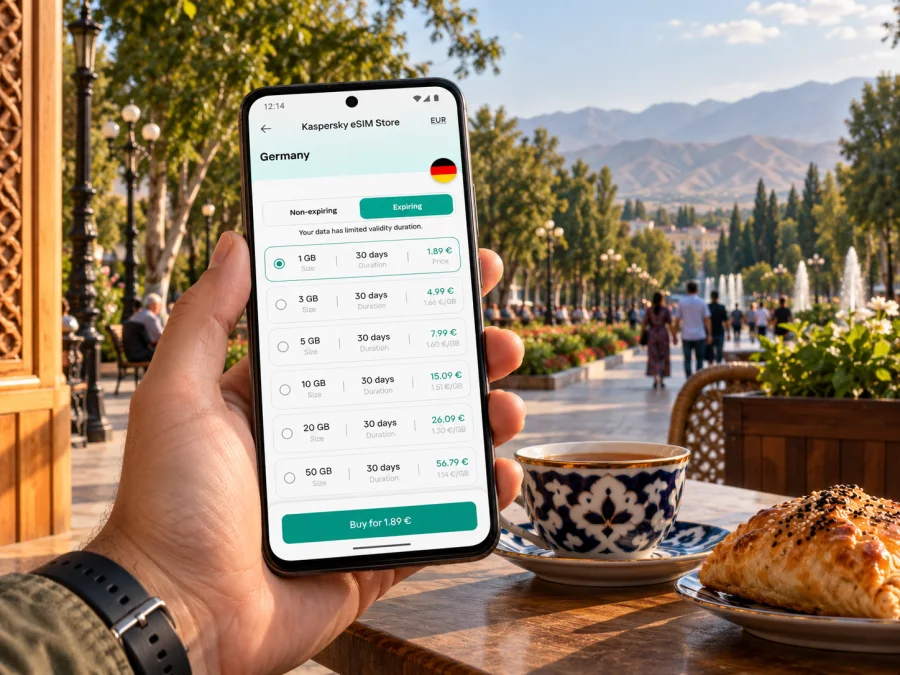
If you want to prepare mobile data for your visit, review eSIM options for Uzbekistan and compare the current details with your itinerary. Kaspersky eSIM Store is an app and website where you can choose, arrange and activate an eSIM with a suitable plan for mobile internet while travelling abroad. The network that carries the connection and the actual service conditions depend on the selected plan and its local arrangements; Kaspersky eSIM Store is not a mobile network operator.
Estimate your data needs
There is no single allowance that fits every visit. A traveller who mainly checks messages and directions may use less than someone who uploads video, joins long calls or uses cloud backups over mobile data. Estimate by activity and keep large updates on Wi-Fi where appropriate.
| Your likely use | What to consider | Before choosing |
|---|---|---|
| Light: messaging, maps, occasional search | A modest allowance may be enough, depending on habits | Disable automatic app updates and photo backup on mobile data |
| Regular: maps, browsing, social updates and calls | Allow for daily navigation and shared media | Check how the plan counts tethering, if you need it |
| Heavy: video, remote work or frequent hotspot use | Consumption can rise quickly | Review the allowance and validity carefully; identify Wi-Fi alternatives |
These are planning categories, not guarantees. Video quality, background sync and connected devices change usage; monitor your phone’s data use and verify each destination if your trip includes other countries.
Local SIM or travel eSIM?
A local operator’s SIM may suit visitors who need a local phone number, local calls or a longer-term service relationship. Ucell publishes a tourist self-registration flow for non-residents, including identity verification; check its current requirements and supported devices directly. A travel eSIM may suit visitors who mainly need data and want to prepare before arrival, but it may not include a local number, ordinary calls or SMS. Compare the service you need, registration requirements, coverage and plan terms rather than assuming the two options are interchangeable. If keeping your usual SIM active, check roaming charges and select the correct data line in your phone settings.
Check your phone before buying
eSIM support depends on the precise device model and variant, the country or region where it was sold, and whether it is carrier-unlocked. A model family name alone is not enough to prove compatibility. Confirm that your phone has an option to add an eSIM, check the manufacturer’s information for your exact variant, and ask your home carrier whether the phone is locked. Check whether your device supports eSIM before selecting a plan.
Also check basic readiness: install system updates while you have stable Wi-Fi, set a screen lock, make sure you can access your email or account, and carry a charger or power bank. If you rely on eSIM for work, keep a backup way to reach your employer or accommodation. A second SIM profile does not guarantee two active data connections at once; the phone’s settings determine which line uses data.
Install and activate before the trip
If the plan permits installation before travel, do it while you have reliable Wi-Fi and enough time to follow the on-screen instructions. Read the plan’s activation conditions first: some plans start their validity at installation, while others start at first connection or at another specified event. Do not guess. Keep the QR code or manual activation details available until the eSIM is working, but do not share them publicly because they may be used to install the profile.
General setup steps are:
- Confirm that your exact phone variant supports eSIM and is not carrier-locked.
- Open the purchase or activation instructions for the plan you selected.
- Add the eSIM using the method provided, such as a QR code or in-app flow.
- Label the line clearly, for example “Uzbekistan data,” so you can identify it later.
- Choose which line will use mobile data; leave your usual number set according to your calling needs.
- Follow the plan’s instructions about data roaming and network selection.
- Test the connection when the plan is supposed to become active, then check that messages and maps load.
For platform-specific steps, use the Android eSIM installation guide or the iPhone eSIM installation guide. Menu names differ between operating-system versions and manufacturers, so follow the current instructions for your device. Installing a profile and having usable data are separate steps: the eSIM may appear in settings before its plan is active or before it has registered on a supported network.
When the connection does not work
If the eSIM is installed but you cannot use data, troubleshoot one setting at a time:
- Check that the eSIM line is turned on and selected for mobile data.
- Confirm that airplane mode is off, then toggle it once or restart the phone.
- Review the plan’s activation status and validity start condition.
- Enable data roaming only if the plan’s instructions require it; this setting does not by itself confirm that service is included or available.
- Check automatic network selection first. If the plan’s instructions permit manual selection, try the listed network options and wait for registration.
- Confirm that mobile data is enabled and that no data limit or device-level restriction is blocking it.
- Move outdoors or to a different part of the building, then test a simple webpage or message.
Do not remove the eSIM profile unless support or the installation instructions tell you to. If the problem continues, capture the error message and note your device model, location and the time of the attempt. Contact the support channel associated with your plan. Keep Wi-Fi available as a temporary fallback when possible, especially for tickets, hotel messages and account access.
Fergana as a base for nearby visits
Fergana can be a convenient starting point for exploring other places in the valley, but each trip needs its own transport check. Margilan, Kokand and Andijan are separate cities, not neighbourhoods of Fergana. The official Uzbekistan Railways ticket system lists stations including Margilan and Kokand among destinations that travellers can search; that does not mean a train runs at a particular time or that a direct service is available on your date. Search the official timetable for your travel day, confirm the departure station, and leave enough time to reach it.
For a road journey, agree on the pickup and return arrangements before leaving the city. Save the destination pin offline, share your expected return time with someone, and ask your accommodation about practical local transport advice. Border geography in the wider valley can make routes and journey times more complex than a map suggests; do not infer that a nearby place in another country is an easy day trip. Check entry requirements and crossing conditions separately if a cross-border itinerary is relevant.
Before setting off, download maps for the route where the app allows it, carry water and a power bank, and keep your return plan accessible without data. A travel eSIM may work outside the city only where the selected plan and its network partners provide service. Do not treat urban connectivity as evidence of coverage along the whole road or at every attraction.
Three useful travel scenarios
Short city break: save the airport-to-hotel route, a central Fergana map and a few key contacts. Keep the schedule light enough to allow for cross-city transport, and check when your plan’s validity begins.
Work visit: download documents before the meeting, ask about venue Wi-Fi and verify hotspot terms if you will connect a laptop. Keep a backup copy of important files; mobile data is useful for messages and route changes, but should not be the only way to access work materials.
Family or late arrival: agree who carries the accommodation details, keep the host’s contact offline and confirm the pickup point. If each person needs data, check each phone’s compatibility and plan separately rather than assuming one eSIM can be shared across devices.
A simple preparation checklist
Before departure
- Confirm your exact device variant supports eSIM and is unlocked.
- Review Uzbekistan coverage, allowance, validity and activation conditions.
- Save your accommodation address, contacts, maps and bookings offline.
- Decide which line will handle data and check home-SIM roaming charges.
On arrival and during the stay
- Select the intended data line and follow the plan’s settings.
- Test maps or messaging, then keep monitoring usage and validity.
- Save routes before leaving central Fergana and recheck transport on travel day.
Frequently asked questions
Is Fergana a city or a region?
Both names are used: Fergana is a city and the administrative centre of Fergana Region. Margilan and Kokand are separate cities that need their own route planning.
Does an Uzbekistan eSIM guarantee service everywhere in Fergana?
No. Coverage depends on the selected plan, local network arrangements, your device and location. Check plan details and keep offline maps and essential contacts.
Can I keep my usual number and use an eSIM?
That may be possible if your phone supports the configuration. Check dual-SIM settings and your home operator’s roaming charges. A data-only plan does not automatically include local calls or SMS.
Should I install the eSIM before leaving?
It can be convenient, but read when validity starts. Install over stable Wi-Fi at the appropriate time, keep activation details private and do not delete the profile to troubleshoot unless instructed.
Can I use the same plan outside Fergana?
Only if its stated coverage includes each destination. Service in the city does not confirm service along a rural road or across a border.
Plan your connection around the trip
A smooth Fergana visit starts with a few practical checks: know whether you are arriving at Fergana International Airport, save your accommodation pin, prepare a map for the city, and confirm transport details for any visit to Margilan, Kokand or another destination. Choose a data plan only after checking device compatibility and the plan’s Uzbekistan coverage, validity and activation terms. Keep offline copies of the information you need most.
When you are ready, choose an eSIM plan for your trip to Uzbekistan through Kaspersky eSIM Store. Review the current plan details, then install and activate the eSIM according to its instructions so your mobile internet setup is ready for your time in Fergana.


