Travel connectivity guide
Samsung Galaxy S25 Ultra 8GB RAM eSIM
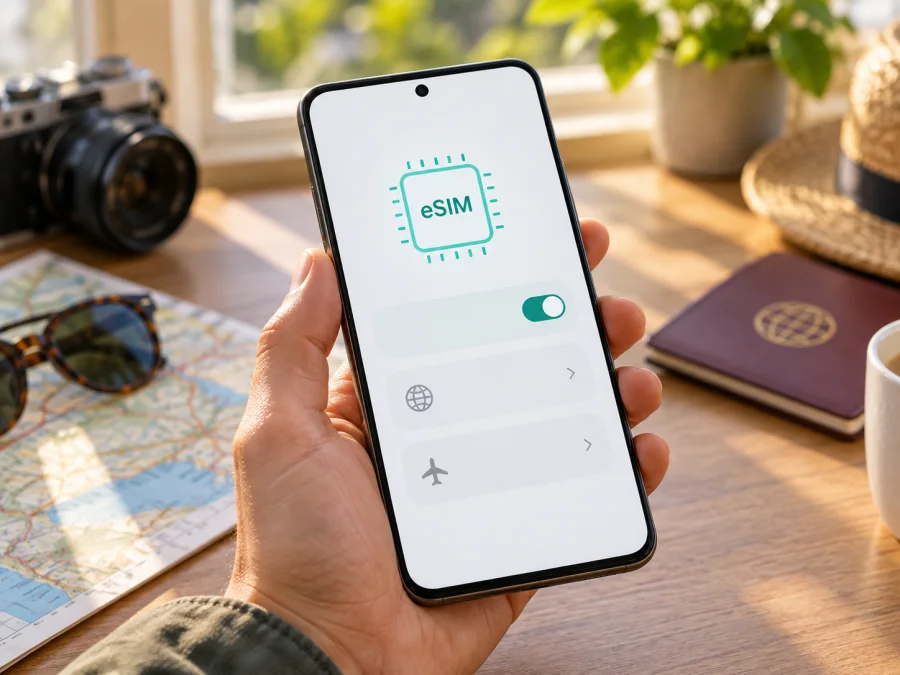
Samsung Galaxy S25 Ultra 8GB RAM eSIM compatibility
The Samsung Galaxy S25 Ultra 8GB RAM is listed as an eSIM-compatible phone in Samsung’s Galaxy S25 Ultra family. Samsung’s support information names the Galaxy S25 Ultra among devices that support eSIM, and Samsung explains how to add an eSIM from the phone’s SIM settings. There is one important qualification: eSIM availability can depend on the country where a phone was sold, its exact model code, software, and carrier. The “8GB RAM” wording identifies the variant in this page’s title; it does not by itself prove which regional hardware version you have or whether eSIM is enabled on that particular unit.
If you are considering a travel data plan, check the phone itself before paying. Look for an EID and for Add eSIM in Settings. If either is missing, confirm the full model number and sales region with the seller or Samsung support. A compatible model also needs to be unlocked for use with another carrier, and the eSIM plan must cover your destination.
Does Samsung Galaxy S25 Ultra 8GB RAM support eSIM?
Generally, yes: Samsung lists the Galaxy S25 Ultra as an eSIM-capable Galaxy device. Samsung’s product information for Galaxy S25 Ultra models also describes SIM configurations that include a physical SIM with eSIM and, in some versions, dual eSIM. This indicates that the device family has eSIM hardware and software support.
That family-level answer is not a guarantee for every phone carrying a similar retail name. Samsung notes that support may vary according to the country of origin. Some market or carrier editions can have different SIM configurations, and a device may be restricted by its original carrier. Firmware menus can also differ slightly by region and software version. The safest answer for your individual Samsung Galaxy S25 Ultra 8GB RAM is the one shown by its own Settings screen and model code.
The RAM label needs separate care. Do not infer eSIM support from “8GB RAM,” and do not use the RAM amount as a substitute for the model number. Samsung’s published specifications can vary by market and configuration, so check the model code shown in Settings > About phone against the product listing or invoice. If the seller describes the phone as an 8GB RAM version, ask for the exact model code and the intended sales region. This is especially useful for imported or refurbished devices, where a marketplace title may not fully describe the original regional variant.
Quick compatibility summary
| Item | What to know |
|---|---|
| Device covered here | Samsung Galaxy S25 Ultra 8GB RAM |
| eSIM support | Samsung lists Galaxy S25 Ultra among eSIM-capable devices; confirm the exact unit |
| RAM label | Keep “8GB RAM” attached to this listing; RAM alone does not confirm eSIM |
| Regional differences | The country of origin, model code, carrier configuration, and software may affect availability |
| How to verify | Check for an EID and Settings > Connections > SIM manager > Add eSIM |
| Travel-plan prerequisite | Confirm the phone is unlocked and the plan supports your destination and device |
What to check before choosing an eSIM plan
Before paying, verify compatibility, carrier status, and plan conditions separately. A phone can have eSIM hardware while a carrier lock or regional software configuration prevents activation.
- Confirm the model code. Open Settings > About phone and compare its model number with the receipt or seller’s listing. If “8GB RAM” appears only in a marketplace title, ask which regional model is being sold.
- Look for an EID. Search Settings for “EID,” or check About phone > Status information. The menu path can vary.
- Check SIM manager. Go to Settings > Connections > SIM manager and look for Add eSIM.
- Confirm unlocking. Ask the original carrier or seller whether the phone can use another carrier’s eSIM.
- Prepare the phone. Install available software updates and connect to Wi-Fi for profile download.
- Read the plan terms. Check destinations, data allowance, validity, activation timing, and supported networks. Data-only plans may not include a regular number, calls, or SMS.
- Keep the activation code available. Display the QR code on another device or print it; the phone cannot scan a code displayed only on its own screen.
An EID and Add eSIM option are useful device-side checks, but confirm the model and unlock status too. If either is missing, verify the unit with Samsung or the seller before choosing a plan. Check your device’s eSIM compatibility before purchase.
How to find the EID and eSIM controls
Samsung’s menu labels can vary by region and software version:
- Open Settings > About phone and note the model number.
- Search Settings for EID, or open Status information if available.
- Go to Settings > Connections > SIM manager and look for Add eSIM.
- If both checks are available, confirm the phone is unlocked and the chosen plan supports it.
If the option is missing, update and restart the phone, then check the exact model code. If the EID and eSIM menu are still absent, ask Samsung or the seller to confirm that regional unit. Avoid sharing the EID publicly; give it only to official support if requested.
How to install and activate an eSIM on Samsung Galaxy S25 Ultra 8GB RAM
These are the usual steps for a QR-code setup on a Galaxy phone. Keep the plan instructions handy, since some providers use app-based or manual setup and menu labels can vary.
- Choose a plan for your destination and check its data allowance, validity, supported networks, and activation rule.
- Check the phone for an EID and Add eSIM, confirm it is unlocked, and connect to Wi-Fi.
- Open Settings > Connections > SIM manager > Add eSIM.
- Select Scan QR code and scan the code from another screen. If you were given manual activation details, enter them as directed.
- Follow the prompts until the profile downloads. Name it clearly, such as “Travel data.”
- In SIM manager, turn on the profile and select it for Mobile data when you are ready.
- Follow the plan’s activation instructions. Some validity periods begin at installation; others begin when the eSIM first connects.
- At your destination, enable data roaming for the travel profile only if the plan requires it. Use automatic network selection unless instructed otherwise, and test a web page with Wi-Fi off.
For Samsung’s device screens, see the Android eSIM installation instructions. The iOS eSIM installation instructions are for setup on an Apple device. Follow your plan’s own directions if they differ.
Some profiles can only be installed once or on one device. Before deleting an eSIM, resetting the phone, or moving to another device, check the plan’s reinstallation rules; removal may require the provider to issue a replacement.
Using a travel eSIM for mobile data
After installation, select the travel profile for Mobile data in Settings > Connections > SIM manager. Your home SIM can remain selected for calls or messages if needed, but check its roaming terms to understand possible charges. Some travel plans require Data roaming for the eSIM to connect abroad. If so, enable it for that profile only and keep it off for the home SIM if you want to avoid unintended roaming.
A practical trip sequence:
- Before departure: Verify compatibility, unlocking, coverage, data allowance, validity, and activation timing. Install early only if the plan’s rules allow it.
- On arrival: Turn on the profile, select it for data, and wait for network registration. Connect to Wi-Fi if setup still needs internet.
- During the trip: Monitor usage and remaining validity. Check coverage again when crossing a border; a single-country plan may not cover the full route.
- At home: Switch data back to your regular SIM. Turn off the travel profile or remove it only after checking its reinstallation rules.
Many travel eSIMs are data-only and do not include a standard phone number, calls, or SMS unless stated in the plan. Messaging and internet calls may work through apps over data. Kaspersky eSIM Store is an app and website where you can choose, arrange, and activate an eSIM with a suitable mobile data plan for an international trip. The connection depends on the selected plan and participating local network.
Troubleshooting common eSIM problems
“Add eSIM” or EID is missing
Search Settings for both terms, install updates, restart, and confirm the complete model code. Samsung notes that support can depend on the phone’s country of origin. If neither appears, ask Samsung or the seller to check that exact regional unit.
QR code does not scan or the profile will not download
Increase the QR display brightness, reduce glare, and show the code on another device. Confirm it has not expired or already been used. For downloads, check Wi-Fi, automatic date and time, and software updates. If the code is reported as invalid or used, contact the plan provider rather than posting the code publicly.
The profile installs but there is no data
In SIM manager, confirm the profile is on and selected for mobile data. Check that the plan covers your current country, has started, and has data remaining. Enable data roaming for the travel eSIM if required. Restart or briefly toggle airplane mode, then allow time for registration. Use an APN only when the provider gives you one.
Calls or messages use the wrong SIM
Review the preferred lines for calls, texts, and mobile data separately. A data-only plan may not support ordinary voice calls or SMS. Check your home carrier’s roaming charges before using the regular line abroad.
The eSIM stopped working after a reset
Some profiles cannot be moved or downloaded again after removal. Check the plan’s reinstallation rules and contact the provider before deleting an installed profile. When asking for help, share the model code, software version, destination, and exact error through an official support channel; do not share a QR code publicly.
Frequently asked questions
Is Samsung Galaxy S25 Ultra 8GB RAM eSIM-compatible?
Samsung lists Galaxy S25 Ultra among eSIM-capable devices. Regional and carrier configurations can differ, so verify the EID and Add eSIM on your exact phone and confirm it is unlocked.
Does 8GB RAM determine eSIM support?
No. RAM does not identify the eSIM configuration. Check the model number, EID, and SIM manager settings. If the seller’s RAM description differs from specifications for your market, ask for the exact model code and region.
Can I use a travel eSIM with my regular SIM?
The phone may allow multiple SIM profiles, but available combinations depend on its configuration. Select the travel eSIM for data and choose the line you want for calls or texts. Review your home carrier’s roaming charges.
Will the plan include a phone number, calls, or SMS?
Not necessarily. Many travel eSIMs provide mobile data only. Check the plan description; internet messaging and calls may work through apps over data.
When should I install the eSIM?
Follow the plan’s activation rule. Validity may begin at installation or first connection to a supported network. If installation needs internet, arrange Wi-Fi before starting.
Can I delete and reinstall it later?
Do not assume so. Some profiles are limited to one installation or device. Check the plan’s rules before removing it; turning it off may be sufficient after the trip.
Final device check and trip plan
Before choosing a travel eSIM for the Samsung Galaxy S25 Ultra 8GB RAM, verify these points on the phone in your hand:
- The model code matches the seller’s description and intended region.
- An EID appears in Settings, and Add eSIM is available in SIM manager.
- The phone is unlocked for another carrier’s eSIM.
- The eSIM plan covers every country on your route and fits your data needs and trip length.
- You understand when the plan activates, whether data roaming is required, and whether it includes only mobile data.
- The profile can be installed and supported under the plan’s stated rules.
When these checks are complete, use Kaspersky eSIM Store—the app and website—to choose, arrange, and activate an eSIM plan for mobile data on your international trip. Check the plan conditions, install the profile as instructed, and select it for mobile data when you are ready to use it. If any device check is unclear, confirm compatibility with Samsung or the seller before completing a plan selection.


