Travel connectivity guide
Gemini PDA eSIM Compatibility and Setup
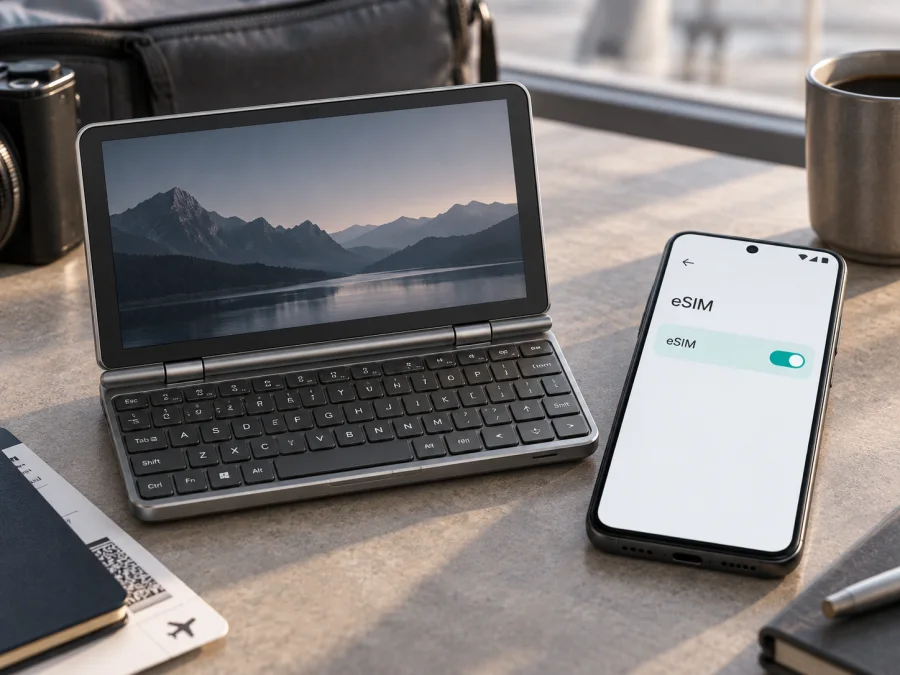
Gemini PDA eSIM: is the keyboard communicator compatible?
Short answer: the Gemini PDA can support eSIM, but the name alone does not identify a single connectivity configuration. Planet Computers lists eSIM for its Gemini PDA (4G + Wi-Fi LTE) model. The Gemini PDA (Wi-Fi Only) has no cellular SIM hardware, so it cannot use an eSIM for mobile data. Check the exact unit in your hands before choosing a travel plan: the model name, the presence of cellular service, the eSIM menu and the installed firmware all matter.
The Gemini PDA is a clamshell pocket computer with a wide touchscreen and physical keyboard. This guide covers the exact Gemini PDA family, while treating the LTE and Wi-Fi-only configurations separately. Confirm that your unit exposes eSIM controls and that the intended plan accepts it.
What the model name does—and does not—tell you
Planet Computers describes two Gemini PDA versions: 4G + Wi-Fi LTE and Wi-Fi Only. The manufacturer’s product information for the LTE configuration lists a SIM slot and eSIM; the Wi-Fi-only configuration is presented without cellular connectivity. The official Gemini user guide also refers to separate SIM-slot and embedded-eSIM indicators. Together, these details confirm that eSIM exists in the Gemini PDA family, while making the configuration distinction essential.
This does not establish that every “Gemini PDA” has eSIM enabled or that every carrier accepts it. Used, imported or refurbished units may have different firmware or provisioning. The product supports older Android software and alternative operating systems, so menus can differ. Check the device itself rather than relying on a listing or appearance.
| Item | What to know about Gemini PDA |
|---|---|
| Device family | Gemini PDA, a pocketable clamshell communicator with a physical keyboard |
| Cellular configuration | The family includes a 4G + Wi-Fi LTE model and a Wi-Fi-only model |
| eSIM on the LTE model | Planet Computers lists SIM + eSIM for the LTE configuration |
| eSIM on the Wi-Fi-only model | No cellular SIM hardware is listed; it cannot connect to a mobile eSIM plan |
| Physical SIM | The LTE model has a physical SIM slot as well as the listed eSIM capability |
| Software | Android and alternative operating systems have been available; settings and behavior depend on the installed system and firmware |
| Practical verdict | Conditional: confirm the LTE model, an eSIM/EID control on your unit, and acceptance by the intended plan provider |
The Gemini PDA is a 4G-era device, not a 5G device. An eSIM does not add 5G capability or change supported radio bands; confirm the LTE hardware, available software controls and destination-network compatibility.
Why regional and software differences deserve attention
Market listings may omit the LTE/Wi-Fi-only distinction, and a used or imported unit may carry a different software image. Ask for its full configuration and inspect it directly. Even with eSIM hardware, a provider may not accept the model or software version; network bands and roaming agreements also vary by destination. Check the provider’s device rules and the plan’s data terms.
The Gemini supports Android and alternative operating systems such as Sailfish and Linux. A recent Android guide may not match an older build, and eSIM profile installation is not guaranteed on every OS. Check the eSIM controls in the system you plan to use during your trip.
Start with a quick check of your unit
Before installing anything, confirm these three facts:
- It is the LTE configuration. The Wi-Fi-only Gemini has no cellular service. Check the original order record, device label, system information or seller documentation; do not rely on the clamshell appearance, which both versions share.
- The device can manage an eSIM. Look for an EID or an option such as “Add eSIM,” “Add mobile plan,” “Download a SIM” or an embedded SIM entry in cellular settings. Exact wording depends on software and build.
- It is not restricted. If the Gemini is carrier-supplied, imported or refurbished, ask whether it is network-unlocked and whether eSIM is enabled for that exact unit. A physical SIM that works does not prove the embedded SIM is unlocked or provisioned.
If a check is uncertain, pause before paying. A QR code may be single-use or tied to one activation, so confirm hardware support first.
Check compatibility and EID on the Gemini PDA
Use the following checklist with the device powered on and the operating system you intend to travel with:
- Open cellular or SIM settings and look for an embedded/eSIM option alongside the physical SIM.
- Search Settings for EID. On Android it may appear under status, SIM or phone information; paths differ by build.
- Look for Add eSIM, Add mobile plan, Download SIM, or a QR-code scanning option. A cellular settings page with only one physical SIM entry is not enough to confirm eSIM support.
- If an EID is displayed, record it privately and provide it only to the plan provider when requested. It is a device identifier; there is no need to post it publicly.
- Check for system updates and repeat the search after restarting.
- Ask the eSIM provider to confirm that it accepts the Gemini PDA LTE configuration and your software version. Also check network-unlock status and radio compatibility for the destination.
Check your device compatibility
If there is no EID and no embedded SIM option, treat the unit as not ready for eSIM until Planet Computers support or the plan provider confirms otherwise. The manufacturer’s family-level listing verifies eSIM on the LTE model, but it cannot inspect the configuration, firmware or provisioning of an individual second-hand device. If your unit is Wi-Fi-only, use Wi-Fi or a separate compatible mobile hotspot instead.
Installing and activating a travel eSIM
Start over reliable Wi-Fi. Keep the physical SIM if you need its number; many travel plans are data-only and do not include ordinary calls, SMS or a local number.
- Check destination and terms. Confirm country coverage, data allowance, validity, activation timing, hotspot rules and provider acceptance of your Gemini configuration.
- Read when validity starts. Some plans start at installation, others at first connection. Follow the provider’s instructions before scanning at home.
- Open cellular settings. On a compatible Android installation, choose the eSIM or add-mobile-plan control. If it is absent, stop and resolve compatibility first.
- Add the profile. Scan the provider’s QR code or enter its details if offered. Keep the code private and confirm the profile information.
- Name and select the line. Use a clear label such as “Travel data,” then select it for mobile data when ready. Keep calls on your usual SIM if needed.
- Activate at the right time. At the destination, enable the eSIM and mobile data. Turn on data roaming only if the plan requires it; allow a few minutes to register.
- Test the connection. Briefly turn off Wi-Fi and open a lightweight page. Confirm data is using the travel line before relying on maps or transport.
The menu labels above are generic because Gemini software versions can differ. For device-specific steps, use the on-screen guidance supplied by the eSIM provider and the instructions for your current operating system: Android installation instructions and iOS installation instructions. The iOS guide is for Apple devices; it is included as a reference to the separate platform flow, not as a way to install an eSIM on a Gemini PDA.
Kaspersky eSIM Store is an app and website where travelers can choose, arrange and activate an eSIM with a mobile-data plan for an overseas trip. Compare destination coverage and plan terms there, and complete the compatibility checks above before selecting a plan. Kaspersky eSIM Store is not the mobile operator or the owner of the destination network; actual service depends on the plan’s network partners, coverage and device compatibility.
Using the Gemini PDA on a trip
Before departure: install over Wi-Fi if permitted, save setup steps offline, and note when validity begins. Do not delete a profile unless the provider says it can be reinstalled.
On arrival: enable the travel eSIM, select it for data and follow the plan’s roaming instruction. Review roaming on your usual SIM and disable automatic data switching if available.
For a multi-country itinerary: confirm one regional plan covers every stop, or plan profile changes between separate plans. Check transit coverage and validity for the whole route.
For work and navigation: download offline maps and tickets before leaving Wi-Fi. Coverage can be weak or data can run out, and a data-only plan is not a conventional voice line.
If the eSIM does not install or connect
No “Add eSIM” option appears. Confirm the LTE configuration, check EID/SIM settings and update the software. If neither EID nor an embedded-SIM control appears, ask the seller or manufacturer to identify the hardware; a generic listing is insufficient.
The QR code is rejected or already used. Check the plan, provider acceptance, expiry and whether the code was previously assigned. Do not delete a partial profile until the provider confirms it can be reissued.
The eSIM installs but shows no service. Check that the profile is on, selected for data and active in the current country; enable roaming if required. Restart, wait, and check supported networks and local coverage.
Calls work but data does not. Check the selected data line, remaining allowance, validity and provider APN settings. Avoid guessing APN values.
Data is slow or intermittent. Try an area with better coverage, toggle the eSIM and restart. Bands, congestion and roaming partners affect speed; manually select a network only if advised.
An unlock or activation code is requested. Ask the seller or plan provider about carrier restrictions and the exact message. Keep QR codes and EID private; avoid a factory reset because it may remove profiles.
Frequently asked questions
Does every Gemini PDA support eSIM?
No. The manufacturer lists eSIM for the Gemini PDA 4G + Wi-Fi LTE configuration, while the Wi-Fi-only configuration has no cellular SIM hardware. The general family name alone is not enough to tell which one you own.
Does a SIM tray mean my Gemini has eSIM?
No. It confirms a physical SIM slot only. Look for an EID or eSIM control in the software you plan to use.
Can I use eSIM and physical SIM together?
The LTE product lists both, but simultaneous use depends on software and configuration. Check SIM settings and assign data, calls and roaming deliberately.
Will a travel eSIM provide a phone number?
Many travel plans are for mobile data only. They may not include ordinary voice calls, SMS or a local number. Check the selected plan’s terms; internet calling and messaging apps can work over data where available.
Can I install an eSIM while running Linux or Sailfish?
Do not assume so. The Gemini family supports multiple operating systems, but eSIM setup interfaces and profile support are software-specific. Verify the OS and build you intend to travel with, or use a supported Android installation if the provider requires it.
Should I remove the eSIM after the trip?
Only if you no longer need it and the provider’s instructions say it is safe to remove. Some plans cannot be reinstalled after deletion. Keep the profile for later use if its validity allows, and check the provider’s rules before removing it.
Key points to remember
The family-level answer is yes for the Gemini PDA 4G + Wi-Fi LTE configuration listed by Planet Computers, and no for the Wi-Fi-only configuration. Your own unit still needs an EID or eSIM control in its installed software, and the plan provider must accept its model and configuration. Regional sales, carrier provisioning and older or alternative software can affect the experience, so confirm these details before travel.
Check the device, then choose a trip eSIM
Before choosing a plan, confirm that your Gemini PDA is the LTE version, find its eSIM/EID controls, check that it is unlocked, and ask the plan provider to verify compatibility and destination coverage. Then compare the countries, data allowance, validity and activation rules for your itinerary. Kaspersky eSIM Store’s app and website let you choose, arrange and activate an eSIM plan for mobile data during an overseas trip; the local network and service are provided through the plan’s network partners. Keep offline maps and the provider’s setup instructions available until the Gemini has connected successfully.


