Travel connectivity guide
Google Pixel 10 Pro 512GB eSIM | Compatibility & Setup
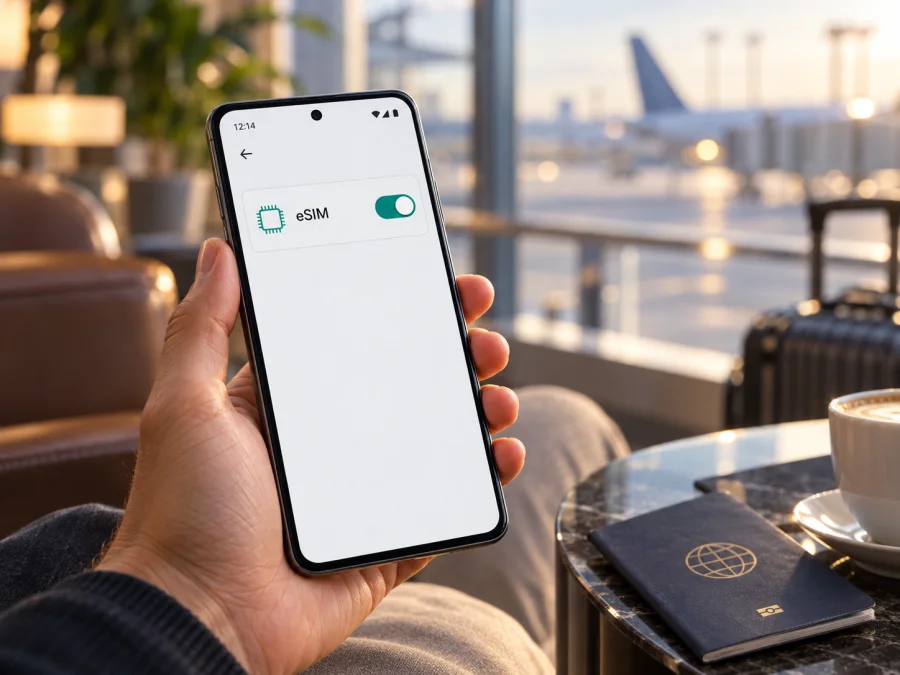
Google Pixel 10 Pro 512GB eSIM compatibility and setup
The Google Pixel 10 Pro 512GB supports eSIM. Google lists eSIM for Pixel 10 Pro, with a market-specific distinction: US phones are eSIM-only, while versions sold elsewhere may include a nano-SIM tray as well. The carrier must support eSIM activation and accept the handset. Before buying a travel plan, check the phone’s EID, eSIM setup option and unlock status.
The 512GB figure is storage capacity; it does not change eSIM support. This guide is about the exact Google Pixel 10 Pro 512GB variant and does not assume every similarly named handset has identical hardware or carrier eligibility.
Google Pixel 10 Pro 512GB at a glance
| Item | What to know |
|---|---|
| Exact device variant | Google Pixel 10 Pro 512GB |
| eSIM support | Yes, Google lists Pixel 10 Pro with eSIM capability |
| SIM format | Dual eSIM on the US specifications; some markets list nano-SIM plus eSIM |
| US physical SIM tray | US Pixel 10 Pro models are eSIM-only |
| Stored eSIM profiles | Google’s US specifications state 8 or more stored profiles; availability can depend on software and region |
| Active lines | Two eSIM profiles may be active together on Pixel 7 or later when the carrier supports it |
| Storage / memory | 512GB storage; storage capacity does not determine eSIM support |
| What an eSIM travel plan usually provides | Mobile data; voice, SMS and a regular phone number depend on the specific plan and may not be included |
Direct answer
Yes. Google’s published specifications include eSIM for Pixel 10 Pro. The US specifications describe dual eSIM, with two active eSIMs and eight or more profiles stored. Google’s support article also identifies US Pixel 10 Pro models as eSIM-only, without a physical SIM. In other markets, Google’s country-specific specification pages may describe a nano-SIM plus eSIM configuration. The exact option to buy is therefore the individual device’s model and sales region, not just “Pixel 10 Pro” or its 512GB capacity.
That manufacturer confirmation establishes that the model family supports eSIM; it does not guarantee that every carrier, prepaid plan or travel profile will activate on every handset. Network band support, carrier provisioning, regional software and SIM lock status can affect service. Treat eSIM as supported on this model, then verify your own unit and intended provider before purchase.
What regional and carrier differences mean
An eSIM-capable phone can still fail to add a particular plan. Check these points separately:
- Market configuration: US Pixel 10 Pro phones have no physical SIM slot. Some international listings show one nano-SIM plus eSIM. Imported devices generally follow the hardware configuration of the market where they were sold; check that country’s Google specification and the actual tray.
- Carrier support and lock: The carrier must support eSIM for this Pixel and plan type. Phones sold through carriers can be locked until eligible for unlocking. An EID confirms an eSIM identity, not carrier-unlocked status.
- Software and radio: Finish Android setup, install updates and use Wi-Fi for profile download. Menus may vary. Local coverage and supported frequency bands depend on the destination network and exact regional model.
For a US version, use eSIM for every cellular line. For a phone bought elsewhere, do not assume a physical SIM slot from the model name alone. Ask the seller or carrier to confirm the exact variant if its origin is unclear.
Check eSIM on your own phone
Check before buying a plan; viewing the eSIM controls does not activate a line.
- Open Settings → About phone. Find EID; some versions show it under SIM status. Google also says it may appear on the phone’s box.
- Go to Settings → Network & internet → SIMs (or Mobile network) and look for Add SIM, Add eSIM or Download a SIM instead? Names vary by software.
- If an eSIM setup flow appears, that is a useful on-device confirmation. Exit before scanning or confirming activation if you are only checking.
- Review existing profiles and ask your carrier or plan seller whether it supports Pixel 10 Pro. Confirm whether it needs your EID or IMEI and whether the phone is unlocked.
An EID is a long provisioning identifier. Share it only through the provider’s official process when requested; do not post it or an activation QR code publicly. If the EID or menu is missing, restart, update Android and verify the regional model. A missing menu alone is not conclusive: unfinished setup, carrier configuration or device restrictions can hide the option. Ask Google or the seller to confirm the unit before paying for a plan.
Compatibility checklist
- [ ] The device is exactly Google Pixel 10 Pro 512GB, and you have checked its regional model or country of sale.
- [ ] An EID appears in Settings or on the original box.
- [ ] An eSIM add or download option is available in Network & internet settings.
- [ ] The handset is carrier-unlocked, or the intended carrier confirms that it can be used.
- [ ] The provider accepts this Pixel model and your type of plan.
- [ ] The destination and route are covered by the selected data plan, and its term and data allowance fit the trip.
- [ ] You have a reliable internet connection for installation and understand when the provider’s validity period begins.
Use Check your device as a final compatibility checkpoint before selecting a plan. An eSIM-ready phone is only one part of compatibility; the exact plan, activation rules and destination network also matter.
Install and activate an eSIM
First read when the provider’s validity starts, whether installation is single-use, and whether activation must wait until arrival. Plans may use a QR code, an app or manual details. Some activate on installation; others require a separate step. Keep a QR code on another screen or printed copy if installing from the Pixel.
Before installation
- Connect to stable Wi-Fi and charge the phone sufficiently.
- Confirm the Pixel has no carrier lock that would block the plan.
- Keep your primary line active if you need its calls or verification messages.
- Have the plan’s QR code or provider app ready. Do not share the code; it can contain credentials that install the profile.
- Check the plan’s coverage, supported network, data allowance, expiry rules and activation timing.
- Avoid deleting an eSIM profile just to troubleshoot unless the provider confirms you can reinstall it. Some activation codes are single-use.
Add the profile from Android settings
- Connect to Wi-Fi and open Settings → Network & internet → SIMs (or Mobile network).
- Tap Add SIM or the plus sign, then choose to set up or download an eSIM.
- Follow the prompts and scan the QR code or use the provider’s app. Keep the code private. Wait for the profile to download; do not interrupt the process.
- Label the line “Travel data” and choose which SIM handles mobile data, calls and texts. A data-only profile may not include voice or SMS.
- Follow the provider’s activation timing. At your destination, enable the travel line and select it for mobile data. Enable data roaming on that eSIM only if its instructions require it; check charges before changing your home line.
- Wait for registration, then test a webpage with Wi-Fi off. Check the selected data SIM if it fails.
For step-by-step help, see the Android eSIM installation instructions and iOS eSIM installation instructions. The iOS guide is for a separate Apple device; follow Android menus on this Pixel.
Choose which SIM handles data
After installing, open Settings → Network & internet → SIMs. Select the travel profile and review its toggles. Set Mobile data to the travel eSIM when you want the travel allowance used. If two lines are enabled, choose which one handles data and which is preferred for calls or SMS. Do not assume both active lines will share one data bundle. Google documents simultaneous use of two eSIM profiles on Pixel 7 and later when the carrier allows it, but whether your carrier and exact plan support that arrangement is a separate question.
A travel data eSIM may not include voice calls or SMS. Keep your regular number available for bank codes or incoming calls if that is important, but check home carrier roaming fees and call forwarding settings. Messaging and voice apps can work over data, but they do not add a standard mobile number to a data-only plan.
Use the Pixel 10 Pro 512GB on a trip
Airport arrival: If allowed, install over Wi-Fi before departure, but first check whether scanning starts the plan. On arrival, enable the travel line, select it for data and follow its roaming instructions. Keep your home line available only if needed, and check its charges.
Multi-country route: Confirm every stop is included. A country plan may stop working after a border crossing. Check the plan terms and account for coverage, remaining data and expiry.
Maps and remote work: Maps, transport apps, email and messaging use mobile data. Download offline maps and tickets as backup. Video calls, uploads and hotspot can use more data; tethering depends on plan rules. Android’s data meter is only a guide.
Home number and US model: If the carrier allows two active lines, keep your usual line for calls or texts and direct data to the travel profile. A data-only plan usually has no regular number. US Pixel 10 Pro phones have no physical SIM tray, so arrange a compatible eSIM instead.
Kaspersky eSIM Store is an app and website where travelers can choose, arrange and activate an eSIM with a mobile data plan for an international trip. Compare destination, data amount, validity and activation terms for the plan. Kaspersky eSIM Store is not a mobile operator or network owner; service depends on the plan’s network and destination coverage.
Troubleshooting: if eSIM will not work
- “Add eSIM” is missing: Restart, update Android and check Network & internet. Look for EID under About phone or SIM status; confirm market model with the seller. A managed work phone may have administrator restrictions.
- QR setup stalls: Use stable Wi-Fi, brighten the display showing the code and make sure the full QR is visible. Use manual details only if the provider supplies them. A code may be single-use, so contact the provider before repeated scans or deleting a partial profile.
- “No service”: Check that the travel SIM is on, the plan is active and the location is covered. Toggle airplane mode, restart if needed, verify unlock status, and use automatic network selection unless instructed otherwise. Turn on roaming for that profile only if required.
- Connected but no data: Select the travel eSIM for Mobile data, check its toggle, allowance and expiry, and enter an APN only if supplied by the provider. Test with Wi-Fi off; poor signal or an outage may look like an activation fault.
- Wrong line or charge concern: Check the selected data SIM, roaming toggles and automatic data switching. Disable switching if data might move to your home line. eSIM does not prevent charges on another enabled line.
- Provider needs an identifier or profile was deleted: Find EID at Settings → About phone → SIM status and IMEI under About phone. Share identifiers only with official support. Ask the provider if a deleted profile can be reissued; some QR codes cannot be reused.
Frequently asked questions
Does Google Pixel 10 Pro 512GB support eSIM?
Yes. Google lists eSIM for Pixel 10 Pro. The US specification describes dual eSIM and eight or more stored profiles, while US devices are eSIM-only. Regional configurations can differ, so check your phone’s EID and eSIM setup option.
Does storage capacity affect eSIM?
No. Google lists 512GB as a storage choice and eSIM as a Pixel 10 Pro capability. Regional hardware and carrier status still matter.
Can two eSIMs be active together?
Google says Pixel 7 and later can use two eSIM profiles at once if the carrier allows it. The Pixel 10 Pro US specifications list dual eSIM, but carrier provisioning and plan rules determine whether both lines can be active for you.
Can I use a physical SIM?
US Pixel 10 Pro models are eSIM-only. Some other market versions may combine nano-SIM and eSIM; check the original market specification and the phone’s tray.
Does a travel eSIM include calls and SMS?
Not necessarily. Travel plans are often data-only. A standard number, voice or SMS is included only when the plan says so. Check home-line roaming charges if retaining your usual number.
Should I remove the travel profile after the trip?
Follow the provider’s directions. Turning a line off may be enough; deleting it can prevent reinstallation if its code is single-use.
Before you leave
The Google Pixel 10 Pro 512GB supports eSIM, but regional SIM hardware and carrier eligibility can differ. Confirm the EID, eSIM setup option, unlocked status and the provider’s compatibility before buying a plan. Then check destination coverage, activation timing, data allowance, validity and any roaming or APN requirements. Install over Wi-Fi, choose the travel eSIM for mobile data when you need it, and keep your home-line settings in view if charges matter.
Before your next trip, check your device, then use the Kaspersky eSIM Store app or website to review an eSIM plan that fits your route. Activate it according to the provider’s instructions and confirm the phone is online before relying on it for maps, tickets or messages.


