Travel connectivity guide
Google Pixel 10 Pro Fold 128GB eSIM Compatibility
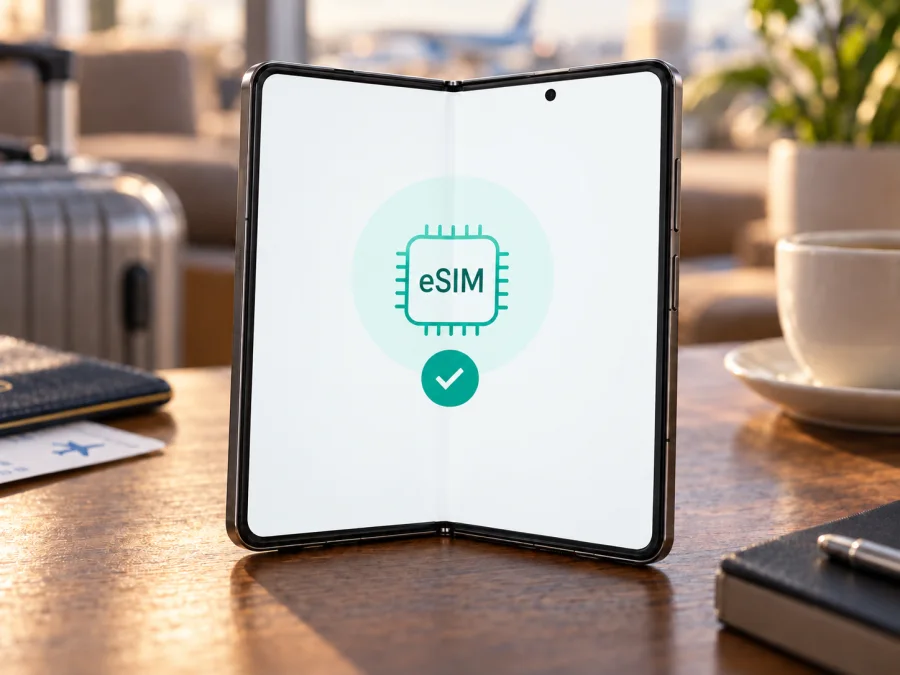
Google Pixel 10 Pro Fold 128GB eSIM compatibility
The Google Pixel 10 Pro Fold supports eSIM, according to Google’s current Pixel hardware specifications. Google lists the phone’s SIM arrangement as one nano-SIM plus eSIM for US and rest-of-world models. That makes the foldable suitable for a compatible travel data plan, provided the exact handset is not carrier-locked and the eSIM provider supports it.
There is an important detail in the name supplied for this page: Google’s published specifications list the Pixel 10 Pro Fold with 256 GB, 512 GB, or 1 TB of storage, not 128 GB. The official spec table also lists 16 GB RAM. A listing described as “128GB” may contain a seller error or refer to another model. Check the product code, storage shown in Android, and the SIM settings before paying. The storage figure does not itself determine eSIM support, but confirming the device identity matters.
An eSIM is a digital subscriber profile stored by the phone rather than a removable card. A travel profile can sit alongside a home SIM, so you can choose which line handles mobile data. This is useful when you want maps, booking details, and messaging soon after arrival without swapping a physical card. The plan still depends on local partner networks and its stated coverage. Unless the plan explicitly includes them, do not expect a regular phone number, standard voice calls, or SMS; internet-based messaging and calls use data and the relevant apps.
Google Pixel 10 Pro Fold 128GB at a glance
| Item | What to know |
|---|---|
| eSIM support | Yes, on the Pixel 10 Pro Fold according to Google’s hardware specifications |
| SIM configuration | Google lists one nano-SIM and eSIM for US and rest-of-world models |
| Storage in the supplied name | 128 GB; this capacity is not listed in Google’s Pixel 10 Pro Fold specifications |
| Official listed storage | 256 GB, 512 GB, or 1 TB |
| RAM | 16 GB in Google’s published specifications |
| Software | Launched with Android 16; menu wording may change with updates |
| Dual eSIM use | Pixel 7 and later can use two eSIM profiles at once when the carrier allows it; confirm the specific carrier and configuration |
| Main limitation | eSIM activation and service depend on the market version, carrier, device lock status, plan, and local network |
“Supports eSIM” describes the phone’s capability to store a digital SIM profile. It does not guarantee that every carrier, plan, country, or particular imported unit will activate one. Treat the device as compatible only after checking the handset’s own EID and the provider’s current requirements.
What the 128GB label means for this exact listing
Google does not list a 128 GB Pixel 10 Pro Fold. Its current specifications show 256 GB, 512 GB, or 1 TB, with availability varying by region and channel. Ask the seller to confirm the product code and capacity; on the phone, compare Settings → About phone and Settings → Storage with the packaging. This mismatch warrants clarification but does not itself determine eSIM support.
Google’s SIM table lists a nano-SIM plus eSIM for US and rest-of-world models and identifies a Japan-specific hardware model. Bands, carrier support, software configuration, and lock status can vary. Google’s US note about eSIM-only Pixel 10 models excludes the Pixel 10 Pro Fold. Check the exact regional model and carrier policy rather than applying details from another Pixel 10 model.
How to check eSIM before you buy a plan
Use the phone itself to verify a seller’s claim. An EID plus the option to add an eSIM provides strong practical confirmation; a missing menu can also reflect software or carrier configuration.
- Find the EID: open Settings → About phone → SIM status and look for EID. Google also lists the box as a place to check. Provide this identifier only if your carrier asks for it.
- Check the setup menu: go to Settings → Network & internet → SIMs → Add SIM → Set up an eSIM. Labels can vary by Android version and language; you can check without completing installation.
- Confirm unlock and plan support: ask the seller or carrier to verify the lock status, exact regional model, accepted activation method, and any software requirements.
- Resolve the storage mismatch: verify the product code and capacity because 128 GB is not among Google’s listed Fold configurations.
If the EID is present and the eSIM setup option appears, that is a strong sign that the phone can download a profile. If either is missing, update Android, restart the device, connect to Wi-Fi, and check again. If the menu remains absent or the EID cannot be found, contact the seller or carrier with the model number before buying a plan. The compatibility check can also be started here: Check your device.
Successful service also depends on an unlocked phone, destination coverage, plan terms, and any IMEI/EID checks. Coverage and speed vary by location. 5G requires a suitable plan, supported local bands, and signal; an eSIM installation alone cannot guarantee it.
Install and activate a travel eSIM
Prepare on reliable Wi-Fi and read the provider’s instructions first. Some QR codes are single-use, and deleting a profile may make it unusable. Installation and the start of the plan’s validity are separate events; check the plan terms.
- Check the plan: confirm destination, data allowance, validity, and when the plan starts.
- Prepare: charge the phone, connect to Wi-Fi, and open the provider’s instructions. Display a QR code on another screen if needed; keep it private.
- Add the profile: go to Settings → Network & internet → SIMs → Add SIM → Set up an eSIM and follow the prompts to scan a code or use the provider’s app/details.
- Wait for installation: keep Wi-Fi connected. A downloaded profile may not register on a network until you reach the covered destination.
- Set a clear label and data line: choose the travel eSIM for mobile data when needed; keep calls and messages on your home SIM if desired.
- Activate at the right time: follow the plan’s start rules. At the destination, enable the travel line and data roaming for that line only if required.
- Test: turn off Wi-Fi briefly and open a low-data webpage. If it fails, check the settings below before deleting or reinstalling the profile.
For a guided walkthrough, see the Android eSIM installation instructions. The iOS eSIM instructions are useful when you are preparing a second Apple device for the same trip; they do not describe Pixel menus.
Choosing which SIM does what
Saved profiles and simultaneously active SIMs are different: Google says Pixel 7 and later can use two eSIM profiles at once when the carrier permits it. In SIM settings, review separate defaults for data, calls, and texts. A data-only plan can carry internet while your home line handles calls and messages, if supported. Check roaming charges on your home SIM; enable data roaming on the travel eSIM only if its provider requires it.
Using the eSIM during a trip
Before departure: check the EID, unlock status, and plan compatibility. Install in advance only if the provider recommends it, and confirm whether installation starts the validity period. Keep support details accessible.
On arrival: switch on the travel profile when appropriate, assign it to mobile data, and allow time for registration. Use automatic network selection unless the provider gives different instructions. Enable roaming on that profile only if required.
During the trip: check remaining data and expiry in the provider’s account. Maps, cloud backups, video, and hotspot use can consume data quickly. A country plan may not cover a border crossing, so confirm every destination on a multi-country itinerary.
After returning: restore your usual data line. Remove the travel profile only when you are sure it is no longer needed; some profiles are single-use or cannot transfer to another device.
Kaspersky eSIM Store is an app and website where you can choose, arrange, and activate an eSIM plan for mobile data on an international trip. Review the destination and plan conditions before installation on a compatible device.
Troubleshooting: what to check first
No eSIM option: check for an EID under About phone → SIM status, update Android, restart, and revisit Network & internet → SIMs. A work administrator or carrier configuration may restrict setup; ask the seller to confirm the regional model if the menu remains absent.
Profile will not download: verify Wi-Fi, date and time, and that the QR code has not expired or been used. Follow the provider’s app or carrier-assisted process if specified; do not keep scanning a one-time code.
Installed but no service: confirm the travel line is on, the destination is covered, airplane mode is off, and mobile data is assigned to the travel profile. Enable roaming for that profile if required, then wait or restart.
Connected but no data: check plan status and allowance, turn Wi-Fi off for a short test, and enter APN details only when supplied by the provider.
Slow or no 5G: check signal, plan limits, local bands, and location. A 5G-capable phone cannot guarantee 5G service everywhere.
Profile lost after removal/reset: some activation codes are single-use. Contact the provider with order details before trying to reinstall or reset network settings.
Frequently asked questions
Does the Google Pixel 10 Pro Fold 128GB support eSIM?
Yes. Google’s Pixel 10 Pro Fold hardware specifications list eSIM alongside a single nano-SIM for US and rest-of-world models. The “128GB” part of the supplied product name does not match Google’s listed capacities, so verify the seller’s model details before purchase. Check the EID and setup menu on the actual phone as well.
Does every country version use the same SIM setup?
Google lists nano-SIM plus eSIM for US and rest-of-world models and identifies separate Japanese hardware. Bands, carrier rules, and lock status can vary; confirm your exact model with the provider.
Can I use two eSIMs at once?
Google says Pixel 7 and later may use two eSIM profiles simultaneously if the carrier permits it. Confirm simultaneous use with your providers.
Where do I find the EID?
Open Settings → About phone → SIM status and look for EID. Google also lists the retail box as another place to check. If you cannot find an EID, confirm the model with the seller or carrier before purchasing a plan.
Does an eSIM data plan replace my usual phone number?
Usually not. A travel data plan may provide mobile data only. Your usual SIM can remain available for calls, texts, and account verification if you configure the lines and your home carrier allows it. Check the plan’s included services.
Should I install the eSIM before leaving?
Follow the provider’s timing instructions. If validity starts at installation, wait until the recommended time; keep any QR code private.
Summary: check the phone, then prepare the trip
The Google Pixel 10 Pro Fold supports eSIM, and Google documents one nano-SIM plus eSIM for its US and rest-of-world models. Actual service still depends on the exact market variant, carrier unlock, supported network, plan terms, and provider activation process. Two eSIMs can be active together only where the carrier and device configuration allow it.
The “128GB” suffix should be checked carefully: Google currently lists 256 GB, 512 GB, and 1 TB storage for the Pixel 10 Pro Fold, with 16 GB RAM. Ask the seller to confirm the product code and capacity, then check Settings → About phone → SIM status for an EID and Network & internet → SIMs for the eSIM setup option. Confirm compatibility before you buy a plan.
For an upcoming trip, choose a plan that covers each destination and matches your expected data use. Review its start date, validity, roaming instructions, and whether it includes data only. Once the phone and plan are confirmed, Kaspersky eSIM Store’s app and website can help you choose, arrange, and activate a suitable eSIM plan for mobile data abroad. Keep the home SIM settings under your control and test the travel connection before relying on it for navigation or bookings.


