Travel connectivity guide
Google Pixel 10 Pro XL 512GB eSIM guide
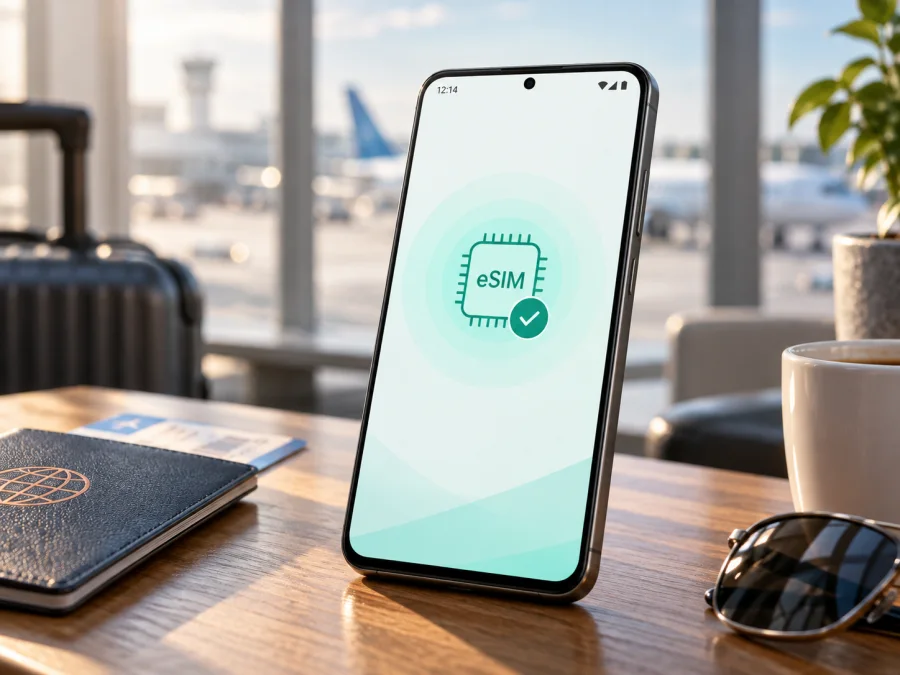
Google Pixel 10 Pro XL 512GB eSIM: compatibility, setup and travel use
If you are checking whether Google Pixel 10 Pro XL 512GB can use an eSIM for a trip, the short answer is yes: Google lists eSIM support for the Pixel 10 Pro XL family. The important qualification is the market version. Current official Google information says that Pixel 10 Pro XL phones sold in the United States do not use a physical SIM and are eSIM-only. Google specifications for other markets can describe the same family as dual-SIM, with one nano-SIM and eSIM. The exact SIM arrangement can still depend on sale region, carrier status and software.
That means Google Pixel 10 Pro XL 512GB is a good candidate for a travel eSIM, but you should verify the individual phone before paying for a plan. An eSIM is a digital SIM profile stored in the phone. A travel profile can provide mobile data without taking out your everyday SIM, subject to the plan's countries, network partners and terms.
Quick answer for Google Pixel 10 Pro XL 512GB
Google’s current official Pixel information describes eSIM as a supported way to activate cellular service on Pixel 10 Pro XL. For the U.S. version, Google states that the Pixel 10 Pro XL is eSIM-only. For versions sold in some other markets, Google’s technical specifications list a nano-SIM together with eSIM. Therefore, the reliable answer is: eSIM support is expected, but the physical-SIM arrangement is regional and should not be inferred from the model name alone.
The 512GB label identifies internal storage and does not by itself change eSIM compatibility. A retailer may also describe the phone as unlocked, carrier-specific or imported. Those details matter because a carrier lock or an activation restriction can prevent a new eSIM from working even when the phone hardware includes an eSIM.
| Item | What to know |
|---|---|
| Exact device | Google Pixel 10 Pro XL 512GB |
| eSIM | Supported by the Pixel 10 Pro XL family according to current Google information |
| U.S. SIM arrangement | eSIM-only; no physical SIM use on U.S. Pixel 10 Pro XL phones |
| Some other markets | One nano-SIM plus eSIM may be listed in Google specifications |
| Storage | 512GB internal storage; storage does not decide eSIM availability |
| Carrier requirement | The carrier or travel-plan provider must support eSIM activation for the device |
| Main verification | Look for an EID and an option such as Add SIM or Set up an eSIM |
| Travel data | Select the eSIM as the mobile-data line and follow the plan’s roaming instructions |
Does Google Pixel 10 Pro XL 512GB support eSIM?
Yes, the model family supports eSIM. Google’s official product information for Pixel 10 Pro and Pixel 10 Pro XL describes eSIM-only operation for U.S. phones, while Google’s regional specification pages can list dual-SIM operation with a nano-SIM and eSIM. This is current manufacturer information, not an assumption based on an earlier Pixel generation.
In practice, compatibility has three parts: the phone must expose eSIM settings, be allowed to download a profile, and be accepted by the selected provider in the destination. An EID is a strong hardware sign, but it does not override a carrier lock, an enterprise policy, an already-used activation code or a plan restriction. Newer Pixels can store multiple profiles and may use two eSIMs at once when the carrier allows it; that feature is not guaranteed for every plan.
Regional, carrier and software differences
The biggest difference for Google Pixel 10 Pro XL 512GB is the market version. In the U.S., Google’s support guidance says that Pixel 10 Pro XL phones do not use a physical SIM. In other markets, Google’s published specifications may show a nano-SIM and eSIM together. An imported U.S. phone can therefore be perfectly suitable for a travel eSIM while being unsuitable for someone who specifically needs a physical local SIM.
Carrier status and software add another layer. “Unlocked” is useful, but it does not mean that every network supports every feature. Android menu names can change, and work management can hide SIM controls, so update the phone and ask the seller for the exact sale region, model and unlock status. 5G is separate from eSIM: an active profile may use LTE when bands, coverage, plan and carrier provisioning do not align.
<a id="kesim-device-compatibility"></a>
Check compatibility before buying an eSIM plan
Use the following check on the actual Google Pixel 10 Pro XL 512GB in your hand before completing a purchase, especially if the phone was imported or bought second-hand.
Compatibility checklist
- [ ] Open Settings and find the mobile-network or SIM section.
- [ ] Look for an EID, which is the identifier associated with the embedded SIM.
- [ ] Look for Add SIM, Download a SIM, Set up an eSIM or a similar option.
- [ ] Confirm that the phone is not carrier-locked or restricted by a previous account.
- [ ] Confirm that Android is updated and the phone can connect to Wi-Fi during setup.
- [ ] Check the plan’s destination, validity period, data allowance and activation rules.
- [ ] Confirm whether the plan requires data roaming to be enabled on the travel eSIM.
- [ ] Make sure you can access the QR code or activation details on a second screen.
Check your device before buying a plan.
An EID and an available add-eSIM option pass the basic device check, not a coverage guarantee. If both are missing, pause before buying and verify the sale region, IMEI eligibility and carrier status.
How to find the EID
On a recent Pixel, open Settings and use the search field for “EID”. Depending on the software version, it may appear under About phone, SIM status or a SIM-specific information screen. You can also open Network & internet, select SIMs, and inspect the available SIM information. The exact labels can vary, so search is often faster than following a memorised menu path.
Share the EID only through a private support channel when requested. It is not a QR code or an activation code. An IMEI without an EID is a reason to investigate the regional model rather than guess.
Choose a travel eSIM after the device check
Once your Google Pixel 10 Pro XL 512GB shows an EID and an eSIM setup option, you can use Kaspersky eSIM Store to choose and activate an eSIM with a plan for mobile internet in a foreign trip. The app and website help you compare the destination, data allowance and validity shown for available plans, then access the eSIM for installation. Kaspersky eSIM Store is not the mobile operator, does not own the destination network and does not supply the radio coverage; the underlying service depends on the plan and local network partners.
Match the plan to the route: a country plan may suit one destination, while a regional plan can help on a multi-country itinerary. Check the data allowance, validity start, hotspot rules, 5G availability and roaming requirement. Label the profile, keep the purchase details, and do not delete it as a “reset”; some profiles cannot be transferred or reinstalled.
How to install and activate eSIM on Google Pixel 10 Pro XL 512GB
Before the flight, charge the phone, connect it to Wi-Fi, update Android if appropriate, and display the QR code on another device. If manual activation is offered, use it when the QR code is on the Pixel’s own screen.
For a general Android walkthrough, see Android eSIM installation instructions. The iOS eSIM installation instructions are useful when the QR code is being shown from an iPhone or when another traveller is helping, but the menu sequence below is for Pixel.
- Open Settings and go to Network & internet, then SIMs. Menu names may differ slightly after an Android update.
- Choose Add SIM or the option to add, download or set up an eSIM.
- Select the choice to download a SIM or use a QR code, then scan the code supplied with the plan. Keep the screen steady and use adequate light.
- If scanning is unavailable, use manual entry and enter the activation details exactly as supplied. Do not add spaces or substitute similar-looking characters.
- Wait while Android downloads the profile. Do not lock the screen, leave Wi-Fi or restart the phone unless the setup screen asks you to.
- Give the new line a clear label such as “Travel” or the destination name. This reduces the chance of selecting the wrong line later.
- When Android asks which line should provide mobile data, select the travel eSIM only when you are ready to use the travel plan.
- If the plan instructions require it, open the travel eSIM’s settings and enable Data roaming. This setting is often required for an international data profile, even though it is different from using your home line’s roaming.
- Decide whether calls and SMS should remain on your primary line. To avoid unexpected charges, leave roaming data disabled on the primary line unless you intentionally need it.
- At the destination, turn on the travel eSIM, select it for mobile data, wait for network registration, and test a simple webpage or message. Activation may take a few minutes and depends on the local network.
Installation downloads the profile; activation may begin at installation, at first supported-network connection or under another plan rule. Check the start event before installing and do not delete the profile to “start again” without checking recovery terms.
Using the eSIM during a trip
On arrival, keep the primary line for essential calls if needed, but select the travel eSIM for mobile data and turn off automatic data switching. Maps, translation, transport and check-in apps can then use the travel profile while SMS verification can remain on the primary number. Monitor usage in the plan account and Android, restrict background backups on limited plans, and check whether hotspot use is allowed.
Troubleshooting: when the eSIM does not work
There is no EID or Add eSIM option. Check the sale region and model number, update Android, and look for carrier or work-management restrictions. Ask the seller or carrier to confirm the device before purchasing another plan.
The QR code will not scan. Increase the other screen’s brightness, clean the camera, adjust the distance and use stable Wi-Fi. Enter manual details exactly when supplied, and keep the code private.
The profile downloaded but shows no service. Confirm that it is on, selected for data, and that Airplane mode is off. Check destination and activation timing, restart once, and enable data roaming for the travel eSIM if required. Weak signal, an unsupported partner network and an inactive plan can look alike.
Mobile data is connected but apps remain offline. Check the selected data line with Wi-Fi temporarily off, and review APN, Data Saver, data-limit and per-app settings. Do not edit APN fields without exact provider instructions.
The phone keeps using the home line. Turn off automatic data switching, set the travel eSIM as data SIM, and verify the label after a restart.
5G is not available. Test LTE first. 5G depends on local bands, coverage, plan and carrier provisioning; an eSIM can be correctly installed while the phone uses LTE.
Activation says the profile has already been used. Stop retrying and contact support with the order details. Codes can be single-use, and deleting the profile can make recovery harder.
Frequently asked questions
Is the 512GB version different for eSIM?
The 512GB designation describes storage, not the embedded-SIM function. eSIM availability follows the phone’s regional hardware, software and carrier status. Verify the actual unit rather than assuming every storage configuration has the same SIM tray or market policy.
Can I use a travel eSIM without removing my regular SIM?
Often yes. A compatible Pixel can store and manage more than one SIM profile, and some carriers allow two eSIM profiles to be active. The exact combination depends on the regional version and carrier. Choose the travel eSIM for data and review the primary line’s roaming settings before departure.
Does a travel eSIM give me a phone number?
Not necessarily. Many travel eSIM plans are designed for mobile data. Voice calls, SMS and a regular telephone number are included only when the individual plan states that they are. Messaging and calling apps can work over data, but they do not change the terms of the plan.
Should I activate the eSIM before flying?
Installation over Wi-Fi before departure can make arrival easier, but timing matters. Some plans start their validity at installation, while others start when they connect in the destination. Check the plan conditions, install only when you understand the start event, and activate mobile data at the appropriate time.
Can I move the eSIM to another phone later?
Do not assume that you can. An eSIM profile may be tied to the first installation or to a one-time activation code. If you replace the phone, contact the plan’s support team before deleting anything and follow the provider’s transfer process.
Final check before your trip
Before choosing a travel eSIM for Google Pixel 10 Pro XL 512GB, confirm the EID, locate Add SIM or Set up an eSIM, check that the phone is unlocked, and verify the plan’s destination and activation rules. Keep the QR code or manual details accessible, connect to Wi-Fi for installation, and decide which line will provide mobile data after arrival.
When those checks pass, Kaspersky eSIM Store can help you choose and activate an eSIM tariff for mobile internet in your trip through its app or website. Review the allowance and validity for the destination, install the profile on the compatible phone, and test the travel line with a small data request. Checking first helps avoid a plan that cannot be installed.


