Travel connectivity guide
Google Pixel 4 128GB eSIM Compatibility & Setup
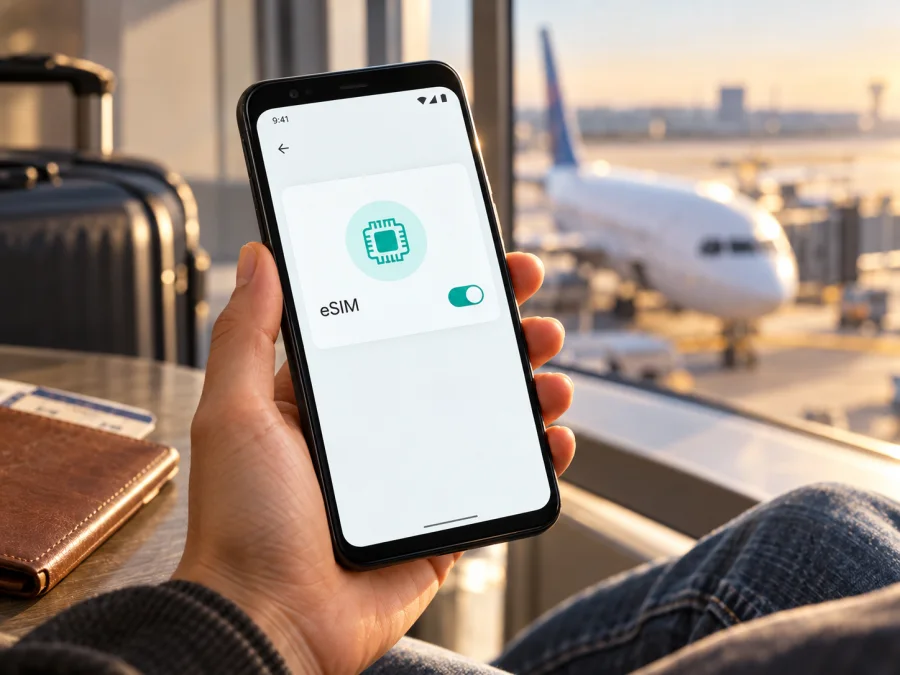
Google Pixel 4 128GB eSIM: compatibility and setup guide
Short answer: Google Pixel 4 128GB supports eSIM. Google’s current Pixel help says all Pixel 4 and later phones work with eSIM. The 128GB storage option does not change the SIM hardware: Google lists Pixel 4 storage configurations of 64GB and 128GB while its eSIM guidance applies to the Pixel 4 model family. You can use an eSIM alongside a physical nano-SIM, subject to your operator’s support and the phone’s lock status.
There is one important qualification for an individual handset: the name “Google Pixel 4 128GB” does not identify where it was sold, its regional model code, or whether it is carrier locked. Google’s published Pixel 4 specifications attach an eSIM availability note to Australia, Canada, Germany, Spain, the United Kingdom, Japan, Taiwan, and the United States. Google’s general help page separately says Pixel 4 and later phones work with eSIM and advises checking the mobile operator. Treat these as two separate questions: does the phone have eSIM hardware, and can the particular operator activate its profile on this device in the country where you plan to use it? Confirm both on your own handset before choosing a travel plan.
Google Pixel 4 128GB at a glance
| Check | What to know |
|---|---|
| Device named in this guide | Google Pixel 4 128GB |
| eSIM support | Yes, according to Google’s current Pixel guidance for Pixel 4 and later |
| Physical SIM | Nano-SIM slot; eSIM can be used as the second SIM when the operator and software support it |
| Storage variant | 128GB is a storage capacity, not a separate eSIM edition |
| Useful identifiers | EID for the embedded SIM; IMEI 1 and IMEI 2 identify the SIM lines |
| Main conditions | Regional handset, carrier support, SIM unlock status, Android settings and plan terms |
| Best pre-purchase check | Find an EID and the eSIM setup option, then confirm acceptance with the specific eSIM provider |
Does this specific Pixel 4 support eSIM?
Yes. On Google’s support page, the Pixel 4 generation is included in the group “Pixel 4 and later” that works with eSIM. Google’s identification instructions also describe an EID field and eSIM-specific setup options on Pixel phones. Google’s published Pixel 4 specifications list a nano-SIM and eSIM, and show 128GB as one of the phone’s storage options. Taken together, this supports the straightforward answer for the stated 128GB configuration: the storage size does not make it a physical-SIM-only version.
Regional details still deserve attention. Google’s specifications include market-specific radio configurations and an eSIM availability note naming Australia (AU), Canada (CA), Germany (DE), Spain (ES), the United Kingdom (GB), Japan (JP), Taiwan (TW) and the United States (US). This list describes the markets named in Google’s published specification; it is not a promise that every carrier in each country supports Pixel eSIM, nor does it establish current service availability in any destination. The operator you intend to use may have its own supported-device and activation requirements. If your handset was imported, rely on its model code and the actual EID/settings screen rather than the country where you now live.
Regional and operator versions: what can differ?
Pixel 4 128GB refers to the Pixel 4 with 128GB of storage, but it does not state whether the handset is the US, Japanese, European or another market version. Regional versions can have different supported radio bands or regulatory details, which may affect whether the phone can connect to a particular network. This is distinct from eSIM availability: a profile can install successfully while the phone still lacks a radio band used by a local network, or service may be unavailable because the operator does not accept that handset.
Carrier locking is another separate issue. A locked phone may restrict which operator’s SIM profiles it can use, even if the eSIM menu and EID are present. Google notes that phones bought from an operator may remain SIM-locked until that operator unlocks them; a Google Store unit is sold unlocked in the listed markets. A used phone’s seller description is not a substitute for checking its status. If the phone is locked, ask the original operator about unlocking before purchasing a plan for another network.
Check compatibility before you buy
Use the phone itself as the first check. Google’s Pixel instructions say to find the EID in Settings → About phone → SIM status → EID. Menu labels can vary slightly with Android version and language. You can also open Settings → Network & internet → SIMs and look for Add SIM or Set up an eSIM. On some software versions, the route begins with Add or Download a SIM instead?. The appearance of an EID and an eSIM setup item is a strong practical indication that the handset exposes eSIM capability, but it does not guarantee that a particular carrier will activate it.
If you cannot find the menu, search Settings for “EID” or “SIM status,” update the phone’s available system and Google Play services components, and restart it. Check About phone for the precise model and Android version. If an EID is shown, keep it private and provide it only through the official activation flow or directly to the provider when requested. It is a device identifier, not a number to post publicly.
Before checkout, complete this short checklist:
- [ ] Confirm that the device is exactly Google Pixel 4 128GB and note its model code and sales region where available.
- [ ] Find an EID in SIM status and confirm that the eSIM setup option appears in Network & internet.
- [ ] Ask the eSIM provider whether Google Pixel 4 is supported for the exact plan and activation method.
- [ ] Confirm that the phone is unlocked for the operator whose profile you will add.
- [ ] Verify that the plan covers every country or region on your route and check its start time, duration and data allowance.
- [ ] Make sure you will have Wi-Fi or another internet connection during installation if the profile must be downloaded.
- [ ] Keep your regular SIM available if you need its number for calls, texts or verification codes.
Check your device compatibility before selecting a plan. For an imported or refurbished phone, ask the seller for the model code and carrier-lock status, then confirm the information on the device after purchase. Do not buy a plan solely because a listing says “unlocked” or because eSIM is supported by the Pixel 4 family: the device and the specific provider both need to pass their checks.
How to install and activate an eSIM on Pixel 4
Install the profile while you have reliable Wi-Fi, ideally before departure. A QR code or activation code is usually intended for one installation and may stop working once used; follow the provider’s instructions and do not delete a profile to troubleshoot unless the provider confirms that it can be reinstalled. The steps below describe the normal Pixel path. Names may vary by Android version and by the provider’s activation method.
- Check the plan and device. Confirm the destination, data amount, validity and activation rules. Verify that the phone is unlocked, the EID is visible, and the plan provider supports this Pixel 4. Make sure you have a stable internet connection and sufficient battery.
- Open the SIM settings. On the Pixel, open Settings → Network & internet → SIMs → Add SIM → Set up an eSIM. If the exact labels differ, search Settings for “SIM” or use the provider’s instructions for Pixel/Android. Do not select a physical-SIM transfer option unless that is what you intend to do.
- Choose the provider’s activation method. If prompted, select the relevant network provider. Scan the QR code supplied for your plan, or enter its activation details if the provider gives manual setup information. Keep the QR code on another screen or print it so the phone camera can scan it. If you received a one-device activation code, do not scan it with a second phone.
- Download the profile. Follow the on-screen prompts and wait for the eSIM profile to install. Keep Wi-Fi on until setup finishes. If the provider requires activation in its app or account, complete that step as instructed. Profile installation and the start of the plan’s validity are not necessarily the same event; check the provider’s terms for when the timer begins.
- Label the line. Give the profile a clear name such as “Travel data” so you can distinguish it from your home SIM. Keep your home line enabled if you need calls or SMS there, while checking its roaming charges and settings with your home operator.
- Choose the data SIM. In Settings → Network & internet → SIMs, select the travel profile under mobile data. Pixel can use a physical SIM and an eSIM together when supported, but only one line is normally selected as the default mobile-data SIM. Review the calls and texts defaults separately.
- Set roaming for the travel line if required. Open the travel SIM’s settings and follow the plan provider’s instructions. Some travel eSIM plans require data roaming to be on for that profile; others specify a different setup. Check the selected SIM carefully before enabling roaming so you do not unintentionally use your home SIM for data abroad.
- Test the connection. At the destination, turn Wi-Fi off briefly, confirm that the travel line is enabled and selected for data, and load a simple webpage. If it does not connect, allow a few minutes for network registration, then follow the troubleshooting section below before changing advanced settings.
For a visual walkthrough, use the Android eSIM installation instructions. The iOS installation instructions are for a different operating system and do not replace the Pixel steps above. In Kaspersky eSIM Store, the app and website help you choose, arrange and activate an eSIM with a mobile-data plan for an international trip; the mobile network service itself is provided through the relevant plan and operator. Review the plan details and compatibility before you complete your selection.
Using the eSIM for mobile data while travelling
Before the trip, decide what should happen to your home line. You may keep it enabled for incoming SMS or calls, but your home operator may charge for roaming or calls. Turn off data roaming on the home line if you do not want it to use mobile data abroad, and select the travel eSIM explicitly for mobile data. If you need a verification text, confirm the home line remains available and understand its fees. Avoid assuming that a travel eSIM will replace your primary number.
While travelling, check Settings → Network & internet → SIMs if data stops. Make sure the travel profile is switched on, selected as the data SIM, and allowed to use mobile data. Check the provider’s roaming instruction, restart the phone, and confirm that the plan has remaining data and has not expired. If there is signal but no data, the issue may be the plan’s activation state or the selected APN/network settings rather than eSIM compatibility. Use provider instructions before manually changing access point names or selecting a network.
Common problems and checks
There is no “Add eSIM” option
First confirm you are checking Settings → Network & internet → SIMs, not only the physical SIM tray. Search Settings for “EID” and check About phone → SIM status. Restart the phone and install any system updates available for your handset. If the EID is missing and the setup option remains absent, compare the model code with Google’s published specifications and ask the seller or Google support about the unit’s region. Do not assume that a software reset will add eSIM hardware to a phone that does not expose it.
The QR code will not scan or the profile will not download
Use a bright display for the QR code, clean the camera lens and hold the phone far enough away to focus. The code may be expired, already used or intended for another device. Confirm that Wi-Fi works, the phone’s date and time are automatic, and the provider has issued the code for this exact activation. If scanning fails, request the provider’s official manual activation steps rather than guessing server addresses or codes. Avoid deleting an installed but inactive profile until support confirms that it can be downloaded again.
The profile installs, but the eSIM shows no service
Check that the profile is enabled and that the destination is covered by the plan. Confirm the phone is unlocked and the operator supports the Pixel 4 model in that market. Turn airplane mode on for a few seconds and off again, then wait for registration or restart. If the provider specifies a network selection or APN, follow those exact instructions. Signal bars alone do not prove that data is active; a plan may need a separate activation step or may not yet have started.
Calls work on the home SIM, but travel data does not
Open the SIM settings and verify that the travel eSIM is the selected line for mobile data. Confirm mobile data is enabled for that profile, and check whether its roaming switch must be on under the plan’s instructions. Check that the home SIM has not remained selected for data. Test with Wi-Fi off and a simple webpage, and review the plan’s remaining data and expiration status in the provider’s app or account.
The operator says the phone is unsupported
Ask whether the rejection is about eSIM capability, model certification, carrier lock, IMEI/EID validation, network bands or the particular plan. These are different issues and need different fixes. Provide the exact model code and the identifier the provider requests, through its official channel. If the handset is carrier-locked, contact the original carrier for unlocking; installing the profile again will not remove a network lock. If the operator does not support the device in that market, choose a plan only after its provider confirms an alternative compatible option.
Frequently asked questions
Does 128GB mean this is a special eSIM model?
No. It identifies the storage configuration. Google lists 128GB as a Pixel 4 storage option, while its support guidance covers Pixel 4 and later for eSIM. Check the actual phone’s EID and settings because the storage label alone does not confirm the state or lock status of an individual unit.
Can I use a physical SIM and an eSIM at the same time?
Pixel phones from Pixel 3a onward can use a physical SIM and an eSIM in dual-SIM mode, according to Google. The mobile operator must support the service, and the exact available behavior depends on the phone and Android version. Pixel 4 typically uses one line for mobile data at a time. Check the SIM settings and confirm with the operator if you need both lines active.
Does a visible EID guarantee that my travel plan will work?
No. An EID shows that the phone has an embedded SIM identity, but the plan provider still has to accept the device and support activation in the destination. The phone must also be unlocked for that operator and support the relevant network. Confirm these items before purchase.
Will the travel eSIM give me a normal phone number?
Do not assume so. A travel data plan is intended for mobile internet, and standard voice calls or SMS may not be included unless the specific plan says so. You can use internet calling and messaging apps over data, while keeping your home number on its physical SIM if appropriate and if roaming costs are acceptable.
What should I do if a used Pixel 4 is locked?
Ask the carrier that originally sold it whether it can be unlocked and what conditions apply. A lock can prevent activation of another operator’s eSIM even when the handset has an EID. Wait for confirmation that it is unlocked before paying for a plan intended for a different operator.
Is eSIM coverage determined by the phone’s sales country?
The sales region can matter for the model variant and specifications, but it does not by itself determine where a plan works today. The destination, operator, supported bands, activation rules and device lock status also matter. Check the exact handset and the exact plan for every country on your route.
Before your trip: check the device, then choose the plan
Google Pixel 4 128GB supports eSIM according to Google’s current Pixel guidance, and 128GB is a storage choice rather than a separate SIM edition. Still, confirm the handset in front of you: check for an EID, find Set up an eSIM, identify its region/model code and confirm it is unlocked. Then ask the specific eSIM provider to verify the exact Pixel 4 and plan for your destination.
Once compatibility is clear, use Kaspersky eSIM Store’s app or website to choose and arrange an eSIM with a mobile-data plan for your international trip. Compare the destination, data allowance, validity and activation instructions, and keep the provider’s setup details available. A quick device check before purchase makes installation more predictable and helps you plan how the travel data line will work alongside your regular SIM.


