Travel connectivity guide
Google Pixel 4 XL 256GB eSIM: Compatibility & Setup
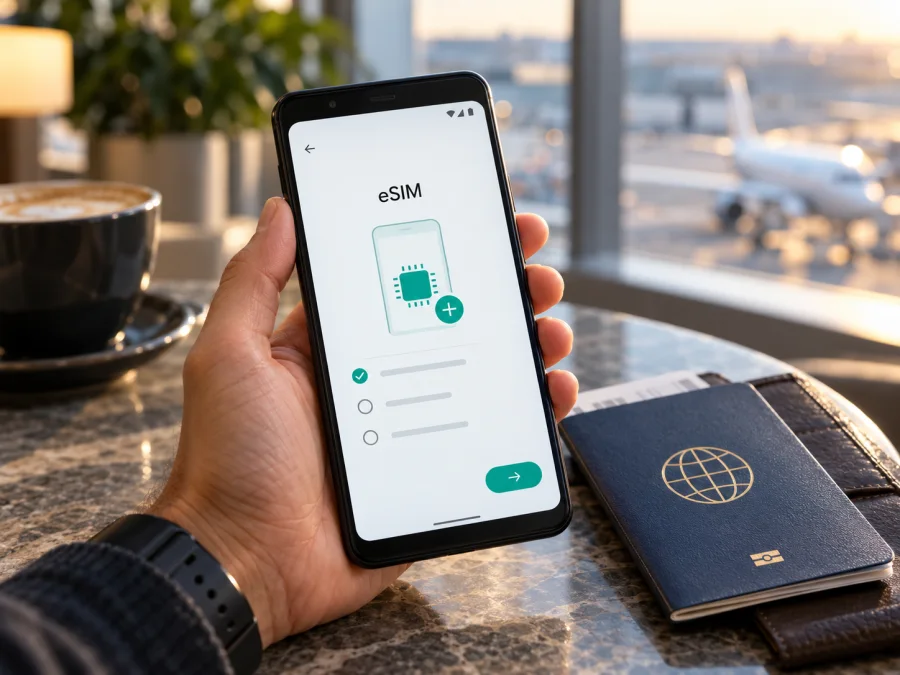
Google Pixel 4 XL 256GB eSIM: compatibility and setup guide
If you are checking whether the Google Pixel 4 XL 256GB can use an eSIM for mobile data on a trip, the short answer is yes: Google lists eSIM support for the Pixel 4 XL, and its Pixel Phone Help page says Pixel 4 and later phones work with eSIM. You still need to confirm the individual phone, its software and the service you plan to use. A device name on a shop listing does not prove that a particular handset is unlocked, has an active eSIM function or is compatible with every operator.
There is a detail worth checking before you buy: Google’s published Pixel 4 XL specifications list 64 GB and 128 GB storage configurations, not 256 GB. “Google Pixel 4 XL 256GB” may therefore be a seller’s inaccurate description, a modified or refurbished device listing, or a mix-up with another model. Keep the exact name in mind when comparing search results, but ask the seller to confirm the model number, original storage and device identifiers. The storage capacity itself does not determine eSIM support; the actual Pixel hardware and its software do.
The Google Pixel 4 XL is an older Android phone, so its menus can look different depending on the Android version and installed updates. The directions below use the current Pixel settings structure as a guide. If a menu label differs, use Settings search for “SIM” or “eSIM”, and check the Android help pages linked below.
Quick answer and device facts
| Item | What to know |
|---|---|
| Device named in this guide | Google Pixel 4 XL 256GB |
| eSIM support | Pixel 4 XL hardware supports eSIM according to Google’s published specifications; Google says all Pixel 4 and later phones work with eSIM |
| Physical SIM | One nano-SIM slot is listed alongside eSIM |
| Storage note | Google lists 64 GB and 128 GB configurations for Pixel 4 XL. Verify any 256 GB seller listing directly |
| Regional hardware | Google identifies North America and Taiwan model G020J, rest-of-world model G020M, and Japan model G020N |
| Network service | The chosen mobile operator must support eSIM activation for this device and the destination |
| SIM lock | A carrier-locked phone may be restricted to its original provider until it is unlocked |
| Best check before purchase | Look for an EID and an eSIM/add-SIM option in the phone’s settings; confirm the seller’s return and unlock terms |
Google’s manufacturer documentation gives a broad yes for the Pixel 4 XL model family, but there are two separate questions: whether the phone has eSIM hardware and whether an eSIM profile can be activated with your operator in the market where you will use it. The first is a device capability. The second depends on the exact handset, its market configuration, operator support and applicable network conditions. A working eSIM in one country does not guarantee that every operator or travel plan will work in another.
What the 256GB wording means
Google’s official Pixel 4 XL specifications list 64 GB and 128 GB storage configurations, not 256 GB. The “256GB” detail may be an inaccurate seller listing or a model mix-up, so ask the seller to confirm the model number, actual storage and original box label. Storage size does not determine eSIM support, but the mismatch means you should verify the physical phone rather than trust the product title. If the seller cannot explain it, resolve that before purchase.
Does the Google Pixel 4 XL support eSIM?
Yes. Google’s Pixel Phone Help says Pixel 4 and later phones work with eSIM, and Google’s Pixel 4 XL specifications list both a nano-SIM and eSIM. Google identifies regional hardware groups G020J (North America and Taiwan), G020M (rest of world) and G020N (Japan), and lists eSIM for these groups.
Google’s same specification page states that eSIM is enabled only in Australia, Canada, Germany, Spain, the United Kingdom, Japan, Taiwan and the United States, and advises checking with the operator. This is the manufacturer’s stated eSIM market availability; it does not mean the phone cannot travel elsewhere or that every operator in those markets supports every plan. The handset’s regional variant, the operator market where activation happens and the destination where data is used are separate things to verify.
A phone can have eSIM hardware and still be SIM-locked. Google says Google Store phones are unlocked, but devices sold by an operator or another seller may be restricted to that provider. Ask the original operator or seller to confirm the unlock status. The “256GB” label is not a separate eSIM edition and does not alter setup; the actual model, EID, software and operator compatibility matter.
Check compatibility before buying a plan
Do these checks on the Pixel 4 XL itself. Menu names can vary slightly across Android versions, but an EID and a way to add or download an eSIM profile are useful signs that eSIM is available. They do not replace confirmation from the provider that its specific plan can be activated on this phone.
- Find the EID. Open Settings → About phone → SIM status and look for “EID”. Depending on the software build, the path can be slightly different. Google also says the EID may be printed on the box. Use the value from the handset’s settings when possible.
- Look for the eSIM setup option. Open Settings → Network & internet → SIMs and check for Add SIM or Set up an eSIM. On some versions, the wording may instead refer to downloading a SIM. Do not delete an existing profile just to test this menu.
- Check the model number. In Settings → About phone, note the model and model number. Compare them with the seller’s description and clarify the 256GB storage claim.
- Confirm the SIM lock status. Ask the seller or original operator whether the phone is unlocked for use with another provider. A phone can have eSIM hardware and still be locked to a network.
- Check the operator market. Ask whether the specific operator or eSIM plan supports activation on a Pixel 4 XL with this model number and in the country where activation will happen.
- Check your software and internet access. Install available Android updates before setup and use a stable Wi-Fi connection to download the profile. The profile installation itself requires the phone to reach the activation service.
- Review plan conditions. Confirm the destination, data allowance, validity period, activation rules and any roaming-data instruction before paying.
Check whether your device is compatible before you choose a travel plan. If you are considering a used phone, ask the seller to show the EID and the Add SIM screen live on that handset. If there is no EID in Settings and no eSIM setup option, pause and contact Google support or the seller with the model number. A missing menu can reflect a software or market issue, but you should not assume it will resolve itself after purchase.
How to install an eSIM on Google Pixel 4 XL 256GB
Before you start, connect to Wi-Fi, keep the QR code or activation details on another screen, and confirm the destination and conditions of the plan. Pixel menu names vary by Android version. On recent software, setup is generally under Settings → Network & internet → SIMs. See the Android eSIM installation instructions for the Android flow. The iPhone eSIM installation instructions are for a second Apple device, not this Pixel.
Step-by-step setup
- Confirm the phone is ready. Check the EID, eSIM menu and SIM-unlock status. If an EID or setup option is missing, pause and ask the seller or support.
- Connect to Wi-Fi. Keep a stable connection while the profile downloads.
- Open SIM settings. Go to Settings → Network & internet → SIMs, then tap Add SIM or Set up an eSIM. If the label differs, search Settings for “eSIM”.
- Add the profile. Choose the provider or scan the QR code for the plan. Follow the on-screen prompts. Enter manual details only if the provider supplied them.
- Wait for installation. Keep the screen open until the phone confirms the download. This can take a few minutes and depends on the connection and activation service.
- Label the eSIM. Use a clear name such as “Travel” so you can distinguish it from your regular SIM.
- Choose data settings. Select the travel profile for mobile data when you are ready. Keep calls and texts on your regular number if needed and supported.
- Follow roaming instructions. Some travel plans require data roaming on that eSIM. Do not turn it on for your home SIM unless you intend to use its roaming service.
- Check network registration. Confirm the plan is valid in your location and wait for the phone to connect.
Do not erase a profile to troubleshoot until you have checked the provider’s reinstallation policy. Some profiles can be installed only a limited number of times. If setup fails, note the error and contact support; do not share the QR code publicly.
Use the eSIM for mobile data on a trip
Install the profile when you have a reliable internet connection and enough time to complete setup. Depending on the selected plan, you may be able to install it before departure and enable it after arriving, or activation may start as soon as you install or register it. Read the plan terms first: installation, activation, first network connection and the start of validity are not necessarily the same event.
After arrival, open Settings → Network & internet → SIMs. Turn on the travel eSIM if it is disabled, enable Mobile data and select that profile as the data SIM. If the plan requires it, turn on roaming data for the travel eSIM only. Keep your home SIM available for calls or verification messages if you need it, but check its roaming charges and mobile-data setting. Pixel 4 XL supports a physical nano-SIM alongside an eSIM, though the two profiles’ available functions depend on software and operator support.
A travel data eSIM is usually meant for mobile internet. Do not assume it includes a regular phone number, ordinary calls or SMS; those features are available only if the plan terms explicitly say so. You can use messaging, maps, email, bookings and voice calls through internet apps when you have data access. Emergency calling rules and access to local services vary by country and should not be inferred from the presence of an eSIM profile.
For a multi-country itinerary, check whether the plan covers every country or region on the route. A plan for one destination may stop working when you cross a border. Look at the data amount, expiry and activation conditions as well as the destination list. Kaspersky eSIM Store is an app and website where you can choose, arrange and activate an eSIM with a suitable mobile-data plan for an international trip. The service does not own a mobile network or provide the underlying cellular service; network availability depends on the selected plan and its local operator arrangements.
Common eSIM problems and what to check
The EID or eSIM option is missing
Open Settings → About phone → SIM status and check again. Also search Settings for “EID”, “SIM” or “eSIM”, then restart the phone and check for available system updates. If the EID and setup option remain absent, verify the model number and contact the seller or Google support. A storage label or seller’s claim cannot substitute for an EID check on the handset.
The QR code will not scan
Increase screen brightness on the device displaying the QR code, clean the Pixel camera lens and hold the phone steady. Make sure the code is for this plan and has not already been used. If it was sent to the same phone, display it on another screen. Use manual activation only if the provider supplied those details. Do not repeatedly scan a code after an error if the activation instructions say it can be used once.
The profile installs but shows no service
Confirm that you are in a country or region included in the plan and that the plan is active. Check that the eSIM is turned on and selected for mobile data. If instructed by the provider, enable data roaming on that eSIM. Toggle Airplane mode off and on, then restart the phone. If the plan offers a network-selection option, follow the provider’s guidance; do not guess at an unavailable network. Contact the provider if the phone still cannot register.
Mobile data works on the wrong SIM
Open Settings → Network & internet → SIMs and check which profile is selected under Mobile data. Pixel dual-SIM settings allow you to choose a default data SIM. If you want to avoid home-network roaming, turn off data for the home SIM or disable automatic data switching while travelling, while keeping the line active for calls if needed.
The eSIM cannot be added or activation fails
Check your Wi-Fi connection, date and time settings, available system updates and the exact error message. Make sure the phone is not locked to another operator and that the plan provider supports the device’s model and market. An eSIM profile may be tied to one device or have limited installation attempts. Do not erase the profile until support confirms the correct recovery step.
Calls or texts stopped working on the regular number
Check the SIM preference settings and make sure the physical SIM has not been disabled. A travel data profile may not provide voice or SMS service. If you use dual SIM, the operator combination and phone settings affect which functions are available. Contact your regular mobile operator about its line, roaming or call-forwarding settings.
Frequently asked questions
Does Google Pixel 4 XL 256GB support eSIM?
The Pixel 4 XL model family supports eSIM according to Google. Google’s official storage list for this model shows 64 GB and 128 GB, so the “256GB” part of a product listing needs separate verification. Check the EID and eSIM setup menu on the exact phone before buying a plan.
Can I use an eSIM and a physical SIM at the same time?
Pixel phones that support both types can use a physical SIM and eSIM in dual-SIM mode, subject to software and operator support. In Settings, choose which line handles mobile data, calls and texts. Only one SIM is the default for mobile data at a time.
Can I use the eSIM for phone calls and text messages?
Only if the selected plan explicitly includes those services. Travel data eSIMs generally provide internet access, so calls and messages can work through apps that use data. Keep your regular number active if you need conventional calls or SMS and understand its roaming terms.
Does this eSIM replace my regular mobile number?
Usually no. A travel data eSIM is generally for mobile internet and does not replace your regular number, calls or SMS unless its plan specifically includes those features. Your existing number can remain on the physical SIM if you want to receive calls or verification messages.
Final check before your trip
For the Google Pixel 4 XL 256GB listing, the model family is eSIM-capable, but the specific phone still needs to pass the practical checks: confirm the model number and EID, find the eSIM setup option, verify that it is unlocked, and ask the provider whether the regional variant is accepted. Also resolve the 256GB storage mismatch with the seller, since Google’s published Pixel 4 XL configurations are 64 GB and 128 GB.
Once the phone and the plan are confirmed, install the eSIM on Wi-Fi, choose the travel profile for mobile data when appropriate, and follow the plan’s roaming and activation instructions. Before you leave, confirm that the destination and every stop on your route are covered by the selected plan and that its data allowance and validity fit your trip. Kaspersky eSIM Store is an app and website where you can choose, arrange and activate an eSIM with a suitable mobile-data plan for an international trip. Check the device first, then choose a plan for your trip.


