Travel connectivity guide
Google Pixel 4a 5G 128GB eSIM: Setup Guide
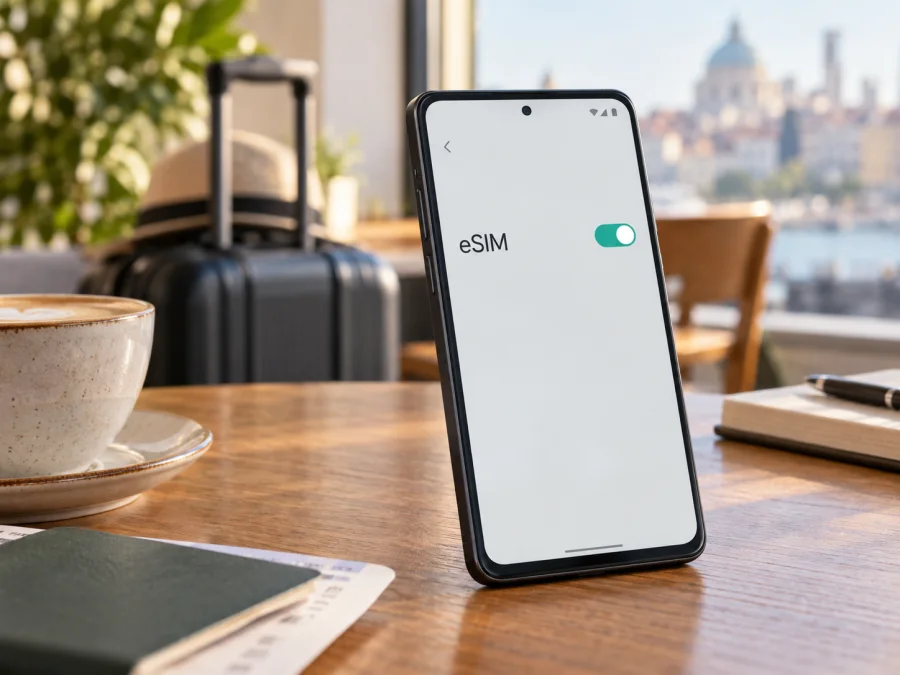
Google Pixel 4a 5G 128GB eSIM: compatibility and setup
The Google Pixel 4a 5G 128GB supports eSIM. Google lists an embedded SIM alongside the physical nano-SIM in the phone’s specifications, and its Pixel guidance describes eSIM and dual-SIM support on Pixel 3a and later. The 128GB figure is the storage capacity; this model has 6GB of RAM. An eSIM can therefore be a convenient way to add a travel data plan while keeping a physical SIM in the phone.
Check the phone itself for an EID and an option to add an eSIM, confirm that it is not SIM-locked, and make sure the provider supports the device and destination. These checks matter before paying for a plan.
Google Pixel 4a 5G 128GB: eSIM at a glance
| Detail | What to know |
|---|---|
| Device variant | Google Pixel 4a 5G 128GB |
| Storage | 128GB; available space is lower after system software and files |
| RAM | 6GB |
| eSIM | Supported by the device specification; confirm on the individual handset |
| Physical SIM | One nano-SIM slot |
| Dual SIM | One physical SIM and one eSIM can be used, subject to carrier and software support |
| 5G | Supported on compatible networks and bands; network access depends on region, carrier, plan and coverage |
| Operating system shown in Google’s original specification | Android 11; menu labels can differ on later installed versions |
Google’s specifications list eSIM for the Pixel 4a 5G model families, including G025E, G6QU3 (Verizon), G025I and G025H. They also list 128GB storage and 6GB RAM. Hardware capability does not guarantee that every provider or plan will work: carrier policies, network bands, activation rules, device condition and a SIM lock can affect the result.
A 5G and eSIM describe separate capabilities. The connection may use LTE or 5G depending on plan, bands, signal and carrier. A travel plan may be LTE-only, so check its details.
<a id="kesim-device-compatibility"></a>
How to confirm eSIM on your own phone
The model name on a listing is a useful first clue, but it is not enough when buying a second-hand phone or using a handset supplied by a carrier. Confirm the identifiers and menu options on the device before you choose a plan.
- Find the EID. Open Settings → About phone and look for SIM status, EID, or device identifiers. On some Android versions, open Settings → About phone → SIM status. You can also search Settings for “EID.” The EID is a long identifier for the embedded SIM hardware; it is different from the IMEI and should not be posted publicly.
- Check the SIM menu. Open Settings → Network & internet → SIMs. Look for Add SIM, Set up an eSIM, or Download a SIM instead? Wording varies by Android version and carrier configuration. You do not have to start installation just to check whether the option appears.
- Check the lock status. If the phone was sold by a mobile carrier, ask that carrier whether it is unlocked for other providers. Google notes that carrier-sold phones may be SIM-locked. A locked phone may reject a travel profile even though the eSIM hardware is present.
- Confirm the exact model. In Settings → About phone, note the model and regulatory information. If the device is a carrier-specific or imported variant, ask the intended eSIM provider whether that exact version can be activated and used on its network.
- Ask the plan provider about eligibility. Verify device support, destination coverage, activation method, required Android version, and whether the plan needs data roaming. Also check whether the plan is data-only.
If an EID is displayed and the Add eSIM option is available, those are strong practical signs that the handset can download a profile. If either is missing, do not assume that a software update will add eSIM hardware: contact the seller or carrier with the model identifier and ask for confirmation. A carrier may also disable eSIM provisioning or require its own activation process.
The device compatibility checklist covers both the handset and the specific destination plan, since general eSIM support does not confirm network coverage or carrier acceptance.
Regional, carrier and network differences
The Google Pixel 4a 5G 128GB is not a single radio configuration worldwide. Google lists different model identifiers and radio bands by region. The US Verizon model, for example, has a different 5G setup from several other versions. Google lists eSIM across the named 4a 5G model families, but network compatibility still varies by market.
An imported phone may have eSIM hardware yet lack the bands needed for a particular operator. Google cautions that not all Pixel 4a 5G devices work on all 5G networks; it may connect over LTE instead. Confirm band and network compatibility with the provider when it matters.
Carrier locking is separate from radio support. A locked handset may reject another provider’s profile until unlocked. A downloaded profile can also fail to register if the provider does not support the device or destination. Ask the seller for the model code, country of sale and unlock status.
The device can use a nano-SIM and eSIM together where supported. Usually one SIM is selected for mobile data. Dual-SIM standby does not mean both lines provide simultaneous data.
Install and activate an eSIM
Prepare Wi-Fi, charge the phone, and have the provider’s activation details ready. Installation may use an app flow, QR code or manual details. Follow the plan’s method; some codes are single-use or tied to the first device.
- Review the plan. Confirm destination, data allowance, validity, supported network, and when the validity period begins. Check whether to install before departure or on arrival. Display the QR code on another screen if needed.
- Connect to Wi-Fi. Keep the physical SIM in place. Resolve any carrier lock before proceeding.
- Open setup. Go to Settings → Network & internet → SIMs → Add SIM → Set up an eSIM. Labels may vary. For an app-based flow, follow the provider’s Android instructions.
- Download the profile. Scan the code or enter the activation details, select the provider if asked, and wait for confirmation.
- Name and enable it. Use a label such as “Travel data.” Turn on Use this SIM when ready. The plan provider sets when activation and validity begin.
- Choose the data SIM. Select the travel eSIM for Mobile data and decide which line handles calls and texts. Turn off data roaming on the home SIM if you want to avoid its data charges.
- Set roaming if required. Some travel eSIMs need Roaming enabled; follow the plan instructions and confirm its terms.
- Test the connection. Turn Wi-Fi off briefly, check that the status bar shows a mobile network, and open a simple webpage. If it does not connect, check the troubleshooting section below before deleting the profile.
See the Android eSIM instructions for this Pixel, or the iOS eSIM instructions for an Apple device.
Avoid deleting an installed profile as a first troubleshooting step. Some eSIM plans cannot be downloaded again after removal, or may require the provider to issue a replacement. Save the provider’s support details before changing or erasing the profile.
Use the Pixel 4a 5G 128GB while travelling
Keep your usual number, use travel data. Leave the home SIM enabled for calls or SMS if its terms allow it, and select the travel eSIM for data. Check home roaming charges and disable data roaming on that SIM if appropriate.
Install before departure, connect at destination. If allowed, download the profile over Wi-Fi in advance and leave it off until the recommended time. Plans may start at installation or first network connection; check the activation rule.
Move between countries. Confirm a regional plan covers every stop, including any islands or territories on your route. If separate plans are needed, compare validity periods and setup instructions.
Use apps without a local number. Many travel eSIMs are data-only. Messaging, email, maps and internet calls can use data, but conventional calls, SMS and a local number are not included unless stated. Keep offline maps available.
Kaspersky eSIM Store is an app and website where travellers can choose, arrange and activate an eSIM with a mobile-data plan for an international trip. Check the device first, then compare the destination, allowance, duration, price and activation terms shown for the plan. Kaspersky eSIM Store is not the mobile operator or network owner; service is delivered through the networks and terms associated with the selected plan.
Troubleshooting: when eSIM setup or data does not work
- No Add eSIM option: Search Settings for “eSIM,” check for the EID, restart, and install available system updates. If still absent, confirm the model and carrier configuration with the seller. A factory reset cannot add eSIM hardware.
- QR code will not scan: Increase screen brightness, clean the camera lens, and show the full code. Ask whether manual activation is available. Keep the code private because it may contain profile credentials.
- Profile download fails: Reconnect to Wi-Fi, check whether the code expired or was already used, and verify automatic date and time. Ask the provider about reissue before retrying repeatedly.
- Installed but no service: Confirm Use this SIM is on, the plan is active, and coverage is available. Toggle Airplane mode, restart, and allow time to register. Check roaming or APN settings only as directed by the provider.
- Data uses the home SIM: Set the travel profile as the default under Settings → Network & internet → SIMs → Mobile data. Turn off automatic switching if needed and check with Wi-Fi off.
- Signal but no internet: Check remaining data, plan validity, destination, APN and roaming instructions. A signal icon alone does not confirm usable data.
- Activation is rejected: Confirm the phone is unlocked, the provider accepts the exact model and region, and the profile has not been used elsewhere. Share EID or IMEI only through official support.
- Slow connection or LTE only: Coverage, congestion, plan limits or regional bands may explain this. The Pixel 4a 5G does not support every carrier’s 5G configuration. Test elsewhere and ask the provider about your model’s bands.
If basic checks fail, record the model identifier, Android version, destination, network and error message. Contact the plan provider about profile issues and the original carrier about SIM locks. Do not erase the profile until you know whether it can be installed again.
Frequently asked questions
Does Google Pixel 4a 5G 128GB support eSIM?
Yes. Google’s published specifications list an eSIM and a single nano-SIM for the Pixel 4a 5G model. Its storage configuration is 128GB with 6GB RAM. Check the EID and Add eSIM option on the particular phone, especially if it is used, imported or carrier-supplied.
Can I use an eSIM and a physical SIM together?
The Pixel 4a 5G can use a physical SIM and eSIM in a dual-SIM configuration where the carrier and software support the service. You can choose which line handles mobile data, calls and texts. Carrier rules and roaming charges still apply.
Does eSIM support guarantee 5G while travelling?
No. eSIM is a way to provision a mobile subscription; it does not determine the radio network or speed. 5G depends on the plan, local coverage, the device’s regional model and compatible bands. The travel plan may provide LTE instead.
Can I keep my regular number active?
Often, yes: keep the physical SIM enabled and assign mobile data to the travel eSIM. Your home carrier may charge for roaming calls, texts or data, so check its terms and disable data roaming on the home line if appropriate. A data-only travel eSIM does not replace the regular number.
Should I activate the eSIM before flying?
Follow the provider’s timing instructions. You may be able to install it in advance over Wi-Fi and leave it disabled until arrival. The plan may start at installation, activation, or first network connection, depending on its terms.
Before you go: check the device, then choose the travel eSIM
For the Google Pixel 4a 5G 128GB, eSIM support is confirmed in Google’s specifications, but verify the individual handset. Confirm its EID, find Add eSIM, check that it is unlocked, and ask the provider about the regional model and destination. Make sure the plan’s validity and data allowance fit your route.
Once compatibility is confirmed, choose a suitable travel data plan through Kaspersky eSIM Store’s app or website, review its coverage and conditions, and install the profile using the provider’s steps. Keep your physical SIM and activation details available, select the correct SIM for mobile data, and test the connection before relying on it. These checks help make the Pixel 4a 5G 128GB ready for mobile data on the trip.


