Travel connectivity guide
Google Pixel 4a 5G 256GB eSIM: compatibility and setup
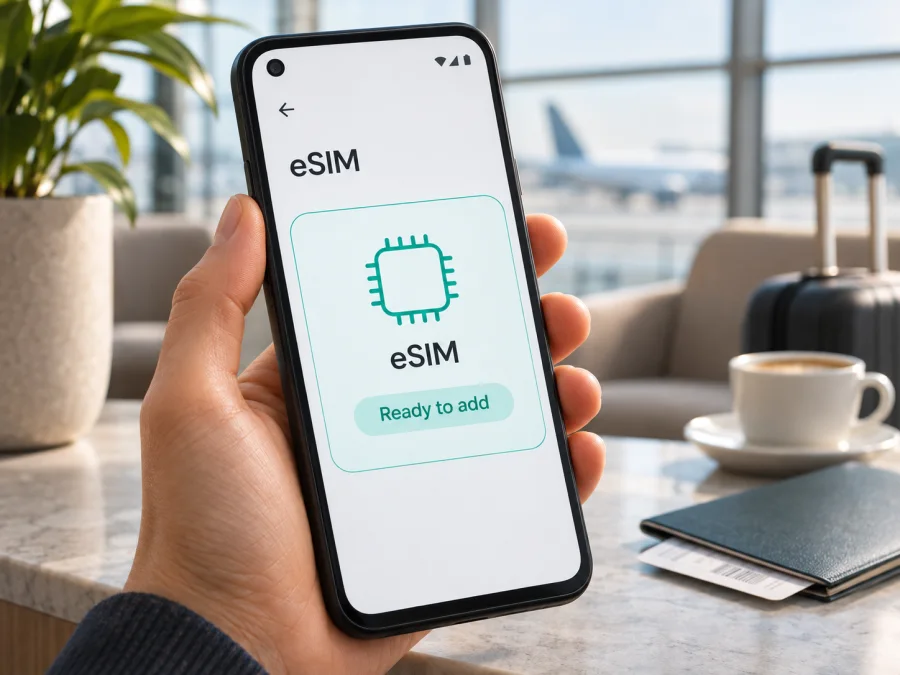
Google Pixel 4a 5G 256GB eSIM: compatibility and setup
If you are checking whether Google Pixel 4a 5G 256GB can use an eSIM, the short answer is: Google’s current Pixel guidance lists Pixel 4 and later as eSIM-capable, and its instructions describe adding an eSIM alongside a physical SIM. The requested 256GB storage variant, however, is not listed in Google’s official hardware specifications for Pixel 4a (5G): Google lists 128GB. Treat “256GB” as a seller description or an unverified modification until the exact phone and its storage are confirmed. eSIM capability is a separate question from storage, but confirm it on the handset you have before choosing a plan.
The practical check is straightforward: look for an EID under Settings → About phone → SIM status, and look for Add SIM or Set up an eSIM under network settings. These checks, an unlocked device, and support from the plan’s network are all relevant.
Does Google Pixel 4a 5G 256GB support eSIM?
Google’s published guidance supports eSIM on Pixel 4 and later phones, which includes Pixel 4a (5G). Google describes the usual arrangement for this generation as one nano-SIM and one eSIM, with dual-SIM features depending on the carrier. Pixel 4a (5G) is also listed among phones that can connect to 5G in dual-SIM mode. That does not mean two active eSIM profiles are supported on this model: Google reserves simultaneous use of two eSIM profiles for Pixel 7 and later, subject to carrier support.
The exact “256GB” part needs a separate caveat. Google’s official Pixel hardware specifications list Pixel 4a (5G) with 6GB of memory and 128GB of storage. They do not list a 256GB factory storage option for this model. A marketplace listing may contain a typo, may confuse internal storage with cloud storage, or may describe a modified or refurbished handset. Do not infer that a 256GB listing is a distinct official regional model, and do not use its storage label to decide eSIM compatibility. Check the model name, storage shown in Android, EID, and SIM settings directly on the device.
| Check | What Google documents for Pixel 4a (5G) | What it means for this listing |
|---|---|---|
| eSIM | Pixel 4 and later phones work with eSIM, subject to carrier support | The Pixel 4a (5G) family is eSIM-capable; verify the individual handset |
| SIM arrangement | One physical nano-SIM and one eSIM is the applicable dual-SIM setup | You can keep a physical SIM installed while adding an eSIM, if both lines and the carrier allow it |
| Two eSIMs at once | Google’s two-active-eSIM guidance applies to Pixel 7 and later, with carrier support | Do not expect this 4a 5G model to run two active eSIM profiles at the same time |
| 5G | Pixel 4a (5G) and later can use 5G in dual-SIM mode | Actual 5G access still depends on the exact regional model, supported bands, local network, and plan |
| Storage | Google lists 128GB, not 256GB | The 256GB claim is unverified as an official factory configuration |
| Carrier lock | A phone may be SIM-locked by the seller’s operator | Ask the seller or original operator whether the handset is unlocked before purchase |
This is a family-level answer, not a guarantee for every second-hand handset. Software, carrier controls, or a prior repair can affect the eSIM menu, so confirm the exact unit in its settings and with the seller if details conflict.
Regional versions, carrier versions, and the 256GB listing
Pixel phones can differ by market and network configuration. Google’s support pages confirm general eSIM capability for Pixel 4 and later, while also noting that eSIM and dual-SIM features depend on carrier support. Google warns that a phone bought from a mobile provider may be SIM-locked, in which case it can use mobile service only from that provider until unlocked. An EID does not remove such a lock.
Pixel 4a (5G) versions also differ in radio configuration. The US mmWave/Sub-6 model and Sub-6 models sold in other markets are not identical in every network capability. This matters for 5G bands and local network compatibility; it does not change Google’s general eSIM guidance. A phone can support eSIM but connect only to LTE in a destination. Google’s published specification lists 128GB storage, not a 256GB factory option, so ask the seller to explain the capacity claim and verify the model number and storage in Android. Do not treat “256GB” as proof of a distinct official regional edition.
If the phone has been repaired, flashed with non-standard software, or sold under a confusing title, its own EID and SIM settings are the best first checks. If any details conflict, ask the seller or original carrier to confirm eSIM eligibility and unlock status before buying a plan.
What to check before buying an eSIM plan
Use this checklist before purchasing a travel data plan. It is especially useful when a used-device listing includes an unusual storage claim such as 256GB.
- [ ] Confirm the model on the phone. Open Settings → About phone and check that Android identifies the device as Pixel 4a (5G), not Pixel 4a or another Pixel model.
- [ ] Check the EID. Open Settings → About phone → SIM status and look for an EID. The EID is the identifier associated with eSIM capability; it is not the same as an IMEI, phone number, or account number.
- [ ] Look for the eSIM setup path. Open Settings → Network & internet → SIMs → Add SIM. Depending on Android version and interface language, the last item may be called Set up an eSIM or Download a SIM instead?
- [ ] Check the carrier lock. Ask the original seller or operator whether the device is unlocked for other providers. Seeing an EID does not remove a SIM lock.
- [ ] Check plan eligibility. Make sure the eSIM plan supports your device type, the country or region on your itinerary, and the required activation method.
- [ ] Check the network bands and service type. 5G availability varies by model and destination; LTE may be the available service even when the eSIM is correctly installed.
- [ ] Prepare internet access. Keep Wi-Fi available during installation so the phone can download the profile if the plan requires it.
- [ ] Review the plan’s terms. Confirm the destination, data allowance, validity period, supported network, and when validity or data use begins.
- [ ] Keep your main line settings in mind. Decide which SIM should handle mobile data, calls, and texts. Pixel uses one default SIM for mobile data at a time.
If you need a quick cross-check, Check whether your device supports eSIM and compare the result with the phone’s EID and settings. For this specific listing, treat the eSIM question and the storage discrepancy as two separate items to confirm. A storage claim does not establish compatibility, and an eSIM-ready phone does not validate a seller’s capacity claim.
Find the EID and eSIM controls on the phone
Google’s documented EID path is Settings → About phone → SIM status → EID. Names can shift slightly with Android version, security updates, or translation, but start in About phone and open SIM status. You can also check the device box for an EID label. Handle the EID as device-identifying information: share it only with a provider or support contact that needs it for activation, and avoid posting a full screenshot publicly.
Then check for the eSIM menu. On Pixel phones, Google’s current instructions use Settings → Network & internet → SIMs → Add SIM → Set up an eSIM. If you see an option such as Download a SIM instead?, that is another route into the eSIM flow. Your exact menu wording may vary. The presence of a setup option is useful, but the activation still depends on the provider, a valid eSIM profile, an internet connection, and the phone’s SIM-unlocked status.
Confirm the model under About phone, locate the EID under SIM status, and then check Network & internet → SIMs → Add SIM for an eSIM option. Ask the seller or original operator to confirm that the handset is unlocked.
If the EID is missing, do not assume immediately that the whole Pixel 4a (5G) family lacks eSIM. Restart the phone, install any available system update, check the model identifier, and review whether the handset has carrier-managed or non-standard software. If the menu remains unavailable, contact the seller or original carrier with the model number and ask them to verify eSIM status. Do not buy a plan on the assumption that a product listing alone is sufficient evidence.
How to install and activate an eSIM
Install the profile while connected to reliable Wi-Fi, preferably before leaving for the trip if the plan’s instructions allow pre-installation. Have the provider’s QR code or in-app activation instructions ready. Some plans use an app or manual activation details instead of a QR code. Follow the exact instructions supplied for the chosen plan: a QR code may be single-use, and deleting an installed profile may make it impossible to scan again.
Android setup steps
- Check the prerequisites. Confirm eSIM support, an EID, an unlocked phone, working Wi-Fi, and a plan valid for your destination.
- Open SIM settings. Go to Settings → Network & internet → SIMs.
- Start adding a SIM. Tap Add SIM, then choose Set up an eSIM or the equivalent option shown on your Pixel.
- Choose the activation route. Scan the QR code provided with the plan, or enter the activation details manually if the provider instructs you to do so.
- Download the profile. Keep the phone online and wait for Android to finish adding the eSIM. Do not close the setup flow or scan the same code repeatedly while it is processing.
- Name the line. Use a clear label such as “Travel” so that you can distinguish it from your home SIM in settings.
- Choose SIM preferences. Set the travel eSIM as the mobile-data SIM when you want to use it. Keep your home SIM selected for calls or texts if that suits your needs and the line remains active.
- Confirm activation conditions. Some travel profiles connect only in the destination or require data roaming to be enabled for that eSIM. Use the plan instructions to decide when to turn it on.
- Check the connection. Once the plan should be active, turn on mobile data for the travel profile and wait for the network registration. It can take a few minutes.
For step-by-step screenshots and device guidance, see the Android eSIM installation instructions. The iOS eSIM installation instructions are useful if you are comparing steps with an iPhone or helping another traveller; they do not apply to this Pixel.
Use the eSIM for mobile data while travelling
Before departure, decide how the two lines should work. A common arrangement is to keep the home number available for calls or texts and set the travel eSIM as the mobile-data line. In Settings → Network & internet → SIMs, choose the defaults for calls, texts, and data. Only one SIM can be the default for mobile data. Check your home operator’s roaming terms so the home line does not use data unexpectedly.
After landing, enable the travel profile, select it for Mobile data, and follow the plan’s instructions about Data roaming. Many travel eSIMs require roaming on that profile to connect through a supported partner network. This is separate from selecting the data SIM. Leave roaming off for your home SIM unless you intend to use it under your regular plan’s terms.
If the eSIM shows LTE instead of 5G, it may still be working normally. Service depends on the exact regional phone, local bands, network configuration, and plan. Google says Pixel 4a (5G) can connect to 5G in dual-SIM mode, but that does not promise 5G on every network or at every location.
A travel data eSIM can support maps, messaging, ride bookings, translation, email, and other online services. It does not automatically provide an ordinary phone number, voice calls, or SMS unless the specific plan says so. For a multi-country route, confirm that each destination is included and that the validity period fits your itinerary. Select data allowance based on expected use, not just the destination name.
Kaspersky eSIM Store is an app and website where you can choose, arrange, and activate an eSIM with a plan for mobile internet on an international trip. Once you have confirmed the phone is eSIM-ready and unlocked, you can browse current travel destinations and plans. Check the destination and terms shown for the plan you select; availability and conditions can change.
Common problems and how to check them
“Add eSIM” is missing
Confirm that the phone is Pixel 4a (5G), then look for the EID under About phone → SIM status. Restart and check for a system update. If the EID and setup option are both absent, ask the seller or original carrier to verify the handset’s eSIM configuration and software.
The QR code will not scan
Use a second screen or printed copy, increase brightness, and remove glare. If the provider offers manual activation, use it only as instructed. QR codes may be single-use, so ask the provider before retrying repeatedly or deleting a profile.
The profile downloads but does not connect
Check whether the plan starts only in its destination. Confirm that the eSIM is enabled, selected for mobile data, and has data roaming enabled if its instructions require it. Toggle airplane mode or restart, then allow a few minutes for registration. If “Activating” or “No service” persists, contact the provider with the error message.
There is no internet after connection
Make sure mobile data is on and the travel eSIM is selected. Check that the plan is active, valid for the destination, and has data remaining. Enter an APN only if the provider’s instructions specify one. Test with Wi-Fi off so a remembered Wi-Fi connection does not mask the result.
The phone is locked or the network is incompatible
An EID does not prove the handset is unlocked or that its bands match a destination network. Ask the original operator about the SIM lock, then check the exact regional model and plan if registration fails. LTE instead of 5G can be normal.
The home SIM is using data or dual-SIM warnings appear
Check which line is selected under Mobile data and turn off data roaming on the home SIM if needed. Google notes that some SIM network combinations may show “Voice unavailable” or “Voice interruptions.” Temporarily disable one SIM to identify a conflict, then contact the relevant operator if it continues.
Frequently asked questions
Is Google Pixel 4a 5G 256GB an official Google configuration?
Google lists Pixel 4a (5G) with 128GB storage and does not list a factory 256GB option. Ask the seller to substantiate the title and verify storage on the handset. The capacity claim is separate from eSIM support.
Can I use an eSIM and a physical SIM at the same time?
Google describes Pixel 3a and later as supporting one physical SIM and one eSIM in dual-SIM mode, subject to carrier support. Pixel 4a (5G) is in this family. Only one line is the default for mobile data at a time.
Can I use two active eSIM profiles?
Google’s current guidance for using two eSIM profiles simultaneously applies to Pixel 7 and later and requires carrier support. Do not assume two active profiles on Pixel 4a (5G); plan around one eSIM plus a physical SIM unless your handset and carrier confirm otherwise.
Does an EID guarantee that an eSIM will work?
No. An EID is an important check, but service also depends on an unlocked phone, valid profile, provider support, destination availability, network bands, and correct settings.
Can I use the travel eSIM for calls, SMS, or 5G?
A data eSIM does not automatically include a regular phone number, standard calls, or SMS unless its terms say so. Internet calling apps can use the data connection. 5G also depends on the phone variant, local network, and plan; LTE may be the available service.
Should I install the eSIM before travelling?
Follow the plan’s instructions. Some profiles can be installed in advance and start validity only after connecting in a supported destination; other activation rules may differ. Check the terms before scanning and do not delete a profile if setup is uncertain.
Key takeaways
- eSIM: Google’s current Pixel guidance includes Pixel 4a (5G) among eSIM-capable Pixel generations. Confirm the exact phone with its EID and Add SIM settings.
- Storage: Google lists Pixel 4a (5G) with 128GB, not 256GB. Ask the seller to substantiate the requested 256GB description.
- SIM setup: Expect the supported dual-SIM arrangement to be one physical SIM plus one eSIM; do not count on two simultaneously active eSIMs for this generation.
- Networks: Unlock status, regional variant, carrier support, destination bands, and plan terms all affect activation and data access.
- Travel prep: Install only according to the plan’s instructions, select the eSIM for mobile data when appropriate, and enable data roaming on that profile only if required.
Before choosing a travel plan, check the EID, confirm the eSIM setup option, and resolve the 256GB listing discrepancy with the seller. Then confirm that the handset is unlocked and that the plan covers every destination on your route. Kaspersky eSIM Store can help you choose, arrange, and activate an eSIM with a mobile-data plan for an international trip. Review the current plan details before proceeding, and use the compatibility check if the phone’s settings or model information are unclear.


