Travel connectivity guide
Google Pixel 4a eSIM: compatibility and setup
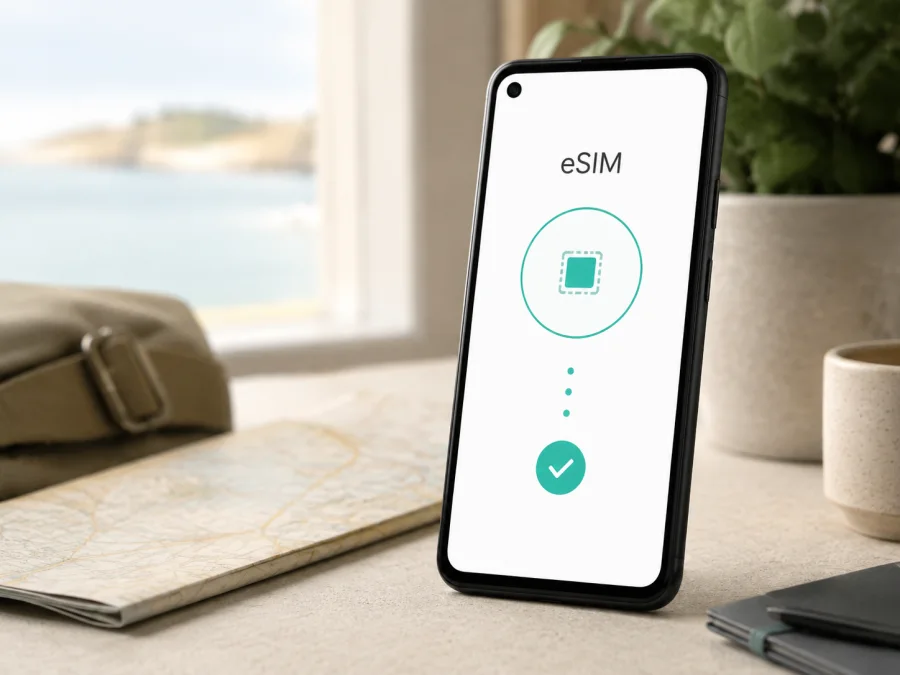
Google Pixel 4a eSIM: compatibility, installation and mobile data
Google Pixel 4a is worth checking if you want travel data without swapping a physical SIM. Google’s current Pixel Phone Help documentation says Pixel 4 and later phones work with eSIM. Confirm the EID and eSIM option because market, carrier, software and lock status can affect the result.
An eSIM is a digital SIM profile stored in the phone. It can work alongside a physical nano-SIM, leaving your usual number available while mobile data uses a travel profile. Kaspersky eSIM Store is an app and website where you can choose, arrange and activate an eSIM with a mobile-data plan for an overseas trip. It is not an operator, network owner or mobile-internet provider; service, coverage and conditions depend on the destination plan and selected local operator.
Quick answer: does Google Pixel 4a support eSIM?
Yes, Google Pixel 4a is listed within Google’s Pixel 4-and-later generation covered by the manufacturer’s eSIM guidance. Google also documents the use of one physical SIM and one eSIM on supported Pixel phones. In practice, support is not the same as a guarantee that every handset sold under the name Google Pixel 4a will accept every eSIM plan. A carrier may restrict eSIM activation, a phone may be SIM-locked, or the settings may differ after a regional software build.
For that reason, treat the result as: Google Pixel 4a is generally eSIM-compatible, subject to verification on the individual phone and with the chosen plan. Before paying, look for an EID and an option such as Add SIM, Set up an eSIM or Download a SIM instead? If those controls are present, the hardware and software expose the eSIM function. You must still check that the phone is unlocked and that the plan’s network can activate on this device.
Google Pixel 4a compatibility at a glance
| Item | What to expect on Google Pixel 4a | What you should confirm |
|---|---|---|
| eSIM | Supported according to Google’s Pixel 4-and-later guidance | EID and the eSIM setup menu on your handset |
| Physical SIM | A nano-SIM may be used where the handset version includes the tray | Whether you want the physical SIM enabled during the trip |
| Dual SIM use | One physical SIM and one eSIM can be available on supported configurations | Carrier support and the preferred data line |
| Mobile data | The eSIM can be selected as the data SIM after installation | That the travel profile is selected for mobile data |
| 5G | Google’s 5G note specifically refers to Pixel 4a (5G) and later models | Do not treat Google Pixel 4a as Google Pixel 4a (5G); confirm your exact model and plan |
| Calls and SMS | A travel eSIM plan may be data-only | The terms of the specific plan; messaging apps use data |
| Activation | Usually requires internet access and a QR code or in-app profile | Wi-Fi or working mobile data before installation |
The 5G row matters because the names are easy to confuse. This page is about the exact Google Pixel 4a, not Google Pixel 4a (5G). Do not apply a 5G specification to Google Pixel 4a. eSIM support and radio-network support are separate checks: an eSIM profile can work for mobile data even when the available connection is LTE.
What Google’s official guidance means for this model
Google’s current Pixel Help guidance covers Pixel 4 and later, documents one physical SIM plus one eSIM, and gives Settings → Network & internet → SIMs → Add SIM → Set up an eSIM. Google notes that carrier compatibility matters and an operator may request an IMEI or EID.
Google’s guidance places the EID at Settings → About phone → SIM status → EID. Labels can vary by Android version or language. A regional build, refurbished handset, carrier lock or device-management policy can affect activation. If the EID or setup item is absent, or the carrier says the IMEI is not eligible, pause before buying and ask the seller or carrier to confirm the exact unit.
<a id="kesim-device-compatibility"></a>
What to check before buying an eSIM plan
Compatibility is only one part of a successful travel setup. Use the following checklist while the phone is in your hands:
- [ ] The model shown in About phone is Google Pixel 4a, not another Pixel generation or Google Pixel 4a (5G).
- [ ] An EID appears under SIM status, or the phone offers an eSIM setup flow.
- [ ] The phone is not locked to a carrier, instalment agreement or corporate administrator.
- [ ] Android is updated enough for the available eSIM setup steps.
- [ ] You have Wi-Fi or another working internet connection for downloading the profile.
- [ ] The plan covers every country or region on your itinerary.
- [ ] The data volume and validity period suit the length and intensity of the trip.
- [ ] You understand when the plan starts, how activation is triggered and whether it can be used later.
- [ ] You know whether data roaming must be enabled for the travel eSIM.
- [ ] You have a backup way to read the QR code or open the profile if the phone is being used to display it.
These are plan conditions, not fixed features of Google Pixel 4a. Read the offer carefully. Kaspersky eSIM Store helps you choose a destination and complete activation through its app or website; it does not change regional restrictions or guarantee coverage. Choose another plan if its destination, validity or data allowance does not fit your route.
How to verify the EID and eSIM menu
Perform this check before purchase, ideally on Wi-Fi. It gives a stronger answer than a generic model list.
EID check
- Open Settings on Google Pixel 4a.
- Tap About phone.
- Open SIM status.
- Look for EID, a long device identifier used for eSIM provisioning.
Do not share the full EID publicly. It is different from IMEI 1 and IMEI 2, so provide only the identifier requested through the official activation channel.
Settings-menu check
- Open Settings.
- Tap Network & internet.
- Tap SIMs.
- Tap Add SIM.
- Look for Set up an eSIM or a similarly worded option.
If Google Pixel 4a is already using a physical SIM, the eSIM can be added as another profile. Android versions and translations can change labels, so look for an add or download option. If there is no EID and no setup control after an update and restart, ask the seller or carrier to verify the regional model before buying.
Check your device before choosing a travel plan
How to install an eSIM on Google Pixel 4a
Install with stable internet, enough battery and the activation details ready. Keep your regular SIM active until the travel profile is confirmed. If the QR code is on Google Pixel 4a, display it on another screen or use the provider’s in-app flow.
1. Prepare the phone
Confirm the EID, remove any carrier lock, connect Google Pixel 4a to Wi-Fi and keep the QR code or profile details available. Do not delete an existing eSIM until you know which profiles and transfer actions the plan allows.
2. Open the eSIM setup
Open Settings → Network & internet → SIMs → Add SIM → Set up an eSIM and follow the prompts. Google Pixel 4a may ask you to confirm the network provider.
3. Download the profile
Scan the order QR code or use the available activation method. If it is rejected, check the destination and whether the code was already used; some codes are single-use.
4. Name the eSIM
Give the profile a clear label such as “Travel data” or the destination name so you do not confuse it with the home line.
5. Choose the data SIM
When asked which SIM handles mobile data, select the travel eSIM. Keep calls and SMS on the regular line only if its roaming conditions are acceptable; otherwise disable mobile data or data roaming for that line.
6. Activate at the right time
Some plans begin at installation; others start when the eSIM first connects at the destination. Check the terms. If activation is intended for arrival, keep Wi-Fi available there.
For a device-specific walkthrough, use the Android installation instructions. iPhone steps are different, but the iOS installation instructions are useful when a family member or travel companion is setting up another device.
How to use Google Pixel 4a for mobile data during a trip
Before leaving, install the profile if the plan allows it, but do not assume installation means data is flowing. On arrival, select it under Settings → Network & internet → SIMs, turn on mobile data and enable roaming for the travel eSIM if required. This does not mean the main SIM must also roam.
Open a webpage or map with Wi-Fi off and wait a few minutes. Check the status bar and SIM settings. A travel plan may provide data only, without a regular number, voice service or SMS; messaging and calling apps can use the data connection.
Scenario 1: short city break
For a weekend trip, verify destination coverage and validity, install on Wi-Fi, and switch mobile data to the travel eSIM after landing. Keep the regular SIM for verification only if its roaming conditions are clear.
Scenario 2: multi-country route
For a multi-country route, confirm regional coverage rather than only the first arrival point. Recheck the active data SIM at borders. Coverage depends on the plan and local networks, not on Google Pixel 4a; data may stop outside the plan’s area.
Scenario 3: work trip with a physical SIM
For work travel, keep the home physical SIM for calls or verification and assign the travel eSIM to data. Check the selected line before meetings and use hotspot only if the plan permits it.
Troubleshooting: common eSIM problems
There is no “Set up an eSIM” option
Check About phone → SIM status for an EID, restart the phone and install updates. Confirm the exact Google Pixel 4a. If both EID and the eSIM option are absent, ask the seller or carrier to verify the regional unit; firmware or management policies can matter.
The QR code will not scan
Use a bright, steady display and clean the camera lens. Show the QR code on another screen if it is in an email on Google Pixel 4a. Confirm that it is for an eSIM plan and has not already been used; never share it publicly.
The profile downloads but there is no service
Check that the travel eSIM is on and selected for data, then confirm destination, APN instructions and roaming. Toggle airplane mode, restart and wait. If service remains unavailable, contact support with the order details.
The phone uses the wrong SIM for data
Return to Settings → Network & internet → SIMs and select the travel profile for data. Turn off automatic switching if available, then test with Wi-Fi disabled.
Data works but the balance is consumed faster than expected
Check video quality, backups, app updates, hotspot and navigation downloads. Set an Android data warning if useful. If the displayed balance is unexpected, compare usage with the plan conditions and ask support to investigate.
The phone is locked or the carrier refuses activation
An eSIM-capable phone can still be restricted to its original operator. Ask whether Google Pixel 4a is unlocked and eligible on that account; do not bypass a lock. If needed, request a formal check from the seller.
FAQ
Is Google Pixel 4a compatible with eSIM?
Generally, yes. Google’s current guidance covers Pixel 4 and later, including Google Pixel 4a. Confirm the EID and setup option because carrier, regional and software conditions can affect activation.
Is Google Pixel 4a the same as Google Pixel 4a (5G)?
No. They are different variants. This article covers Google Pixel 4a exactly; do not apply a 5G specification to it. Confirm the EID, menu and plan eligibility.
Can I keep my regular SIM in Google Pixel 4a?
On a supported configuration, Google documents one physical SIM plus one eSIM. Keep the physical SIM active and choose the data line, subject to carrier behavior and roaming charges.
Does the travel eSIM include a phone number?
Not necessarily. These plans are intended for mobile internet, and voice or SMS are excluded unless the plan says otherwise. Messaging and calling apps can use the data connection.
Should I install the eSIM before leaving?
It can be convenient, but timing depends on the plan. Install over Wi-Fi and check when validity begins; if it starts at installation, wait until the appropriate time.
Can I move the profile to another phone later?
Do not assume so. Check transfer and reinstallation conditions before deleting the profile or resetting Google Pixel 4a.
What should I do if I still cannot connect?
Verify compatibility, EID, unlock status, active data SIM, destination, mobile data and roaming. Restart after correcting them. If the issue continues, contact support with the order reference and requested identifier privately.
Final device check and travel eSIM choice
Before you pay for a travel eSIM plan, complete this final sequence on Google Pixel 4a:
- Confirm that About phone identifies the exact device as Google Pixel 4a.
- Confirm that SIM status shows an EID.
- Confirm that Network & internet → SIMs → Add SIM offers an eSIM setup path.
- Confirm that the phone is unlocked and not restricted by a seller, carrier or administrator.
- Confirm that the chosen plan covers every destination on your route.
- Confirm the data allowance, validity, activation moment and roaming requirement.
- Install over Wi-Fi, then select the travel eSIM for mobile data when you are ready to use it.
If all seven checks are clear, Kaspersky eSIM Store can help you choose a destination, complete an order and activate an eSIM with a mobile-data plan through its app or website. Base the final choice on the plan conditions and local network available at your destination.


