Travel connectivity guide
Google Pixel 5 128GB eSIM: compatibility and setup
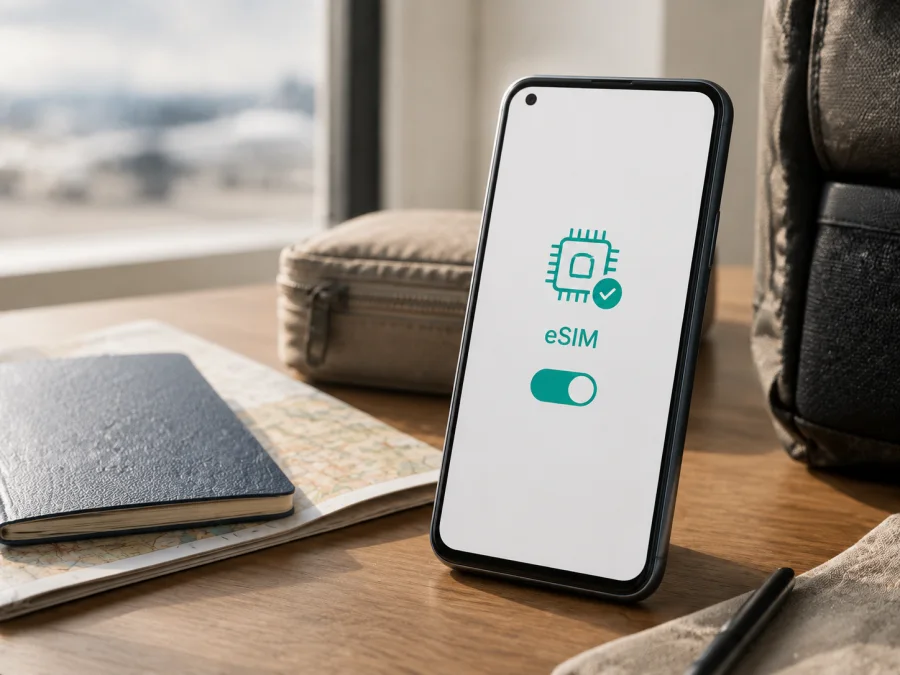
Google Pixel 5 128GB eSIM: compatibility and setup
If you use Google Pixel 5 128GB and are preparing for an overseas trip, you can generally add an eSIM and use it for mobile data without removing the physical nano-SIM. Google’s official Pixel specifications list the Pixel 5 with 128 GB of storage, 8 GB of LPDDR4x RAM, one nano-SIM and eSIM support. The practical result still depends on the exact handset, its sales region, Android software, operator conditions and whether the phone is SIM-unlocked.
Quick answer
Yes, Google Pixel 5 128GB supports eSIM. Google’s current hardware information identifies eSIM alongside a single nano-SIM for Pixel 5. Google’s Pixel help guidance also states that Pixel 4 and later phones work with eSIM, subject to the phone and mobile operator. This makes Google Pixel 5 128GB suitable for a travel eSIM at the device level, provided the individual unit exposes the required settings and is accepted by the selected provider.
Pixel 5 also has 5G-capable network hardware, but eSIM and 5G are separate features. 5G access depends on the operator, plan, supported bands, location and signal.
Google Pixel 5 128GB specifications relevant to eSIM
| Item | Practical meaning |
|---|---|
| Exact device | Google Pixel 5 128GB |
| Storage | 128 GB; formatted capacity is lower |
| Memory | 8 GB LPDDR4x RAM in Google’s Pixel 5 specification |
| SIM configuration | A physical nano-SIM and one eSIM |
| Network | LTE and 5G capability; availability depends on the local network and plan |
| Launch operating system | Android 11; the installed version may be newer on a used phone |
| eSIM identifier | EID, shown in SIM status when available |
| Main caveats | SIM lock, operator support, regional model and activation rules |
Google’s hardware table lists eSIM for Pixel 5 model groups for the United States/Finland and for the United Kingdom, European Union, Canada, Australia, Taiwan and Singapore; their band combinations differ. For an imported or second-hand Google Pixel 5 128GB, check the phone and plan instead of relying only on a marketplace listing.
Does Google Pixel 5 128GB support eSIM?
The direct answer is yes: Google Pixel 5 128GB is compatible with eSIM at the hardware level. You should normally find an EID in Settings and an option to add or set up an eSIM. The wording can differ by Android version and language. The route is Settings → Network & internet → SIMs → Add SIM → Set up an eSIM.
Three conditions qualify the answer:
- The particular phone must contain and expose the eSIM function. The Google specification supports the model, but a damaged, incorrectly refurbished or modified device needs an individual check.
- The eSIM provider or mobile operator must accept the phone’s model, EID and network profile.
- The phone must be SIM-unlocked if you want to use a plan from a provider other than the original seller’s network.
Regional uncertainty is therefore important for activation, not a reason to treat every Pixel 5 as incompatible. A carrier-supplied unit may show the eSIM menu and still reject another provider’s profile. Band support and 5G access can also differ by model group. If your Google Pixel 5 128GB was imported or bought used, use its EID, model information and settings as the first evidence.
What to check before buying an eSIM plan
Use this checklist while the phone is in your hands:
- Find the EID. Open Settings → About phone → SIM status and look for EID. Do not publish the full identifier; share it only through a trusted activation flow when requested.
- Find the eSIM control. Open Settings → Network & internet → SIMs → Add SIM. A control such as Set up an eSIM indicates that Android can start an eSIM installation flow.
- Confirm SIM-unlock status. Ask the seller or original operator whether the phone is unlocked. A lock can prevent activation with a different provider even when the hardware supports eSIM.
- Check model and region. Record the model information in About phone. Storage is 128 GB, but storage is not a substitute for the model number or regional network support.
- Update Android over Wi-Fi. Finish pending system and carrier-configuration updates before travel. An update can improve the setup flow, but it does not remove an operator lock.
- Check the destination. Choose a country, region or route that includes every place where you need data.
- Read the plan conditions. Review traffic allowance, validity, supported networks, activation timing, hotspot rules and any top-up or refund terms. A travel plan may provide mobile internet without a regular phone number, calls or SMS.
- Prepare internet access. Keep Wi-Fi available for downloading the profile before departure or after landing.
<a id="kesim-device-compatibility"></a>
Device compatibility check
If EID and Add SIM → Set up an eSIM are present, Google Pixel 5 128GB passes the device-side check. That does not guarantee that a particular plan will connect in a particular country. Check your device again before purchase if the phone is imported, carrier-supplied or recently reset, then confirm the destination and operator requirements in the eSIM Store flow.
If EID and eSIM are missing, pause the purchase. Restart the phone, complete updates and check again. If the controls remain absent, ask the seller or support to verify the model number. A QR code cannot add eSIM to a phone that does not expose an embedded-SIM function.
How to install an eSIM on Google Pixel 5 128GB
Installation downloads a digital SIM profile. It is separate from selecting the profile for mobile data and from the moment when the plan begins to consume data, so follow the selected plan’s timing rules.
1. Prepare the profile
Connect Google Pixel 5 128GB to Wi-Fi and charge it. Keep the QR code or activation details available. If you received a QR code, display the complete code on another bright screen so the Pixel can scan it. Use an in-app installation flow when the provider offers one.
2. Open eSIM settings
Open Settings → Network & internet → SIMs → Add SIM → Set up an eSIM. If Android asks for a provider, choose the one associated with the profile. Menu wording can vary slightly after an update.
3. Scan or download the profile
Choose the QR-code option and point the camera at the complete code. For a failed scan, increase screen brightness, remove glare, keep the code sharp and try again from the Settings flow. Use only activation details supplied for this purchase.
4. Confirm the download
Check the profile name and destination, then tap Download, Add or the equivalent confirmation. Stay on Wi-Fi until the profile finishes. An installed profile may appear before it has registered with a network; installation, activation and connection are different stages.
5. Name the profile
Use a clear label such as Travel data or the destination name. This helps you distinguish the travel eSIM from the home nano-SIM when changing settings at the airport or after crossing a border.
6. Select mobile data
Return to Settings → Network & internet → SIMs. Enable the travel eSIM and choose it as the default for Mobile data. Android normally uses one default data SIM at a time. Keep calls and texts on the home line only after checking its roaming conditions.
7. Check data roaming
Open the travel eSIM settings and check Mobile data and Roaming. Many international plans require roaming for the travel profile to register on a partner network. Enable it for the travel eSIM only when the plan requires it, and keep roaming off for the home line if you want to avoid unexpected charges.
8. Test the connection
At the destination, turn off Wi-Fi briefly and confirm the mobile-data indicator. Open a lightweight webpage and verify that the data counter belongs to the travel eSIM. If the plan activates on first connection, wait until the appropriate time. Connection can take several minutes.
For step-by-step help, use the Android installation instructions in the Kaspersky eSIM Store help flow. The iOS installation instructions are relevant when moving a profile from an iPhone or assisting with the iOS side of an account; Google Pixel 5 128GB follows the Android path.
Using the eSIM for mobile internet while travelling
Install before departure, connect after landing
When the plan permits advance installation, complete the compatibility check at home, choose the destination and download the profile over Wi-Fi. Leave it disabled or out of the data preference until the plan’s activation point. On arrival, disable airplane mode, enable the travel eSIM, select it for mobile data and enable roaming for that profile if required. Keep the home line available only when its roaming costs are understood.
Install after arrival
If installation starts the validity period or the provider recommends activation in the destination, use trusted Wi-Fi after landing. Add the profile through Network & internet → SIMs → Add SIM and allow time for registration. Do not delete a profile during a short delay: an activation QR code may limit repeated downloads.
Travel across several countries
Check that the plan includes every country or region on the route. A plan for one country does not automatically follow you into another. When crossing a border, verify the supported destination, the network name, the data-SIM choice and the remaining validity. You may need another profile for a country-specific plan.
Maps, messages and work
Use the travel eSIM for maps, translation, messaging, bookings and work applications. Download large files over Wi-Fi where possible and restrict background video or photo backup with Android’s data controls. The 128 GB storage capacity does not increase the eSIM plan’s data allowance. Keep the activation email until the trip ends.
Common problems and practical checks
The QR code will not scan
Use the complete, sharp QR code on a separate bright screen. Remove glare, clean the camera and start from Settings → Network & internet → SIMs → Add SIM. Check whether the code has already been used. Do not replace the activation details with a code from another purchase.
The eSIM menu is missing
Restart Google Pixel 5 128GB, update Android over Wi-Fi and recheck EID in About phone → SIM status. If EID and Add SIM remain absent, contact the seller or support with the model number. A factory reset cannot add missing eSIM hardware and may erase profiles, so back up data and confirm re-download conditions first.
The profile downloaded but there is no service
Confirm that the travel eSIM is enabled and selected under Mobile data. Turn off Wi-Fi briefly, check Airplane mode and enable roaming for the travel profile if required. Restart once, then recheck destination, validity and supported networks. Enter manual APN details only when supplied by the provider.
The phone says the SIM is not supported
Check whether the handset is carrier-locked and whether the provider verified the model and EID. Google notes that not every Pixel works on every 5G network, so first test LTE data and review the destination requirements. A missing 5G icon alone does not prove that eSIM failed.
Mobile data uses the wrong line
Open Settings → Network & internet → SIMs and inspect Mobile data. Select the travel eSIM, turn off automatic data switching if necessary, and keep home-line roaming off when appropriate. Turn off Wi-Fi and load a small webpage to confirm the active line.
FAQ
Can Google Pixel 5 128GB use a physical SIM and an eSIM together?
Yes. Google lists one nano-SIM and eSIM for Pixel 5. Operator rules determine which combinations and functions are available, and one SIM is normally selected as the default for mobile data.
Can I delete and reinstall the same eSIM?
Not necessarily. Reinstallation depends on the provider’s rules, and a QR code may be single-use or limited. Contact the provider before deleting a profile that is not connecting.
Can I keep my usual number for calls and use eSIM for data?
Usually, yes, when the physical SIM and operator permit it. Select the travel eSIM for mobile data and check home-line roaming costs. A data-only plan does not automatically provide voice service.
Is Kaspersky eSIM Store a mobile operator?
No. Kaspersky eSIM Store is an app and website that helps you choose, arrange and activate an eSIM with a suitable mobile-data plan for an overseas trip. It is not a mobile operator, network owner or mobile-internet provider.
What if activation still fails?
Recheck EID, the eSIM menu, SIM-unlock status, destination, data-line selection, roaming and the activation window. Then contact the eSIM provider’s support over Wi-Fi with the order information and model. Avoid repeatedly deleting or reinstalling the profile.
Final device check and travel eSIM choice
Before paying for a plan, confirm that your device is exactly Google Pixel 5 128GB, an EID is visible, and Add SIM → Set up an eSIM is available. Confirm that the handset is not SIM-locked, Android is updated, Wi-Fi is available, and the chosen plan covers every destination. Check its traffic allowance, validity and activation timing, and decide which SIM will handle mobile data and whether roaming is required for the travel profile.
Once those checks pass, select an eSIM plan for the destination in the Kaspersky eSIM Store app or website, review the conditions and complete the Android installation flow. Kaspersky eSIM Store helps you choose, arrange and activate the travel eSIM scenario; the chosen plan and local network determine the final connection. The Google Pixel 5 128GB is eSIM-ready at the device level, while the individual handset and plan still need to pass the checks above.


