Travel connectivity guide
Google Pixel 5a 128GB eSIM Compatibility
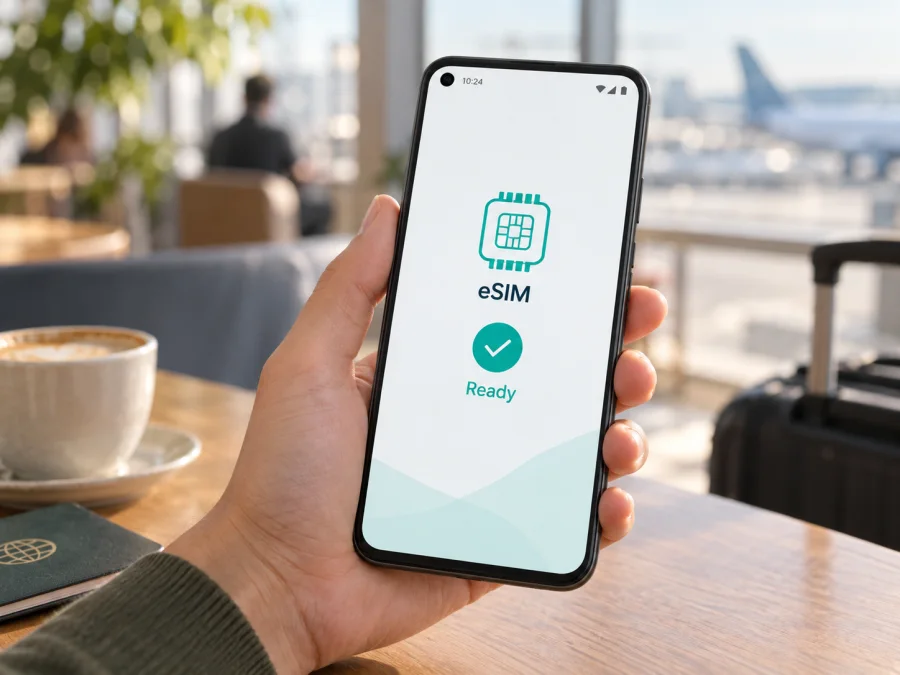
Google Pixel 5a 128GB eSIM compatibility and setup guide
The Google Pixel 5a 128GB supports eSIM. Google’s current Pixel Help guidance says Pixel 4 and later phones work with eSIM, and the official Pixel hardware specifications list eSIM for the Pixel 5a. The 128GB storage configuration does not change that capability. You can generally use a digital eSIM profile alongside a physical nano-SIM, subject to the carrier, the particular phone, and its software configuration.
Google Pixel 5a 128GB at a glance
| Item | What to know |
|---|---|
| Device variant | Google Pixel 5a 128GB |
| eSIM | Supported on the Pixel 5a according to Google’s Pixel Help and hardware specifications |
| Physical SIM | Nano-SIM slot; eSIM can be used as a second line where supported |
| Storage | 128GB internal storage; storage size does not determine eSIM support |
| Mobile data | 4G LTE and 5G service depend on the local network, supported bands, plan, and coverage |
| Two-line use | A physical SIM plus an eSIM may be used in dual-SIM standby; available features depend on carrier and software |
| What to verify | EID, Add eSIM menu, carrier lock status, provider eligibility, destination coverage and plan conditions |
Does the Google Pixel 5a 128GB have eSIM?
Yes. Google lists eSIM support for Pixel 4 and later, which includes the Pixel 5a, and its hardware specification page for the Pixel 5a includes eSIM. The device can therefore download and store an eSIM profile instead of relying only on a removable SIM card. In a supported dual-SIM setup, you can keep a physical SIM installed and add an eSIM for another line or for mobile data while travelling.
The eSIM is a digital SIM profile, not a separate phone number or a guarantee of service by itself. A carrier or travel eSIM provider must issue a profile that works with your handset and the destination network. Some plans are data-only; check the plan details if you need regular calls or SMS. Internet calling and messaging apps can work over data, but they do not turn a data-only eSIM into a conventional telephone line.
Regional and carrier differences
Google’s general compatibility statement covers Pixel 4 and newer models, but the phone must still be usable on the intended carrier. A device sold by a mobile operator may be locked until it meets that operator’s unlocking conditions. A locked handset can show eSIM menus yet refuse a profile from a different provider. Ask the original seller or carrier to confirm the unlock status before you travel; an eSIM menu alone does not prove that the phone is unlocked.
Imported phones may differ in supported cellular bands and certifications. That can affect whether they register on a destination network and whether LTE or 5G is available. Google notes that cellular service and band support depend on the carrier and are not available everywhere. eSIM capability and local coverage are separate questions: a profile may install even when a network cannot provide service in a particular area.
When buying a used or refurbished phone, compare the model and identifiers in Settings with the seller’s documentation. Ask the original carrier about any restrictions, especially if the phone came from another market or has been repaired. Use the phone’s own EID and the provider’s checker rather than relying only on a listing that says “Pixel 5a.”
Compatibility checklist
Before you select a plan, confirm each item:
- [ ] The handset is the Google Pixel 5a 128GB and its Settings app shows an EID or an option to add an eSIM.
- [ ] The phone is carrier-unlocked, or the carrier confirms that the intended eSIM can be used.
- [ ] The eSIM provider accepts this model and the destination country or region.
- [ ] The phone’s Android software is up to date and the cellular settings open normally.
- [ ] Your destination plan supports a network and frequency band available to the handset in the places you will visit.
- [ ] You know whether the plan is data-only, when its validity starts, how much data it includes, and whether data roaming must be enabled.
- [ ] You have reliable Wi-Fi for downloading the profile and have kept the activation details available until setup is complete.
Use check your device as a quick reminder before purchase. The provider’s eligibility rules and the carrier’s unlock decision take precedence over a general model-level compatibility result.
How to check eSIM support on your own phone
Check the EID
- Open Settings on the Pixel.
- Tap About phone and look for EID among the device identifiers. Depending on the Android version, you may find identifiers under a status or SIM section instead.
- If it is not immediately visible, use the Settings search field and search for “EID.” You can also check the original packaging or ask the carrier for the correct way to retrieve it.
- Share the EID only with the carrier or eSIM provider that needs it to verify or activate your service. Do not post it publicly.
Check the Add eSIM menu
- Open Settings.
- Select Network & internet, then SIMs (some versions may label this Mobile network).
- Look for Add SIM, Download a SIM instead?, or Set up an eSIM.
- If a setup option is available, open it only when you are ready to add a profile, or stop before scanning any QR code if you are only checking compatibility.
Check carrier lock and plan eligibility
Installing and activating an eSIM
Before you start
- Confirm the Google Pixel 5a 128GB is unlocked and eligible with the provider.
- Read the plan’s installation and activation instructions. Installation downloads the profile; activation connects or enables it; the plan’s validity may begin at a different time, as defined by its terms.
- Connect to Wi-Fi and charge the phone. Avoid deleting a profile or resetting network settings during installation unless support instructs you to do so.
- If using both lines, decide which SIM should handle mobile data, calls, and messages. Your home SIM can remain available for calls or verification texts if its roaming settings and charges are acceptable.
For device-specific steps, see the Android eSIM installation instructions or the iOS eSIM installation instructions. The iOS page is useful when helping someone with an iPhone; follow Android steps on the Pixel itself.
Install with a QR code
- Open Settings → Network & internet → SIMs → Add SIM → Set up an eSIM. Exact wording can vary by Android version.
- Choose the option to download a SIM and scan the QR code supplied for your plan. If scanning is unavailable, choose manual entry and use the activation details from the provider.
- Follow the prompts while connected to Wi-Fi. Wait for the download and installation to finish; do not close Settings or remove the new profile partway through.
- Give the line a useful label, such as “Travel data,” so you can distinguish it from your home SIM. Labels are for your own reference.
- Review the SIM settings and select the intended line for mobile data. Keep the home line for calls or SMS if you want it, but review roaming charges with your home carrier.
- Turn on the travel eSIM at the time directed by the plan. If the provider says to enable data roaming for that profile, switch it on for the eSIM only. Follow the plan’s directions about when its validity starts.
- When you have service, open a webpage or app to confirm that mobile data works. If necessary, select a supported network manually or restart the phone after changing the data SIM.
Use manual activation details
Set the eSIM as the data line
After installation, open Settings → Network & internet → SIMs. Select the travel profile and check that it is enabled. Choose it as the SIM for Mobile data. Leave calls and SMS assigned to your preferred line if the travel plan does not include voice or text service. To reduce unexpected charges, turn off data roaming on your home SIM if you do not need it, and check that roaming is enabled only on the travel eSIM when its instructions require it.
Using the Pixel 5a 128GB on a trip
Prepare at home
At the destination
Once the plan should be active, enable the travel eSIM and set it as the data SIM. Turn on data roaming for that profile only if the provider’s instructions require it. Wait briefly for a network registration, then check the signal indicator and test a lightweight webpage. If the device does not connect automatically, confirm that airplane mode is off, mobile data is on, the right SIM is selected, and the plan has not expired or run out of data.
Common travel situations
Keep your home number reachable. Leave the physical SIM enabled for incoming calls or SMS when appropriate, but check its roaming terms. Set the travel eSIM as the mobile-data line. If your phone asks which SIM to use for each action, confirm the choice before calling or sending a message, because those actions may use your home carrier.
Cross a border during a regional trip. Confirm that the plan includes the next country and let the phone register on an included network. If it remains offline, briefly toggle airplane mode or restart, then check the provider’s coverage and network-selection guidance. A connection in one country does not guarantee service across the route.
Kaspersky eSIM Store is an app and website where you can choose, arrange, and activate an eSIM with a suitable mobile-data plan for an international trip. Review the destination, data amount, validity, activation conditions, and any restrictions before completing your selection. The eSIM provider and local network determine service and coverage; Kaspersky eSIM Store is not a mobile operator or network provider.
Troubleshooting: what to check first
“Add eSIM” is missing
Search Settings for “eSIM” and “SIM,” then restart the phone and install available system updates. Confirm the exact model and look for an EID. If the EID and setup control are still unavailable, contact Google support or the original carrier with the model and software version. Do not purchase a plan until the handset’s eSIM capability is confirmed.
The QR code will not scan or the profile will not download
The profile is installed but there is no signal
Check that the eSIM is enabled, selected for mobile data, and within its validity period. Confirm that the destination is covered and that any required data-roaming setting is enabled for that eSIM. Make sure airplane mode is off and restart once. If automatic network selection fails, use the provider’s instructions to choose an available partner network manually. Signal bars alone do not prove that data is flowing; test an app or webpage.
Data is connected but apps do not load
The phone keeps using the home SIM
The carrier rejects the eSIM
Frequently asked questions
Can the Google Pixel 5a 128GB use an eSIM and a physical SIM together?
Google describes Pixel 3a and later devices as supporting one physical SIM and one eSIM in dual-SIM standby, subject to carrier support. That includes the Pixel 5a. Your options for data, calls, and messages depend on Android settings and the participating carriers.
Does 128GB storage affect eSIM compatibility?
Can I use two eSIMs at once?
Does an installed profile mean the trip plan is active?
Will eSIM give me ordinary calls and text messages?
Will the Pixel 5a get 5G with every travel eSIM?
Can I delete and reinstall the eSIM if setup fails?
Final device check before your trip
The Google Pixel 5a 128GB is eSIM-capable according to Google’s Pixel guidance and hardware specifications. Before you choose a travel plan, confirm that your own handset shows an EID or an eSIM setup option, is unlocked, and is accepted by the provider for every destination on your itinerary. Check the plan’s data allowance, validity start, roaming instructions, and network limitations. Once those details match your trip, choose an eSIM option suited to your route and install it using the provider’s instructions while you have reliable internet access.


