Travel connectivity guide
Google Pixel 5a eSIM: Setup & Compatibility
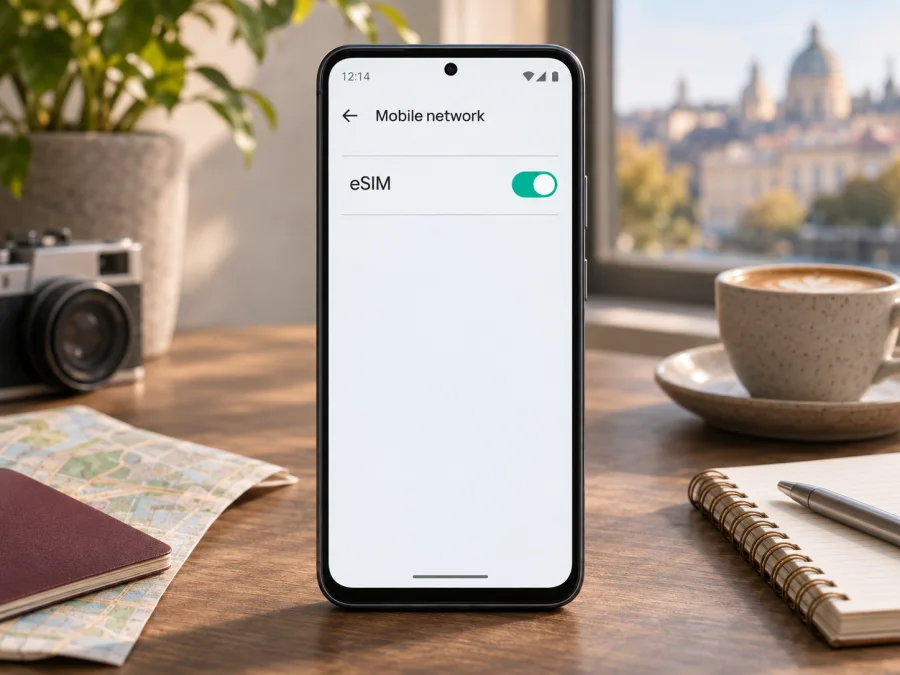
Google Pixel 5a eSIM: compatibility, setup, and travel data
Short answer: Google’s current hardware specifications list eSIM support for the Pixel 5a 5G. The documentation identifies both the US/FI model G1F8F and the Japan model G4S1M as eSIM-capable. The handset has one physical nano-SIM slot as well as eSIM. That is a strong model-level confirmation, but it does not guarantee that every carrier will activate eSIM on every individual phone. Before you choose a travel plan, check the phone itself for an EID, confirm that it is unlocked, and make sure the plan’s provider accepts your specific model and IMEI.
Google titles the device in its specification sheet as “Pixel 5a 5G,” while the task name is Google Pixel 5a. This article keeps the requested name intact and uses Google’s fuller name only when describing the official specification. The compatibility conclusion is for the Pixel 5a generation, not the Pixel 5, Pixel 4a (5G), or another phone that looks similar.
Does Google Pixel 5a support eSIM?
Yes, according to Google’s current Pixel hardware specification. The entry for Pixel 5a 5G lists both a single nano-SIM and eSIM. In the network section, Google names model G1F8F for the US/FI market and G4S1M for Japan, and marks eSIM for each. The same specification describes the device as a 2021 model. Google’s Pixel dual-SIM help also describes Pixel 3a and later phones as supporting one physical SIM and one eSIM, subject to carrier support. These official Google pages were checked on 4 November 2026.
Treat that as confirmation of the device family’s capability, not a promise about an unknown second-hand unit or a particular service. A phone’s country of sale, exact SKU, carrier configuration, software, and lock status can affect whether an eSIM can be added or activated. Google tells customers to confirm eSIM support with their mobile carrier; a provider may also need the IMEI or other device information to check eligibility. The operator serving the destination must separately support the plan and the device.
| Check | What the official or on-device information says | What it means for you |
|---|---|---|
| Device name | Google’s specification calls it Pixel 5a 5G (2021) | This guide is about the requested Google Pixel 5a, not other Pixel generations |
| SIM hardware | One nano-SIM and eSIM are listed | You can keep a physical SIM inserted while adding an eSIM, if the specific phone and carrier allow it |
| Identified variants | US/FI G1F8F and Japan G4S1M are listed with eSIM | Use the model code on your own device; do not infer compatibility from the country where it is currently used |
| EID | Google says an EID is required to use an eSIM | Look for an EID in Settings or on the original box before buying |
| Carrier and destination | Google notes that eSIM service depends on operator support | Verify the exact service and destination separately; hardware support alone does not establish local coverage |
The model-code list above is not a substitute for checking a particular unit. If a seller or carrier uses another regional code, ask them to confirm it against the device’s IMEI and the intended eSIM service. Do not assume a phone is compatible because an online listing says “Pixel 5a,” because it has 5G, or because the physical SIM works. eSIM uses a built-in digital SIM component; it is not enabled merely by inserting a different card.
Regional models and operator restrictions
Google’s specification lists model G1F8F for the US/FI market and G4S1M for Japan, marking eSIM for both. The Japan version also lists FeliCa. These are regional distinctions, not evidence that one of the listed variants lacks eSIM. If your phone has another code, ask the seller or provider to verify it against the actual device.
A used phone may remain carrier-locked or have a different carrier configuration. It can contain eSIM hardware and still be rejected for activation. Keep three checks separate: the phone has eSIM capability; the provider accepts that exact model and IMEI; and the chosen plan covers the destination and supported local networks. 5G capability alone does not guarantee that a particular plan will offer 5G.
Check your phone before buying a plan
Run the checks on the actual phone that will travel with you. If it is possible, use the Settings app rather than relying only on a box, listing, or seller’s description. Google documents the Pixel EID location under Settings → About phone → SIM status. Menu labels may vary slightly by Android version or language.
- Find the EID. Open Settings, tap About phone, then SIM status. Look for EID. Google also says the EID may appear on the device’s original packaging. An EID is a device identifier for its embedded SIM; it is not a phone number, plan, QR code, or password. Keep it private and share it only with a provider that needs it for activation.
- Look for the add-eSIM flow. Open Settings → Network & internet → SIMs and look for Add SIM or Set up an eSIM. On some software versions, the menu wording or route may differ. Do not erase an existing profile simply to see whether the menu is present.
- Check the model number. In Settings → About phone, look for the device model or regulatory information. Compare it with the seller’s paperwork or Google’s published hardware information. Google’s Pixel 5a 5G specification lists G1F8F for US/FI and G4S1M for Japan.
- Check the carrier lock. Ask the original carrier or seller whether the handset is unlocked for use with another provider. A phone can have an EID and still be locked to its original network.
- Ask the intended provider about this exact unit. Give the provider the model code and, if requested through its secure support channel, the relevant IMEI. Ask whether it accepts the Pixel 5a variant, whether any country or carrier restriction applies, and whether activation needs to happen before or after arrival.
- Review the plan conditions. Confirm the destination is included, whether data roaming must be enabled for the eSIM, when validity starts, how much data is included, and whether the service is data-only. Do not assume that a regional plan covers every stop on a multi-country route.
If you want a second check, check your device compatibility before selecting a travel eSIM. The result should be based on your exact handset and the current conditions of the plan you intend to use.
Quick compatibility checklist
- [ ] An EID appears in SIM status or on the phone’s original packaging.
- [ ] Settings offers Add SIM or Set up an eSIM.
- [ ] The model code is consistent with the phone being sold as a Pixel 5a 5G.
- [ ] The phone is unlocked, or the original carrier confirms that another eSIM can be used.
- [ ] The eSIM provider accepts the precise model and, where needed, the IMEI.
- [ ] The destination and local networks are covered by the chosen plan.
- [ ] You have reliable Wi-Fi for installation and understand when the plan becomes active.
- [ ] You have kept access to your usual number if you need it for calls, messages, or account verification.
If the EID is missing, the add-eSIM option does not appear, or the information conflicts, pause before purchase. Restart the phone, install any available system update, and check again. Then ask the seller, original carrier, or Google support to identify the device and its configuration. A factory reset is not a sensible first test: it removes personal data and may not change network eligibility. Back up the phone before any reset recommended by support.
How to install and activate an eSIM on Google Pixel 5a
Install while you have stable Wi-Fi, enough battery, and the activation details from your plan provider. Most plans provide a QR code or an in-app installation option; some require manual details. Keep the QR code available on another screen or printed copy if the phone cannot scan its own display. Follow the provider’s instructions, because activation steps and timing differ between plans.
- Confirm the plan and phone. Check that the provider accepts your Google Pixel 5a variant and that the device is unlocked. Read when the validity period starts and whether installation itself starts that period.
- Connect to Wi-Fi. Keep the phone online during profile download. Avoid starting the installation if the connection is unstable or if you may need the QR code but cannot access it again.
- Open the eSIM settings. On Pixel, go to Settings → Network & internet → SIMs → Add SIM → Set up an eSIM. If your Android version uses different labels, search Settings for “eSIM” or “SIM”.
- Follow the provider’s activation method. Select the relevant option to download or add a SIM. Scan the QR code supplied for your order, or use the provider’s app or manual activation details if those are the stated methods. Do not scan a QR code sent by an unrelated party.
- Wait for the profile to download. Keep the Settings screen open and do not remove the profile during installation. A download or network registration can take several minutes. If the phone says it cannot find the plan, check that the QR code has not already been used and contact the provider before repeatedly trying.
- Name the profile. Choose a clear label such as Travel data so it is easy to distinguish from your home SIM. The label is only for your convenience and does not change the plan.
- Choose the SIM for mobile data. In Settings → Network & internet → SIMs, select the new eSIM and set it as the mobile-data SIM when you are ready to use the plan. Keep your regular SIM selected for calls or texts if that matches your needs.
- Set data roaming as instructed. Some travel eSIMs require data roaming to be on for that eSIM to connect. Enable it only for the travel profile when the provider directs you to; check the home SIM’s roaming setting separately to avoid unexpected charges.
- Test the connection. Turn Wi-Fi off briefly, check that mobile data is enabled, and load a simple page or app. If you are still at home, the profile may not connect until it reaches the destination network. Do not delete it just because it cannot register before travel.
Google’s Pixel instructions show the add-eSIM route through Network & internet and SIMs. The labels may change with Android releases, and the operator can customize parts of activation. For broader platform guidance, see the Android eSIM installation instructions and the iOS installation instructions. The iOS page is for Apple devices and is included as the corresponding general guide; follow the Android steps on Google Pixel 5a.
Use the travel eSIM for mobile data
A travel eSIM can keep data available while your normal physical SIM remains installed. On Google Pixel 5a, select which SIM is used for mobile data in the SIM settings. A common arrangement is to keep the home SIM available for calls or account messages and route mobile data through the travel eSIM. Whether calls, SMS, tethering, or other services work depends on the plan; many travel data plans do not include a regular mobile number, voice minutes, or SMS. Check the specific plan terms rather than assuming those functions are included.
At the destination:
- Open Settings → Network & internet → SIMs.
- Tap the travel eSIM and make sure Use this SIM is on.
- Set it as the SIM for Mobile data.
- Turn on mobile data.
- Enable data roaming for that travel eSIM if the provider’s instructions require it.
- Allow the phone a few minutes to register on a supported network.
- Check the plan’s app or account page for usage and validity information, if provided.
The phone may show the network name of a local carrier. That is the visited network, not proof that the plan works with every carrier in the country. Coverage can vary by city, building, route, terrain, and network load. A listed destination or regional plan describes the plan’s stated service area; it is not a guarantee of reception in every location.
Travel examples
- One-country visit: choose a plan that names the destination and check its data allowance, validity, and activation trigger. If service is missing after landing, confirm that the travel profile is enabled and selected for data.
- Multi-country route: verify each country against the plan’s destination list. A regional label does not by itself guarantee service at every stop; allow time for the phone to register after a border crossing.
- Keep your usual number: leave the physical SIM installed for calls or texts if needed and route mobile data through the travel eSIM. Review home-carrier roaming charges, including incoming calls and voicemail.
- Install before departure: do this on Wi-Fi if the provider permits it. Check whether validity begins at installation or at first connection, and follow any instructions to leave the profile off until arrival.
Kaspersky eSIM Store is an app and website where travellers can review available destinations and plan conditions, choose and arrange an eSIM for mobile data abroad, and manage activation information. It is not the local mobile network. The service available in a destination, the network used, and local reception depend on the plan and its underlying network arrangements. To browse current destination options, visit the Kaspersky eSIM Store; this is a general storefront link, not a claim that a particular country plan is available or suitable for this phone.
Common problems and checks
There is no EID or eSIM option
Check About phone → SIM status and search Settings for “eSIM” or “Add SIM.” Restart, install any available update, and check again. Compare the model code with the device information and ask the seller, carrier, or Google support to confirm the exact configuration. Google lists eSIM for the documented Pixel 5a 5G models, but a missing EID on your own phone should be resolved before you buy. Do not use another phone’s EID.
The QR code will not scan or the profile will not download
Use stable Wi-Fi, brighten the screen showing the QR code, and make sure the full code is visible. If you already tried setup, the code may have been used or the profile may be partly installed. Ask the provider to check activation status before deleting anything or scanning repeatedly; some codes cannot be reused.
The profile is installed but there is no signal
In Settings → Network & internet → SIMs, ensure the travel profile is enabled and selected for mobile data. Confirm the destination is included, mobile data is on, and data roaming is enabled for that eSIM if the provider requires it. Wait for network registration, then restart once. Select a network manually only when the provider confirms which network is supported.
Signal appears but data does not work
Turn Wi-Fi off briefly to test cellular data. Check that the travel eSIM is the data SIM, the plan is still valid, and its allowance is not exhausted. Review Android’s data limit and the plan’s roaming instructions. Change VPN, private DNS, or data-saver settings only after checking SIM selection and plan status.
The phone is rejected or 5G is unavailable
An EID does not guarantee that a provider accepts the device. Ask it to check the exact model or IMEI, and ask the original carrier whether the phone is unlocked. 5G also depends on the local network, plan, supported bands, provisioning, and location; LTE can be expected in some places. If eSIM cannot be activated, consider an unlocked compatible spare phone as a hotspot or compare your home carrier’s roaming option and costs.
FAQ
Can Google Pixel 5a use a physical SIM and eSIM together?
Google lists one nano-SIM and eSIM for Pixel 5a 5G. Carrier and configuration rules still apply. You can select one SIM for mobile data and choose how calls or texts are handled where supported.
Can it use two eSIMs at once?
Do not assume so. Google’s current guidance names Pixel 7, Pixel 7 Pro, or later for two active eSIM profiles when the carrier allows it. For Pixel 5a, plan around one physical SIM plus one eSIM, subject to provider approval.
Is an EID enough to prove a travel plan will work?
No. It indicates eSIM capability, but does not confirm that the phone is unlocked, that a provider accepts it, or that the destination is covered. Check all three.
When should I install, and does eSIM replace my number?
Install before travel when the provider permits it, but check when validity begins. A travel data eSIM usually does not replace your regular number or include ordinary calls and SMS. Keep the physical SIM for your number and select the eSIM for data if that suits your needs; review roaming conditions on both plans.
Final checks before your trip
Google lists eSIM for Pixel 5a 5G models G1F8F (US/FI) and G4S1M (Japan), alongside a nano-SIM slot. Check your handset’s EID and setup menu, confirm it is unlocked, and have the provider verify the model or IMEI. Then check destination, network, activation timing, data allowance, validity, and roaming instructions.
Once those checks are complete, you can choose whether to use an eSIM for mobile data while keeping your usual number on the physical SIM. Kaspersky eSIM Store’s app and website let you review current destination options and plan terms and manage the eSIM setup for a trip. Browse the current Kaspersky eSIM Store options after you confirm that your Google Pixel 5a is compatible with the specific plan you intend to use.


